1. Okwu mmalite
Thank you for choosing the PatrolEyes PE-DV5-2 Body Camera. This device is designed for professional use, offering high-definition video recording, advanced night vision capabilities, and integrated GPS for reliable evidence collection. This manual will guide you through the setup, operation, and maintenance of your new body camera to ensure optimal performance and longevity.
2. Ihe ngwugwu
Biko chọpụta na ihe niile dị na ngwugwu gị:
- PatrolEyes PE-DV5-2 Body Camera
- Battery (Included Components)
- USB Nchaji/Data USB
- Mgbidi chaja
- Mpempe akwụkwọ nkwụnye
- Akwụkwọ ntuziaka (akwụkwọ a)
3. Akụkụ na Njikwa
Familiarize yourself with the various parts and controls of your PatrolEyes PE-DV5-2 body camera.

Foto 3.1: N'ihu view of the PatrolEyes PE-DV5-2 body camera, highlighting the central camera lens, surrounding infrared (IR) lights for night vision, and the PatrolEyes logo at the bottom. The device has a rugged, black casing.

Foto 3.2: Front-side perspective of the PatrolEyes PE-DV5-2 body camera, providing a clearer view of the camera lens and the array of control buttons located on the side panel, including the yellow button at the top.

Foto 3.3: Akụkụ view of the PatrolEyes PE-DV5-2 body camera, prominently featuring the red record button and the covered USB port for charging and data transfer.
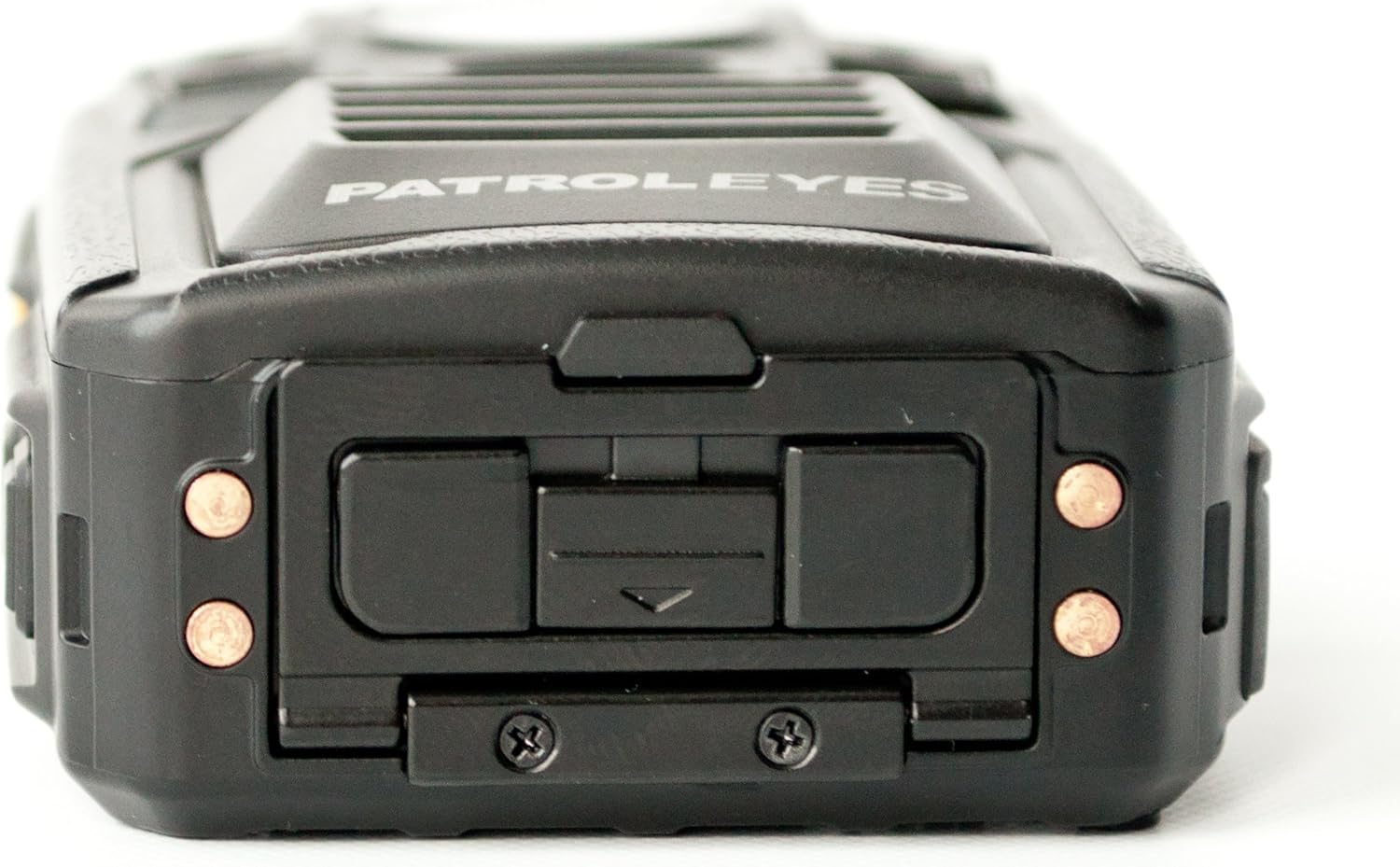
Foto 3.4: N'elu view of the PatrolEyes PE-DV5-2 body camera, displaying the GPS indicator light and other top-mounted features.

Foto 3.5: N'okpuru view of the PatrolEyes PE-DV5-2 body camera, revealing the charging contacts designed for use with a docking station.
4. Mmalite
4.1. Ịchaji batrị
Before first use, fully charge the camera's battery. The camera comes with a rechargeable battery.
- Connect the USB charging cable to the camera's USB port.
- Plug the other end of the USB cable into the wall charger and then into a power outlet.
- The charging indicator light will illuminate. It will change color or turn off once charging is complete.
Alternatively, use a compatible docking station (sold separately) for charging.
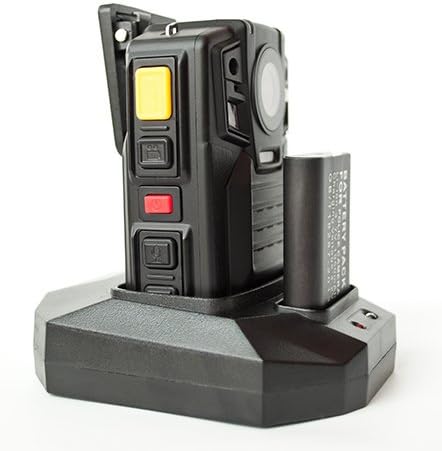
Foto 4.1: The PatrolEyes body camera securely placed in its docking station, which also features a dedicated slot for charging an additional battery pack.

Foto 4.2: N'azụ view of the PatrolEyes docking station, clearly showing the power input port and the USB data port for connecting to a computer.
4.2. Ịgbanye / gbanyụọ
- Iji gbanye: Press and hold the Power button for a few seconds until the device vibrates and the indicator lights turn on.
- Iji gbanyụọ: Press and hold the Power button until the device vibrates and the indicator lights turn off.
4.3. Attaching the Mounting Clip
Attach the provided mounting clip to the back of the camera. This allows you to securely fasten the camera to your uniform or gear.
5. Na-arụ ọrụ igwefoto
5.1. Na-edekọ vidiyo
The camera supports video capture resolutions of 1080p, 480p, and 720p.
- Gbaa mbọ hụ na agbanyere igwefoto.
- Pịa raara onwe ya nye Bọtịnụ ndekọ (often red) once to start video recording. The recording indicator light will flash.
- Pịa Bọtịnụ ndekọ again to stop recording. The indicator light will stop flashing.
5.2. Ise foto
The camera has an effective still resolution of 33 MP.
- While in standby mode or during video recording, press the Bọtịnụ foto once to capture a still image.
5.3. Night Vision (IR)
The camera features auto IR night vision with a range of 30 feet, utilizing infrared light sources.
- The camera is equipped with automatic infrared (IR) activation. In low-light conditions, the IR lights will automatically turn on to provide clear night vision footage.
5.4. Ọrụ GPS
The integrated GPS module automatically records location data with your video footage. Ensure the camera has a clear view of the sky for optimal GPS signal acquisition.
5.5. n'ụdị
Ị nwere ike review recorded videos and photos directly on the camera's screen.
- Enter Playback mode via the menu or a dedicated button (refer to on-screen prompts).
- Gaa na ya files using the directional buttons.
- Press the OK/Select button to play a video or view foto.
5.6. Ijikọ na Kọmputa
Ka ịnyefe files, connect the camera to a computer using the provided USB cable.
- Ike na igwefoto.
- Jiri eriri USB jikọọ igwefoto na kọmputa gị.
- The camera will appear as a removable disk drive on your computer.
- You can now access and transfer video and photo files.
6. Nlekọta na nlekọta
6.1. Nhicha
- Jiri nwayọ hichaa ahụ igwefoto, damp akwa . Ejila kemịkalụ siri ike ma ọ bụ ihe mkpocha abrasive.
- Maka oghere, jiri akwa nhicha oghere pụrụ iche na ngwọta iji zere ncha.
6.2. Nchekwa
- Debe igwefoto ahụ n'ebe dị jụụ ma kpọọ nkụ, ebe anwụ na-anaghị apụta kpọmkwem na oke okpomọkụ.
- Ensure the battery is partially charged (around 50%) if storing for extended periods to preserve battery life.
6.3. Nlekọta batrị
- Zere ịchaji batrị ugboro ugboro.
- Use only the original or approved charging accessories.
7. Nchọpụta nsogbu
| Nsogbu | Ihe nwere ike ime | Ngwọta |
|---|---|---|
| Igwefoto anaghị agba ọkụ. | Batrị dị ala ma ọ bụ enweghị chaji. | Chajie batrị zuru oke. |
| Enweghị ike ịdekọ vidiyo/se foto. | Storage full. | Nyefee files to a computer and delete them from the camera. |
| Poor video/image quality. | Dirty lens; low light conditions. | Clean the lens; ensure IR is active in low light. |
| GPS not acquiring signal. | gbochiri view of sky; indoor use. | Bugharịa na mpaghara èzí mepere emepe. |
| Kọmputa anaghị amata igwefoto. | Eriri USB adịghị mma; nsogbu nke onye ọkwọ ụgbọala. | Try a different USB port/cable; ensure camera is powered on. |
8. Nkọwapụta
| Njirimara | Nkọwa |
|---|---|
| Nọmba nlereanya | PE-DV5-2 |
| Mkpebi ịse vidiyo | 1080p, 480p, 720p |
| Mkpebi ka dị irè | 33 MP |
| Ọnụego Frame | 30fps |
| Oke ọhụụ abalị | 30 ụkwụ |
| Teknụzụ Njikọta | Ikuku (Wi-Fi) |
| Isi Iyi Ike | Akwanyere batrị |
| Ngwa gụnyere | Batrị |
| Ogo nchekwa mba ụwa | IP54 |
| Atụmatụ pụrụ iche | Ihe mmetụta mmegharị, ọhụụ abalị |
| Ojiji ime ime/n'èzí | Ime ụlọ, n'èzí |
| Onye nrụpụta | Anya patrol |
| Ụbọchị mbụ dị | Mee 14, 2017 |
9. Akwụkwọ ikike Ozi
PatrolEyes products typically come with a limited manufacturer's warranty. Please refer to the warranty card included with your purchase or visit the official PatrolEyes websaịtị maka usoro na ọnọdụ nkwa zuru ezu. Debe ihe akaebe ịzụrụ ihe gị maka nkwupụta nkwa.
10. Nkwado ndị ahịa
For technical assistance, troubleshooting beyond this manual, or inquiries about your PatrolEyes PE-DV5-2 body camera, please contact PatrolEyes customer support. Contact information can typically be found on the manufacturer's websaịtị ma ọ bụ na nkwakọ ngwaahịa.
Akụrụngwa dị n'ịntanetị: Visit the official PatrolEyes website for FAQs, software updates, and additional support materials.


