1. Okwu mmalite
Thank you for choosing the Logitech MK275 Wireless Keyboard and Mouse Set. This combo provides a reliable 2.4 GHz wireless connection, offering convenience and efficiency for your computing needs. The full-size keyboard features quiet, low-profile keys and dedicated multimedia controls, while the compact mouse ensures comfortable and precise navigation. This manual will guide you through the setup, operation, and maintenance of your new wireless set.

Image: The Logitech MK275 Wireless Keyboard and Mouse Set, showcasing both devices.
2. Ihe ngwugwu
Gbaa mbọ hụ na ihe niile dị na ngwugwu gị:
- Keyboard Ikuku Logitech MK275
- Logitech Ikuku Mouse
- Onye nnata USB Nano
- Akwụkwọ onye ọrụ
- AA and AAA Batteries (pre-installed or included)

Image: The USB Nano Receiver, typically found within the product packaging or a dedicated slot.
3. Ntuziaka Nhazi
3.1. Ntinye batrị
The keyboard requires two AAA batteries, and the mouse requires one AA battery. Batteries are typically included with the product. If not already installed, open the battery compartments on the underside of both the keyboard and mouse, insert the batteries according to the polarity indicators (+/-), and close the compartments. Remove any plastic pull tabs if present.
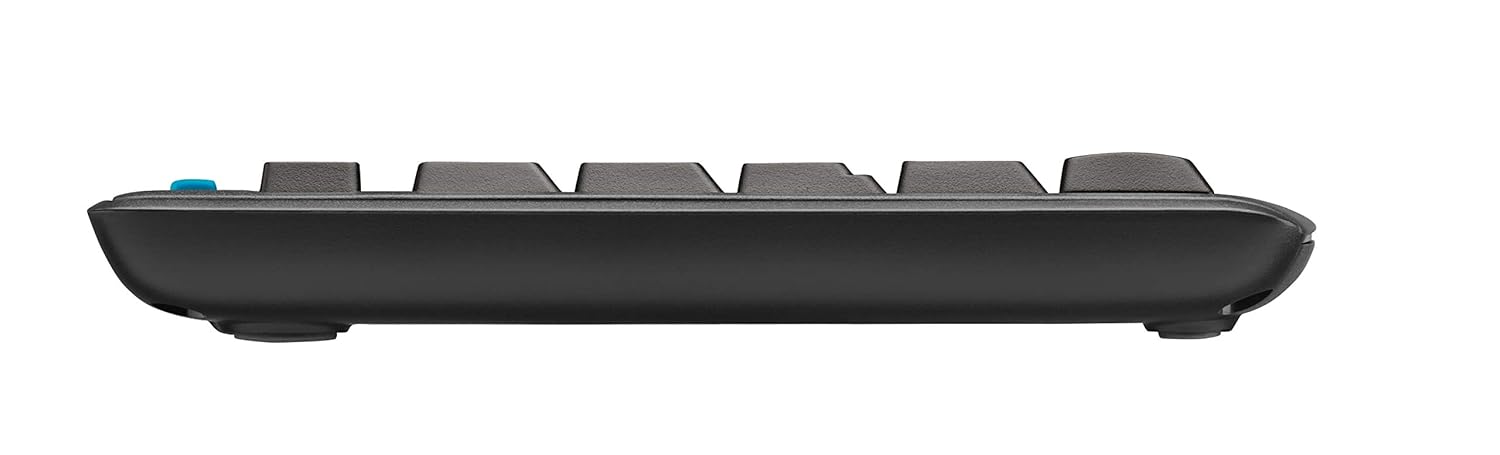
Foto: Akụkụ profile of the keyboard, showing its slim design and indicating the location of the battery compartment on the underside.
3.2. Ijikọ onye nnata
The Logitech MK275 uses a single USB Nano Receiver for both the keyboard and mouse. This allows you to use only one USB port on your computer.
- Locate the USB Nano Receiver. It is small and designed to be left in your computer.
- Plug the USB Nano Receiver into an available USB port on your desktop PC or laptop.
- Turn on the keyboard and mouse using their respective On/Off switches, usually located on the underside of each device.
- Your computer should automatically detect and install the necessary drivers. No software installation is typically required for Windows XP, Vista, Windows 7, and Windows 8.
4. Ntuziaka ọrụ
4.1. Isi ojiji
Once the USB Nano Receiver is connected and the devices are powered on, your keyboard and mouse are ready for immediate use. The 2.4 GHz wireless connection provides a strong and reliable signal, minimizing lag and interference.
4.2. Multimedia and Shortcut Keys
The Logitech MK275 keyboard features 8 convenient multimedia and shortcut keys located above the function keys (F1-F12). These keys provide quick access to frequently used functions:
- Ụlọ: Mepee ndabara gị web browser's home page.
- Email: Na-ebido onye ahịa email ndabara gị.
- PC Sleep: Puts your computer into sleep mode.
- Mechie: Mebie ma ọ bụ wepụ ụda olu.
- Olu ala: Na-ebelata olu ọdịyo.
- Olu elu: Na-abawanye olu ọdịyo.
- Gwuo/kwụsịtụ: Na -ejikwa ọkpụkpọ mgbasa ozi.
- Mgbako: Opens the calculator application.

Image: The Logitech MK275 keyboard, highlighting the dedicated multimedia and shortcut keys for quick access to common functions.
5. Nlekọta na nlekọta
To ensure the longevity and optimal performance of your Logitech MK275 set, follow these maintenance guidelines:
- Nhicha: Jiri akwa dị nro na-enweghị ntụpọ dampened with water or a mild cleaning solution to clean the surfaces of the keyboard and mouse. Avoid harsh chemicals or abrasive materials.
- Nguzogide Mwụfu: The keyboard is designed to be spill-resistant. In case of accidental spills, immediately turn off the keyboard, disconnect it, and allow it to dry completely before reuse. Do not immerse the keyboard in liquid.
- Ndụ batrị: The keyboard offers up to 24 months of battery life, and the mouse up to 12 months. Battery life may vary based on usage. Replace batteries when performance degrades.
- Nchekwa: When not in use for extended periods, turn off both the keyboard and mouse to conserve battery life. Store the USB Nano Receiver in the dedicated slot within the mouse (if available) or in a safe place to prevent loss.
- gburugburu: Zere ikpughe ngwaọrụ ndị ahụ na oke okpomọkụ, ìhè anyanwụ kpọmkwem, ma ọ bụ oke iru mmiri.
6. Nchọpụta nsogbu
If you encounter issues with your Logitech MK275 set, try the following solutions:
- Enweghị njikọ/nkwụsị:
- Ensure the USB Nano Receiver is securely plugged into a working USB port.
- Verify that both the keyboard and mouse are turned on.
- Replace the batteries in both devices. Low battery can cause connection issues.
- Move the keyboard and mouse closer to the receiver. The effective range is approximately 10 meters (33 feet).
- Try plugging the receiver into a different USB port or a different computer to rule out port issues.
- Avoid placing the receiver near other electrical devices that might cause interference (e.g., cordless phones, Wi-Fi routers).
- Igodo anaghị aza:
- Lelee ọkwa batrị.
- Gbaa mbọ hụ na agbanyere ahụigodo.
- If specific keys are not working, check for debris under the keycaps.
- Ihe nrụaka òké na-awụlikwa elu ma ọ bụ na-adịghị mma:
- Hichaa ihe mmetụta anya dị n'okpuru òké ahụ.
- Jiri òké ahụ mee ihe n'elu dị ọcha, nke na-anaghị egosipụta ìhè.
- Lelee ọkwa batrị.
7. Nka na ụzụ nkọwa
| Njirimara | Nkọwa |
|---|---|
| Nlereanya | MK275 |
| Njikọta | Igwe anaghị agagharị agagharị nke 2.4 GHz (USB Nano Receiver) |
| Ikuku iche | Ruo mita 10 (ụkwụ 33) |
| Ndụ batrị ahụ ahụigodo | Ruo ọnwa isii |
| Ndụ batrị òké | Ruo ọnwa isii |
| Ụdị Batrị ahụigodo | 2 x AAA (Alkaline) |
| Ụdị Batrị Òké | 1 x AA (Alkaline) |
| Sistemu eji arụ ọrụ dakọtara | Windows XP, Windows Vista, Windows 7, Windows 8, Windows 10, Windows 11 |
| Nha ahụigodo (LxWxH) | Ihe ruru. 50 x 15.6 x 4.4 cm |
| Ibu Ibu | Ihe ruru. 726 g |
| Agba | Nwa |
8. Akwụkwọ ikike na nkwado
Logitech products are manufactured to the highest quality standards. For detailed warranty information and technical support, please visit the official Logitech websaịtị:
Na website, you can find product registration, FAQs, driver downloads, and contact information for customer service.


