Okwu mmalite
This manual provides detailed instructions for the setup, operation, and maintenance of your Hyperkin Knight Premium Controller. Designed for use with PlayStation 3 (PS3), PC, and Mac systems, this controller offers a versatile gaming experience with its ergonomic design and responsive controls. Please read this manual thoroughly before using the product to ensure optimal performance and longevity.
Njirimara ngwaahịa
- Joysticks Analog abụọ: Two wide-spectrum analog joysticks for precise control.
- Pressure-Sensitive D-Pad: An eight-way directional pad with pressure sensitivity.
- Pressure-Sensitive Buttons: Four shoulder buttons and four face buttons with pressure sensitivity for nuanced input.
- Manye nzaghachi: Integrated force feedback for immersive gaming experiences.
- Bọtịnụ ụlọ: Dedicated button for system menu access.
- Ogologo eriri: A 6-foot (1.8 meter) cable for flexible positioning.
- Ndakọrịta ọtụtụ Platform: Compatible with all PS3 models, as well as PC and Mac via USB.
Ihe ngwugwu
- Hyperkin Knight Premium Controller (White)
- Integrated USB Cable (6 ft.)
Ntuziaka nhazi
Ijikọ na PlayStation 3 (PS3)
- Ensure your PS3 console is powered off or in standby mode.
- Locate an available USB port on your PS3 console.
- Plug the USB connector of the Hyperkin Knight Controller into the USB port on your PS3.
- Power on your PS3 console. The controller should be automatically recognized and assigned a player number.
- If the controller does not respond, try a different USB port or restart the console.
Jikọọ na PC / Mac
- Locate an available USB port on your PC or Mac computer.
- Plug the USB connector of the Hyperkin Knight Controller into the USB port.
- Your operating system (Windows, macOS) should automatically detect and install the necessary drivers. This process may take a few moments.
- Once installed, the controller will be ready for use with compatible games and applications. You may need to configure controller settings within individual games or system preferences.
- Mara: Functionality may vary depending on the operating system and specific game titles.
Ntuziaka ọrụ
The Hyperkin Knight Premium Controller features a standard layout for intuitive gameplay.
Nhazi njikwa

Foto: Top view of the Hyperkin Knight Premium Controller, showing the D-pad, analog sticks, face buttons, and central buttons.
- D-Pad (Ntuziaka Pad): Located on the left, used for directional input.
- Mkpanaka Analọg Aka ekpe: Below the D-Pad, for precise movement and camera control.
- Ogwe aka nri Analọg: On the right side, typically for camera control or aiming.
- Face Buttons (Triangle, Circle, Cross, Square): On the right, used for actions within games.
- Bọtịnụ ubu (L1, L2, R1, R2): Located on the top edge of the controller, used for various in-game functions.
- Bọtịnụ ahọpụtara: Typically used for menu access or specific game functions.
- Bọtịnụ mmalite: Typically used for pausing games or confirming selections.
- Bọtịnụ ụlọ: Central button to access the PS3 XMB (CrossMediaBar) or system menus on PC/Mac.
Manye nzaghachi
The controller features force feedback (rumble) functionality, which provides tactile sensations during gameplay, enhancing immersion. This feature is automatically enabled when supported by the game and system. If you wish to disable it, check your game's or system's controller settings.
Nlekọta
- Nhicha: Jiri akwa dị nro, kpọrọ nkụ hichaa njikwa. Maka unyi isi ike, ntakịrị dampen akwa na mmiri. Zere iji kemịkalụ siri ike ma ọ bụ ihe nchacha.
- Nchekwa: Store the controller in a cool, dry place away from direct sunlight and extreme temperatures. Avoid wrapping the cable too tightly to prevent damage.
- Nlekọta USB: Do not pull the controller by its cable. Always grasp the USB connector when plugging or unplugging.
Nchọpụta nsogbu
Onye njikwa anaghị aza
- Lelee njikọ: Ensure the USB cable is securely plugged into both the controller and the console/computer.
- Nwaa ọdụ ụgbọ USB dị iche: Connect the controller to another USB port on your system.
- Sistemụ Malitegharịa: Power cycle your PS3, PC, or Mac.
- Driver Check (PC/Mac): On PC, check Device Manager to see if the controller is recognized and if there are any driver issues. On Mac, check System Information > USB.
Incorrect Button Mapping or Limited Functionality
- Ntọala egwuregwu: Many games allow for custom controller mapping. Check the in-game settings for controller configuration.
- System Settings (PC/Mac): For PC, some games or emulators may require specific controller configurations or third-party software. For Mac, check System Preferences > Game Controllers (if available) or specific application settings.
- Ndakọrịta PS3: While compatible with all PS3 models, some older games or specific PS3 system software versions might have unique controller handling. Ensure your PS3 system software is up to date.
Force Feedback Not Working
- Nkwado egwuregwu: Verify that the game you are playing supports force feedback.
- In-Game Settings: Check the game's options menu to ensure force feedback (rumble) is enabled.
- Ntọala sistemụ: On PC, ensure rumble is enabled in your controller settings.
Nkọwapụta
| Nọmba nlereanya | M07213-WH |
| Ndakọrịta | PlayStation 3, PC, Mac (via USB) |
| Ogologo eriri USB | 6 ụkwụ (ihe dị ka mita 1.8) |
| Ụdị ntinye | Pressure-sensitive buttons and D-pad, dual analog joysticks |
| Nzaghachi | Force Feedback (Rumble) |
| Akụkụ | 2.99 x 7.99 x 7.01 sentimita (ihe dịka 7.6 x 20.3 x 17.8 cm) |
| Ibu | 12.5 ounces (ihe dị ka gram 354) |
| Onye nrụpụta | Hyperkin Inc |
Akwụkwọ ikike na nkwado
For warranty information and technical support, please refer to the official Hyperkin websaịtị ma ọ bụ kpọtụrụ ndị ahịa ha ozugbo. Debe nnata nzụta gị dị ka ihe akaebe nke ịzụrụ ihe maka akwụkwọ ikike ọ bụla.
Onye nrụpụta: Hyperkin Inc
Websaịtị: www.hyperkin.com (Biko gaa na onye ọrụ gọọmentị website for the most current support information.)
Ngwaahịa gafereview Onyonyo
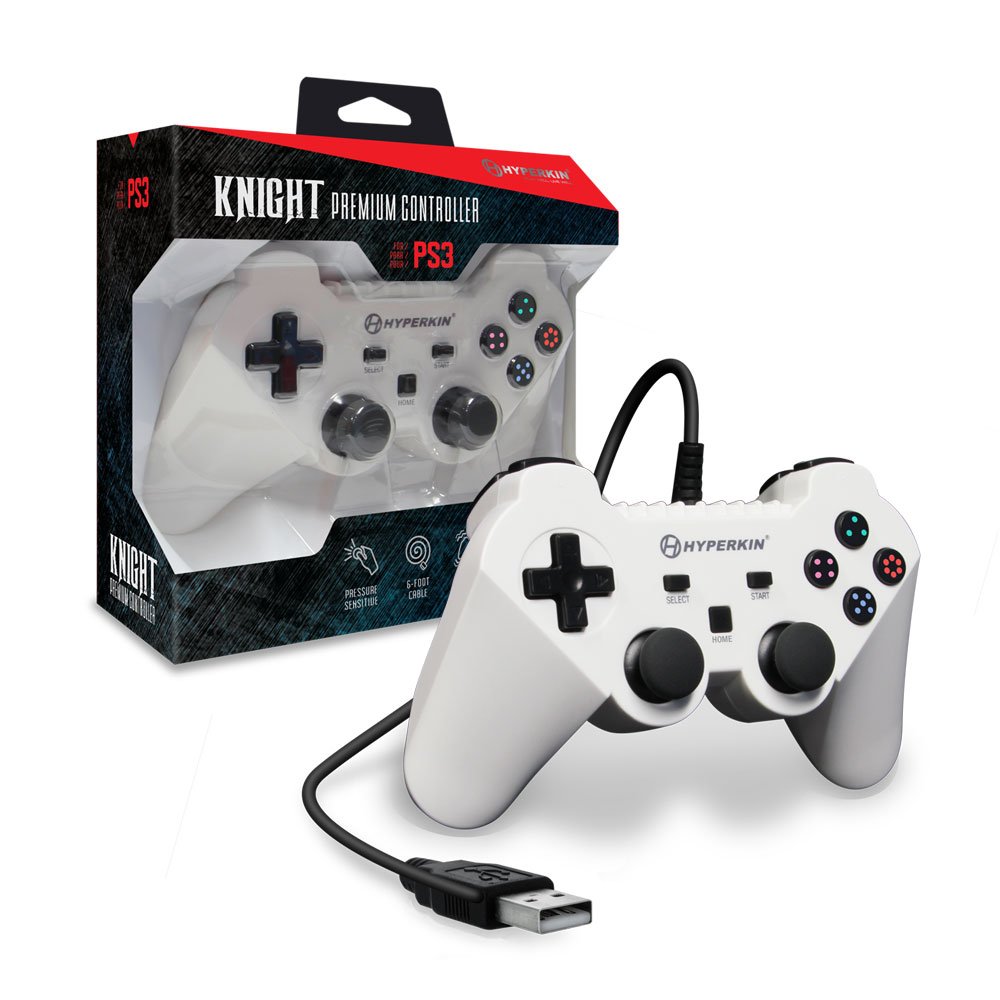
Image: The Hyperkin Knight Premium Controller displayed alongside its retail packaging, highlighting the product's design and branding.

Foto: A nso nso view of the Hyperkin Knight Premium Controller's retail box, showcasing isi atụmatụ na ihe imewe.

Oyiyi: Otu akụkụ view of the Hyperkin Knight Premium Controller, emphasizing its ergonomic shape and button placement.


