1. Okwu mmalite
The Discover D712 Dual Speaker Wired Office Headset is designed for professional use, offering clear audio for calling environments. This headset is compatible with a wide range of corded desk phones, including models from Avaya, Polycom, Cisco, Shoretel, Yealink, and Mitel. It features a comfortable over-ear design with faux leather ear cushions and a lightweight build, making it suitable for extended wear in office settings. This manual provides comprehensive instructions for setting up, operating, maintaining, and troubleshooting your D712 headset.
2. Kedu ihe dị na Igbe ahụ
Upon unboxing your Discover D712 headset, please verify that all components listed below are present:
- Discover D712 Dual Speaker Wired Office Headset
- Ear Cushions (pre-installed or separate)

Figure 2.1: The Discover D712 Dual Speaker Wired Office Headset, showing the headset itself and a diagram illustrating the quick disconnect feature.
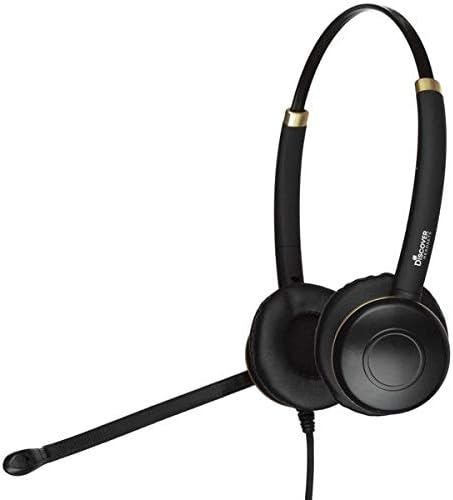
Ọgụgụ 2.2: Akụkụ view of the Discover D712 headset, highlighting its dual speakers and microphone boom.
3. Nhazi ntuziaka
The Discover D712 headset requires a compatible direct connect cable to function with your specific desk phone. This cable is sold separately and is essential for connectivity. Please ensure you have the correct cable for your phone model before proceeding.
3.1 Ijikọ ekweisi
- Identify the Quick Disconnect (QD) Cable: The D712 headset features a Quick Disconnect (QD) end, which allows you to easily detach the headset from the direct connect cable without disconnecting the cable from the phone.
- Connect the Direct Connect Cable: Plug the appropriate direct connect cable (sold separately) into the headset port on your desk phone. Refer to your phone's manual for the exact location of the headset port.
- Attach the Headset to the QD Cable: Align the Quick Disconnect end of your D712 headset with the Quick Disconnect end of the direct connect cable. Push them firmly together until you hear or feel a click, indicating a secure connection.
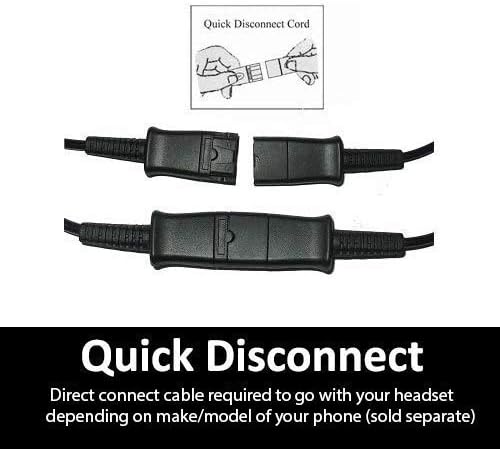
Ọgụgụ 3.1: A zuru ezu view of the Quick Disconnect (QD) cable connection, showing how the two parts snap together.

Figure 3.2: An individual wearing the Discover D712 headset, demonstrating its typical use in an office environment.
3.2 Nhazi maka Nkasi Obi
- Ndozi eriri isi: Extend or retract the headband to fit comfortably over your head. The headset should feel secure without being too tight.
- Ndokwa igwe okwu: Position the microphone boom approximately two fingers' width from the corner of your mouth. This ensures optimal voice pickup and clarity. The microphone boom is flexible and can be adjusted.
- Ear Cushion Placement: Ensure the ear cushions fully cover your ears for the best audio experience and comfort.
4. Na-arụ ọrụ ekweisi
Once connected, the Discover D712 headset is ready for use with your desk phone. The primary controls for calls (answer/end, volume, mute) are typically managed directly on your desk phone or via the inline controls on your direct connect cable (if equipped).
4.1 Ịkpọ na ịnata oku
- Ka ịkpọ oku: Lift the handset or press the headset button on your desk phone, then dial the desired number.
- Iji nweta oku: Press the headset button on your desk phone or lift the handset when the phone rings.
- Iji kwụsị oku: Press the headset button again or replace the handset.
4.2 Njikwa olu na Ogbi
Volume adjustments and muting the microphone are typically handled by the controls on your desk phone or the inline controls on your specific direct connect cable. Consult your direct connect cable's instructions or your phone's manual for details on these functions.

Figure 4.1: An individual using the Discover D712 headset, illustrating its comfortable fit and professional appearance during a call.
5. Nlekọta na nlekọta
Proper care and maintenance will extend the lifespan of your Discover D712 headset and ensure optimal performance.
5.1 Ntuziaka nhicha
- Nkwachi ntị: The faux leather ear cushions can be gently wiped with a soft, damp cloth. Avoid using harsh chemicals or abrasive cleaners. Ensure they are completely dry before use.
- Ahụ ekweisi: Wipe the headset body and microphone boom with a dry or slightly damp, soft cloth. Do not immerse the headset in water or any cleaning solutions.
- Ihuenyo igwe okwu: If your microphone has a foam windscreen, it can be carefully removed and cleaned with mild soap and water, then air-dried completely before reattaching.
5.2 Nchekwa
When not in use, store your headset in a clean, dry place, away from extreme temperatures and direct sunlight. Avoid tangling the cable to prevent damage.
6. Nchọpụta nsogbu
If you encounter issues with your Discover D712 headset, please refer to the following common problems and solutions:
| Nsogbu | Ihe nwere ike ime | Ngwọta |
|---|---|---|
| No sound from headset / Cannot hear caller |
|
|
| Microphone not working / Caller cannot hear me |
|
|
| Igwe ekweisi adịghị mma |
|
|
If the issue persists after trying these solutions, please contact Discover customer support for further assistance.
7. Nkọwapụta
Below are the technical specifications for the Discover D712 Dual Speaker Wired Office Headset:
| Njirimara | Nkọwa |
|---|---|
| Aha Nlereanya | D712 |
| Teknụzụ Njikọta | Ekwenyere |
| Jack ekweisi | 3.5 mm Jack (Note: Requires specific direct connect cable for desk phones) |
| Ngwa gụnyere | Headset, Ear Cushions |
| Ihe onwunwe | Faux Leather (Ear Cushions) |
| Ihe eji eme ihe maka ngwaahịa | Office/Professional Use |
| Eji akwadoro maka ngwaahịa | Ịkpọ oku |
| Ngwa dakọtara | Desk Phones (with compatible direct connect cable) |
| Ụdị njikwa | Touch Control (via compatible direct connect cable or phone) |
| Njirimara USB | Retractable (referring to the Quick Disconnect feature) |
| Ọkwa Nguzogide mmiri | Ọ bụghị mmiri na-eguzogide |
| Ụdị | Oge a |
| Ụdị ntị | Na Ntị |
| Njirimara Pụrụ Iche | Dị fechaa |
| Akụkụ ngwaahịa | 6 x 6 x 4 sentimita asatọ |
| Ibu Ibu | 6.9 ounces |
| Onye nrụpụta | Chọpụta |
| Agba | Nwa |
| Njikwa mkpọtụ | Mkpọchi Mkpọtụ Na-arụ Ọrụ (maka igwe okwu) |
8. Akwụkwọ ikike na nkwado
For warranty information, technical support, or further assistance with your Discover D712 headset, please contact Discover customer service or visit their official websaịtị.
- Nkwado n'ịntanetị: Gaa leta Discover Store on Amazon maka ozi ngwaahịa na akụrụngwa nkwado.
- Iwu nloghachi: This product typically has a 30-day return policy from the date of purchase. Please refer to the retailer's return policy for specific terms and conditions.


