1. Okwu mmalite
This manual provides detailed instructions for the setup, operation, and maintenance of your Wisi OR 397 A Irdeto HDTV Satellite Receiver. This receiver is designed for digital satellite television and radio reception, supporting both DVB-S2 (HDTV) and DVB-S standards. It features an integrated Irdeto card reader for ORF cards, HDMI output for high-definition viewing, and USB recording capabilities.
Ọdịnaya ngwugwu:
- Wisi OR 397 A HD Irdeto Satellite Receiver
- Infrared Remote Control (with batteries)
- Akwụkwọ ntuziaka onye ọrụ
Akụkụ ndị bụ isi:
- Integrated Irdeto card reader for ORF, ATV, Puls4, etc.
- Reception of DVB-S2 (HDTV) and DVB-S TV and radio programs
- USB Recording (PVR function) to external hard drive (requires ORF card for encrypted channels)
- Pre-programmed with Austrian channel list
- Powerful Electronic Program Guide (EPG) with multi-day preview
- USB Media Player for JPEG photos, MP3 music, and MP4 videos
- Energy-saving standby mode (0.5 W)
- Software updates via ASTRA satellite
- Parental control and Unicable function
2. Ngwaahịa gafereview
Ogwe ihu

Image 2.1: Front Panel Layout
This image displays the front panel of the Wisi OR 397 A receiver. It shows the power button, channel up/down buttons, a USB input port, and the smartcard slot.
- Gbanyụọ/ Gbanyụọ: Button to switch the device on or off.
- Channel Down: Button to switch to the previous channel.
- Channel Up: Button to switch to the next channel.
- Ntinye USB: Port for connecting USB devices, such as external hard drives for recording or USB sticks for media playback.
- Smartcard Slot: Insert for your ORF+ Smartcard. Ensure the smartcard is inserted with the chip facing downwards.
Ogwe azụ
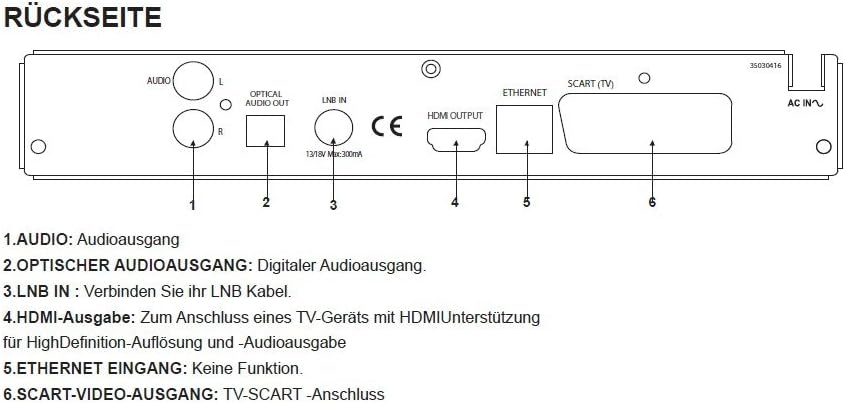
Image 2.2: Rear Panel Connections
This image illustrates the rear panel of the Wisi OR 397 A receiver, highlighting various input and output ports for audio, video, and satellite signal.
- AUDIO (L/R): Analog audio output ports (RCA) for connecting to an ampsistemu stereo ma ọ bụ lifier.
- OPTICAL AUDIO OUTPUT: Digital audio output (S/PDIF) for high-quality digital audio connection.
- LNB N'ime: Connect your LNB cable from the satellite dish to this input.
- Ihe mmepụta HDMI: Connects to an HDMI-enabled TV for high-definition video and audio output.
- ETHERNET INPUT: This port is present but has no active function for this model.
- SCART VIDEO OUTPUT: SCART connection for older televisions or video recorders.
3. Nhazi
3.1 Njikọ Mbụ
- Njikọ efere satịlaịtị: Connect the LNB cable from your satellite dish to the LNB n'ime port on the rear panel of the receiver.
- Njikọ TV:
- For High Definition (HD) viewing, connect an HDMI cable from the HDMI mmepụta port on the receiver to an HDMI input on your television.
- Alternatively, for standard definition (SD) viewing or older TVs, connect a SCART cable from the SCART VIDEO OUTPUT port on the receiver to the SCART input on your television.
- Audio System Connection (Optional):
- For digital audio, connect an optical cable from the Mpụta audio ngwa anya to your audio receiver or soundbar.
- For analog audio, connect RCA cables from the AUDIO (L/R) ports to your audio system.
- Smartcard Insertion: Carefully insert your ORF+ Smartcard into the Smartcard Slot on the front panel, ensuring the chip faces downwards.
- Njikọ ike: Connect the power cable to the receiver and then to a power outlet.
3.2 Ntọala Oge Mbụ
Upon powering on the receiver for the first time, it will guide you through an initial setup process. Follow the on-screen prompts to configure language, time zone, and perform a channel scan. The receiver comes pre-programmed with the current Austrian channel list, simplifying this process.
4. Ntuziaka ọrụ
4.1 Ọrụ ndị bụ isi
- Ike: Use the power button on the front panel or the remote control to turn the receiver on or off.
- Nhọrọ ọwa: Use the Channel Up/Down buttons on the front panel or the remote control to navigate through channels. You can also enter channel numbers directly using the remote.
- Njikwa olu: Gbanwee olu site na iji njikwa ime obodo.
- Ntugharị menu: Use the 'Menu' button on the remote to access settings and features. Navigate using arrow keys and confirm with 'OK'.
4.2 Ntuziaka mmemme eletrọnịkị (EPG)
The receiver features a powerful EPG that provides a multi-day program preview. Press the 'EPG' button on your remote control to access it. You can view program schedules, read program information, and set reminders or recordings directly from the EPG.
4.3 USB Recording (PVR)
To use the PVR function, connect an external USB hard drive to the Ntinye USB port on the front panel. Ensure the hard drive is formatted correctly (FAT32 or NTFS). You can schedule recordings via the EPG or initiate instant recordings while watching a program. Please note that USB recording of encrypted channels (e.g., ORF) is only possible with an inserted and active ORF smartcard. Program providers may impose additional restrictions on recording.
4.4 Mgbasa ozi Media
The integrated USB Media Player allows you to play various media files from a connected USB storage device. Connect a USB stick or hard drive to the Ntinye USB. Navigate to the Media Player section in the main menu to browse and play JPEG photos, MP3 music, and MP4 videos.
4.5 Njikwa Nne na Nna
The parental control function allows you to restrict access to certain channels or programs based on age ratings. Access this feature through the main menu settings and follow the instructions to set up a PIN and configure restrictions.
5. Nlekọta
5.1 Mmelite ngwanrọ
The Wisi OR 397 A receiver supports software updates via the ASTRA satellite. It is recommended to periodically check for and install available updates to ensure optimal performance and access to the latest features. Consult the system settings menu for options related to software updates.
5.2 Nhicha
To clean the receiver, use a soft, dry cloth. Do not use liquid or aerosol cleaners, as they may damage the device. Ensure the receiver is unplugged before cleaning.
6. Nchọpụta nsogbu
If you encounter issues with your Wisi OR 397 A receiver, please refer to the following common solutions before contacting support:
- Enweghị foto/ụda:
- Check all cable connections (HDMI, SCART, LNB, audio).
- Ensure the TV is set to the correct input source (HDMI 1, AV, etc.).
- Verify the receiver is powered on.
- Enweghị akara:
- Check the LNB cable connection.
- Ensure the satellite dish is correctly aligned.
- Perform a channel scan from the menu.
- Encrypted Channel Issues (e.g., ORF):
- Ensure your ORF smartcard is correctly inserted (chip facing down).
- Verify your smartcard subscription is active.
- Check for any service messages on screen.
- Njikwa anya anaghị arụ ọrụ:
- Replace the batteries (2x AAA).
- Hụ na enweghị ihe mgbochi ọ bụla n'etiti remote na receiver.
- Receiver Unresponsive:
- Perform a power cycle: unplug the receiver from the power outlet, wait 30 seconds, then plug it back in.
7. Nkọwapụta

Image 7.1: Technical Specifications and Remote Control
This image provides a comprehensive table of the Wisi OR 397 A's technical data, including dimensions, weight, and supported audio/video formats, alongside a visual of the remote control.
| Njirimara | Nkọwa |
|---|---|
| Ụdị | Wisi |
| Nọmba nlereanya | OR 397 A |
| Agba | Nwa |
| Reception Standards | DVB-S2 (HDTV), DVB-S |
| Onye na-agụ kaadị | Integrated Irdeto Secure Card Reader (for ORF, ATV, Puls4, etc.) |
| Mmepụta vidiyo | 1x HDMI 1.4, 1x SCART (TV), 1x Cinch-Video (RCA yellow) |
| Mmepụta ọdịyo | Analog (RCA L/R), Digital (Optical S/PDIF), Dolby Digital (AC3) |
| ọdụ ụgbọ mmiri USB | 1x USB 2.0 (compatible with USB 1.1/2.0, 5V DC, max. 500mA) |
| Ebe nchekwa | 5000 for TV and Radio channels |
| Oriri ike | 0.5 Watt in Standby mode |
| Voltage | 12 volts (DC) |
| Akụkụ (LxWxH) | 230 x 160 x 45 mm |
| Ibu | 0.7 n'arọ |
| Okpomọkụ na-arụ ọrụ | 0°C ruo +45°C |
| Okpomọkụ nchekwa | -10°C ruo +70°C |
8. Akwụkwọ ikike na nkwado
For warranty information, please refer to the documentation provided at the time of purchase or contact your retailer. For technical support or further assistance, please consult the official Wisi website or contact their customer service department. Keep your purchase receipt and product model number (OR 397 A) readily available when seeking support.


