1. Okwu mmalite
This user manual provides detailed instructions for the safe and efficient operation of your Xerox VersaLink B405/DN Monochrome Multifunction Printer. It covers initial setup, daily use, routine maintenance, and troubleshooting common issues. Please read this manual thoroughly before using the device to ensure optimal performance and longevity.

Foto 1.1: N'ihu view of the Xerox VersaLink B405/DN Multifunction Printer.
2. Ozi nchekwa
Observe the following safety precautions to prevent injury and damage to the printer:
- Jikọọ ngwa nbipute mgbe ọ bụla na oghere ọkụ n'ala.
- Akwụsịla oghere ikuku.
- Keep the printer away from water or excessive humidity.
- Use only specified power cords and accessories.
- Do not attempt to service the printer yourself; refer all servicing to qualified personnel.
3. Ihe ngwugwu
Chọpụta na ihe niile dị na ngwugwu:
- Xerox VersaLink B405 Multifunction Printer
- Standard Capacity Toner Cartridge (5900 capacity)
- Software na akwụkwọ CD
- Ntuziaka nwụnye
- Ntuziaka ngwa ngwa
- Ụdọ ọkụ
- eriri fax
4. Nhazi
4.1 Mwepu na ntinye
Carefully remove the printer from its packaging. Place the printer on a stable, level surface with adequate ventilation. Ensure sufficient space around the device for operation and maintenance.
4.2 Njikọ ike
Connect the provided power cord to the printer's power inlet and then to a grounded electrical outlet.
4.3 Njikọ netwọkụ
Connect an Ethernet cable from your network router or switch to the Ethernet port on the rear of the printer. This printer uses an Ethernet hardware interface for network connectivity.
4.4 Nwụnye ngwanrọ
Insert the software and documentation CD into your computer's CD-ROM drive. Follow the on-screen instructions to install the printer drivers and utility software. Alternatively, visit the official Xerox support websaịtị iji budata ndị ọkwọ ụgbọala kacha ọhụrụ.
4.5 Mpempe akwụkwọ
Open the paper tray located at the front of the printer. Adjust the paper guides to fit the size of your paper. Load the paper stack, ensuring it does not exceed the maximum fill line. The printer supports various print media including plain paper, envelopes, and labels, with a maximum media size of 8.5 x 14 inches.

Foto 4.1: N'ihu view showing the paper trays for loading media.
4.6 Ntinye Katrij Toner
If the toner cartridge is not pre-installed, open the front access panel of the printer. Carefully insert the standard capacity toner cartridge into its designated slot until it clicks into place. Close the access panel.
5. Ntuziaka ọrụ
The VersaLink B405/DN features an intuitive control panel for managing various functions.
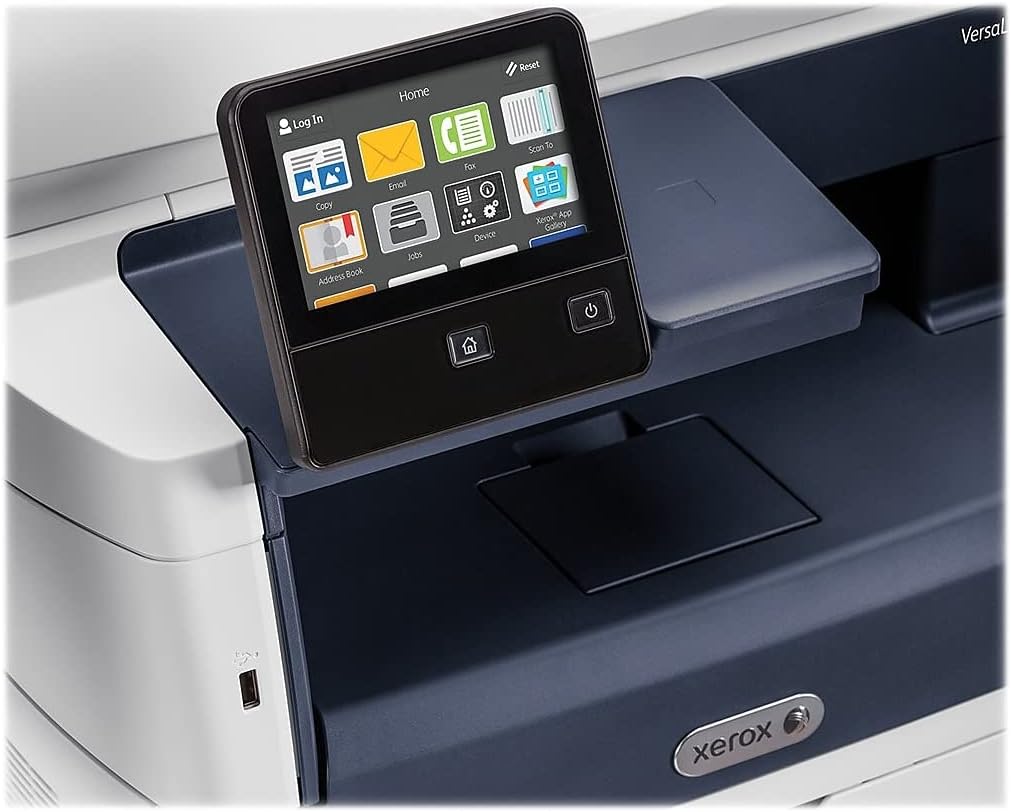
Figure 5.1: The touch-screen control panel for printer operation.
5.1 Mbipụta
To print a document from your computer, select the Xerox VersaLink B405/DN from your printer list. Adjust print settings such as paper size, orientation, and duplex printing (automatic dual-sided printing is supported) as needed. Confirm the print job.
5.2 Iṅomi
Place your document face-up in the Automatic Document Feeder (ADF) or face-down on the scanner glass. On the control panel, select the 'Copy' function. Adjust settings like number of copies, lightness/darkness, and two-sided copying. Press the 'Start' button to begin copying.

Figure 5.2: Paper loaded in the Automatic Document Feeder for copying or scanning multiple pages.
5.3 Nyochaa
Place your document in the ADF or on the scanner glass. On the control panel, select the 'Scan' function. Choose your desired scan destination (e.g., Scan to Email, Scan to Network, Scan to USB). Configure scan settings such as resolution and file format. Press 'Start' to initiate the scan.

Figure 5.3: The scanner lid open, showing the flatbed for scanning single pages or delicate documents.
5.4 Fax
Connect the provided fax cord to the printer's fax port and a telephone wall jack. Place your document in the ADF or on the scanner glass. On the control panel, select the 'Fax' function. Enter the recipient's fax number and press 'Start'.
6. Nlekọta
6.1 Toner Replacement
When the printer indicates low toner, order a replacement Xerox toner cartridge. Open the front access panel, remove the old cartridge by pulling it out, and insert the new cartridge until it locks into place. Close the panel.
6.2 Nhicha
Jiri nwayọ na-ehicha mpụta nke ngwa nbipute mgbe niile, damp cloth. For the scanner glass, use a lint-free cloth and a non-abrasive glass cleaner. Avoid spraying cleaner directly onto the glass.
6.3 Mkpochapụ akwụkwọ Jams
If a paper jam occurs, the control panel will display instructions. Open the indicated access covers and carefully remove any jammed paper, pulling in the direction of the paper path. Ensure all paper fragments are removed before closing the covers.
7. Nchọpụta nsogbu
Akụkụ a na-eleba anya n'okwu ndị a na-ahụkarị ị nwere ike izute:
- Ihe nbipute anaghị aza: Check power connections, network cable, and ensure the printer is online. Restart both the printer and your computer.
- Ọdịmma Mbipụta na-adịghị mma: Check toner levels. Perform a print quality diagnostic from the printer's control panel or software. Clean the print heads if necessary (refer to the printer's internal menu).
- Mpempe akwụkwọ: Follow the instructions on the control panel to locate and clear the jam. Ensure paper is loaded correctly and not creased or damaged.
- Okwu nyocha: Verify network connectivity. Ensure the scanner glass and ADF are clean. Check scan settings on the control panel.
For more complex issues, consult the full documentation on the provided CD or the Xerox support websaịtị.
8. Nkọwapụta
| Njirimara | Nkọwapụta |
|---|---|
| Akụkụ ngwaahịa | 19.5"D x 19.5"W x 21.7"H |
| Ibu Ibu | 48 pound |
| Ogo mgbasa ozi kacha | 8.5 x14 inch |
| Oke ntinye akwụkwọ ikike | Ibé akwụkwọ 2350 |
| Mkpebi mbipụta ojii na ọcha kacha | 1200 x 1200 dpi |
| Monochrome kacha bipụta ọsọ | 47 ppm |
| Oke oyiri ọsọ (oji na ọcha) | 6.2 seconds (first copy out) |
| Mbipụta nwere akụkụ abụọ | Akpaaka |
| Ngwaọrụ Akụrụngwa | Ethernet, USB |
| Ike Nchekwa ebe nchekwa | 2 GB |
| Ọnụọgụ nhazi | 2 |
| Ụdị Ink nke ngwa nbipute | Toner |
| Ụdị nyocha | Document (ADF and Flatbed) |
9. Akwụkwọ ikike na nkwado
The Xerox VersaLink B405/DN Monochrome Multifunction Printer comes with a standard one-year warranty. For warranty claims, technical support, or service inquiries, please contact Xerox customer support directly. Refer to the official Xerox website or the documentation included with your product for contact details and further support resources.