Okwu mmalite
The Manhattan USB-C to HDMI Graphic Adapter (Model 151788) provides a direct connection between a USB Type-C enabled source device and an HDMI display. This adapter allows you to transmit high-definition video and audio from your computer, tablet, or other compatible device to an HDMI monitor, projector, or television. It supports Ultra-High-Definition (UHD) resolutions, ensuring a clear and vibrant visual experience.
Ihe ngwugwu
- Manhattan USB-C to HDMI Graphic Adapter (Model 151788)
Please inspect the package contents to ensure all items are present and undamaged. If any items are missing or damaged, please contact your retailer or Manhattan customer support.
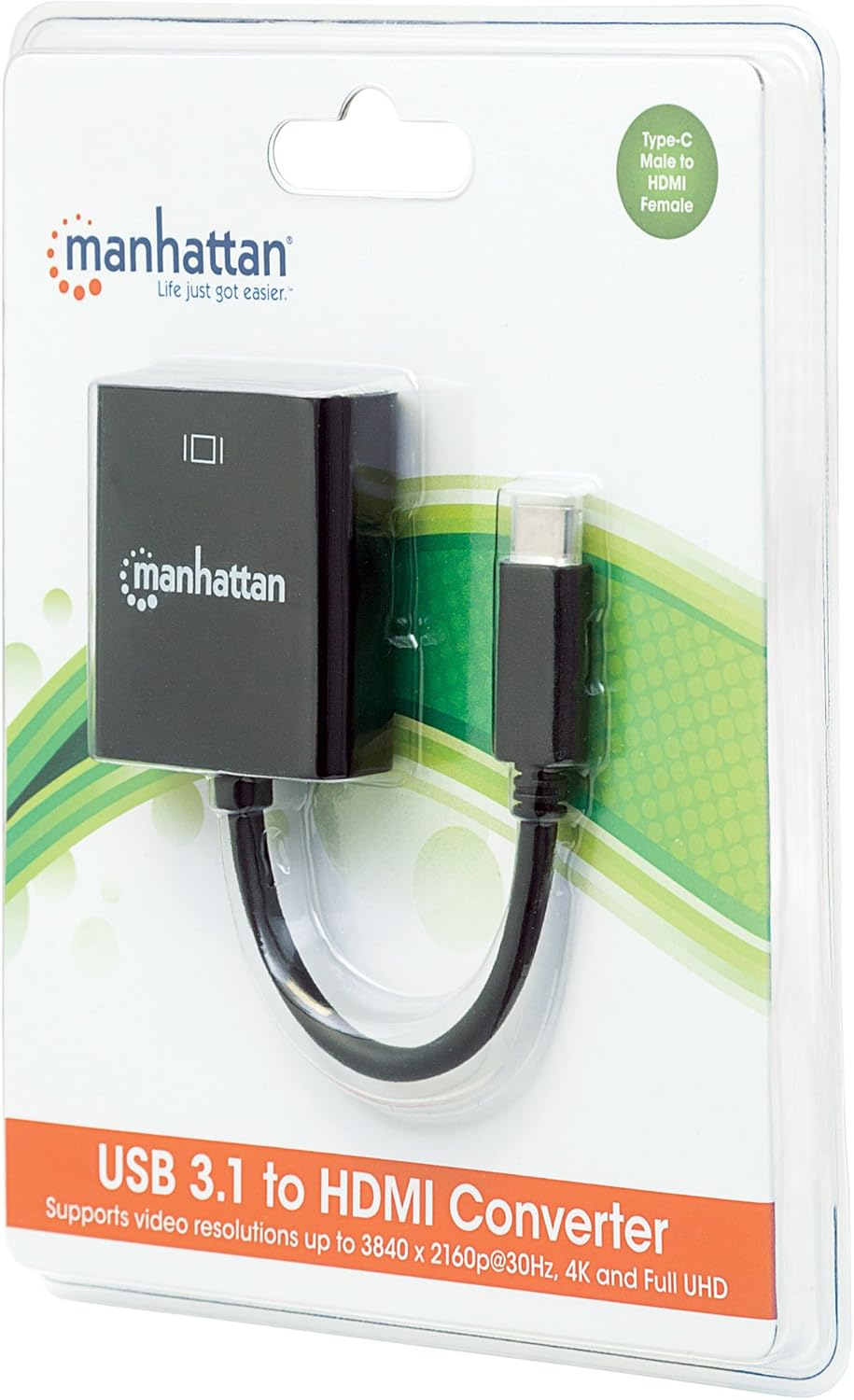
Image: The Manhattan USB-C to HDMI Graphic Adapter shown in its retail packaging, highlighting the product and its Type-C to HDMI female connection.
Ntuziaka nhazi
This adapter is designed for plug-and-play functionality, requiring no external power supply or driver installation for most operating systems.
- Jikọọ na Ngwaọrụ Isi Iyi: Insert the USB Type-C male connector of the adapter into an available USB Type-C port on your source device (e.g., laptop, tablet). Ensure the USB-C port on your device supports DisplayPort Alternate Mode (DP Alt Mode) for video output.
- Jikọọ na Ngosipụta: Connect one end of an HDMI cable (not included) to the HDMI female port on the Manhattan adapter. Connect the other end of the HDMI cable to the HDMI input port on your display device (e.g., monitor, projector, TV).
- Họrọ ntinye: On your display device, select the correct HDMI input source using the display's menu or remote control.
- Nyochaa ngosi: Your source device should automatically detect the connected display and extend or duplicate your desktop. If not, you may need to adjust display settings within your operating system.
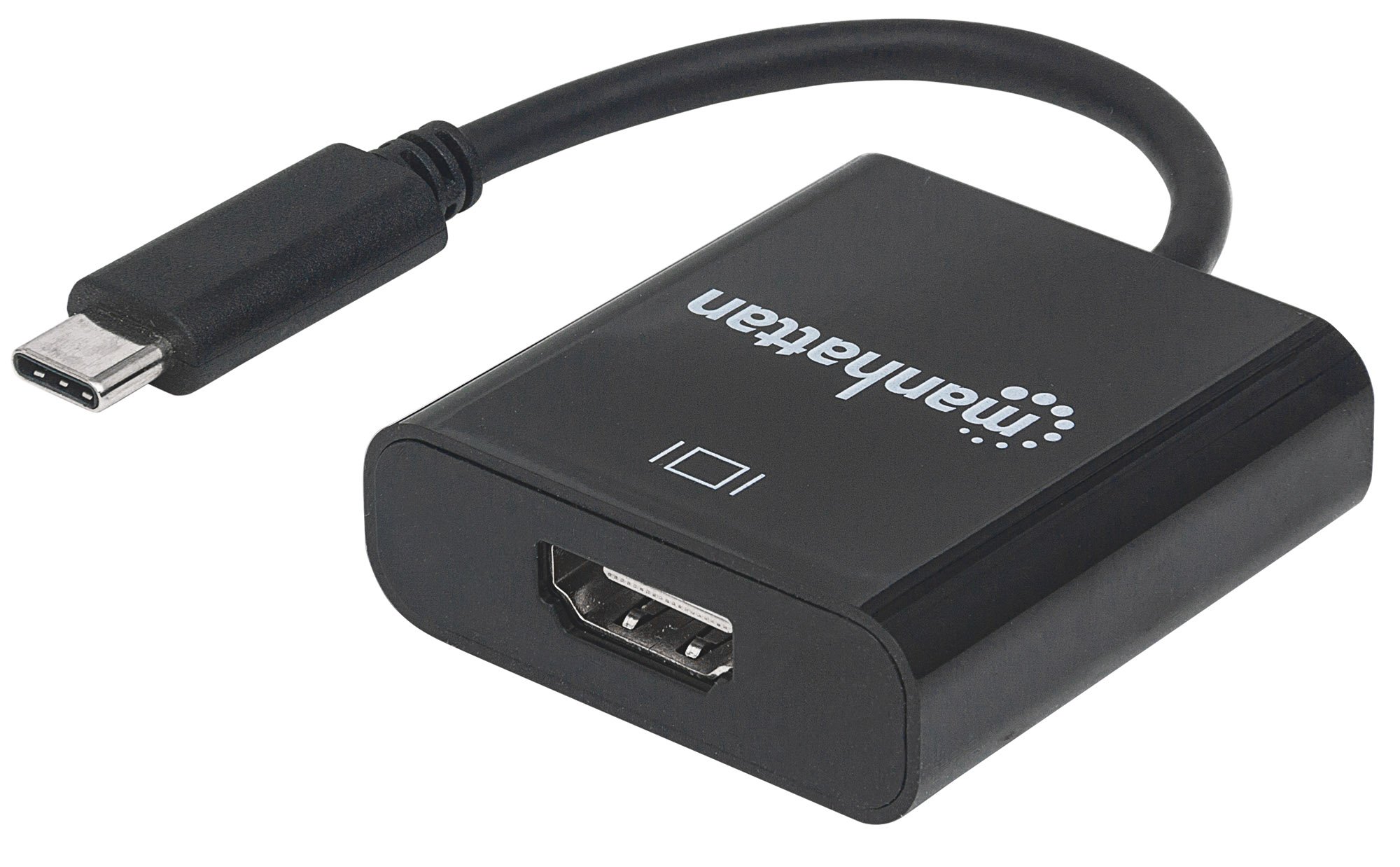
Foto: A nso nso view of the Manhattan USB-C to HDMI Graphic Adapter, showing the USB-C male connector and the HDMI female port on the adapter body.
Ntuziaka ọrụ
Once connected, the adapter functions as a direct video and audio pass-through. No specific operational steps are required beyond the initial connection and display configuration.
- Mpụta vidiyo: The adapter delivers Ultra-High-Definition (UHD) images, supporting resolutions up to 3840x2160p at 30Hz. Ensure your source device and HDMI cable are capable of supporting the desired resolution.
- Mmepụta ọdịyo: Audio is transmitted digitally through the HDMI connection to your display device. Adjust audio settings on your source device or display as needed.
- Ụdị ngosi: Your operating system will allow you to configure the display mode (e.g., Extend, Duplicate, Second Screen Only) for the connected HDMI display.

Foto: A n'elu-ala view of the Manhattan USB-C to HDMI Graphic Adapter, illustrating its compact design.
Nlekọta
The Manhattan USB-C to HDMI Graphic Adapter requires minimal maintenance to ensure optimal performance and longevity.
- Nhicha: Use a soft, dry cloth to gently wipe the adapter. Avoid using liquid cleaners, solvents, or abrasive materials, as these can damage the device.
- Nchekwa: Mgbe ejighị ya, chekwaa ihe nkwụnye ọkụ n'ebe dị jụụ, kpọrọ nkụ pụọ na ìhè anyanwụ kpọmkwem na oke okpomọkụ.
- Ijikwa: Avoid bending or twisting the cable excessively, and do not pull on the cable to disconnect the adapter. Always grasp the connector housing when plugging or unplugging.
Nchọpụta nsogbu
If you encounter issues with your Manhattan USB-C to HDMI Graphic Adapter, please refer to the following common solutions:
- Enweghị ngosi na nlekota:
- Ensure both the USB-C connector and the HDMI cable are securely plugged into their respective ports.
- Verify that your source device's USB-C port supports DisplayPort Alternate Mode (DP Alt Mode) for video output. Not all USB-C ports support this feature.
- Check that your display is set to the correct HDMI input source.
- Test with a different HDMI cable or display if possible to rule out faulty components.
- Malitegharịa ekwentị ngwaọrụ gị.
- Low Resolution or Incorrect Display:
- Adjust the display resolution settings within your operating system.
- Ensure your HDMI cable is rated for the desired resolution (e.g., High-Speed HDMI for 4K).
- Update the graphics drivers on your source device.
- Enweghị ọdịyo:
- Check the audio output settings on your source device to ensure HDMI audio is selected.
- Verify the volume levels on both your source device and the display.
Nkọwapụta
| Nọmba nlereanya | 151788 |
| Ụdị | MANHATTAN |
| Ụdị njikọ | USB Type-C Male to HDMI Female |
| Ụdị USB | USB, HDMI |
| Ngwa dakọtara | Laptop, Monitor, PC, Projector, Tablet (with USB-C DP Alt Mode) |
| Mkpebi Max | 3840x2160p @ 30Hz (UHD/4K) |
| nnabata | DisplayPort 1.2 Alternate Mode (DP Altmode) |
| Agba | Nwa |
| Ibu Ibu | 18 grams (0.635 ounces) |
| Akụkụ ngwaahịa | 6.3 x 0.79 x 5.51 inches (approximate, including cable) |
Ozi akwụkwọ ikike
The Manhattan USB-C to HDMI Graphic Adapter (Model 151788) is backed by a Akwụkwọ ikike ndụ. This warranty covers defects in materials and workmanship under normal use. For specific terms and conditions, please refer to the official Manhattan websaịtị ma ọ bụ kpọtụrụ nkwado ndị ahịa.
Nkwado
For technical assistance, troubleshooting, or warranty inquiries, please visit the official Manhattan website or contact their customer support department. Contact information can typically be found on the manufacturer's webngwugwu saịtị ma ọ bụ ngwaahịa.
Akụrụngwa dị n'ịntanetị: www.manhattanproducts.com