1. Okwu mmalite
This manual provides instructions for the proper setup, operation, maintenance, and troubleshooting of your Onn ONA11HO089 Soft-Touch USB Keyboard. Please read this manual thoroughly before using the product to ensure optimal performance and longevity.
The Onn ONA11HO089 is a full-sized, black USB keyboard designed for comfortable and efficient typing across various compatible devices.
2. Nhazi
Setting up your Onn ONA11HO089 keyboard is a simple plug-and-play process. No additional drivers are typically required for most operating systems.
- Mepee ahụigodo: Jiri nlezianya wepụ ahụigodo ahụ na nkwakọ ngwaahịa ya.
- Locate a USB Port: Identify an available USB-A port on your computer, laptop, gaming console, or tablet.
- Jikọọ eriri USB: Insert the USB connector of the keyboard cable into the chosen USB port.
- Nkwekọrịta sistemụ: Sistemu arụ ọrụ gị kwesịrị ịchọpụta na wụnye ndị ọkwọ ụgbọala dị mkpa maka ahụigodo. Usoro a nwere ike were obere oge.
- Test the Keyboard: Open a text editor or any application that accepts text input and type to confirm the keyboard is functioning correctly.
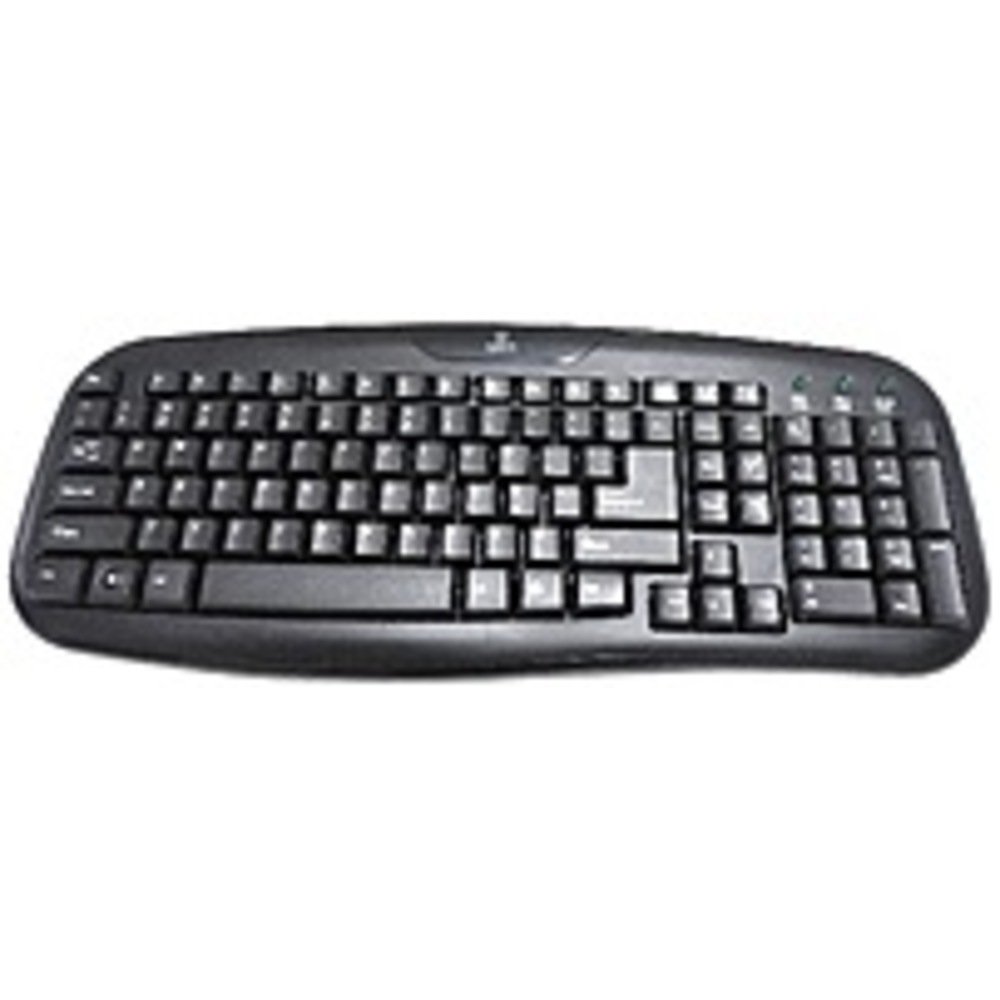
Figure 2.1: The Onn ONA11HO089 USB Keyboard. Connect the USB cable to an available port on your device.
3. Na-arụ ọrụ ahụigodo
The Onn ONA11HO089 keyboard offers a standard layout for intuitive typing. Its soft-touch keys are designed for comfortable and responsive input.
- Mpịnye isi: Use the alphanumeric keys for standard text input. The keyboard features a full QWERTY layout, including a numeric keypad for data entry.
- Igodo ọrụ: The F1-F12 keys provide various functions, often used in combination with the Fn key on laptops, though this keyboard is a standalone unit and these keys typically perform their standard functions directly.
- Igodo pụrụ iche: Utilize keys like Ctrl, Alt, Mgbanwe, na nke Windows/Command key for shortcuts and system commands.
- Soft-Touch Experience: The tactile switches provide a comfortable typing experience, reducing fatigue during extended use.
- ndakọrịta: This keyboard is compatible with various devices including PCs, laptops, gaming consoles, and tablets that support USB keyboard input.
Figure 3.1: The key layout of the Onn ONA11HO089 keyboard, showing the standard QWERTY arrangement and numeric keypad.
4. Nlekọta
Proper maintenance can extend the life of your keyboard and ensure consistent performance.
- Nhicha:
- Kwụpụ ahụigodo ahụ na ngwaọrụ gị tupu ị hichaa ya.
- Jiri akwa dị nro na-enweghị ntụpọ dampened with water or a mild cleaning solution to wipe the surface of the keys and casing.
- Maka uzuzu na irighiri ihe n'etiti igodo, jiri ikuku abịakọrọ.
- Zere iji kemịkalụ siri ike, ihe na-ehicha ihe, ma ọ bụ oke mmiri, n'ihi na ndị a nwere ike imebi ahụigodo.
- Keycap Wear: Over time and with heavy use, the lettering on the keycaps may show signs of wear. This is a common characteristic of printed keycaps. Gentle use and regular cleaning can help minimize this, but it is not indicative of a functional defect.
- Nchekwa: When not in use, store the keyboard in a clean, dry environment away from extreme temperatures and direct sunlight.
5. Nchọpụta nsogbu
If you encounter issues with your Onn ONA11HO089 keyboard, refer to the following common troubleshooting steps:
| Nsogbu | Ihe nwere ike ime | Ngwọta |
|---|---|---|
| Ahụigodo anaghị aza. |
|
|
| Certain keys are not working. |
|
|
| Ntinye ahụigodo na-egbu oge ma ọ bụ na-agbanweghi agbanwe. |
|
|
6. Nkọwapụta
Below are the technical specifications for the Onn ONA11HO089 Soft-Touch USB Keyboard:
- Ụdị: ONA11HO089
- Akara: Onn
- Teknụzụ Njikọta: USB
- Nkọwa ahụigodo: Ergonomic
- Ụdị mgbanwe: Atụ aka
- Agba: Nwa
- Isi mmalite ike: Kwadoro USB
- Ngwa dakọtara: Egwuregwu njikwa, Laptọọpụ, PC, Mbadamba
- Akụkụ ngwaahịa: 18 x 1.25 x 7 sentimita (ihe dịka 45.7 x 3.2 x 17.8 cm)
- Ibu ihe: 1.38 pound (ihe dị ka 0.63 n'arọ)
- Ụbọchị mbụ dị: Jenụwarị 5, 2017
7. Akwụkwọ ikike na nkwado
For warranty information regarding your Onn ONA11HO089 Soft-Touch USB Keyboard, please refer to the documentation included with your purchase or visit the official Onn websaịtị. Usoro na ọnọdụ akwụkwọ ikike nwere ike ịdị iche site na mpaghara na onye na-ere ahịa.
If you require technical support or have questions not covered in this manual, please contact Onn customer service through their official websaịtị ma ọ bụ ozi kọntaktị enyere na ngwaahịa gị.


