Okwu mmalite
This manual provides instructions for the proper setup, operation, and maintenance of your Targus W600 Wireless Optical Mouse. Please read this manual thoroughly before using the device to ensure optimal performance and longevity.
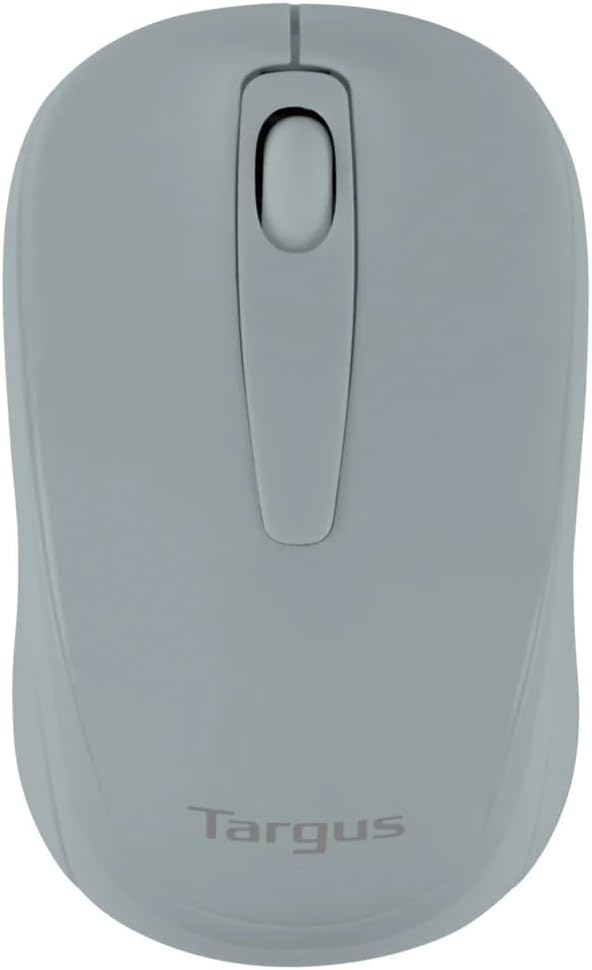
Figure 1: Targus W600 Wireless Optical Mouse (Quarry Gray)
Ihe ngwugwu
Gbaa mbọ hụ na ihe niile dị na ngwugwu:
- Targus W600 Wireless Optical Mouse
- USB nnata
- Akwụkwọ ntuziaka (akwụkwọ a)
Note: 1 AA battery is required and sold separately.
Njirimara ngwaahịa
- 2.4 GHz Wireless Technology for reliable connection
- 1600 DPI Optical Sensor for precise tracking
- Ergonomic imewe maka iji dị mma
- Dakọtara na Windows na Mac sistemụ
- Integrated USB receiver storage compartment
Melite
1. Ịwụnye batrị
- Turn the mouse over to locate the battery compartment cover.
- Gently slide the cover off.
- Fanye otu (1) batrị AA, na-eme ka polarity ziri ezi (+/-).
- Dochie mkpuchi oghere batrị.
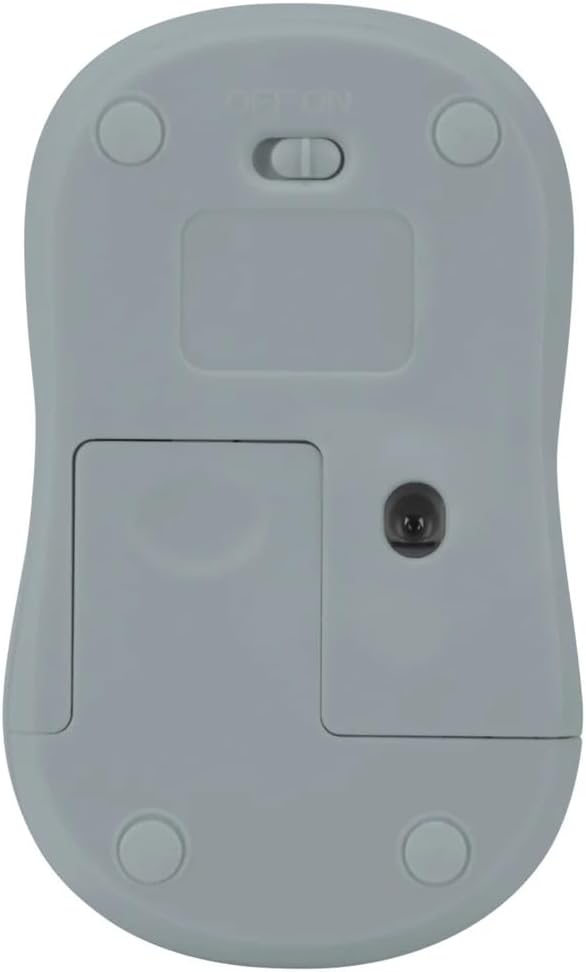
Onyonyo 2: N'okpuru view of the mouse with battery compartment and power switch.
2. Ijikọ eriri USB
- Locate the USB receiver, typically stored inside the mouse's battery compartment or a dedicated slot.
- Tinye eriri USB n'ọdụ ụgbọ mmiri dị na kọmputa gị.
- Kọmputa gị kwesịrị ịchọpụta na wụnye ndị ọkwọ ụgbọala dị mkpa na-akpaghị aka. Nke a nwere ike iwe obere oge.
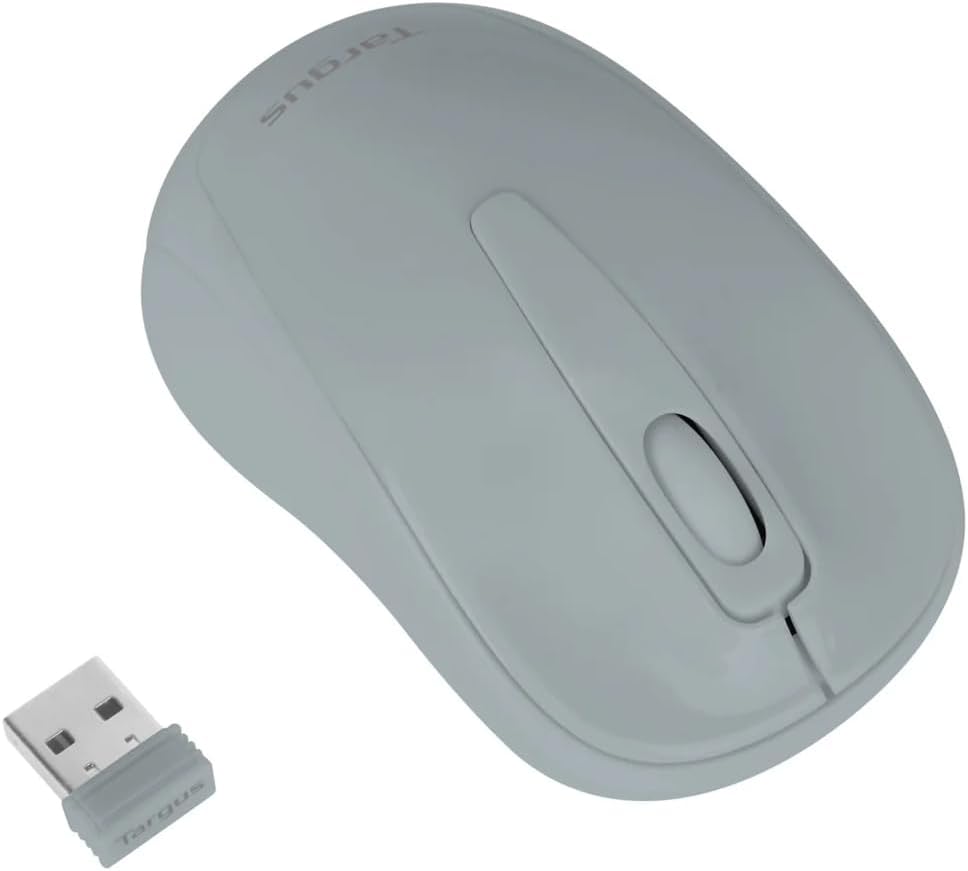
Figure 3: Targus W600 mouse and its USB receiver.

Figure 4: USB receiver plugged into a laptop, with the mouse nearby.
3. Ike na òké
On the bottom of the mouse, slide the ON/OFF switch to the "ON" position. The mouse is now ready for use.
Na-arụ ọrụ òké
The Targus W600 Wireless Optical Mouse functions like a standard 3-button mouse. It features a left button, a right button, and a scroll wheel that also acts as a middle button.
- Pịa aka ekpe: Primary action, selection, opening items.
- Pịa aka nri: Opens contextual menus.
- Mpempe akwụkwọ mpịakọta: Akwụkwọ mpịakọta na web pages vertically. Pressing the scroll wheel acts as a middle click, often used for opening links in new tabs or specific application functions.
The 1600 DPI optical sensor provides smooth and accurate cursor control on most surfaces. For best performance, use on a mouse pad or a non-reflective, uniform surface.
Nlekọta
Nhicha
Iji hichaa òké gị, jiri nwayọ hichaa elu ahụ na ihe dị nro, damp cloth. Avoid using harsh chemicals or abrasive cleaners, as these can damage the finish or internal components. Ensure no liquid enters the mouse.
Ngbanwe batrị
When the mouse performance degrades or stops responding, it may be time to replace the battery. Follow the steps outlined in the "Installing the Battery" section to replace the AA battery. Dispose of used batteries responsibly according to local regulations.
Nchọpụta nsogbu
| Nsogbu | Ngwọta |
|---|---|
| Òké anaghị aza |
|
| Ntugharị cursor na-adịghị agwụ agwụ |
|
| Ogologo ikuku dị mkpụmkpụ |
|
Nkọwapụta
| Nọmba nlereanya | AMW60006AP-55 |
| Njikọta | Ikuku 2.4GHz (USB nnata) |
| Ihe Nchịkwa Ihe Nchịkwa | Ngwa anya |
| DPI | 1600 DPI |
| Ọnụọgụ bọtịnụ | 3 (Left, Right, Scroll Wheel/Middle Click) |
| Isi Iyi Ike | Batrị 1 x AA (anaghị etinye ya) |
| Sistemu eji arụ ọrụ dakọtara | Windows, Mac |
Mara: Nkọwapụta ga-agbanwe na-enweghị ọkwa.
Akwụkwọ ikike na nkwado
For warranty information and technical support, please refer to the official Targus websaịtị ma ọ bụ kpọtụrụ ndị ahịa ha ọrụ. Debe nnata nzụta gị dị ka ihe akaebe nke ịzụrụ maka nkwupụta ikike.
Targus Official Websaịtị: www.targus.com