Ahụigodo Ikuku Logitech K270
Akwụkwọ ntuziaka onye ọrụ
Okwu mmalite
The Logitech K270 Wireless Keyboard offers a full-size traditional keyboard layout, including a numeric pad, designed for efficient and comfortable typing. It features eight hotkeys for instant access to frequently used applications and websites, enhancing productivity.
This keyboard utilizes a tiny Logitech Unifying receiver that plugs into your USB port, allowing connection of up to five additional compatible Logitech devices. The 2.4 GHz wireless technology ensures a reliable signal distance of up to 33 feet, depending on environmental conditions. Built for durability, the K270 features a spill-resistant design and UV-coated keys.
Ihe ngwugwu
- Ahụigodo Ikuku Logitech K270
- Onye nnata njikọta Logitech
- 2 AAA Batteries (pre-installed or included)
- Akwụkwọ onye ọrụ
Melite
- Fanye batrị: If not already installed, open the battery compartment on the underside of the keyboard and insert the two AAA batteries, ensuring correct polarity.
- Connect the Unifying Receiver: Plug the tiny Logitech Unifying receiver into an available USB port on your computer.
- Ike Na: Turn on the keyboard using the On/Off switch located on the top right side of the keyboard. The keyboard should automatically connect to the receiver.
- Install Logitech Unifying Software (Optional): For advanced customization and to connect additional compatible devices, download and install the Logitech Unifying Software from the official Logitech websaịtị.

Foto: N'elu-ala view of the Logitech K270 Wireless Keyboard, showing the full layout including the numeric pad and function keys.

Foto: Angle view of the Logitech K270 Wireless Keyboard, highlighting its slim profile and key arrangement.
Ntuziaka ọrụ
Iji ahụigodo ndabere
The Logitech K270 functions as a standard full-size keyboard. Simply begin typing after successful setup. The 2.4 GHz wireless connection provides a reliable and lag-free experience up to 33 feet (10 meters) from your computer, though actual range may vary based on environmental conditions and computer setup.
Hotkeys and Function Keys
The keyboard features eight dedicated hotkeys located above the function keys (F1-F12) for quick access to common functions:
- Gwuo/kwụsịtụ: Jikwaa ọkpụkpọ mgbasa ozi.
- Mechie: Mechie mmepụta ọdịyo.
- Olu ala: Wedata olu ọdịyo.
- Olu elu: Welie olu ọdịyo.
- Ụlọ: Mepee ndabara gị web browser's home page.
- Email: Open your default email client.
- PC Sleep: Put your computer into sleep mode.
- Mgbako: Open the calculator application.
Standard function keys (F1-F12) can be accessed directly or by holding the 'Fn' key, depending on your system's configuration and any Logitech software settings.
Onye nnata njikọta Logitech
The included Unifying receiver allows you to connect up to five additional compatible Logitech wireless devices (such as mice or other keyboards) to the same receiver, freeing up USB ports. Use the Logitech Unifying Software to manage and pair additional devices.
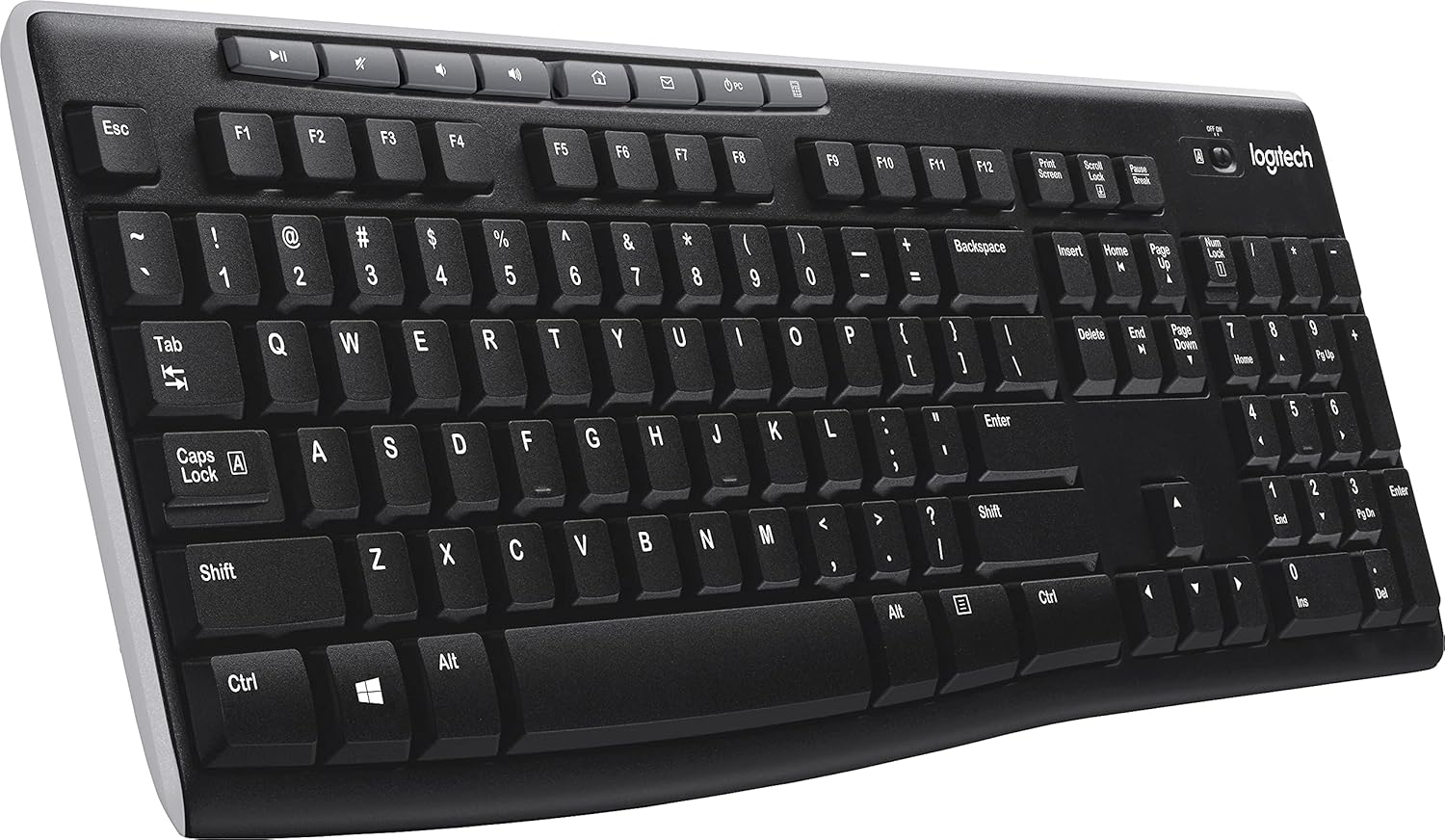
Foto: Angle view of the Logitech K270 Wireless Keyboard, showcasing the right side with the numeric keypad and hotkeys.
Nlekọta
The Logitech K270 keyboard is designed with durability in mind, featuring a spill-resistant design and UV-coated keys to prevent fading.
- Nhicha: Iji hichaa ahụigodo ahụ, jiri nwayọ hichaa elu ya na ihe dị nro, damp cloth. Avoid using harsh chemicals or abrasive cleaners. Ensure the keyboard is powered off before cleaning.
- Nguzogide Mwụfu: While spill-resistant, it is not waterproof. In case of a spill, immediately power off the keyboard, disconnect it from the computer, and allow it to dry completely before re-using. Do not submerge the keyboard in liquid.
- Ngbanwe batrị: Replace batteries when the low battery indicator light illuminates or when keyboard performance degrades. Use two AAA alkaline batteries.
Nchọpụta nsogbu
| Nsogbu | Ngwọta |
|---|---|
| Ahụigodo anaghị aza |
|
| Njikọ ma ọ bụ ogologo oge |
|
| Hotkey adịghị arụ ọrụ |
|
Nkọwapụta
| Ụdị | Logitech |
| Nọmba nlereanya | LOG920003051 |
| Teknụzụ Njikọta | Wireless (2.4 GHz, USB Unifying Receiver) |
| Nkọwa ahụigodo | Wireless, Full-size with Numeric Pad |
| Njirimara Pụrụ Iche | Spill Resistant, UV-Coated Keys |
| Agba | Nwa |
| Isi Iyi Ike | Akwanyere batrị (2 x AAA) |
| Ndakọrịta sistemụ arụmọrụ | Windows Vista, Windows XP, Mac OS X (and newer versions) |
| Ibu Ibu | 1.59 pound (ihe dị ka 0.72 n'arọ) |
| Akụkụ ngwaahịa (LxWxH) | 18.1 x 17.2 x 0.8 sentimita (ihe dịka 46 x 43.7 x 2 cm) |
Akwụkwọ ikike na nkwado
For detailed warranty information, technical support, and additional resources, please visit the official Logitech support websaịtị ahụ. Ị nwere ike ịchọta ndị ọkwọ ụgbọala, ajụjụ ndị a na-ajụkarị, na ozi kọntaktị maka ọrụ ndị ahịa ebe ahụ.
Nkwado Logitech Websaịtị: nkwado.logi.com
Please have your product model number (K270 or LOG920003051) and serial number ready when contacting support.


