1. Ngwaahịa gafereview
The VIZIO SB4551-D5 SmartCast 45" 5.1 Slim Sound Bar System delivers an immersive home audio experience. This system features a 45-inch soundbar, a wireless subwoofer, and two rear satellite speakers, providing true 5.1 channel surround sound with up to 104 dB of clear audio and less than 1% total harmonic distortion. The slim design of the subwoofer allows for flexible placement, such as beneath or beside your sofa. Control and customize your audio settings using the VIZIO SmartCast app on your mobile device.
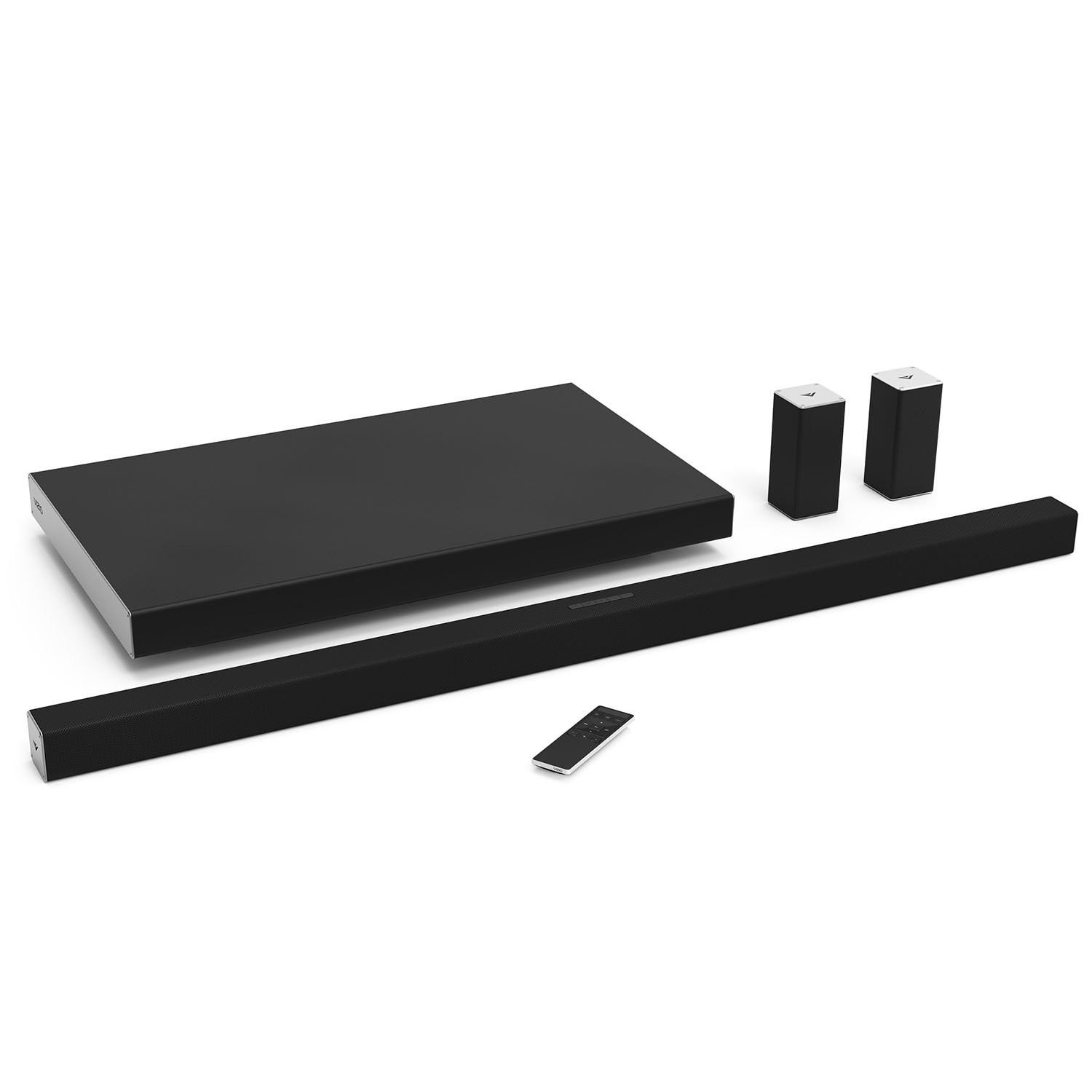
Image: VIZIO SB4551-D5 SmartCast 45" 5.1 Slim Sound Bar System, showcasing the soundbar and its sleek design.
2. Kedu ihe dị na Igbe ahụ
The VIZIO SB4551-D5 SmartCast 45" 5.1 Slim Sound Bar System includes the following components:
- Njikwa ime anya na Ngosipụta
- 5' RCA to 3.5mm Stereo Mini Jack Cable
- 5' RCA to RCA Cable
- 4'-5' Optical cable with Toslink ends
- 5' Digital 75ohm coaxial cable
- Eriri HDMI nke '5'
- 8 meter speaker wire with RCA termination (Blue)
- 8 meter speaker wire with RCA termination (Grey)
- Bolts (2pcs) for Satellites
- Bolts (2pcs) for Sound Bar
- 4pcs Velcro cable wrap
- Ihe nkwado mgbidi ugwu
- Wall Mount Stud / Bolt
- 5' Power Cord for Subwoofer
- 8' Power Cord for Sound Bar
- Ntuziaka mmalite ngwa ngwa (QSG)
- Accessory Kit Set

Image: The VIZIO SB4551-D5 soundbar, wireless subwoofer, and two satellite speakers included in the system.
3. Nhazi
3.1 Ntinye anụ ahụ
Position the soundbar centrally below your TV. The slim wireless subwoofer can be placed discreetly beneath or beside your sofa. The two satellite speakers connect to the subwoofer and should be positioned behind your listening area for optimal surround sound.

Image: Recommended placement of the VIZIO soundbar below a television.

Image: Close-up of the VIZIO satellite speakers, designed for rear placement in a surround sound setup.
3.2 Njikọ
Connect the soundbar to your TV using the included HDMI cable via the HDMI ARC or eARC port on your TV. This allows for audio return channel functionality, simplifying control. Alternatively, you can use the optical or coaxial digital audio cables provided. The satellite speakers connect directly to the wireless subwoofer using the included speaker wires. Ensure all power cords are securely plugged into the soundbar, subwoofer, and a power outlet.

Foto: N'azụ view of the VIZIO soundbar showing HDMI, USB, and power input ports.

Foto: N'azụ view of the VIZIO satellite speakers with RCA input for connection to the subwoofer.
3.3 Ntọala na Njikọ Ngwa
To set up and pair your mobile device with the VIZIO Sound Bar, follow these steps:
- Turn on your VIZIO soundbar and your mobile device.
- Download and open the VIZIO SmartCast app from Google Play or the Apple App Store.
- If it's your first time, tap 'Get Started'. If not, navigate to 'Setup a new Device' from the menu.
- Họrọ asụsụ ọkacha mmasị gị.
- If your mobile device supports Bluetooth LE or Bluetooth Smart, you can tap to pair by holding your device over the LED lights on the soundbar or the VIZIO logo on a speaker.
- If Bluetooth LE is not supported, the app will guide you to pair using Wi-Fi.
- Once connected, name your audio device and complete the registration and setup prompts in the app.
Video: Official VIZIO guide on how to set up and pair your mobile devices with VIZIO SoundBar and Speakers.
4. Ntuziaka ọrụ
4.1 Njikwa ntọala
The soundbar can be controlled using the included remote control with a display, or via the VIZIO SmartCast app on your smartphone or tablet. Basic functions include power on/off, volume adjustment, and input selection.
4.2 SmartCast App Features
The VIZIO SmartCast app transforms your mobile device into a powerful touchscreen remote, offering advanced audio customization:
- EQ Selection: Choose from preset equalizer settings like Movie, Music, or Direct for optimized audio.
- Ọkwa: Adjust individual levels for Bass, Treble, Center Channel, Subwoofer, and Surround speakers.
- Surround Balance: Fine-tune the balance between left and right surround channels.
- Kpochapụ mkparịta ụka: Enhance vocal clarity for improved understanding of speech in movies and TV shows.
4.3 Multi-Room Capability
The VIZIO SmartCast system supports multi-room audio, allowing you to play the same music across multiple VIZIO SmartCast soundbars or speakers in different rooms. To set up multi-room audio:
- Ensure all VIZIO audio products are connected to the same Wi-Fi network via the SmartCast app.
- Download the Google Home App to your mobile device.
- Open the Google Home App and tap the 'Devices' icon.
- Tap the three dots on any audio device you wish to include in a group, then select 'Create group'.
- Select all desired devices for the group and give it a name.
- Once the group is saved, open your Chromecast-enabled audio app, tap the 'Cast' button, and choose your created multi-room group.
Video: Official VIZIO guide on how to set up multi-room capability on VIZIO SmartCast speakers and sound bars.
4.4 Casting to Sound Bar
With Google Cast built-in, you can cast your favorite tunes from 100+ audio apps directly to your soundbar. Simply tap the Cast button within the audio app to start playing on your VIZIO soundbar.
Video: Official VIZIO guide on how to cast to your VIZIO Sound Bar.
5. Nkọwapụta
| Njirimara | Nkọwapụta |
|---|---|
| Aha Nlereanya | SB4551-D5 |
| Akụkụ ngwaahịa | 2.1"D x 45"W x 2.1"H |
| Ibu Ibu | 3.6 pound |
| Ihe onwunwe | Plastic |
| Agba | Nwa |
| Ụdị Ọkà Okwu | Subwoofer |
| Nhazi ọwa ụda gburugburu | 5.1 |
| Ike Nwepu kacha elu | 150 Watt |
| Dayameta nke subwoofer | 8 sentimita asatọ |
| Teknụzụ nzikọrịta ozi ikuku | Wi-Fi |
| Oke Bluetooth | 10 mita |
| Usoro njikwa | Ngwa |
| Isi Iyi Ike | Igwe ọkụ eletrik |
| Batrị achọrọ | Batrị 2 AA (maka ime ime) |
6. Nchọpụta nsogbu
If you encounter issues with your VIZIO SB4551-D5 Sound Bar System, consider the following general troubleshooting steps:
- Enweghị ike: Ensure all power cords are securely connected to the soundbar, subwoofer, and a working power outlet.
- Enweghị ụda: Verify that the correct input source is selected on the soundbar and your TV. Check all audio cables for secure connections. Ensure the volume is not muted on either the soundbar or the TV.
- Ụda agbagọ: Check audio cable connections. Try adjusting EQ settings in the SmartCast app. Ensure the soundbar is not placed too close to other electronic devices that might cause interference.
- Okwu njikọta Bluetooth: Ensure Bluetooth is enabled on your mobile device and the soundbar is in pairing mode. Try restarting both devices.
- Okwu njikọ Wi-Fi: Verify your Wi-Fi network is active and the password is correct. Try restarting your router and the soundbar.
7. Nlekọta
To ensure the longevity and optimal performance of your VIZIO SB4551-D5 Sound Bar System, follow these maintenance guidelines:
- Nhicha: Use a soft, dry, lint-free cloth to clean the surfaces of the soundbar, subwoofer, and satellite speakers. Avoid using harsh chemicals, cleaning solvents, or abrasive cloths, as these can damage the finish.
- Igwe ikuku: Ensure adequate ventilation around all components to prevent overheating. Do not block any ventilation openings.
- gburugburu: Debe usoro ahụ pụọ na ìhè anyanwụ kpọmkwem, ebe okpomọkụ, na mmiri. Zere itinye ya na mpaghara nwere oke uzuzu ma ọ bụ ịma jijiji.
8. Akwụkwọ ikike na nkwado
The VIZIO SB4551-D5 SmartCast 45" 5.1 Slim Sound Bar System comes with a limited warranty. Please refer to the included Quick Start Guide or visit the official VIZIO website for detailed warranty information and terms. For technical support, product registration, or service inquiries, please visit www.vizio.com.


