1. Okwu mmalite
This manual provides essential information for setting up, operating, and maintaining your VIZIO SB4051-D5 Smartcast 40" 5.1 Slim Sound Bar System. This system is designed to deliver immersive 5.1 true surround sound with a wireless subwoofer and rear satellite speakers, enhancing your audio experience for movies, music, and gaming.
2. Kedu ihe dị na Igbe ahụ
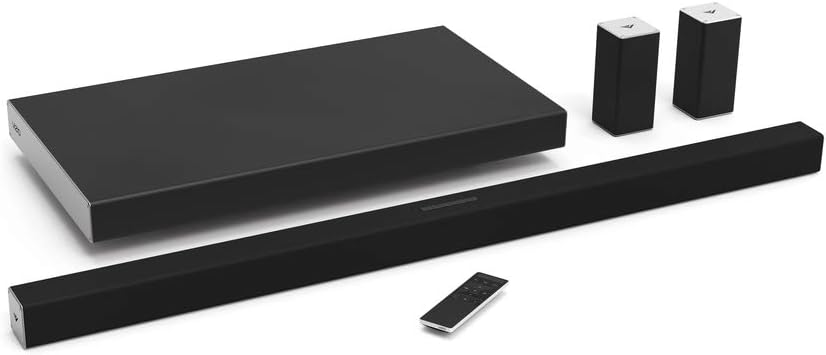
Chọpụta na akụrụngwa niile dị na nkwakọ ngwaahịa:
- Barda ụda
- Subwoofer Ikuku Slim
- Rear Satellite Speakers (x2)
- Igwe ihe ngosi LCD
- Eriri ọdịyo stereo nke sitrịọ 5' ruo 3.5mm
- 5’ 3.5mm Stereo Mini Jack
- Eriri Kọaksịal Dijitalụ nke '5' (RCA)
- Eriri anya nke '5' (Toslink)
- 5' HDMI Cable
- 2 x 26’ Satellite Cables
- 8’ AC power cable sound bar
- 8’ AC power cable subwoofer
- Mgbati
- 4 pcs. Velcro Cable Wrap
- Ntuziaka mmalite ngwa ngwa
3. Nhazi
3.1. Ntinye
Position the sound bar centrally below your television. The wireless slim subwoofer can be placed discreetly beneath or beside your sofa, or standing upright to save floor space. The two rear satellite speakers should be positioned behind your primary listening area for optimal surround sound. They can be placed on a table, mounted on a wall using the included brackets, or on third-party speaker stands (sold separately).

3.2. Njikọ
- Sound Bar to TV: Connect the sound bar to your TV using the provided HDMI cable. Ensure you use the HDMI ARC (Audio Return Channel) or eARC port on your TV for the best audio experience. If your TV does not have an ARC/eARC port, use the provided Optical cable.
- Satellite Speakers to Subwoofer: Connect one end of each 26’ satellite cable to the corresponding rear satellite speaker. Connect the other end of each satellite cable to the L (Left) and R (Right) ports on the back of the wireless subwoofer.
- Ike: Plug the 8’ AC power cable for the sound bar into the sound bar and a power outlet. Plug the 8’ AC power cable for the subwoofer into the subwoofer and a power outlet. Turn on the power switch on the subwoofer. The wireless subwoofer is pre-paired with the sound bar.

3.3. Ike izizi
After all connections are made, power on the sound bar using the power button on the unit or the remote control. The sound bar will automatically detect the input source. If not, manually select the input using the 'Input' button on the sound bar or remote.
3.4. VIZIO SmartCast ngwa Mbido
Download the VIZIO SmartCast app from your mobile device's app store. Ensure your mobile device and the sound bar are connected to the same Wi-Fi network. Follow the in-app instructions to pair your sound bar and access advanced settings and controls.

3.5. Setup Videos
How to setup your VIZIO Sound Bar
Video Description: This video provides a step-by-step guide on how to set up your VIZIO Sound Bar system, covering physical connections and initial power-on procedures.
VIZIO SmartCast 5.1 Sound Bar System unboxing video
Video Description: An unboxing video for the VIZIO SmartCast 5.1 Sound Bar System, showing all included components and how they are packaged.
4. Ọrụ
4.1. Sound Bar Controls
The sound bar features integrated controls on its top surface for basic functions:
- Bọtịnụ ike: Na-agbanye ma ọ bụ gbanyụọ ụda ụda.
- Bọtịnụ ntinye: Cycles through available audio input sources (e.g., HDMI, Optical, Bluetooth).
- Bọtịnụ Bluetooth: Na-ebute ọnọdụ njikọta Bluetooth.
- Elu elu/ala: Na-edozi ọkwa olu nna ukwu.

4.2. Remote Control
The included LCD Display Remote provides comprehensive control over your sound bar system, including volume, input selection, and advanced audio settings.

4.3. VIZIO SmartCast App
The SmartCast app transforms your mobile device into a powerful remote, offering:
- Ntọala EQ: Customize audio presets (Movie, Music, Direct) or fine-tune bass, treble, center channel, subwoofer, and surround levels.
- Nhọrọ Isi iyi ọdịyo: Easily switch between different audio inputs.
- Nkedo: Stream audio content from compatible apps directly to your sound bar via Wi-Fi. Your mobile device remains free for other tasks without interrupting playback.
- Ikike ime ụlọ ọtụtụ: Connect multiple VIZIO SmartCast sound bars or speakers to play the same music in different rooms.
4.4. Operation Videos
How to Cast to Sound Bar
Video Description: This video demonstrates how to cast audio content from your mobile device to your VIZIO SmartCast Sound Bar using Wi-Fi, highlighting the multi-tasking benefits.
How to set up multi-room capability on VIZIO SmartCast speakers and sound bars
Video Description: Learn how to configure multi-room audio with your VIZIO SmartCast speakers and sound bars for synchronized music playback across different rooms.
How to Setup and Pair your mobile devices with VIZIO SoundBar and Speakers
Video Description: This video guides you through the process of setting up and pairing your mobile devices with your VIZIO Sound Bar and speakers for seamless control and audio streaming.
5. Nlekọta
To ensure the longevity and optimal performance of your VIZIO Sound Bar System, follow these maintenance guidelines:
- Nhicha: Use a soft, dry cloth to clean the surfaces of the sound bar, subwoofer, and satellite speakers. Avoid abrasive cleaners, waxes, or solvents.
- Igwe ikuku: Hụ na ikuku dị mma gburugburu ihe niile dị n'ime ya. Ekpuchila oghere ikuku ọ bụla.
- Igwe ọkụ: Regularly check power cables for any signs of damage. Replace damaged cables immediately.
- gburugburu: Zere ikpughe sistemụ ahụ na oke okpomọkụ, iru mmiri, ma ọ bụ ìhè anyanwụ kpọmkwem.
6. Nchọpụta nsogbu
If you encounter issues with your sound bar system, refer to the following common solutions:
- Enweghị ụda:
- Hụ na e jikọtara eriri niile nke ọma.
- Ensure the correct input source is selected on the sound bar.
- Check the TV's audio output settings to ensure it's sending audio to the sound bar (e.g., external speakers, HDMI ARC).
- App Disconnects/Pairing Issues:
- Confirm both your mobile device and sound bar are on the same Wi-Fi network.
- Restart the VIZIO SmartCast app.
- Try power cycling the sound bar and your mobile device.
- If issues persist, try re-pairing the device through the app's setup new device option.
- Njikwa anya anaghị arụ ọrụ:
- Dochie batrị ndị dị na njikwa anya.
- Gbaa mbọ hụ na onweghị ihe mgbochi n'etiti igwe dịpụrụ adịpụ na ụda ụda.
- Olu Ọkà Okwu gburugburu dị ala:
- Adjust the "Surround Level" setting in the VIZIO SmartCast app.
- Ensure satellite speakers are positioned optimally, ideally close to the listening area.
7. Nkọwapụta
| Njirimara | Nkọwa |
|---|---|
| Aha Nlereanya | SB4051-D5 |
| Ụdị | VIZIO |
| Ụdị Ọkà Okwu | Subwoofer, Satellite |
| Nhazi ọwa ụda gburugburu | 5.1 |
| Teknụzụ Njikọta | Wi-Fi |
| Teknụzụ nzikọrịta ozi ikuku | Wi-Fi |
| Teknụzụ Njikọ Subwoofer | Ikuku |
| Signgbaàmà-na-Noise ruru | 101 dB |
| Usoro njikwa | Ngwa |
| Akụkụ ngwaahịa | 2"D x 40"W x 2"H |
| Ibu Ibu | 3.42 pound |
| Agba | Nwa |
| Isi Iyi Ike | Igwe ọkụ eletrik |
| Batrị achọrọ | 2 batrị AAA (maka ime ime) |
8. Akwụkwọ ikike & Nkwado
Your VIZIO SB4051-D5 Smartcast 40" 5.1 Slim Sound Bar System comes with a Limited Warranty. For detailed warranty information, product registration, and technical support, please visit the official VIZIO website or contact VIZIO customer service.
Official VIZIO Websaịtị: www.vizio.com


