Okwu mmalite
This manual provides instructions for the ONN MHL to HDMI Adapter, Model ONA14TA058. This adapter allows you to connect compatible MHL-enabled mobile devices, such as smartphones and tablets, to an HDTV or monitor for viewing content on a larger screen. Please read these instructions carefully before use.
Ihe ngwugwu
- ONN MHL to HDMI Adapter (ONA14TA058)
- 5-pin to 11-pin MHL converter (for Samsung devices)
Note: A separate HDMI-to-HDMI cable and a 1.0A 5V AC charger are required and sold separately.
Ndakọrịta
This MHL adapter is compatible with a wide range of MHL-enabled devices from brands including Samsung, LG, Sony, HTC, ZTE, Alcatel, Fujitsu, Panasonic, Huawei, Kyocera, and Sharp. It includes a 5-pin to 11-pin converter specifically for certain Samsung devices that require the 11-pin MHL connection.
Ihe dị mkpa: Before attempting to use this adapter, verify that your mobile device is MHL-enabled. You can check the official MHL compatibility list:
You can also use the following resource to determine if your phone has MHL enabled:
Scan this QR code to check if your phone is MHL enabled.
N'aka nke ọzọ, gaa na: mhltech.org/DoIHaveMHL.aspx

Image showing information about MHL compatibility and a QR code for checking device status.
Ntuziaka nhazi
- Jikọọ eriri HDMI: Connect one end of a standard HDMI cable (not included) to the HDMI port on the ONN MHL to HDMI Adapter.
- Connect to TV/Monitor: Connect the other end of the HDMI cable to an available HDMI input port on your HDTV or monitor.
- Njikọ Ike: Connect a micro USB charging cable (not included) to the micro USB port on the MHL adapter. Connect the other end of the charging cable to a 1.0A 5V AC charger (not included). This power supply is essential for the adapter to function correctly and to charge your mobile device during use. Many generic chargers may not provide the necessary 1.0A output.
- Connect to Mobile Device:
- For most MHL-enabled devices (5-pin Micro USB): Connect the micro USB plug of the MHL adapter directly into your mobile device's micro USB port.
- For specific Samsung devices (11-pin Micro USB): First, attach the included 5-pin to 11-pin converter to the micro USB plug of the MHL adapter. Then, connect the 11-pin converter into your Samsung device's micro USB port.
- Họrọ ntinye: Turn on your TV/monitor and select the correct HDMI input source using your TV remote control.
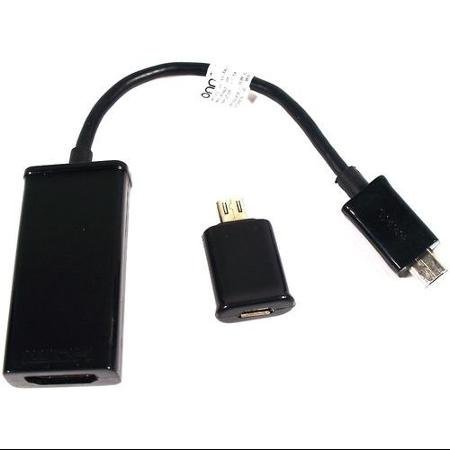
Image showing the ONN MHL to HDMI adapter and the separate 5-pin to 11-pin converter.
Ntuziaka ọrụ
Once all connections are made and the correct HDMI input is selected on your TV, your mobile device's screen should automatically mirror onto the TV. No additional software or drivers are typically required.
- Ngosipụta ihuenyo: The adapter mirrors your mobile device's display, allowing you to view apps, photos, videos, and presentations on a larger screen.
- Mmepụta ọdịyo: Audio will typically be transmitted through the HDMI cable to your TV's speakers.
- Ịchaji: While connected and powered, the adapter will also charge your mobile device. Ensure your AC charger provides sufficient power (at least 1.0A 5V).
Nchọpụta nsogbu
| Nsogbu | Ngwọta enwere ike |
|---|---|
| No signal on TV/monitor. |
|
| Mobile device is not charging. |
|
| Picture quality is poor or flickering. |
|
Nlekọta na nlekọta
- Keep the adapter in a dry environment, away from moisture and extreme temperatures.
- Zere ịda ma ọ bụ itinye ihe nkwụnye ahụ n'ọnọdụ siri ike.
- Clean the adapter with a soft, dry cloth. Do not use liquid cleaners or solvents.
- When not in use, store the adapter and cables neatly to prevent tangling or damage.
Nkọwapụta
- Nọmba nlereanya: ONA14TA058
- Onye nrụpụta: ONN
- Ụdị njikọ: MHL (Micro USB) to HDMI
- Agba: Nwa
- Ngwa dakọtara: MHL-enabled Tablets, Televisions (via HDMI)
- Achọrọ ike: 1.0A 5V AC charger (not included)
- Akụkụ: Approximately 8 x 5 x 0.99 cm (Adapter unit)
- Arọ: Approximately 453.59 g (Total package weight)


