1. Okwu mmalite
The HUO JI E-Yooso Z-88 RGB Mechanical Gaming Keyboard is designed for longevity, responsiveness, and durability. Featuring pluggable blue switches, a compact 81-key layout, and extensive RGB backlighting options, this keyboard offers a tactile and responsive typing experience for both gaming and general use.
This manual provides detailed instructions for setting up, operating, maintaining, and troubleshooting your Z-88 keyboard.

Nyocha 1: N'eluview of the Z-88 RGB Mechanical Gaming Keyboard.
2. Nhazi
Follow these steps to set up your HUO JI E-Yooso Z-88 keyboard:
- Mepee ahụigodo: Carefully remove the keyboard and all accessories from the packaging. Ensure you have the keyboard, USB-C cable, keycap puller, and spare switches.
- Jikọọ eriri USB-C: Insert the USB-C end of the provided cable into the port on the back of the keyboard. Connect the standard USB-A end to an available USB port on your computer (Windows PC or Mac).
- Adjust Keyboard Height: The keyboard features adjustable feet on the bottom. Flip them out to achieve your preferred typing angle. The design offers three height levels for ergonomic comfort.
- Nwụnye ọkwọ ụgbọala: The keyboard is plug-and-play. Your operating system should automatically detect and install the necessary drivers. No additional software is required for basic functionality and RGB control.

Figure 2: Detachable Type-C cable for easy connection and portability.

Figure 3: Ergonomic design with adjustable feet for comfortable typing angles.
3. Ntuziaka ọrụ
3.1 Ọrụ Isi na Ụzọ Mkpirisi
The Z-88 keyboard features various function (FN) key combinations for multimedia control and system shortcuts:
- FN + ESC: Reset keyboard to factory settings.
- FN + PGDN: Switch between 14 backlit modes.
- FN + '+', '-': Adjust 12 of the backlit modes.
- FN + '↑', '↓': Gbanwee ọkụ azụ azụ.
- FN + '←', '→': Adjust backlight speed.
- FN + F1: Open media player.
- FN + F2: Olu ala.
- FN + F3: Ebuli elu.
- FN + F4: Ogbi.
- FN + F5: Kwụghachi ọkpụkpọ.
- FN + F6: egwu gara aga.
- FN + F7: Gwuo/kwụsịtụ.
- FN + F8: Egwu na-esote.
- FN + F9: Email.
- FN + F10: Ibe mbụ.
- FN + F11: Ihe mgbako.
- FN + F12: Chọọ.
- FN + WIN key: Lock/Unlock Windows key for gaming.

Figure 4: Multi-Function Key Combinations.
3.2 Ntughari RGB
The keyboard offers a wide range of RGB backlighting options:
- Nhọrọ ụdị: Pịa FN + PGDN to cycle through 14 different backlit modes.
- Ndozi agba: For 12 of these modes, you can change the color by pressing FN + '+' or FN + '-'. Seven solid color backlit modes are also included.
- Njikwa ihie: Adjust the backlight brightness using FN + '↑' (mmụba) na FN + '↓' (belata).
- Njikwa ọsọ: Adjust the animation speed of dynamic lighting modes using FN + '←' (nwayọọ nwayọ) na FN + '→' (Ọsọ ọsọ).

Figure 5: RGB Backlit modes for personalized aesthetics.
3.3 Anti-Ghosting and N-Key Rollover
The Z-88 keyboard supports full anti-ghosting with N-key rollover. This means all 81 mechanical keys can be pressed simultaneously without conflict, ensuring every keystroke is registered accurately, which is crucial for high-speed typing and gaming.

Figure 6: Full Anti-Ghosting ensures all key presses are registered.
4. Nlekọta
Mmezi kwesịrị ekwesị na-eme ka keyboard gị dị ogologo ma rụọ ọrụ nke ọma:
- Nchacha izugbe: Regularly wipe the keyboard surface with a soft, dry cloth to remove dust and debris. For deeper cleaning, use a can of compressed air to clear particles from between the keycaps.
- Keycap Removal and Cleaning: Use the provided keycap puller to carefully remove keycaps for thorough cleaning. Gently pull the keycap straight up. Clean the keycaps with a mild soap solution and a soft brush, then ensure they are completely dry before reattaching.
- Ndochi Mgbanwe: The Z-88 features pluggable blue switches. If a switch malfunctions, use the provided switch puller to remove it and replace it with one of the spare switches. Ensure the new switch is aligned correctly before pressing it firmly into place.
- Nguzogide Mwụfu: The keyboard is designed to be splash-resistant. In case of a spill, immediately disconnect the keyboard from your computer, wipe off any liquid, and allow it to air dry completely before reconnecting.
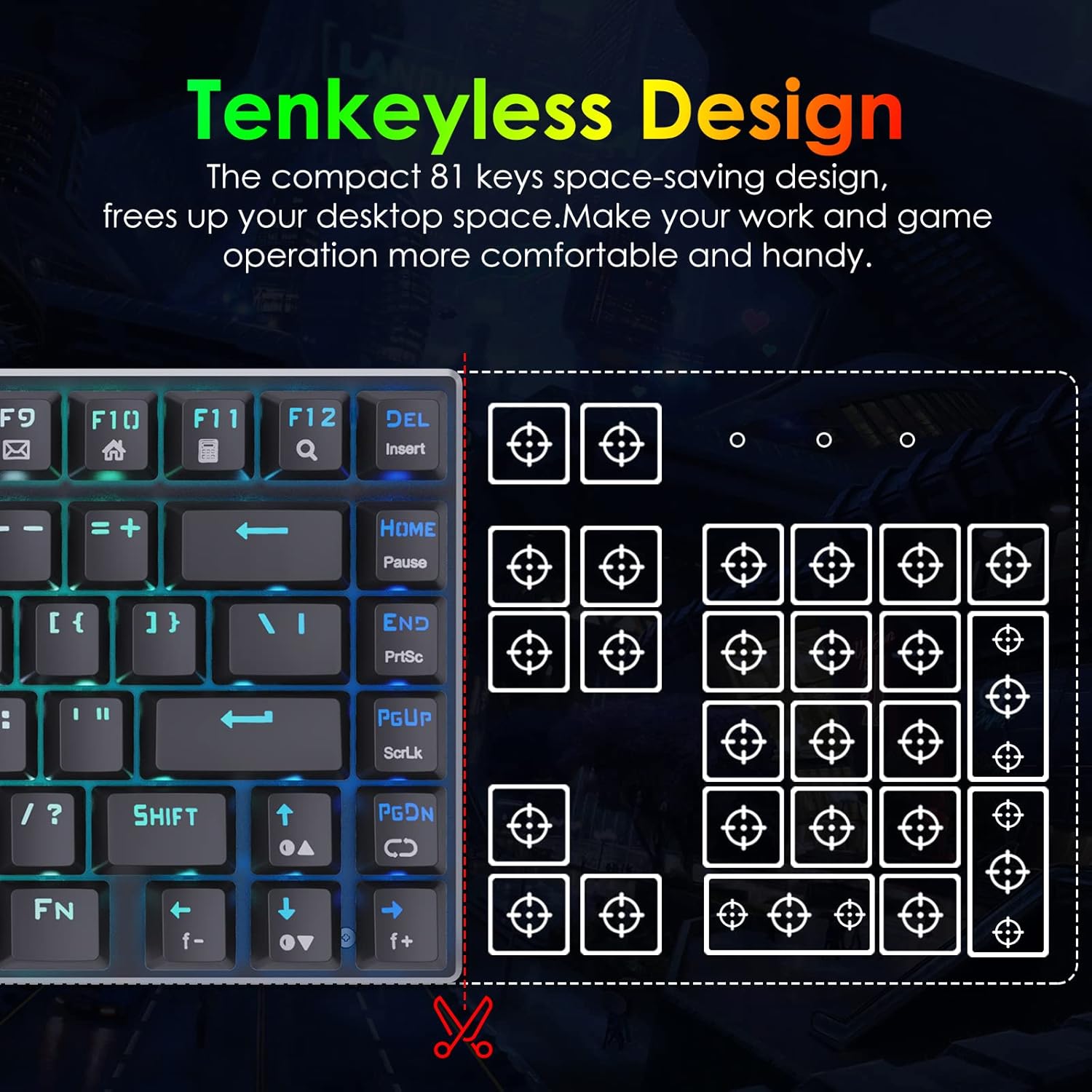
Figure 7: Included keycap puller and spare switches for maintenance.

Figure 8: Splash-resistant design for added durability.
5. Nchọpụta nsogbu
If you encounter any issues with your keyboard, refer to the following common solutions:
- Ahụigodo Anaghị aza:
- Hụ na eriri USB-C ejikọtara na ahụigodo ahụ na kọmputa gị nke ọma.
- Gbalịa ijikọ ahụigodo na ọdụ ụgbọ USB dị iche na kọmputa gị.
- Nwalee kiiboodu na kọmpụta ọzọ iji chọpụta ma ọ bụrụ na ọ dị na kiiboodu ma ọ bụ kọmputa.
- Igodo anaghị edebanye aha:
- Remove the affected keycap using the keycap puller and check for any debris obstructing the switch.
- If the switch appears damaged or unresponsive, replace it with a spare switch using the switch puller.
- Backlighting Issues:
- Gbaa mbọ hụ na agbanyere ahụigodo nke ọma.
- Cycle through RGB modes using FN + PGDN.
- Gbanwee nchapụta site na iji FN + '↑' or FN + '↓'.
- If specific keys have incorrect lighting, it might indicate a faulty LED.
- Windows Key Locked: If your Windows key is unresponsive, press FN + WIN key to toggle its lock status.
6. Nkọwapụta
| Njirimara | Nkọwa |
|---|---|
| Akụkụ ngwaahịa | 12.2 x 4.84 x 1.4 sentimita asatọ |
| Ibu Ibu | 1.6 pound |
| Onye nrụpụta | HUO JI |
| Nọmba Nlereanya ihe | 8541666772 |
| Teknụzụ Njikọta | USB (eriri a na-ewepụ ụdị-C) |
| Nkọwa ahụigodo | Multimedia, Mechanical Gaming |
| Atụmatụ pụrụ iche | RGB Lighting, Water Resistant, Pluggable Blue Switches, Anti-ghosting 81 Keys, N-key rollover, Ergonomic Design |
| Nkwado agba azụ azụ kiiboodu | RGB |
| Ihe onwunwe | Metal Panel, ABS |
| Ngwa gụnyere | Keycap Puller, USB Cable, Spare Switches |
| Ngwa dakọtara | Windows 10/8/7/XP/VISTA, Mac OS X, Gaming Console |
7. Akwụkwọ ikike na nkwado
For warranty information and customer support, please refer to the documentation included with your product or visit the official HUO JI websaịtị. Debe akwụkwọ nnata ịzụrụ maka akwụkwọ ikike.


