Okwu mmalite
This manual provides instructions for the installation and operation of your Satechi Aluminum USB-C 2.5-inch HDD/SSD Enclosure. This enclosure allows you to convert any 2.5-inch SATA hard drive (HDD) or solid-state drive (SSD) into a portable external storage device, utilizing a USB-C connection for data transfer speeds up to 10 Gbps.
Ihe ngwugwu
- Satechi Aluminum USB-C 2.5-inch HDD/SSD Enclosure
- USB-C na eriri USB-C
- Obere screwdriver
- Ịkwanye kposara
Ntọala na nwụnye
Follow these steps to install your 2.5-inch HDD or SSD into the enclosure:
- Mepee ihe mkpuchi ahụ: Use the provided mini screwdriver to remove the two small screws located on the side of the enclosure. Carefully slide the internal tray out from the aluminum casing.
- Fanye mbanye: Align your 2.5-inch SATA HDD or SSD with the SATA connector on the internal tray. Gently push the drive into the connector until it is firmly seated.
- Chekwaa draịva ahụ: Use the provided mounting screws to secure the HDD/SSD to the internal tray. Ensure the drive is stable and does not move.
- Mechie ihe mkpuchi ahụ: Carefully slide the internal tray, with the installed drive, back into the aluminum casing. Re-insert and tighten the two small screws to secure the enclosure.

Image: Enclosure disassembled, revealing the internal tray and screws.
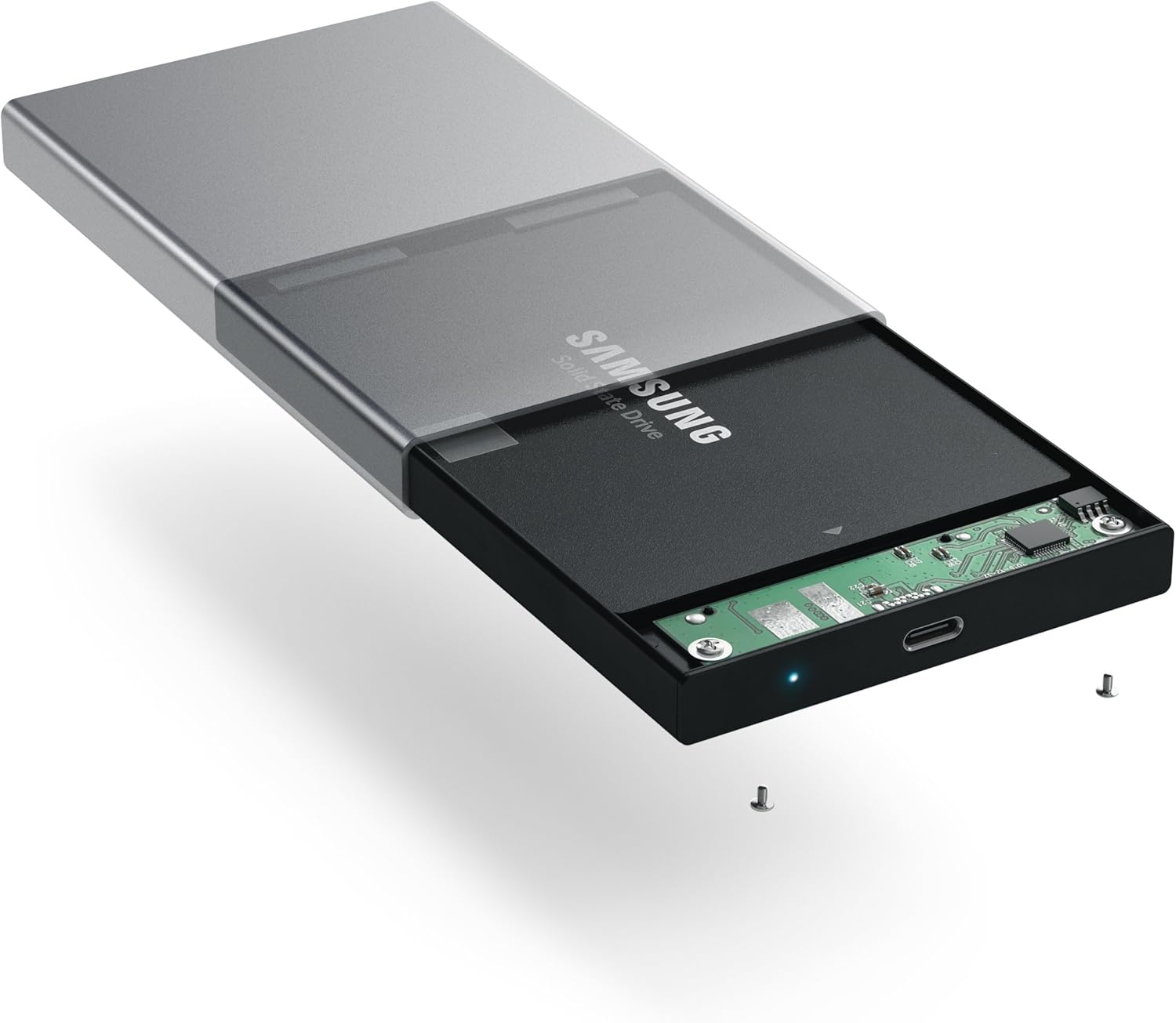
Image: Inserting a 2.5-inch SSD into the internal tray.

Image: SSD fully inserted and secured in the tray.
Ntuziaka ọrụ
- Jikọọ na Kọmputa: Use the included USB-C to USB-C cable to connect the enclosure to an available USB-C port on your computer.
- Ihe ngosi ike: A blue LED indicator light on the enclosure will illuminate when connected and powered, indicating readiness for use. The LED will blink during data transfer activity.
- Ịnweta mbanye: Your computer should automatically detect the external drive. If it is a new drive, you may need to format it before use. Refer to your operating system's documentation for drive formatting procedures.
- Nyefee data: Dọrọ na dobe files to and from the external drive as you would with any other storage device. The enclosure supports data transfer speeds up to 10 Gbps, depending on your drive and computer's USB-C port capabilities.
- Mwepụ nke ọma: Always safely eject the external drive from your operating system before disconnecting the cable to prevent data corruption.

Image: Enclosure connected to a laptop.

Image: Enclosure with cable connected, showing the blue LED.
Nlekọta
- Debe ihe mgbochi ahụ ka ọ dị ọcha na enweghị ntụ. Jiri akwa dị nro, kpọrọ nkụ maka nhicha.
- Zere ikpughe ngwaọrụ ahụ na oke okpomọkụ, iru mmiri, ma ọ bụ ìhè anyanwụ kpọmkwem.
- Do not attempt to disassemble the enclosure beyond the initial drive installation, as this may void the warranty.
Nchọpụta nsogbu
- Achọpụtaghị mbanye:
- Ensure the USB-C cable is securely connected to both the enclosure and your computer.
- Gbalịa jikọọ na ọdụ ụgbọ USB-C dị iche na kọmputa gị.
- Verify that the HDD/SSD is correctly seated within the enclosure's SATA connector.
- If it is a new drive, ensure it has been formatted for your operating system.
- Ọsọ mbufe nwayọ:
- Ensure your computer's USB-C port supports USB 3.1 Gen 2 (10 Gbps) for optimal performance.
- The performance of the drive itself (HDD vs. SSD) will impact transfer speeds.
- Consider using a high-quality, certified USB-C cable, especially if experiencing intermittent disconnections or slower-than-expected speeds.
- Mkpọchi mkpuchi na-akwụsị n'enweghị usoro:
- This can sometimes be caused by an incompatible or low-quality USB-C cable. Try using a different, certified USB-C cable.
- Ensure your computer's power settings are not configured to turn off USB ports to save power.
Nkọwapụta
| Nọmba nlereanya | ST-TCDEM |
| UPC | 879961006242 |
| Ihe onwunwe | Aluminom |
| Atdị Drivedị Kwekọrọ n'Ozizi | 2.5-inch SATA HDD/SSD |
| Ọnụọgụ ngwaọrụ akwadoro kacha | 1 |
| Ọnụego mbufe data | Up to 10 Gigabits Per Second (USB 3.1 Gen 2) |
| Teknụzụ Njikọta | USB-C |
| Ibu Ibu | 6.4 ounce (gram 181) |
| Agba | Oghere isi awọ |
Akwụkwọ ikike na nkwado
For warranty information and technical support, please refer to the official Satechi websaịtị ma ọ bụ kpọtụrụ ndị ahịa ha ozugbo. Debe akwụkwọ nnata ịzụrụ maka akwụkwọ ikike.


