1. Okwu mmalite
This manual provides detailed instructions for the Symcode 1D Mini Wireless Handheld Barcode Scanner, model MJ-2877L. This device is designed for efficient 1D barcode scanning and offers versatile connectivity options, including Bluetooth, 2.4G wireless via USB dongle, and wired USB. It is compatible with various operating systems, including Windows, Android, and iOS.

Image 1.1: Symcode 1D Mini Wireless Handheld Barcode Scanner MJ-2877L. This image displays the compact, black barcode scanner with blue buttons and a USB dongle.
2. Ngwa ngwaahịa
The Symcode MJ-2877L barcode scanner package includes the following items:
- Symcode 1D Mini Wireless Handheld Barcode Scanner
- Igwe nchaji USB
- Ntuziaka mmalite ngwa ngwa
- USB Dongle (for 2.4G wireless connection)
- Eriri aka
- Batrị Lithium Polymer enwere ike ịgbanye
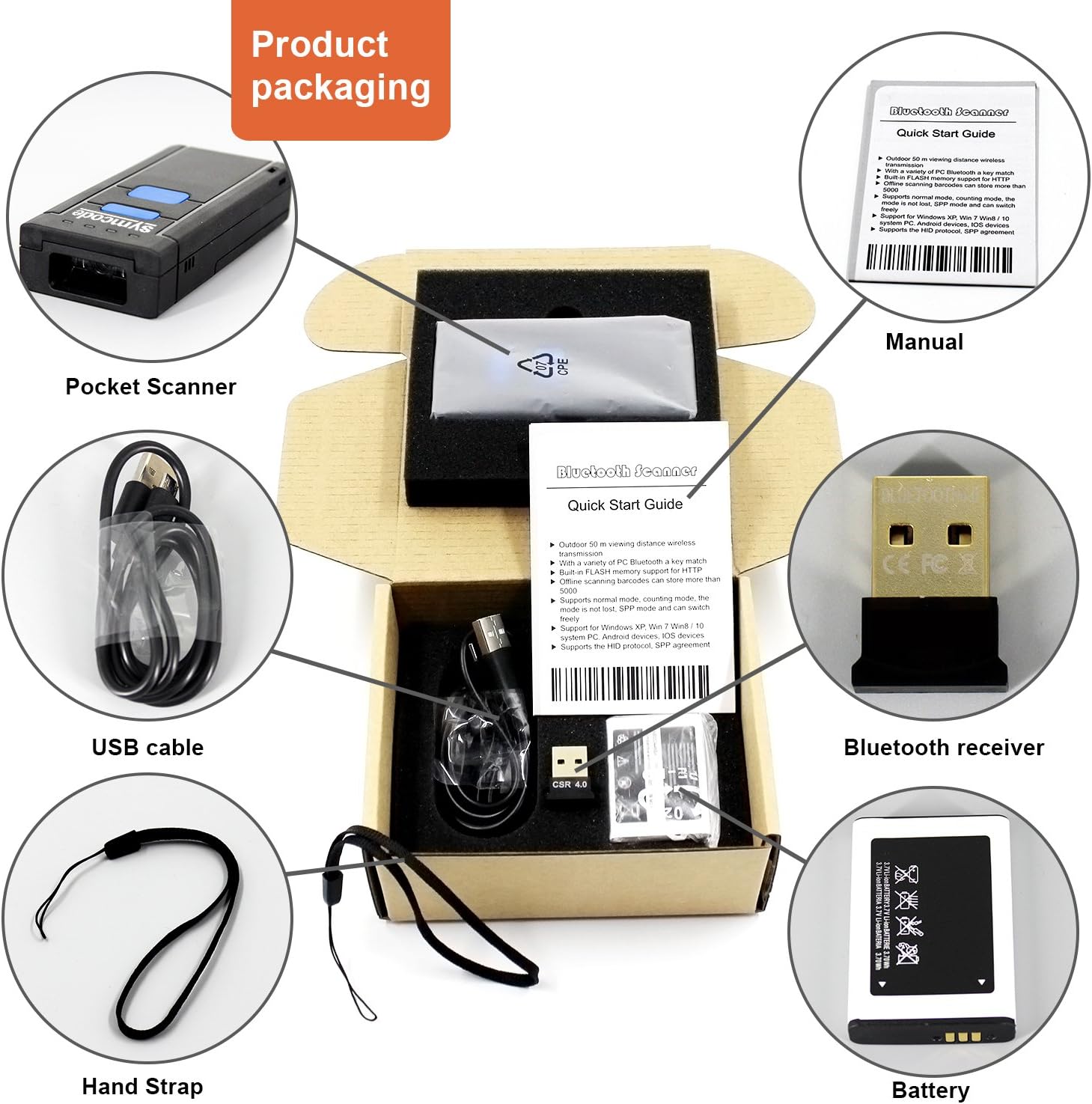
Image 2.1: Product Packaging Contents. This image shows the scanner, USB cable, quick start guide, USB dongle, hand strap, and battery as they appear in the product box.
2.1. Scanner Parts Overview

Image 2.2: Product Analysis. This diagram labels key components of the scanner: Scan window, Indicator lights, ON&OFF button, Scanning switch, Battery compartment, and Hand Strap attachment point.
- Nyochaa windo: Emits the laser for reading barcodes.
- Ọkụ egosi: Provide status feedback (e.g., power, connection, scan success).
- Bọtịnụ ngbanyụ & gbanyụọ: Na-agbanye ngwaọrụ ahụ ma ọ bụ gbanyụọ.
- Scanning Switch: Triggers the barcode scan.
- Akụkụ batrị: Na-edobe batrị enwere ike ịchaji.
- eriri aka: For secure handling.
3. Nhazi
3.1. Ntinye batrị na Nchaji
- Mepee mkpuchi nke batrị batrị.
- Insert the provided Lithium Polymer battery, ensuring correct polarity.
- Mechie mkpuchi nke batrị batrị nke ọma.
- Connect the scanner to a USB power source using the USB charging cable. The indicator light will show charging status. A full charge takes approximately 3 hours.
3.2. Ike izizi
Press and hold the ON&OFF button until the indicator lights illuminate, indicating the scanner is powered on.

Image 3.1: Product Instructions. This image illustrates the steps for battery installation, connecting the USB dongle, and operating the scanner.
4. Operating Modes and Connection
The scanner supports three connection modes: wired USB, 2.4G wireless via USB dongle, and Bluetooth.

Image 4.1: Wired and Wireless Modes. This diagram shows the scanner connecting to a computer via USB cable (wired mode) and wirelessly via a USB dongle or directly via Bluetooth to mobile devices.
4.1. Wired Mode (USB)
Connect the scanner directly to a computer's USB port using the provided USB cable. The cable serves as both a charging cable and a data transmission cable. The computer will typically recognize the scanner as a keyboard input device without requiring additional drivers.
4.2. 2.4G Ọnọdụ ikuku
- Tinye dongle USB n'ọdụ ụgbọ mmiri dị na kọmputa gị.
- The computer should automatically detect and install the necessary drivers.
- Ensure the scanner is powered on. It will automatically attempt to pair with the dongle.
- Once paired, the scanner will function as a wireless input device.
4.3. Ọnọdụ Bluetooth
The scanner supports Bluetooth Class 4.0 + EDR, providing a wireless range of up to 10 meters and supporting HID virtual keyboard mode. This mode is suitable for connecting to smartphones, tablets, and PCs.
- Ensure the scanner is powered on and in Bluetooth pairing mode (refer to the Quick Start Guide for specific barcode scans to enter Bluetooth mode).
- On your host device (smartphone, tablet, or PC), enable Bluetooth and search for available devices.
- Select the scanner (usually named 'Symcode Scanner' or similar) from the list of found devices to pair.
- Once paired, the scanner will transmit scanned data as keyboard input to your device.
4.4. Wireless Range

Image 4.2: Wireless Range. This diagram illustrates the typical wireless operating distances: up to 100 feet (30m) indoors with the 2.4G dongle, up to 330 feet (100m) outdoors with the 2.4G dongle, and up to 33 feet (10m) for Bluetooth connections to mobile devices.
- 2.4G Wireless (with dongle): Up to 100 feet (30 meters) indoors, up to 330 feet (100 meters) outdoors.
- Bluetooth: Ruo 33 ụkwụ (10 mita).
5. Scanning Operations
The Symcode MJ-2877L scanner is designed to read 1D linear barcodes.
5.1. How to Scan
- Point the scan window towards the barcode.
- Press the scanning switch. A red laser line will appear.
- Ensure the laser line crosses the entire barcode. A successful scan is typically indicated by an audible beep and/or a change in the indicator light.

Image 5.1: Handheld Scanning. This image shows the scanner being held in a hand, with the laser beam active, ready to scan a barcode. Example 1D barcodes are displayed next to it.
5.2. Barcode Types Supported
This scanner is compatible with common 1D barcode symbologies.
5.3. Oke
- This is a 1D barcode scanner and enweghị ike read 2D barcodes (e.g., QR codes, PDF417).
- It enweghị ike scan barcodes displayed on device screens.
- It may not be suitable for reading barcodes from highly reflective surfaces, such as silver foil paper.
5.4. Offline Storage
The scanner features 16MB of built-in flash memory, capable of storing over 50,000 barcodes in offline working mode. This allows for data collection without a live connection to a host device.

Image 5.2: Large Capacity. This image illustrates the scanner's 16MB storage capacity, capable of holding over 50,000 barcode entries.
6. Nhazi
The scanner's operational settings, such as automatic reading, trigger reading, sound preferences, and sleep time, can be configured by scanning specific barcodes provided in the accompanying Quick Start Guide. Refer to the guide for a complete list of configuration barcodes and their functions.
7. Nlekọta
7.1. Nlekọta batrị
- The device is powered by a 3.7V 1000mA Li-ion battery.
- A full charge provides approximately 8 hours of continuous operation.
- To prolong battery life, avoid extreme temperatures and store the scanner with a partial charge if not used for extended periods.
7.2. Nhicha
Use a soft, dry cloth to clean the exterior of the scanner. For the scan window, use a lens cleaning cloth to avoid scratches. Do not use abrasive cleaners or immerse the device in liquids.
8. Nchọpụta nsogbu
If you encounter issues with your Symcode barcode scanner, consider the following:
- Scanner not powering on: Gbaa mbọ hụ na etinyere batrị nke ọma yana chajịkwa ya nke ọma.
- Not scanning barcodes: Verify the scanner is powered on and the laser is active. Ensure the barcode is a 1D type and not on a screen or highly reflective surface. Check if the scanner is in the correct operating mode (e.g., connected via Bluetooth or 2.4G dongle).
- Nsogbu njikọ: For Bluetooth, ensure the scanner is in pairing mode and your host device's Bluetooth is enabled. For 2.4G wireless, ensure the USB dongle is properly inserted and recognized by the computer. Try re-pairing the device.
- No data transmission: Confirm successful pairing/connection. Ensure the application on your host device is ready to receive keyboard input.
- Loud beeping: Refer to the Quick Start Guide for configuration barcodes to adjust or disable the beep sound.
If problems persist, please refer to the detailed troubleshooting section in the full user manual or contact Symcode customer support.
9. Nkọwapụta
| Nọmba nlereanya | MJ-2877L |
| Akụkụ ngwaahịa | 3.86 x 0.83 x 1.81 sentimita asatọ |
| Ibu Ibu | 5.5 ounces |
| Teknụzụ Njikọta | Bluetooth (Class 4.0 + EDR), 2.4G Wireless, USB Wired |
| Nyochaa ọsọ | 200 nyocha / nke abụọ |
| Isi Iyi Ìhè | 650nm Visible Laser Light |
| Nchekwa nke ime | 16MB (stores over 50,000 barcodes) |
| Batrị | 3.7V 1000mA Lithium Polymer (included) |
| Oge ọrụ na-aga n'ihu | Ruo awa iri abụọ |
| Oge Nchaji | Ihe dị ka awa 3 |
| Ngwa dakọtara | Smartphones, Tablets, PCs (Windows XP/7/8/WinCE, Windows Mobile, Android OS, iOS) |
10. Akwụkwọ ikike na nkwado
Symcode products are manufactured to high-quality standards. For warranty information, please refer to the documentation included with your purchase or contact Symcode customer service directly. If you require technical assistance, have questions about product functionality, or need to report an issue, please reach out to Symcode customer support. Contact details are typically available on the official Symcode websaịtị ma ọ bụ site na ikpo okwu ịzụrụ ihe.


