1. Okwu mmalite
This manual provides essential instructions for the proper setup, operation, and maintenance of your CipherLab 1500P HP 1D Corded Barcode Scanner. Please read this manual thoroughly before using the device to ensure optimal performance and to prevent damage.
2. Ozi nchekwa
- Do not expose the scanner to extreme temperatures, humidity, or direct sunlight.
- Zere ịtụfu ihe nyocha ahụ ma ọ bụ ibute ya nnukwu nsogbu.
- Do not attempt to disassemble or modify the scanner. This will void the warranty.
- Jiri naanị eriri USB enyere maka njikọ.
- Keep the scanning window clean to ensure accurate barcode reading.
3. Ihe ngwugwu
Biko lelee ọdịnaya nke ngwugwu ahụ ka ị hụ na ihe niile dị:
- CipherLab 1500P HP 1D Corded Barcode Scanner
- eriri USB
- Ntuziaka mmalite ngwa ngwa (ọ bụrụ na etinyere ya)
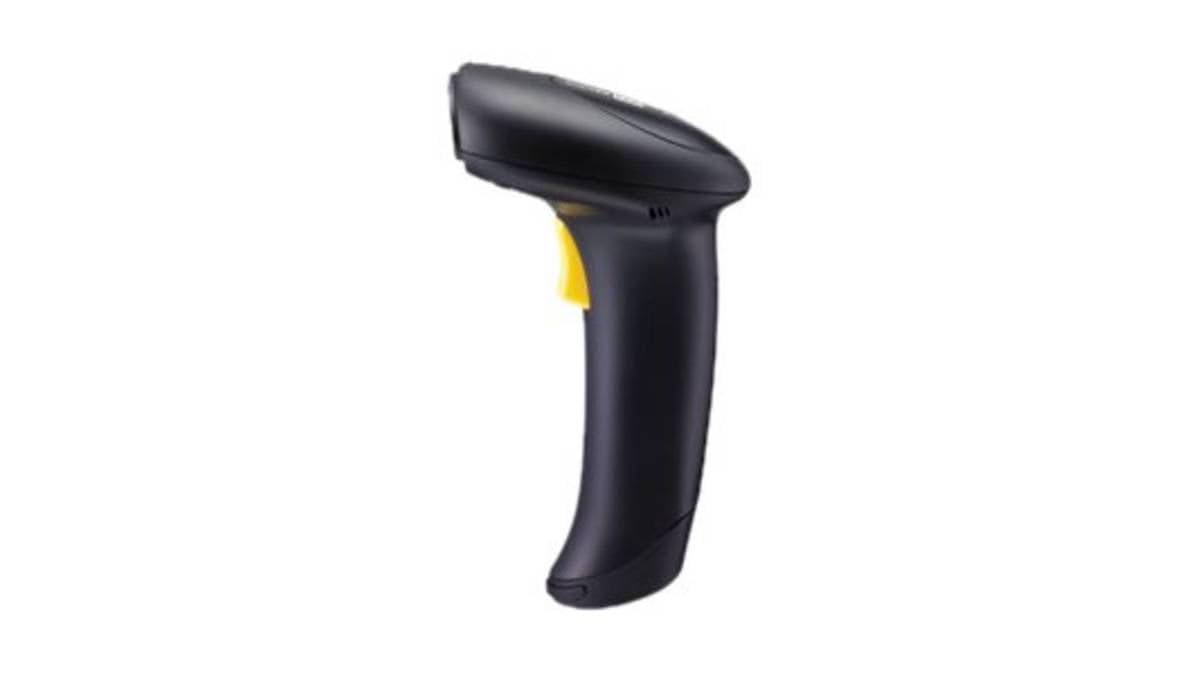
Figure 1: CipherLab 1500P HP 1D Corded Barcode Scanner with USB cable. This image displays the ergonomic design of the scanner and its wired connection.
4. Nhazi
4.1 Ijikọ ihe nyocha
- Locate an available USB port on your computer or host device.
- Connect the smaller end of the USB cable to the port at the base of the CipherLab 1500P HP scanner.
- Connect the larger end of the USB cable to the USB port on your computer.
- The scanner will power on automatically. Most operating systems will detect and install the necessary drivers automatically (Plug-and-Play).
4.2 Initial Test
After connecting, open a text editor (e.g., Notepad, Word) or any application that accepts keyboard input. Scan a known barcode. The data should appear in the application. If not, refer to the Troubleshooting section.
5. Na-arụ ọrụ nyocha
5.1 Basic Scanning
- Hold the scanner comfortably in your hand.
- Tụgharịa windo nyocha ahụ gaa n'ebe akara barcode ịchọrọ ịgụ dị.
- Press and hold the trigger button. A red aiming line will appear.
- Center the aiming line over the entire barcode.
- Once the barcode is successfully read, the scanner will emit a beep and the LED indicator will flash. Release the trigger button.
5.2 Scanning Feedback
- Successful Read: A short beep and a green LED flash.
- Unsuccessful Read: No beep or flash, or a different error tone (refer to troubleshooting).
6. Nlekọta
6.1 Na-ehicha ihe nyocha
To maintain optimal scanning performance, keep the scanning window clean:
- Jiri akwa dị nro na-enweghị akwa dampejiri mmiri tinye ya ma ọ bụ ihe ngwọta dị nro na-adịghị emebi emebi.
- Jiri nwayọọ hichaa windo nyocha na mpụta casing.
- Do not use harsh chemicals, solvents, or abrasive materials, as these can damage the scanner.
6.2 Nchekwa
Mgbe ị na-ejighị ya, debe ihe nyocha ahụ n'ebe dị ọcha ma kpọọ nkụ, ebe anwụ na-anaghị apụta kpọmkwem ma ọ bụ oke okpomọkụ.
7. Nchọpụta nsogbu
| Nsogbu | Ihe nwere ike ime | Ngwọta |
|---|---|---|
| Scanner anaghị agbanye ọkụ. | Ejikọghị eriri USB nke ọma ma ọ bụ ọdụ ụgbọ USB na-adịghị mma. | Ensure the USB cable is securely connected to both the scanner and the computer. Try a different USB port. |
| Scanner does not read barcodes. | Barcode damaged, scanning window dirty, incorrect scanning angle, or scanner not configured for barcode type. | Ensure the barcode is clear and undamaged. Clean the scanning window. Adjust the scanning angle. Refer to the full programming manual for advanced configuration. |
| Scanned data appears incorrectly. | Keyboard layout mismatch or incorrect data formatting. | Ensure your computer's keyboard layout matches the scanner's default or programmed layout. Consult the full programming manual for data formatting options. |
8. Nkọwapụta
- Nọmba nlereanya: A1500PCBSU001
- Teknụzụ Njikọta: eriri USB
- Isi mmalite ike: eriri USB
- Ngwa dakọtara: Desktop, Laptọọpụ
- Ibu ihe: 10.93 pound
- Akụkụ ngwugwu: 8 x 8 x 8 sentimita asatọ
- Onye nrụpụta: CipherLab
9. Akwụkwọ ikike Ozi
CipherLab products are manufactured to high quality standards. This product is covered by a limited warranty against defects in materials and workmanship. For specific warranty terms and conditions, please refer to the warranty card included with your product or visit the official CipherLab websaịtị.
10. Nkwado ndị ahịa
If you encounter issues not covered in this manual or require further assistance, please contact your vendor or visit the official CipherLab support website for up-to-date resources, FAQs, and contact information.


