Ngwaahịa gafereview
The DNP DS-RX1HS 6-inch Dye Sublimation Printer is designed for high-speed, high-quality photo printing. It offers enhanced performance with a print speed of up to 290 4x6-inch prints per hour, making it suitable for various applications including photo booths and event photography. This printer combines a low initial investment with affordable media costs, while delivering professional-grade results.

Figure 1: The DNP DS-RX1HS printer, bundled with a protective carrying case and media rolls for immediate use.
The DS-RX1HS supports various print sizes, including 2x6-inch, 4x6-inch, and 6x8-inch, and is compatible with RX1HS MEDIA SETs. It features USB iSerial functionality for seamless connectivity with both Mac and PC computers, allowing for effortless printing to multiple units.
Kedu ihe gụnyere
The DNP DS-RX1HS bundle typically includes the following components:
- DNP DS-RX1HS 6" Dye Sublimation Printer
- Printer CD with drivers for Windows OS7 and 8.1
- Driver Instruction Guide
- Ntuziaka Mbido ngwa ngwa
- Ụdọ ọkụ
- Printhead Cushion
- 2 Rolls of DNP 4x6" Media (700 Prints Per Roll)
- Padded Printer Carrying Case
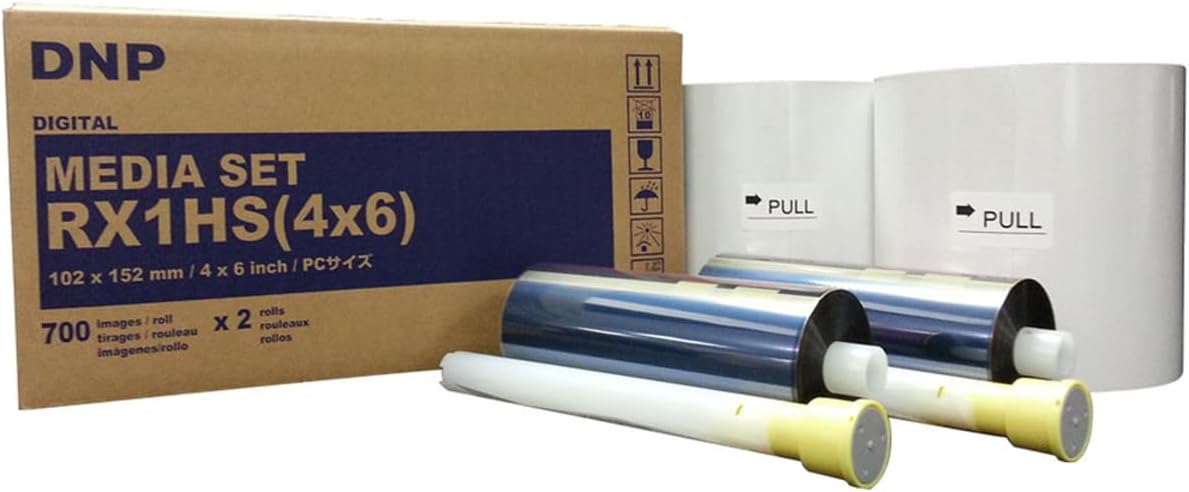
Figure 2: The DNP RX1HS 4x6 Media Set, which includes both paper and ribbon rolls necessary for printing.
Ntuziaka nhazi
1. Mwepu na ntinye
- Jiri nlezianya wepụ ihe nbipute na ngwa niile na nkwakọ ngwaahịa.
- Place the printer on a stable, flat surface with adequate ventilation. Ensure there is enough space around the printer for media loading and print output.
- Verify all included components are present as listed in the "What's Included" section.

Figure 3: A front-angled view of the DNP DS-RX1HS printer, showing its compact design suitable for various setups.
2. Nbudata mgbasa ozi
- Mepee mkpuchi ihu nke ngwa nbipute.
- Insert the paper roll onto the designated spindle, ensuring it is properly aligned.
- Load the ink ribbon cartridge into its slot, making sure it clicks into place.
- Mechie mkpuchi ihu nke ọma.
- Ihe dị mkpa: Always unload the paper and ink ribbon after use, especially before transporting the printer, and insert the foam head-protector.

Figure 4: The front panel of the DNP DS-RX1HS printer, displaying the power, ribbon, paper, and error indicator lights.
3. Ijikọ na Kọmputa
- Connect the printer to your computer (Mac or PC) using the provided USB cable.
- Install the printer drivers from the included CD or download the latest drivers from the official DNP websaịtị. Soro ntuziaka na ihuenyo maka nwụnye.
- For Windows OS7 and 8.1, drivers are provided. Ensure your operating system is compatible.
Ntuziaka ọrụ
1. Powering On and Initializing
- Jikọọ eriri ọkụ na ngwa nbipute wee banye na ebe ọkụ.
- Press the power button. The printer will perform an initialization sequence.
- During initialization, the printer may feed a few blank pages. This is normal.
2. Foto ndị na-ebi akwụkwọ
- Open the image you wish to print in your preferred photo editing or printing software.
- Select the DNP DS-RX1HS as your printer.
- Adjust print settings such as print size (2x6", 4x6", 6x8"), resolution (300x300dpi or 300x600dpi), and surface (matte or glossy) as desired.
- Initiate the print command. The printer will begin processing and outputting the photo.
- The DS-RX1HS is capable of printing 4x6" photos in approximately 12.4 seconds.
3. Multiple Printer Setup (USB iSerial)
The USB iSerial functionality allows for seamless connectivity and printing to multiple DS-RX1HS printers from a single Windows or Mac platform. Refer to the Driver Instruction Guide for detailed setup procedures for multi-printer environments.
Nlekọta
1. Cleaning the Printhead
Regular cleaning of the printhead is crucial for maintaining print quality and extending the life of your printer. Use the provided printhead cushion or a soft, lint-free cloth lightly dampetinyere ya na mmanya isopropyl.
- Gbanyụọ ma kwụpụ ngwa nbipute.
- Open the front cover and carefully access the printhead.
- Gently wipe the printhead surface to remove any dust or debris.
- Allow the printhead to dry completely before closing the cover and powering on the printer.
2. Nchekwa mgbasa ozi
Store media rolls in a cool, dry place away from direct sunlight and extreme temperatures to preserve their quality and prevent issues like sticking or jamming.
Nchọpụta nsogbu
| Nsogbu | Ihe nwere ike ime | Ngwọta |
|---|---|---|
| Ngwa nbipute anaghị agba ọkụ | Akwụsịla eriri ọkụ eletrik, nsogbu nke ebe ọkụ eletrik na-apụta | Check power connections, try a different outlet. |
| Paper jam / Error light on | Improper media loading, debris in paper path, ribbon stuck to paper | Turn off printer, open cover, carefully remove jammed media. Ensure media is loaded correctly. Always unload media after use. |
| Ọdịmma ebipụta na-adịghị mma (streaks, mbipụta agwụla agwụ) | Dirty printhead, old media, incorrect settings | Clean the printhead. Replace media if old. Verify print settings (resolution, surface). |
| Kọmputa amataghị ngwa nbipute | Driver not installed or corrupted, loose USB connection | Reinstall drivers. Check USB cable connection. Try a different USB port. |
For more detailed troubleshooting, refer to the Driver Instruction Guide or Quick Setup Guide included with your printer.
Nkọwapụta
| Njirimara | Nkọwa |
|---|---|
| Aha Nlereanya | DS-RX1HS |
| Teknụzụ obibi akwụkwọ | Sublimation agba |
| Mkpebi Mbipụta | 300 x 300 DPI (High Speed), 300 x 600 DPI (High Resolution) |
| Print Speed (4x6") | Approx. 12.4 seconds per print (up to 290 prints per hour) |
| Nha mbipụta akwadoro | 2x6", 4x6", 6x8" |
| Njikọta | USB |
| Ngwa dakọtara | PC (Windows OS7, 8.1), Mac |
| Akụkụ (W x D x H) | 22 x 17.75 x 16.75 sentimita asatọ |
| Ibu | 35.7 pound |
| Oriri ike | Nhazi na-echekwa ike |
Ozi akwụkwọ ikike
The DNP DS-RX1HS printer comes with a DNP 3-year warranty. This warranty covers manufacturing defects and ensures the proper functioning of the printer under normal use. For specific terms and conditions, please refer to the warranty documentation included with your product or visit the official DNP websaịtị.
Nkwado na akụrụngwa
For additional support, driver downloads, and frequently asked questions, please visit the official DNP support website. You can also refer to the included Driver Instruction Guide and Quick Setup Guide for detailed information on installation, operation, and troubleshooting.
- Official DNP Websaịtị: www.dnpphoto.com
- Nbudata ọkwọ ụgbọala: Available on the DNP support website for various operating systems.
- Enyemaka nka nka: Contact DNP customer support for technical issues not covered in this manual.


