Okwu mmalite
The Logitech M337 Wireless Bluetooth Mouse is a compact and portable input device designed for use with virtually any Bluetooth-enabled computer, laptop, or tablet. It offers a comfortable curved shape, precise optical tracking, and a long battery life, making it ideal for on-the-go productivity across various operating systems including Mac, Windows, Chrome OS, and Android.
Melite
Kedu ihe dị na Igbe ahụ
- Logitech M337 Wireless Bluetooth Mouse
- Batrị 1 AA (arụnyere ya ma ọ bụ tinye ya iche)
- Akwụkwọ onye ọrụ
Ntinye batrị
- Chọta ebe batrị dị n'okpuru òké.
- Mepee mkpuchi nke batrị batrị.
- Tinye batrị AA dị na ya, hụ na polarity ziri ezi (+/-).
- Mechie mkpuchi nke batrị batrị nke ọma.
Njikọ Bluetooth
The M337 mouse connects wirelessly via Bluetooth, freeing up USB ports. Follow these steps to pair your mouse with your device:
- Turn on the mouse using the On/Off switch located on the underside. The LED indicator on the top of the mouse should start blinking rapidly, indicating it's in pairing mode. If not, press and hold the Bluetooth connect button (usually near the battery compartment or on the top, below the scroll wheel) until the LED blinks.
- On your computer, laptop, or tablet, navigate to the Bluetooth settings:
- Windows: Go to Start > Settings > Devices > Bluetooth & other devices. Turn Bluetooth On, then click "Add Bluetooth or other device" and select "Bluetooth".
- MacOS: Go to Apple menu > System Preferences > Bluetooth. Ensure Bluetooth is On.
- Chrome OS: Click the status area (bottom right) > Bluetooth > Enable Bluetooth.
- Android: Go to Settings > Connected devices > Connection preferences > Bluetooth. Turn Bluetooth On.
- In the Bluetooth device list, select "Logitech M337" or a similar name.
- Follow any on-screen prompts to complete the pairing process. The LED indicator on the mouse will turn solid blue for a few seconds and then turn off once successfully connected.
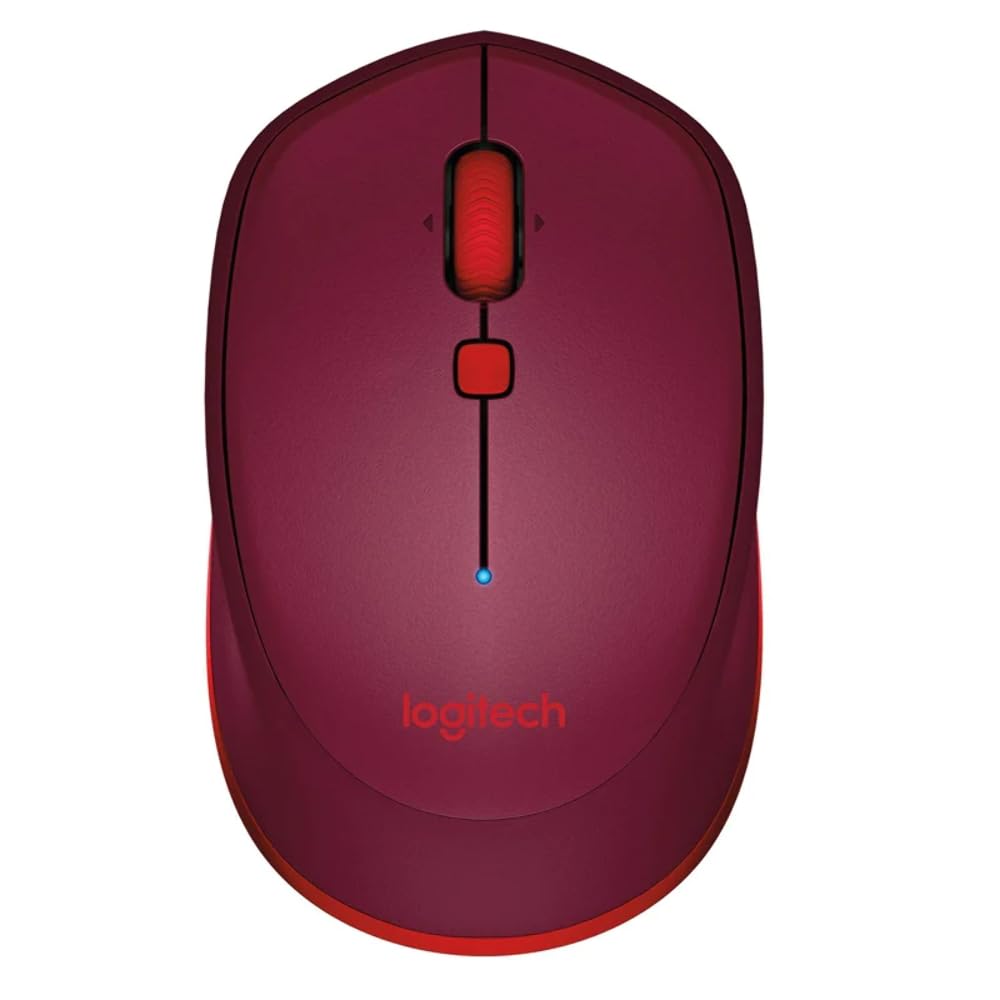
This image displays the Logitech M337 Wireless Bluetooth Mouse from a top-down perspective, highlighting its compact design, the red scroll wheel, and the central navigation button. The Logitech logo is visible at the bottom.
Na-arụ ọrụ òké
Ọrụ ndị bụ isi
- Pịa aka ekpe: Bọtịnụ bụ isi maka ịhọrọ ihe na mmekọrịta na ngwanrọ.
- Pịa aka nri: Bọtịnụ nke abụọ maka nchịkọta nhọrọ na nhọrọ ndị ọzọ.
- Mpempe akwụkwọ mpịakọta: Pịgharịa gaa na elu ma ọ bụ ala site na akwụkwọ na web ibe.
- Tilt Wheel: Tilt the scroll wheel left or right for horizontal scrolling (if supported by software).
- Bọtịnụ nsoroụzọ: The button located below the scroll wheel. By default, this button can be configured to perform various functions, such as opening the task view on Windows or Mission Control on Mac. Customization is available through Logitech Options software.
Nkasi obi na ibughari
The M337 features a comfortable curved shape with rubber grips, designed for extended use by both right and left-handed users. Its compact size allows for easy portability, fitting conveniently into laptop bags or pockets.

Otu akụkụ view of the Logitech M337 mouse, showcasing its comfortable curved shape and the textured rubber grips on the sides, designed for both right and left-handed users.
Nlekọta
Ngbanwe batrị
The Logitech M337 mouse boasts an average battery life of up to 19 months. When the battery is low, the LED indicator on the mouse may blink red. To replace the battery, follow the battery installation steps outlined in the Setup section.
Nhicha
To maintain optimal performance and hygiene, periodically clean your mouse:
- Jiri akwa dị nro na-enweghị ntụpọ damptinye mmiri ma ọ bụ ihe ngwọta dị nro.
- Zere iji kemịkalụ siri ike, ihe nhicha ihe na-emebi ihe, ma ọ bụ itinye òké n'ime mmiri mmiri.
- Jiri nwayọọ hichaa elu òké ahụ, na-elebara ebe aka gị na-emetụ aka gị ugboro ugboro anya.
- For the optical sensor, use a dry cotton swab to carefully remove any dust or debris.
Nchọpụta nsogbu
Okwu Njikọta
- Òké anaghị ejikọ: Ensure the mouse is turned on and the battery has sufficient charge. Re-initiate pairing mode on the mouse and re-scan for Bluetooth devices on your computer.
- Njikọ na-adịte aka: Move the mouse closer to your device. Ensure there are no large metal objects or other wireless devices causing interference between the mouse and your computer.
- Bluetooth not found on computer: Verify that your computer's Bluetooth is enabled and its drivers are up to date.
Tracking Problems
- Mmegharị kọsọ na-ezighi ezi: Clean the optical sensor on the underside of the mouse. Ensure you are using the mouse on a clean, non-reflective, and uniform surface.
- No cursor movement: Check battery level. Ensure the mouse is properly paired.
Okwu ndị ọzọ
- Bọtịnụ anaghị aza: Check battery. If using Logitech Options software, ensure button assignments are correct.
- Scroll wheel not working: Clean around the scroll wheel to remove any debris.
Nkọwapụta
| Njirimara | Nkọwa |
|---|---|
| Ụdị | Logitech |
| Nọmba nlereanya | M337 |
| Teknụzụ Njikọta | Bluetooth |
| Teknụzụ nchọpụta ngagharị | Ngwa anya |
| Agba | Uhie |
| Isi Iyi Ike | Batrị Kwadoro (1 AA batrị) |
| Nkezi Ndụ batrị | Ruo ọnwa 19 |
| Ndakọrịta sistemụ arụmọrụ | Android, Chrome OS, Mac, Windows |
| Akụkụ ihe (LxWxH) | 18.6 x 12.6 x 8.3 cm |
| Ibu Ibu | 82 g |
Akwụkwọ ikike na nkwado
Ozi akwụkwọ ikike
The Logitech M337 Wireless Bluetooth Mouse typically comes with a Akwụkwọ ikike ngwaike dị afọ 1 site na ụbọchị ịzụrụ. Biko dowe ihe akaebe nke ịzụrụ ihe maka akwụkwọ ikike. Akwụkwọ ikike ahụ na-ekpuchi ntụpọ dị na akụrụngwa yana arụ ọrụ n'okpuru ojiji nkịtị.
Nkwado ndị ahịa
Maka enyemaka ndị ọzọ, nkwado teknụzụ, ma ọ bụ nkwupụta akwụkwọ ikike, biko gaa na nkwado Logitech gọọmentị website or contact their customer service. You can usually find detailed FAQs, troubleshooting guides, and driver downloads on their websaịtị.
Nkwado Logitech Websaịtị: nkwado.logi.com


