1. Okwu mmalite
The midiplus Origin 37 is a versatile USB MIDI Keyboard Controller designed for musicians and producers. It features 37 full-size sensitive keys, 8 real-time controller knobs, 9 real-time controller sliders, and essential performance controls like pitch bend and modulation wheels. This manual provides detailed instructions for setting up, operating, and maintaining your Origin 37 controller to ensure optimal performance and longevity.
2. Ozi nchekwa
- Etinyela igwe ahụ n'ime mmiri ozuzo, mmiri ozuzo, ma ọ bụ oke okpomọkụ.
- Zere idobe otu ahụ n'akụkụ ebe okpomọkụ dị ka radiators, ndekọ okpomọkụ, stovu, ma ọ bụ ngwa ndị ọzọ (gụnyere amplifiers) nke na-emepụta okpomọkụ.
- Jiri naanị mgbakwunye / ngwa ndị nrụpụta akọwapụtara.
- Jiri akwa kpọrọ nkụ hichaa naanị.
- Akwụsịla oghere ikuku ikuku ọ bụla. Wụnye dị ka ntuziaka onye nrụpụta si dị.
- Chebe eriri ọkụ ka ị ghara ịgagharị ma ọ bụ tuo ya, ọkachasị na plọg, ebe nchekwa dị mma, na ebe ha si na ngwa ahụ pụta.
- Kwupu ngwa a n'oge oke mmiri ozuzo ma ọ bụ mgbe ejighi ya ogologo oge.
3. Ihe ngwugwu
Biko lelee na etinyere ihe niile edepụtara n'okpuru na ngwugwu gị:
- midiplus Origin 37 USB MIDI Keyboard Controller
- eriri USB
- Akwụkwọ ntuziaka onye nwe (akwụkwọ a)
4. Ngwaahịa gafereview
Familiarize yourself with the various components and controls of your Origin 37 controller.
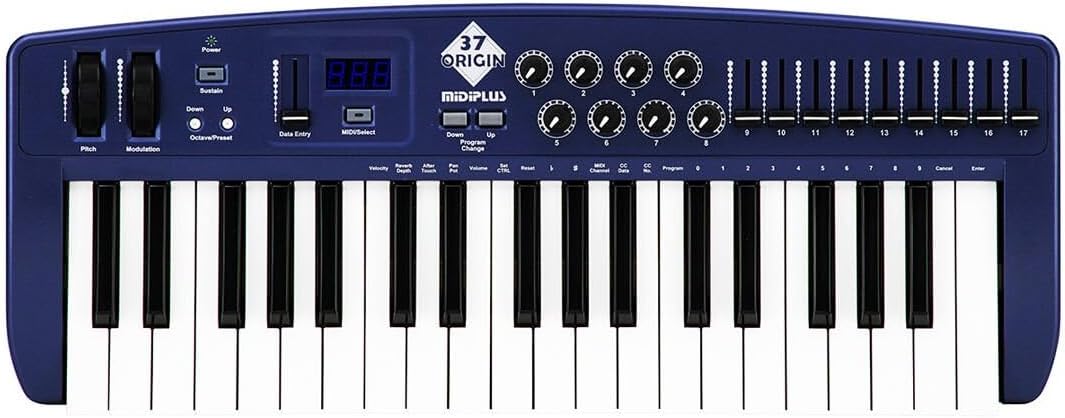
Ọgụgụ 4.1: N'elu-ala view of the midiplus Origin 37, showing the 37 keys, pitch and modulation wheels, control knobs, sliders, and display.
4.1 Njikwa ihu ihu
- 37 Full-Size Sensitive Keys: Standard piano-style keys for playing notes.
- Ẹtop Bend: Na-enye ohere maka mgbanwe olu n'oge dị adị nke ndetu.
- Wheel Modulation: Provides real-time control over various assignable parameters, typically vibrato or other effects.
- Bọtịnụ ike: Gbanyụọ ma ọ bụ gbanyụọ unit ahụ.
- Sustain Button: Toggles sustain on/off, mimicking a sustain pedal.
- Octave Up/Down Buttons: Shifts the keyboard's octave range up or down.
- Data Entry Slider: Used for adjusting parameter values shown on the display.
- MIDI/Select Button: Used to enter MIDI configuration mode or select options.
- Program Up/Down Buttons: Navigates through different program or preset numbers.
- 8 Real-Time Controller Knobs (1-8): Assignable rotary encoders for controlling various MIDI parameters.
- 9 Real-Time Controller Sliders (9-17): Assignable faders for controlling various MIDI parameters.
- Ikanam Display: Shows current parameter values, program numbers, and other status information.

Figure 4.2: Detail of the left-side controls, including Pitch Bend, Modulation, Power, Sustain, Octave Up/Down, Data Entry slider, and LED display.
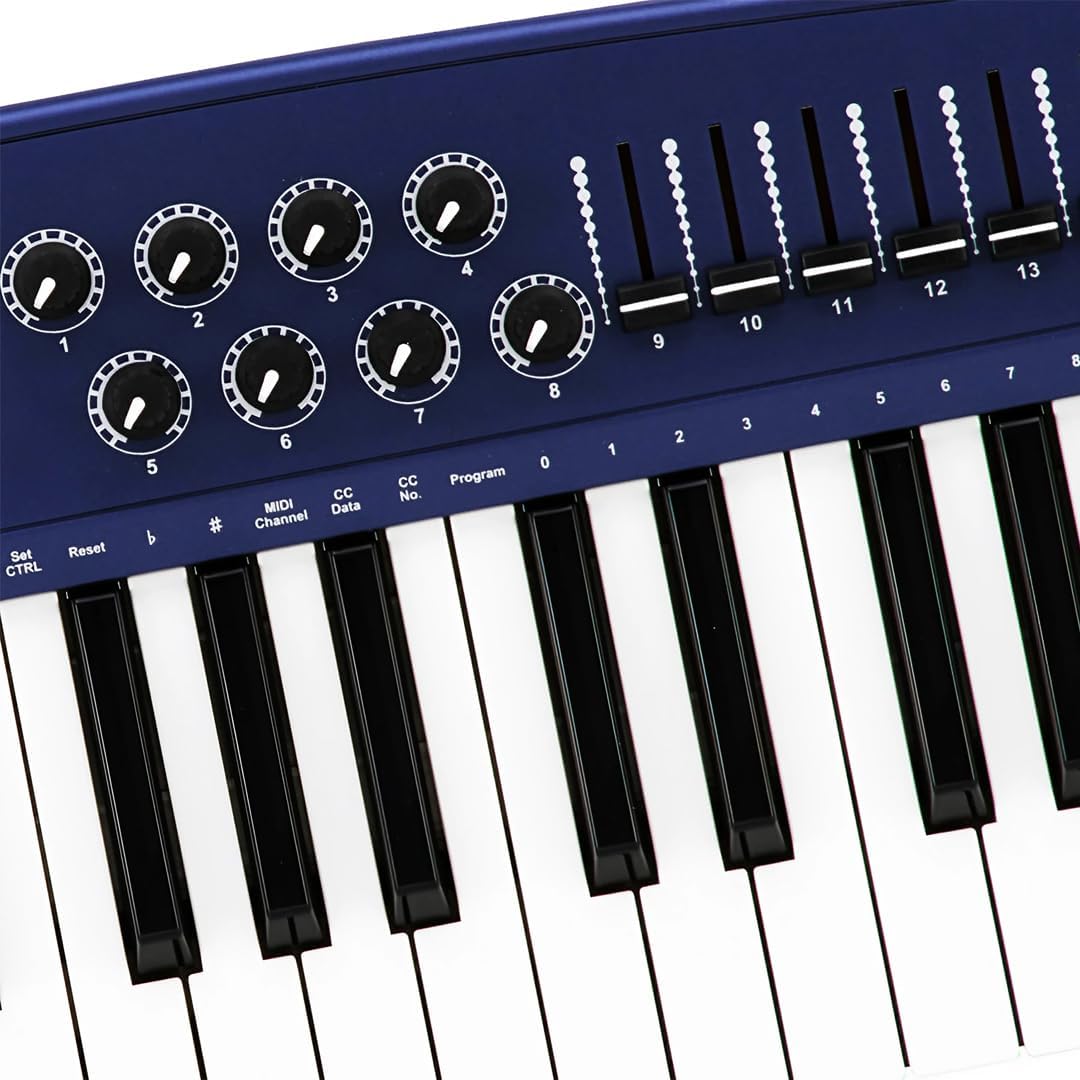
Figure 4.3: Detail of the right-side controls, showing the 8 rotary knobs and 9 faders, along with key labels for MIDI configuration.
4.2 Njikọ azụ azụ
- Sustain Switch Input: 1/4-inch jack for connecting an external sustain pedal (not included).
- KEYBOARD MIDI OUT (5-pin DIN): Standard MIDI output for connecting to other MIDI devices.
- Ọdụ ụgbọ mmiri USB: For connecting to a computer (PC/Mac) for MIDI communication and power.
- Ike mgba ọkụ: Isi mgba ọkụ maka otu.

Figure 4.4: Rear panel showing the Sustain Switch input, KEYBOARD MIDI OUT, USB port, and Power switch.
5. Nhazi
5.1 Ijikọ na Kọmputa (USB)
- Gbaa mbọ hụ na agbanyere kọmputa gị.
- Connect one end of the supplied USB cable to the USB port on the rear panel of the Origin 37.
- Jikọọ nsọtụ nke ọzọ nke eriri USB na ọdụ USB dị na kọmputa gị.
- The Origin 37 is USB class-compliant and does not require special drivers for most operating systems (PC/Mac). It will be powered via the USB connection.
- Turn on the Origin 37 using the Power button on the front panel.
- Your computer should automatically recognize the device. You can then select it as a MIDI input device in your Digital Audio Workstation (DAW) or music software (e.g., Ableton Live).
5.2 Connecting to External MIDI Devices (MIDI OUT)
- Ensure both the Origin 37 and the external MIDI device are powered off.
- Connect a standard 5-pin MIDI cable from the "KEYBOARD MIDI OUT" port on the Origin 37 to the MIDI IN port of your external MIDI device (e.g., synthesizer, sound module).
- Power on the Origin 37, then power on your external MIDI device.
- Configure your external MIDI device to receive MIDI data on the appropriate MIDI channel.
5.3 Connecting a Sustain Pedal
- Connect a standard 1/4-inch TS (mono) sustain pedal (not included) to the "Sustain Switch" input on the rear panel.
- The pedal will function as a sustain control for your MIDI notes.
6. Ntuziaka ọrụ
6.1 Basic Arụmọrụ
- Igodo na-akpọ egwu: Simply press the keys to send MIDI note-on/note-off messages to your connected software or hardware. The keys are velocity-sensitive, meaning the harder you press, the higher the velocity value sent.
- Ẹtop Bend: Move the wheel up or down to bend the pitch of currently held notes. It automatically returns to the center position.
- Wheel Modulation: Move the wheel to apply modulation effects. This wheel typically stays in the position you leave it. The specific effect controlled depends on your software or hardware instrument's settings.
- Sustain Button: Press to toggle sustain on or off. When active, notes will continue to sound after the key is released, similar to a piano's sustain pedal.
- Octave Up/Down: Use these buttons to transpose the entire keyboard up or down in octave increments. The LED display will indicate the current octave shift.
- Program Up/Down: These buttons are used to send MIDI Program Change messages, allowing you to switch between different sounds or presets on your connected MIDI device or software.
6.2 Assigning Knobs and Sliders
The 8 knobs and 9 sliders are assignable MIDI controllers. They send MIDI Control Change (CC) messages. The specific CC number each knob/slider sends can be configured. Refer to your software's or hardware's manual for how to map these CC messages to parameters.
To assign a knob or slider:
- Pịa MIDI/Select button to enter configuration mode.
- Jiri ihe Ntinye data slider or Octave Up/Down buttons to navigate through parameters on the LED display.
- Select the desired knob or slider to assign.
- Adjust the value (e.g., MIDI CC number) using the Ntinye data ihe mmịfe.
- Pịa MIDI/Select again to exit configuration mode and save changes.
Note: Specific assignment procedures may vary. Consult the detailed MIDI implementation chart (if available) or your DAW's manual for advanced mapping.
6.3 Data Entry and Display
The LED display provides visual feedback for various settings and parameters. The Ntinye data slider is primarily used to adjust numerical values shown on this display, such as MIDI channel, CC numbers, or program numbers during configuration.
7. Nlekọta
- Nhicha: Use a soft, dry cloth to clean the surface of the unit. Do not use abrasive cleaners, waxes, or solvents.
- Nchekwa: Mgbe a naghị eji ya ruo ogologo oge, debe ihe njikwa ahụ n'ebe dị jụụ ma kpọọ nkụ, ebe anwụ na-anaghị apụta kpọmkwem ma ọ bụ oke okpomọkụ.
- Ijikwa: Zere ịtụfu ihe ahụ ma ọ bụ mee ka ọ nwee mmetụta siri ike.
- Ike: Always disconnect the USB cable when the unit is not in use or during electrical storms.
8. Nchọpụta nsogbu
| Nsogbu | Ihe nwere ike ime | Ngwọta |
|---|---|---|
| Enweghị ike/Uniti anaghị agbanwuo. | Ejighị eriri USB ma ọ bụ mejọrọ. | Ensure USB cable is securely connected to both the controller and a powered USB port. Try a different USB port or cable. |
| No sound from software/hardware. | MIDI input not selected in software; incorrect MIDI channel; software instrument not loaded. | Verify the Origin 37 is selected as a MIDI input device in your DAW. Check that the MIDI channel on the controller matches the receiving channel of your software/hardware. Ensure a sound-generating instrument is loaded and active. |
| Knobs/Sliders do not control parameters. | Not mapped in software; incorrect MIDI CC assignment. | Ensure the knobs/sliders are correctly mapped to parameters within your DAW or software instrument. Check the MIDI CC numbers being sent by the controller and ensure they match the expected input. |
| Keys are not responding or sending incorrect notes. | Connection issue; software conflict. | Reconnect the USB cable. Restart your computer and DAW. Check for any conflicting MIDI drivers or software. |
| LED display flickering or unstable. | Power fluctuation; internal fault. | Ensure a stable USB power source. Try connecting to a different USB port or a powered USB hub. If the issue persists, contact customer support. |
9. Nkọwapụta
| Njirimara | Nkọwa |
|---|---|
| Igodo | 37 full-size, velocity-sensitive keys |
| Ndị njikwa | Pitch Bend Wheel, Modulation Wheel, 8 Assignable Knobs, 9 Assignable Sliders, Sustain Button, Octave Up/Down, Program Up/Down, Data Entry Slider |
| Ngosipụta | Ngosipụta LED |
| Njikọ | USB (Type B), 5-pin MIDI OUT, 1/4" Sustain Switch Input |
| Ịnye ọkụ | Ike ụgbọ ala USB |
| Ndakọrịta | PC, Mac (USB Class Compliant) |
| Akụkụ (L x W x H) | 27.56 x 10.24 x 4.13 sentimita (70 x 26 x 10.5 cm) |
| Ibu | 6.39 pound (2.9 n'arọ) |
10. Akwụkwọ ikike na nkwado
10.1 Ozi akwụkwọ ikike
Midiplus products are designed and manufactured to the highest quality standards. For specific warranty terms and conditions, please refer to the warranty card included with your product or visit the official Midiplus websaịtị. Debe nnata nzụta gị dị ka ihe akaebe nke ịzụrụ maka nkwupụta ikike.
10.2 Nkwado ndị ahịa
If you encounter any issues or have questions not covered in this manual, please contact Midiplus customer support. You can typically find contact information on the official Midiplus websaịtị ma ọ bụ site na onye na-ere ahịa gị.
Maka enyemaka ọzọ, ị nwere ike ịga na Midiplus Store on Amazon.


