Okwu mmalite
This manual provides instructions for setting up, operating, and maintaining your Mercury MW3030R Dual Band Wireless Router. Please read this manual carefully before use to ensure proper installation and optimal performance.
Ozi nchekwa
- Ewepụla ngwaọrụ ahụ na mmiri ma ọ bụ oke iru mmiri.
- Anwala ịkwasa ma ọ bụ rụkwaa ngwaọrụ n'onwe gị.
- Jiri naanị ihe nkwụnye ọkụ enyere na ngwaọrụ.
- Gbaa mbọ hụ na ikuku ikuku dị na gburugburu rawụta iji gbochie ikpo oke ọkụ.
Ihe ngwugwu
Chọpụta na ngwungwu gị nwere ihe ndị a:
- Mercury MW3030R Wireless Router
- Ihe nkwụnye ọkụ
- eriri Ethernet
- Quick Installation Guide (this manual serves as a detailed guide)
Ngwaahịa gafereview
Familiarize yourself with the router's components and indicators.
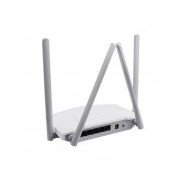
Foto 1: N'azụ view of the Mercury MW3030R router. This image displays the four external antennas, the WAN port (typically blue), multiple LAN ports (typically yellow), and the power input jack. The reset button and WPS button are also usually located on the rear panel.
Foto 2: Si elu gbadata view of the Mercury MW3030R router with its antennas folded. This perspective highlights the router's sleek, white casing and its overall compact form factor, suitable for various placements.
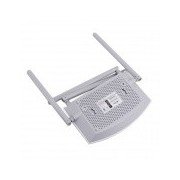
Foto 3: N'okpuru view of the Mercury MW3030R router. This image shows the ventilation holes designed for heat dissipation and the product label, which typically contains important information such as the default Wi-Fi name (SSID), password, and web management address.
Ihe ngosi LED:
- Igwe ọkụ ọkụ: Na-egosi ọkwa ike nke rawụta.
- Igwe ọkụ ịntanetị: Na-egosi ọkwa njikọ ịntanetị.
- WLAN LED: Indicates wireless activity.
- Igwe ọkụ LAN: Indicate connection status for each LAN port.
Melite
1. Njikọ ngwaike
- Ike Na: Connect the power adapter to the router's power port and plug it into a wall outlet. Wait for the Power LED to become stable.
- Jikọọ na ịntanetị (WAN): Connect one end of an Ethernet cable to your modem's LAN port and the other end to the router's WAN port (usually distinctively colored, e.g., blue).
- Connect Devices (LAN): For wired connections, connect your computer or other devices to the router's LAN ports (usually yellow) using Ethernet cables.
- Mpi: Adjust the four antennas for optimal signal coverage.
2. Nhazi izizi (Web Ngwa ngwa)
- Jikọọ na rawụta: Connect your computer to the router either via an Ethernet cable to a LAN port or wirelessly using the default Wi-Fi SSID and password printed on the router's label (refer to Figure 3).
- Nweta Web Ihe nchọgharị: Mepee a web browser (e.g., Chrome, Firefox) and type the default access address (e.g., http://192.168.1.1 or http://tplinkwifi.net) n'ime ụlọ mmanya ma pịa Tinye.
- Banye: Tinye aha njirimara na paswọọdụ ndabara (na-emekarị admin maka ha abụọ, ma ọ bụ dịka akọwapụtara na akara rawụta ahụ).
- Gbaa nhazi ngwa ngwa: Follow the on-screen instructions of the Quick Setup Wizard to configure your internet connection type (e.g., PPPoE, Dynamic IP, Static IP) and wireless settings (SSID, password).
- Gbanwee mbanye aha mbanye: For security, it is highly recommended to change the default login password for the router's web njikwa interface.
Ntuziaka ọrụ
Jikọọ na Wi-Fi
- On your wireless device (smartphone, laptop), search for available Wi-Fi networks.
- Select your router's Wi-Fi network name (SSID) that you configured during setup.
- Enter the Wi-Fi password you set.
- Ekwesịrị ijikọ ngwaọrụ gị na ịntanetị ugbu a.
Dual Band arụ ọrụ
The MW3030R supports both 2.4GHz and 5.0GHz wireless bands. The 2.4GHz band offers wider coverage, while the 5.0GHz band provides faster speeds with less interference over shorter distances. You can connect your devices to either band based on your needs.
Netwọk ndị ọbịa
Nweta rawụta web interface to enable and configure a separate guest network. This allows guests to access the internet without accessing your main network resources.
Nlekọta
- Mmelite femụwe: Lelee onye nrụpụta mgbe niile website for firmware updates. Updating firmware can improve performance, add new features, and fix security vulnerabilities.
- Ịmalitegharịa router: If you experience network issues, try restarting the router by unplugging the power adapter, waiting 10 seconds, and then plugging it back in.
- Nhicha: Keep the router clean and free from dust. Use a soft, dry cloth. Do not use liquid cleaners.
- Nkwanye: Place the router in a central location, away from obstructions and devices that may cause interference (e.g., microwaves, cordless phones).
Nchọpụta nsogbu
Enweghị ohere ịntanetị
- Check if the Internet LED on the router is lit or blinking correctly.
- Ensure the Ethernet cable from your modem is securely connected to the router's WAN port.
- Malitegharịa ekwentị gị modem na rawụta.
- Nyochaa ntọala njikọ ịntanetị gị na rawụta web interface.
Ọsọ Ikuku Dị Nwayọọ
- Ensure your device is connected to the 5.0GHz band if it supports it, for faster speeds.
- Move closer to the router or adjust antenna positions.
- Lelee maka ndabichi sitere na ngwaọrụ eletrọnịkị ndị ọzọ.
- Reduce the number of devices connected to the network or bandwidth-intensive activities.
Enweghị ike ịnweta router Web Interface
- Gbaa mbọ hụ na ejikọrọ ngwaọrụ gị na rawụta (wired ma ọ bụ ikuku).
- Verify the IP address you are typing in the browser is correct (e.g., http://192.168.1.1).
- Gbalịa ikpochapụ cache ihe nchọgharị gị ma ọ bụ jiri ihe nchọgharị dị iche.
- If you forgot the login password, you may need to perform a factory reset (Warning: This will erase all your settings).
Nkọwapụta
| Njirimara | Nkọwa |
|---|---|
| Nlereanya | MW3030R |
| Ụkpụrụ ikuku | IEEE 802.11ac/n/g/b/a |
| Ugboro ugboro | 2.4GHz and 5.0GHz (Dual Band) |
| Ọsọ ikuku | Up to 600Mbps (combined) |
| Antenna | 4 Antenna mpụga |
| Ọnụ ụzọ | 1x WAN Port, Multiple LAN Ports (typically 3 or 4) |
| Ịnye ọkụ | External Power Adapter (provided) |
Akwụkwọ ikike na nkwado
The Mercury MW3030R router comes with a standard manufacturer's warranty. For detailed warranty information, technical support, or service inquiries, please refer to the official Mercury websaịtị ma ọ bụ kpọtụrụ nkwado ndị ahịa ha. Debe akwụkwọ nnata ịzụrụ maka akwụkwọ ikike.