Okwu mmalite
The Logitech Illuminated Living-Room Keyboard K830 is designed to enhance your home entertainment experience. This keyboard combines a full keyboard layout with a built-in touchpad, offering seamless wireless control of your connected TV or computer, even in low-light conditions, thanks to its bright backlit keys.

Figure 1: Logitech K830 Illuminated Living-Room Keyboard, top view.
Ihe ngwugwu
Gbaa mbọ hụ na ihe niile dị na ngwugwu:
- Logitech K830 Illuminated Living-Room Keyboard
- Logitech Unifying nnata
- USB chaja USB
- USB range extender
- User information (this manual)
Melite
1. Ịchaji ahụigodo
Before first use, fully charge the keyboard. Connect the supplied USB recharge cable to the micro-USB port on the keyboard and the other end to a USB power source (e.g., computer USB port, USB wall adapter).
- The battery indicator light will glow green when charging and turn off when fully charged.
- A full charge typically provides several weeks of use.
2. Jikọọ ahụigodo
The K830 keyboard offers two connection methods: Logitech Unifying receiver or Bluetooth Smart technology.
2.1. Using the Logitech Unifying Receiver (Recommended for PCs)
- Locate the Logitech Unifying receiver in the package.
- Plug the Unifying receiver into an available USB port on your computer or smart TV. For optimal range, use the included USB range extender if the receiver is obstructed or far from the keyboard.
- Turn on the keyboard by sliding the power switch located on the top edge of the keyboard to the ON position.
- The keyboard should automatically connect to the receiver. If not, use the Logitech Unifying Software (downloadable from Logitech's website) to pair the devices.

Figure 2: User operating the K830 keyboard from a comfortable distance.
2.2. Using Bluetooth Smart Technology (For compatible devices)
- Ensure your device (e.g., Android TV, tablet) has Bluetooth Smart (Bluetooth Low Energy) enabled.
- Gbanwuo ahụigodo.
- Press and hold the Bluetooth pairing button (usually indicated by a Bluetooth icon) on the keyboard until the indicator light starts blinking rapidly, indicating it's in pairing mode.
- On your device, go to Bluetooth settings and select "Logitech K830" from the list of available devices to pair.
- Soro mkpali na ihuenyo ọ bụla iji mezue usoro njikọta.
Ntuziaka ọrụ
Nhazi ahụigodo na arụrụ ya
The K830 features a compact layout optimized for living room use, including standard alphanumeric keys, function keys, and dedicated media controls.
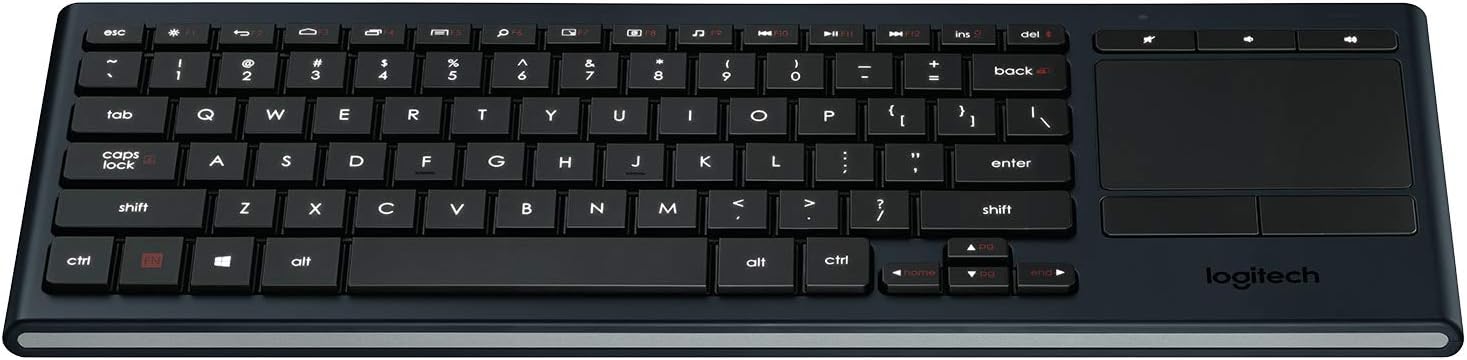
Nyocha 3: N'eluview of the K830 keyboard layout.
Ịkụ azụ azụ
The keyboard features automatic backlighting that adjusts to ambient light conditions. A sensor detects the room's light level and automatically brightens or dims the key backlights for optimal visibility. The backlighting also activates when your hands approach the keyboard and turns off when not in use to conserve battery.
Mpempe mkpịsị aka agbakwunyere
The large, responsive touchpad provides precise cursor control and supports multi-touch gestures. The two physical buttons below the touchpad function as left-click and right-click.
- Naanị otu mkpịsị aka: Pịa aka ekpe.
- Pịa mkpịsị aka abụọ: Pịa aka nri.
- Mpịakọta Mkpịsị Aka Abụọ: Drag two fingers up or down to scroll vertically.
- Pinch Zoom: Jiri mkpịsị aka abụọ pịa ya ma ọ bụ gbasaa ya iji mee ka ọ dịkwuo elu.

Foto 4: Akụkụ view highlighting the integrated touchpad and power indicator.
Media Keys and Shortcut Keys
The top row of keys includes dedicated media controls and shortcut keys for quick access to common functions. These keys are optimized for Windows and Android operating systems.
- Njikwa olu: Mechie olu gị, Mechie olu gị, Mechie olu gị.
- Ndabere mgbasa ozi: Kpọọ/kwụsịtụ, Egwu gara aga, Egwu na-esote.
- Windows/Android Shortcuts: Home, Back, Search, etc. (specific functions may vary by OS).
To use the F1-F12 functions, press the Fn igodo n'otu oge yana igodo F achọrọ.
Nlekọta
Na-ehicha ahụigodo
To clean your K830 keyboard:
- Gbanyụọ ahụigodo ahụ tupu ị hichaa ya.
- Jiri akwa dị nro na-enweghị ntụpọ damptinye mmiri ma ọ bụ ihe ngwọta dị nro.
- Zere oke mmiri mmiri ma fesakwala ihe nhicha ozugbo na ahụigodo ahụ.
- For the touchpad, use a dry, soft cloth to remove fingerprints and smudges.
Nlekọta batrị
The K830 uses a built-in rechargeable Lithium Polymer battery. To maximize battery life:
- Charge the keyboard regularly, but avoid leaving it plugged in constantly after it's fully charged.
- If storing the keyboard for an extended period, charge it to about 50% before storage.
- Zere ikpughe ahụigodo na oke okpomọkụ.
Nchọpụta nsogbu
| Nsogbu | Ihe nwere ike ime | Ngwọta |
|---|---|---|
| Ahụigodo anaghị aza | Low battery; Keyboard off; Receiver not plugged in; Out of range; Pairing issue. | Charge the keyboard. Ensure the keyboard is ON. Plug the Unifying receiver into a working USB port. Move closer to the receiver (within 10 meters/33 feet). Re-pair the keyboard using Logitech Unifying Software or Bluetooth pairing process. |
| Ọkụ azụ anaghị arụ ọrụ | Low battery; Ambient light too bright; Sensor obstruction. | Charge the keyboard. The backlighting automatically adjusts; it may not activate in bright environments. Ensure the light sensor (located near the top edge) is not covered. |
| Touchpad erratic or unresponsive | Dirty touchpad surface; Software issue; Interference. | Clean the touchpad surface with a dry, soft cloth. Restart your computer/device. Ensure no other wireless devices are causing interference. |
| Keys not typing correctly | Software issue; Physical obstruction under key. | Restart your computer/device. Gently check for any debris under the affected key. |
Nkọwapụta
| Njirimara | Nkọwa |
|---|---|
| Nọmba nlereanya | 920-007182 |
| Njikọta | Logitech Unifying (2.4 GHz RF), Bluetooth Smart (Bluetooth Low Energy) |
| Ikuku iche | Ruo mita 10 (ụkwụ 33) |
| Ụdị batrị | Lithium Polymer na -akwụghachi ụgwọ |
| Ịkụ azụ azụ | Automatic, single color |
| Mpempe mkpịsị aka agbakwunyere | Yes, with multi-touch gesture support |
| Ndakọrịta sistemụ arụmọrụ | Windows 7, Windows 8, Windows 10 or later; Android 5.0 or later; Chrome OS |
| Akụkụ (LxWxH) | 15.1 x 5.59 x 1.65 sentimita (38.35 x 14.2 x 4.19 cm) |
| Ibu | 1.09 pound (0.49 n'arọ) |
Akwụkwọ ikike na nkwado
Maka ozi gbasara akwụkwọ ikike, nkwado teknụzụ, na akụrụngwa ndị ọzọ, biko gaa na nkwado Logitech gọọmentị website or refer to the user guide PDF:
- Nkwado Logitech Websaịtị: www.logitech.com/support
- Ntuziaka onye ọrụ (PDF): Budata PDF
Biko dowe ihe akaebe nke ịzụrụ ihe maka akwụkwọ ikike.


