1. Okwu mmalite
This manual provides essential information for the safe and efficient operation of your Haier 40E3500 40-inch 1080P LED HDTV. Please read these instructions thoroughly before using your television and retain them for future reference.
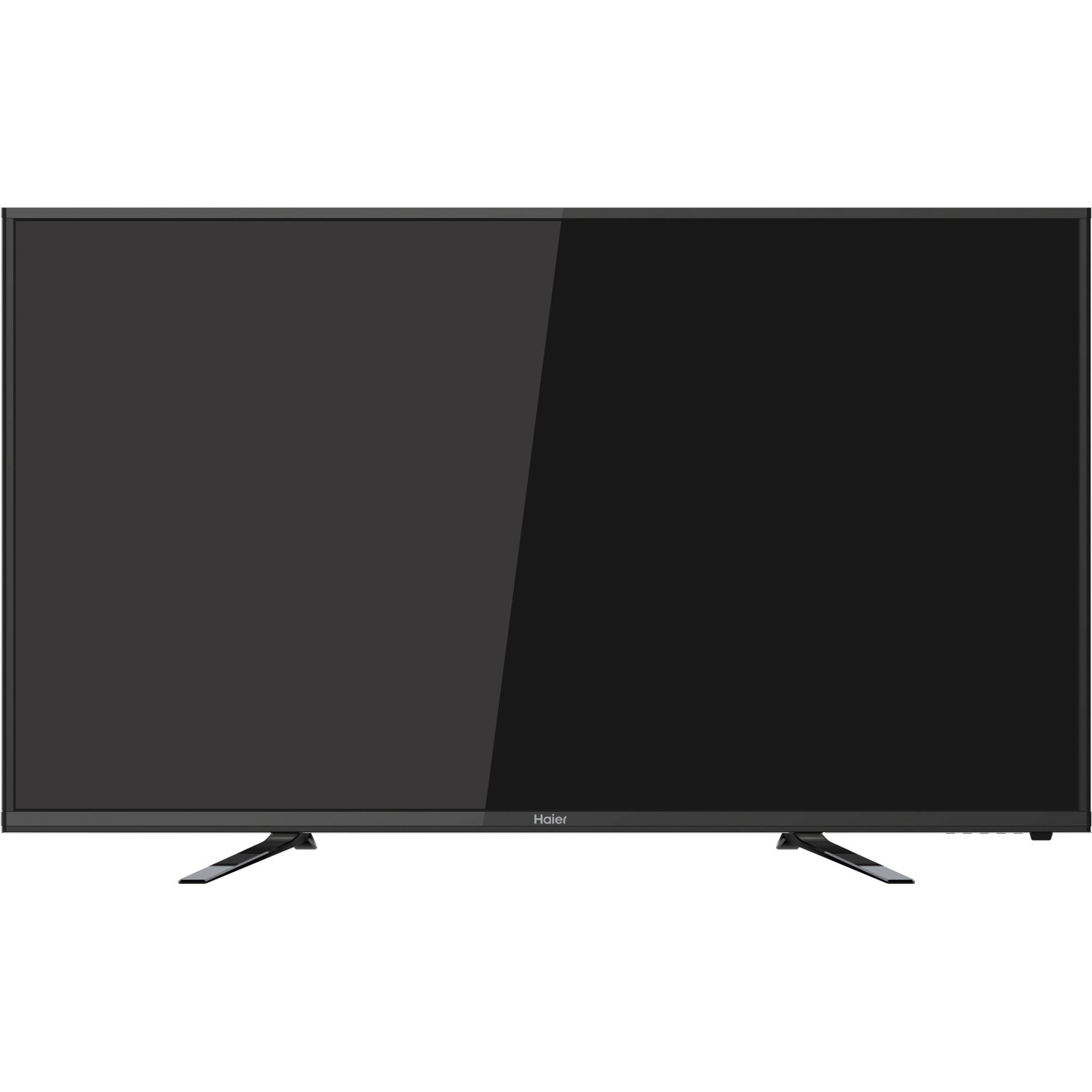
Foto: N'ihu view of the Haier 40E3500 40-inch LED HDTV, showcasing its slim frame and display.
2. Nhazi
2.1 Mwepu na ọdịnaya
Jiri nlezianya wepụ telivishọn ahụ na ngwugwu ya. Hụ na ihe niile dị na ya dị:
- Haier 40E3500 Television Unit
- Ntutu TV
- Njikwa anya (ya na batrị)
- Ụdọ ọkụ
- Akwụkwọ ntuziaka (akwụkwọ a)
2.2 Na-agbakwunye nkwụnye ahụ
Place the TV screen face down on a soft, clean surface to prevent scratches. Align the stand with the mounting holes on the bottom of the television. Secure the stand using the provided screws. Ensure the stand is firmly attached before placing the TV upright.
2.3 Mgbidi mgbidi (nhọrọ)
If wall mounting, consult a professional installer. Note that this TV model may use smaller mounting screws than some other TV sets of similar size. Ensure compatible mounting hardware is used.
2.4 Ijikọ ike
Connect the power cord to the TV's power input, then plug the other end into a standard AC outlet.
2.5 Ijikọ ngwaọrụ mpụga
Your Haier 40E3500 HDTV offers multiple connectivity options:
- ọdụ ụgbọ mmiri HDMI (x3): For high-definition audio and video sources such as Blu-ray players, game consoles, and cable/satellite boxes. One HDMI port is MHL (Mobile High-Definition Link) enabled, allowing connection of compatible smartphones, tablets, or streaming sticks.
- Ọdụ USB (x1): Maka ijikọ ngwaọrụ nchekwa USB ka ọ kpọọ mgbasa ozi files.
- Ntinye vidiyo akụrụngwa: Maka ijikọ ngwaọrụ site na iji eriri vidiyo nke ihe mejupụtara.
- Ntinye vidiyo mejupụtara: For connecting devices using composite video cables.
- Ntinye RF: Maka ijikọ erimeri ma ọ bụ eriri TV.
Ensure the TV is powered off before connecting or disconnecting any devices.
3. Ntuziaka ọrụ
3.1 Ọkachamara Mbido Mbido
Ozugbo agbanyere ya na mbụ, TV ga-eduzi gị site na usoro ntọala mbụ. Nke a na-agụnyekarị:
- Nhọrọ asụsụ
- Time zone and clock settings
- Channel scan (for antenna/cable connections)
3.2 Ọrụ ndị bụ isi
- Gbanyụọ/ Gbanyụọ: Pịa bọtịnụ ike na njikwa anya ma ọ bụ na TV.
- Njikwa olu: Use the Volume Up/Down buttons on the remote.
- Nhọrọ ọwa: Use the Channel Up/Down buttons or the number pad on the remote.
- Nhọrọ ntinye: Press the 'Input' or 'Source' button on the remote to cycle through available input sources (HDMI 1, HDMI 2, HDMI 3, USB, Component, Composite, TV).
3.3 Ntọala foto
Access the Picture menu to adjust settings such as Brightness, Contrast, Color, Tint, and Sharpness. Pre-set picture modes (e.g., Standard, Dynamic, Movie) are available for quick adjustments.
3.4 Ntọala ụda
Access the Sound menu to adjust settings such as Bass, Treble, and Balance. The TV features two dedicated sound chambers designed to produce enhanced sound quality with improved mid-range response and richer overall sound texture.
3.5 MHL Functionality
Connect MHL-compatible devices (smartphones, tablets, Roku Streaming Stick) to the designated HDMI/MHL port using an MHL cable. This allows you to display content from your mobile device directly on the TV screen and often charges the device simultaneously.
4. Nlekọta
4.1 Na-ehicha ihuenyo ahụ
Jiri nwayọ hichaa ihuenyo ahụ site na iji akwa dị nro na-enweghị lint. Maka akara ndị isi ike, ntakịrị dampen akwa na mmiri ma ọ bụ pụrụ iche ihuenyo Cleaner. Afesala mmiri mmiri ozugbo na ihuenyo.
4.2 Nlekọta n'ozuzu
- Zere ikpughe TV na ìhè anyanwụ kpọmkwem ma ọ bụ oke okpomọkụ.
- Debe TV ahụ ka ọ ghara iru ebe mmiri na-abata.
- Gbaa mbọ hụ na ikuku ikuku dị na gburugburu TV ka ọ ghara ikpo oke ọkụ.
- Kwụpụ TV ahụ na ebe ọkụ eletrik n'oge oké ifufe ma ọ bụ mgbe a hapụrụ ya n'enweghị onye na-elekọta ya ruo ogologo oge.
5. Nchọpụta nsogbu
Tupu ịkpọtụrụ nkwado ndị ahịa, nwaa azịza ndị a maka okwu nkịtị:
- Enweghị ike: Ensure the power cord is securely plugged into both the TV and the wall outlet. Try a different outlet.
- Enweghị foto, mana ụda: Check the input source selection. Ensure the connected device is powered on and functioning correctly.
- Enweghị ụda, mana foto: Check the volume level and mute setting. Ensure external audio devices are connected correctly.
- Njikwa anya anaghị arụ ọrụ: Dochie batrị. Gbaa mbọ hụ na onweghị ihe mgbochi n'etiti ime ime na ihe mmetụta IR nke TV.
- Ogo ụda adịghị mma: While the TV has dedicated sound chambers, some users may prefer external audio solutions. Adjust sound settings in the menu.
- HDMI Input Issues: If an HDMI input is not functioning, try connecting the device to a different HDMI port. Ensure the HDMI cable is not damaged.
6. Nkọwapụta
| Nọmba nlereanya | 40E3500 |
| Nha ihuenyo | 40 sentimita asatọ |
| Ngosipụta teknụzụ | Ikanam |
| Mkpebi | 1080p (HD zuru ezu) |
| Ọnụego ume ọhụrụ | 60 Hz |
| Akụkụ ngwaahịa (L x W x H) | 8.3 x 35.6 x 21.8 sentimita asatọ |
| Ibu Ibu | 14.84 pound |
| Teknụzụ Njikọta | HDMI (x3, one MHL enabled), USB (x1) |
| Agba | Nwa |
7. Akwụkwọ ikike na nkwado
For warranty information, please refer to the warranty card included with your product or visit the official Haier websaịtị. Debe nnata nzụta gị dị ka ihe akaebe nke ịzụrụ maka nkwupụta ikike.
For technical support or service inquiries, please contact Haier customer service. Contact details can typically be found on the manufacturer's websaịtị ma ọ bụ na nkwakọ ngwaahịa.


