Okwu mmalite
The Logitech UE Boom is a 360-degree wireless Bluetooth speaker designed for portable audio. It features a durable, go-anywhere shape and is equipped with a water and stain resistant acoustic skin. This speaker allows for wireless music playback, phone calls, and can be paired with another UE Boom for stereo sound.

Foto: N'ihu view of the Logitech UE Boom Wireless Bluetooth Speaker in Northern Light color.
Atụmatụ igodo
- Ụda ogo 360: Delivers immersive audio in all directions.
- Enwere ike ibugharị: Versatile, cylindrical shape for easy transport.
- Water and Stain Resistant: Features a colorful acoustic skin with plasma coating for durability against water and stains.
- Ikuku Njikọ: Connects via Bluetooth from up to 50 feet away. Easy pairing via NFC for compatible devices.
- Njirimara Ugboro abụọ: Wirelessly connect two UE BOOM speakers in stereo using the UE BOOM app for enhanced sound.
- Ogologo ndụ batrị: Rechargeable battery provides up to 15 hours of playback.
- Igwe okwu: Integrated crystal-clear speakerphone for calls.
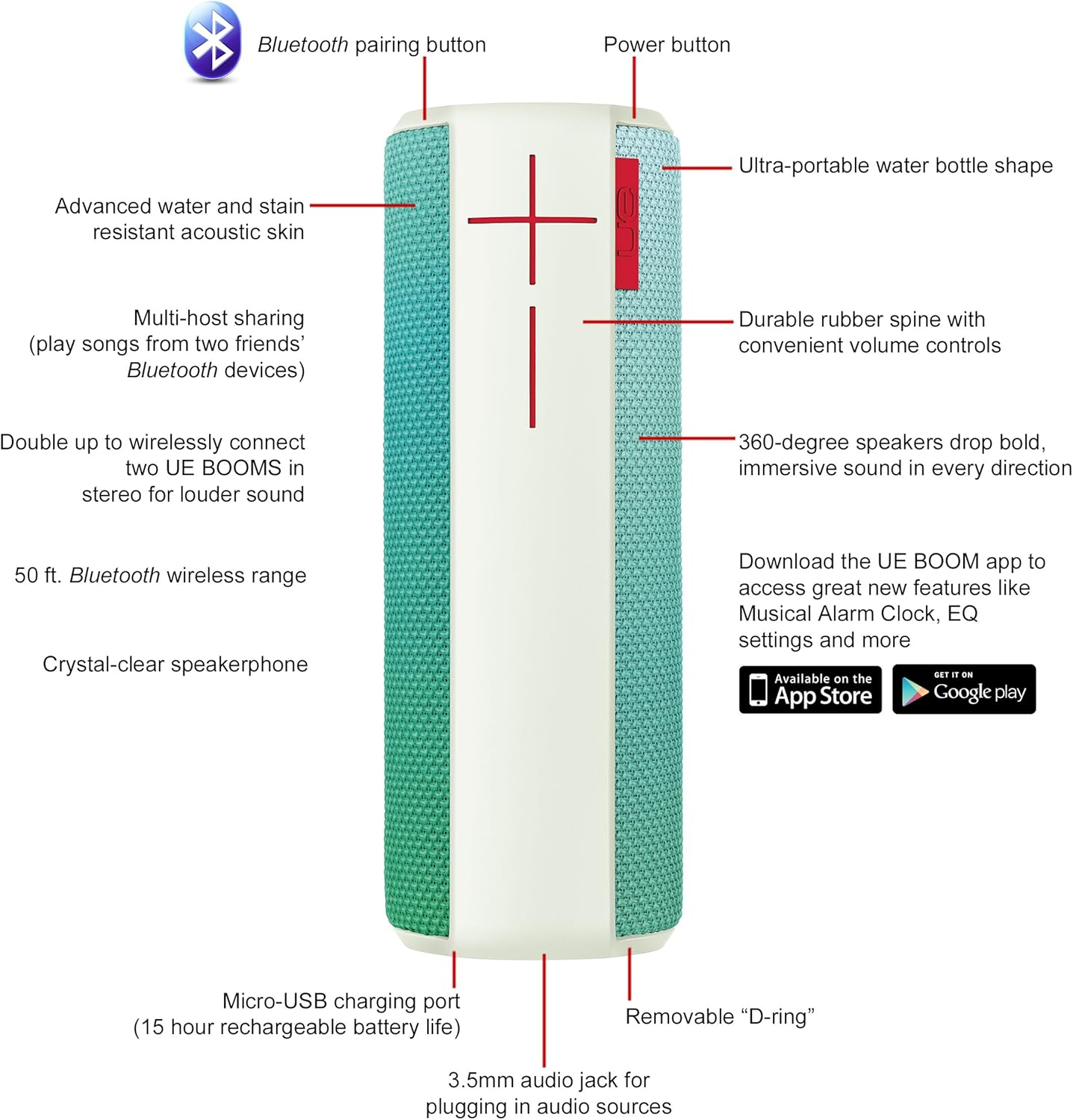
Image: Diagram highlighting key features and controls of the UE Boom speaker, including Bluetooth pairing button, power button, volume controls, micro-USB charging port, and 3.5mm audio jack.
Melite
Ịchaji Ọkà Okwu
Before initial use, fully charge your UE Boom speaker. Connect the provided micro-USB cable to the charging port located at the bottom of the speaker and plug the other end into a USB power source. The speaker's battery provides approximately 15 hours of playback on a full charge.
Njikọ Bluetooth
- Power on your UE Boom speaker by pressing the power button.
- Press and hold the Bluetooth pairing button (usually indicated by a Bluetooth icon) until you hear an audible tone and the LED indicator flashes rapidly.
- On your mobile device (smartphone or tablet), navigate to the Bluetooth settings.
- Select "UE Boom" from the list of available devices to pair.
- Once paired, you will hear a confirmation tone from the speaker.
For NFC-enabled devices, simply tap your device to the NFC area on the speaker for quick pairing.
Ntuziaka ọrụ
Njikwa ntọala
- Bọtịnụ ike: Located on the top of the speaker to turn it on or off.
- Njikwa olu: Large '+' and '-' buttons on the side of the speaker adjust the volume.
- Bọtịnụ Bluetooth: Na-ebute ọnọdụ njikọta Bluetooth.
Using the UE BOOM App
Download the official UE BOOM app from your device's app store (available on App Store and Google Play) to unlock additional features:
- Musical Alarm Clock: Wake up to your favorite music.
- Nkwalite ime anya: Turn your speaker on/off from your device.
- Ntọala EQ: Hazie ụda profile ka mmasị gị.
- Ugboro abụọ: Connect two UE BOOM speakers for a stereo sound experience.
Ọrụ Ekwentị Ọkà Okwu
When connected to a smartphone, the UE Boom can be used as a speakerphone. Incoming calls will be routed through the speaker, allowing for hands-free communication.
Nlekọta
The UE Boom speaker features a water and stain resistant acoustic skin. To clean, gently wipe the speaker with a damp cloth. Avoid using harsh chemicals or abrasive cleaners. Ensure all ports are dry before charging or connecting other devices.
Nchọpụta nsogbu
- Enweghị ike: Ensure the speaker is charged. Connect it to a power source using the micro-USB cable.
- Enweghị ike ijikọ site na Bluetooth:
- Gbaa mbọ hụ na ọkà okwu nọ na ọnọdụ njikọta (LED).
- Lelee na agbanyere Bluetooth na ngwaọrụ gị.
- Move your device closer to the speaker (within 50 feet).
- Gbalịa iwepụ ma megharịa ngwaọrụ ahụ ọzọ.
- Olu dị ala ma ọ bụ ụda gbagọrọ agbagọ:
- Gbanwee olu na ma ọkà okwu na ngwaọrụ gị ejikọrọ.
- Gbaa mbọ hụ na chajịrị ọkà okwu.
- Check for any obstructions around the speaker.
- Ngwa anaghị ejikọta: Ensure the speaker is powered on and connected via Bluetooth to your device. Update the app to the latest version.
Nkọwapụta ngwaahịa
| Aha Nlereanya | Logitech UE Boom Wireless Bluetooth Speaker |
| Nọmba nlereanya | 980-001023 |
| Ụdị | Logitech |
| Agba | Northern Light |
| Ụdị Ọkà Okwu | N'èzí |
| Teknụzụ Njikọta | Bluetooth, Ikuku |
| Ikuku iche | Ruo 50 ụkwụ (mita 15.24) |
| Isi Iyi Ike | Akwadoro batrị (1 batrị lithium ion gụnyere) |
| Nkezi Ndụ batrị | Awa 15 |
| Ọkwa Nguzogide mmiri | Waterproof |
| Ibu Ibu | 2.2 pound |
| Akụkụ ngwaahịa (LxWxH) | 2.6 x 2.6 x 7.1 sentimita asatọ |
| Ihe onwunwe | Plastic |
| UPC | 097855112125 |
Vidiyo ngwaahịa ngwaahịa
Vidiyo: Efereview of the Logitech UE Boom speaker's features, including 360-degree sound, water resistance, wireless connectivity, and the ability to pair two speakers for louder sound. This video demonstrates the speaker's durability and portability in various environments.
Akwụkwọ ikike na nkwado
The Logitech UE Boom Wireless Bluetooth Speaker comes with a Limited Warranty. For specific warranty details, please refer to the documentation included with your product or visit the official Logitech websaịtị.
For technical support or customer service, you may contact Logitech at: 646-454-3200.


