1. Okwu mmalite
This user manual provides detailed instructions for the setup, operation, and maintenance of your VIZIO S2120w-E0 2.0 Sound Stand. Designed to enhance your home audio experience, this sound stand delivers powerful sound in a compact form factor. Please read this manual thoroughly before using the product to ensure proper installation and optimal performance.
2. Ihe ngwugwu
Nyochaa na etinyere ihe niile edepụtara n'okpuru na ngwugwu gị:
- VIZIO S2120w-E0 2.0 Sound Stand
- Njikwa anya (ya na batrị 2 AAA)
- Igwe ọkụ ọkụ
- Ngwa anya Audio USB
- RCA ruo 3.5mm Audio Cable
- Ntuziaka mmalite ngwa ngwa
Note: The provided cables facilitate a simple, one-cable setup for most televisions.
3. Ngwaahịa gafereview
The VIZIO S2120w-E0 Sound Stand is designed to sit directly under your television, providing enhanced audio without requiring additional space. It features integrated speakers and controls for a streamlined home theater experience.
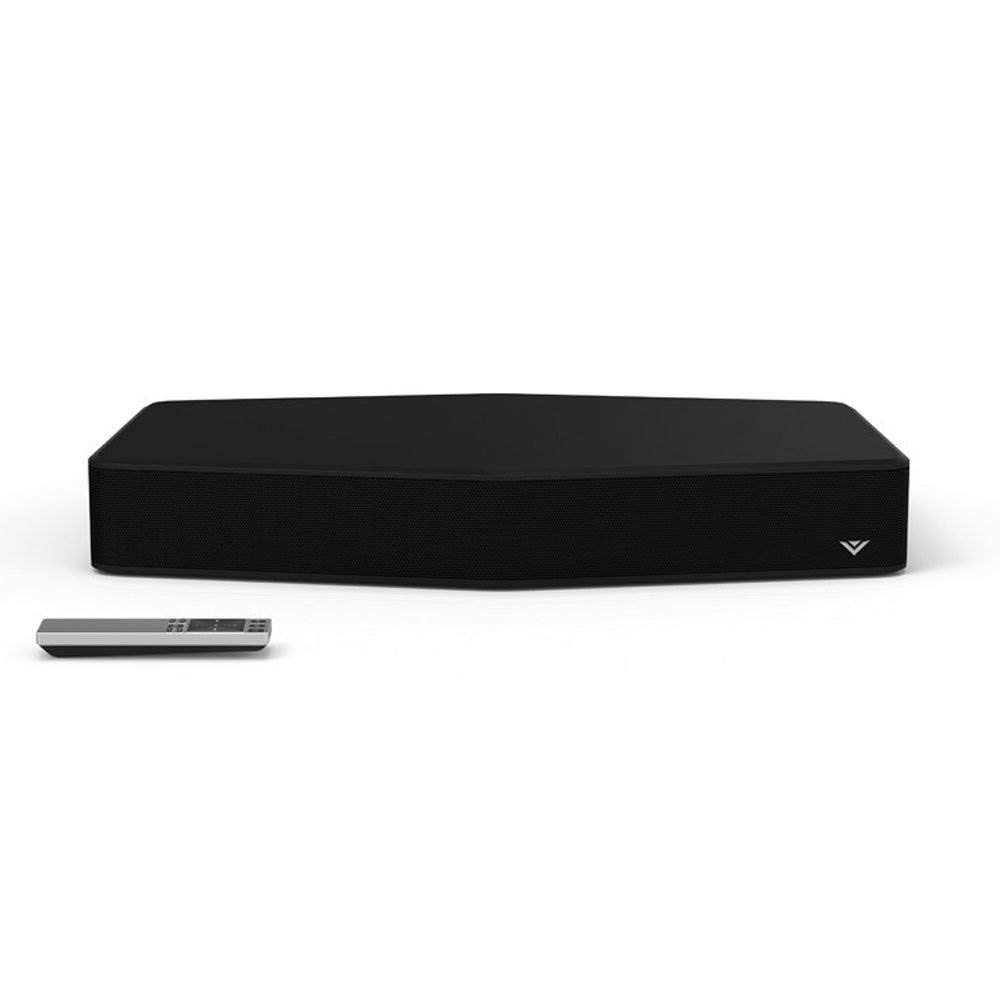
Figure 3.1: VIZIO S2120w-E0 2.0 Sound Stand with its remote control. The sound stand is black with a subtle VIZIO logo on the front right, and the remote is silver and black.

Foto 3.2: Akụkụ view of the VIZIO S2120w-E0 Sound Stand, highlighting the control buttons located on the right side. These buttons include Power, Input, Bluetooth, Volume Up, Volume Down, and Mute.
Ngosipụta Ogwe ihu
The front panel of the sound stand features a series of LED lights that indicate the current input, volume level, and active audio modes. These indicators are crucial for understanding the unit's status and adjusting settings.
Njikọ Ogwe azụ
The rear panel houses various input ports for connecting your television and other audio sources, along with the power input. Refer to the Melite section for detailed connection instructions.
4. Nhazi
4.1 Ntinye anụ ahụ
Place the VIZIO S2120w-E0 Sound Stand on a stable, flat surface directly beneath your television. This unit is designed to support TVs up to 55 inches and weighing up to 60 lbs. Ensure there is adequate ventilation around the unit.
4.2 Jikọọ na telivishọn gị
Before connecting, ensure your TV's sound is set to a low volume or muted. The sound stand offers multiple connection options. Choose the best available option for your television:
- Ngwa anya Digital Audio (A kwadoro):
Jikọọ otu njedebe nke eriri anya agbakwunyere na AHR O ỌRUT port on your TV and the other end to the OPTICAL IN port on the sound stand. This connection provides the best audio quality and supports Dolby Digital decoding.
- RCA to 3.5mm Audio:
If your TV has RCA audio output jacks (red and white), connect the RCA ends of the included cable to your TV's AHUD AKWUTKWỌ ports. Connect the 3.5mm end to the ỌXụ IN port on the sound stand.
- 3.5mm to 3.5mm Audio:
If your TV has a 3.5mm audio output jack (headphone jack), connect a 3.5mm to 3.5mm audio cable (not included) from your TV's output to the ỌXụ IN port on the sound stand.
After connecting, you may need to adjust your TV's audio output settings to "External Speakers" or "PCM" for optical connections.
4.3 Njikọ ike
Jikọọ eriri ọkụ na IKE input on the rear of the sound stand, then plug the other end into a working electrical outlet.
5. Ntuziaka ọrụ
The VIZIO S2120w-E0 can be controlled using the included remote control or the buttons on the side of the unit.
5.1 Gbanyụọ ma ọ bụ gbanyụọ
Pịa IKE button on the remote or the side of the sound stand to turn the unit on or off. The LED indicators on the front will illuminate when the unit is powered on.
5.2 Nhọrọ ntinye
Pịa Ntinye button on the remote or the side of the sound stand to cycle through available audio inputs (Optical, AUX, Bluetooth). The front panel LEDs will indicate the currently selected input. Allow a few seconds for the sound to engage after changing inputs.
5.3 Njikwa olu
Jiri ihe Mpịakọta (+) na Mpịakọta n'ala (-) buttons on the remote or the side of the unit to adjust the sound level. Press the MUTU bọtịnụ iji mechie ụda ahụ nwa oge.
5.4 Njikọ Bluetooth
To stream audio wirelessly from a smartphone or tablet:
- Pịa Bluetooth button on the remote or the side of the sound stand. The Bluetooth LED indicator will begin to flash.
- On your mobile device, enable Bluetooth and search for new devices. Select "VIZIO S2120w-E0" from the list.
- Once paired, the Bluetooth LED indicator on the sound stand will glow solid. You can now play audio from your device through the sound stand.
5.5 Audio Modes and Enhancements
The sound stand features several audio technologies to optimize your listening experience:
- DTS TruVolume: This feature helps maintain consistent volume levels, preventing sudden jumps in loudness during commercials or scene changes. Press the TVOL button on the remote to activate/deactivate.
- DTS Studio Sound: Enhances audio fidelity and provides a wider sound stage.
- Njikwa Bass/Table: Jiri ihe Bass na IKU buttons on the remote, followed by the arrow keys, to adjust these levels. Adjusting the bass too high may result in distorted sound.
- Gburugburu DTS Tru: Provides a virtual surround sound experience. Experiment with this setting to determine if it enhances your specific content. Some users find it can muddy the sound depending on the room acoustics.
6. Nlekọta
To ensure the longevity and optimal performance of your VIZIO S2120w-E0 Sound Stand:
- Nhicha: Gently wipe the unit with a soft, dry, lint-free cloth. Do not use liquid cleaners or abrasive materials, as they may damage the finish.
- Igwe ikuku: Ensure that the ventilation openings are not blocked. Do not place the unit on soft surfaces that may obstruct airflow.
- Ike: Disconnect the power cable from the electrical outlet if the unit will not be used for an extended period.
7. Nchọpụta nsogbu
If you encounter issues with your sound stand, refer to the following common problems and solutions:
| Nsogbu | Ngwọta enwere ike |
|---|---|
| Enweghị ike |
|
| Enweghị ụda |
|
| Ụda agbagọ |
|
| Njikwa Remote anaghị arụ ọrụ |
|
| Okwu njikọta Bluetooth |
|
8. Nkọwapụta
| Njirimara | Nkọwa |
|---|---|
| Nọmba nlereanya | S2120w-E0 |
| Ụdị | VIZIO |
| Ụdị Ọkà Okwu | Soundbar (Sound Stand) |
| Ọwa ọdịyo | 2.0 Ọwa |
| Ọkwa Nrụgide ụda | Ruo 95 dB |
| Harmonic Distortion | Ihe na-erughị 1% |
| Njikọta | Bluetooth, Optical Digital, RCA, 3.5mm Aux |
| Ndozi ọdịyo | Dolby Digital, DTS TruVolume, DTS Studio Sound |
| Akụkụ ngwaahịa | 21 x 15.5 x 3 sentimita (W x D x H) |
| Ibu Ibu | 7.26 pound |
| Agba | Nwa |
| Nkwado TV | Up to 55 inches, up to 60 lbs |
| Batrị (ime ime) | 2 batrị AAA (gụnyere) |
9. Akwụkwọ ikike na nkwado
For warranty information and technical support, please refer to the documentation included with your product at the time of purchase or visit the official VIZIO support website. VIZIO provides customer support and resources to assist with any questions or issues you may encounter.
Nkwado VIZIO Websaịtị: www.vizio.com/support


