Okwu mmalite
This manual provides essential information for setting up, operating, maintaining, and troubleshooting your Apple iPad Air 2. Please read this guide thoroughly to ensure optimal use of your device.
1. Nhazi na nhazi mbido
1.1 Unboxing Your iPad Air 2
Carefully remove your iPad Air 2 and its accessories from the packaging. The box typically contains the iPad Air 2 device, a Lightning to USB cable, and a USB power adapter.
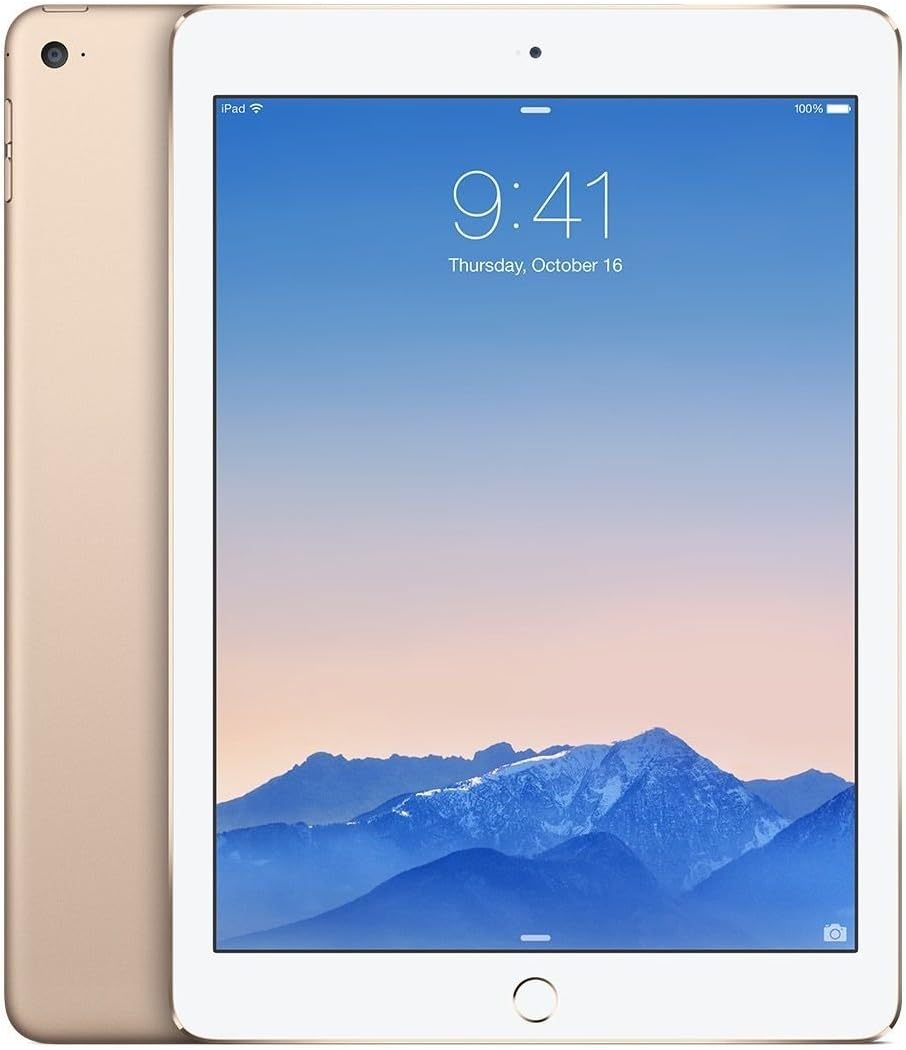
Foto: ihu na azụ view of the gold Apple iPad Air 2, showcasing its thin profile and gold finish.
1.2 Ịchaji ngwaọrụ
Before first use, it is recommended to fully charge your iPad Air 2. Connect the Lightning to USB cable to the iPad's charging port and the USB power adapter. Plug the adapter into a power outlet. The battery icon on the screen will indicate charging status.
1.3 Initial Setup Process
Upon powering on your iPad Air 2 for the first time, you will be guided through the initial setup steps:
- Select Language and Region: Choose your preferred language and country/region.
- Jikọọ na Wi-Fi: Select a Wi-Fi network and enter the password if required.
- Enable Location Services: Decide whether to enable or disable location services.
- Set Up Touch ID: Follow the on-screen instructions to register your fingerprint for secure unlocking and purchases.
- Create a Passcode: Set a 4-digit or custom alphanumeric passcode.
- Restore or Set Up as New iPad: You can restore from an iCloud or iTunes backup, or set up the device as new.
- Sign in with Apple ID: Enter your Apple ID and password. If you don't have one, you can create one.
- Agree to Terms and Conditions: Read and accept Apple's terms and conditions.
- Set Up Siri: Configure Siri, Apple's voice assistant.
- Send Diagnostics: Choose whether to send diagnostic and usage data to Apple.
2. Operating Your iPad Air 2
2.1 Nsoro ụzọ
- Bọtịnụ ụlọ: Press once to return to the Home screen. Double-press to open the multitasking switcher. Press and hold to activate Siri.
- NJ mmetụ: Use your registered fingerprint on the Home button to unlock the device or authorize purchases.
- Mmegharị ahụ: Swipe from the bottom for Control Center, swipe from the top for Notification Center, pinch to zoom, and swipe between apps.

Foto: Akụkụ view of the gold Apple iPad Air 2, emphasizing its remarkably thin design.
2.2 Ojiji igwefoto
Your iPad Air 2 features an 8MP iSight camera on the rear and a 1.2MP FaceTime HD camera on the front.
- Na-ewere Foto: Open the Camera app, select Photo mode, and tap the shutter button.
- Ndekọ vidiyo: Select Video mode and tap the record button to start/stop.
- FaceTime Calls: Use the FaceTime app with the front camera for video calls over Wi-Fi.
2.3 Njikọta Wi-Fi
Iji jikọọ na netwọk Wi-Fi:
- Gaa na Ntọala> Wi-Fi.
- Gbanwuo Wi-Fi.
- Họrọ netwọk nke ịchọrọ na listi ahụ.
- Tinye paswọọdụ ma ọ bụrụ na kpaliri.
3. Nlekọta na nlekọta
3.1 Cleaning Your iPad Air 2
To clean your iPad Air 2, use a soft, lint-free cloth. Avoid using abrasive materials, aerosols, solvents, or ammonia-based cleaners. For the screen, a slightly damp cloth is sufficient. Do not spray cleaners directly onto the device.
3.2 Mmelite ngwanrọ
Keep your iPad's software up to date for the best performance and security. Go to Ntọala > Ozuruọnụ > Mmelite ngwanrọ iji lelee ma wụnye mmelite dị.
3.3 Nlekọta batrị
Iji bulie ogologo ndụ batrị:
- Zere oke okpomọkụ.
- Keep the software updated.
- Gbanwee nchapụta ihuenyo.
- Gbanyụọ Wi-Fi ma ọ bụ Bluetooth mgbe ị naghị eji ya.
4. Ịchọpụta nsogbu nkịtị
4.1 Ngwaọrụ anaghị aza
If your iPad Air 2 is unresponsive, try a force restart: Press and hold both the Home button and the Top (Sleep/Wake) button for at least ten seconds, until you see the Apple logo.
4.2 Nsogbu Njikọ Wi-Fi
If you're experiencing Wi-Fi issues:
- Hụ na enyere Wi-Fi aka na Ntọala.
- Malitegharịa ekwentị Wi-Fi gị.
- Gaa na Settings > General > Reset > Reset Network Settings.
4.3 Ngwa ndị na-akụda ma ọ bụ na-ajụ oyi
If an app is misbehaving, try closing it: Double-press the Home button, then swipe the app's preview upward to close it. If the issue persists, delete and reinstall the app.
5. Nkọwapụta ngwaahịa
| Njirimara | Nkọwapụta |
|---|---|
| Aha Nlereanya | iPad Air 2 |
| Nọmba Nlereanya ihe | MH182LL/A |
| Ngosipụta | 9.7-inch Retina Display, 2048x1536 resolution at 264 ppi |
| Nhazi | A8X chip with 64-bit architecture, M8 motion coprocessor |
| RAM | 2 GB DDR2 |
| Nchekwa | 64 GB |
| Sistemụ nrụọrụ | iOS 8 (upgradable) |
| Igwefoto azụ | 8 MP iSight Camera |
| Igwefoto ihu | 1.2 MP FaceTime HD Camera |
| Njikọ ikuku | Wi-Fi (802.11a/b/g/n/ac), Bluetooth 4.0 |
| Ndụ batrị | Ruo awa iri abụọ |
| Akụkụ ngwaahịa | 30 x 30 x 6 inch (akụkụ nkwakọ ngwaahịa) |
| Ibu Ibu | 15.4 ounces |
| Agba | Ọlaedo |

Foto: Angle view of the gold Apple iPad Air 2, highlighting its sleek design and display.
6. Videos ngwaahịa
Enweghị vidiyo ngwaahịa gọọmentị sitere na onye na-ere ahịa dị maka itinye n'oge a.
7. Akwụkwọ ikike Ozi
Your Apple iPad Air 2 comes with a one-year limited warranty from Apple, covering manufacturing defects. For detailed warranty terms and conditions, please refer to the documentation included with your device or visit the official Apple websaịtị.
8. Nkwado ndị ahịa
For further assistance, technical support, or service, please visit the official Apple Support website or contact Apple Customer Service directly. You can find contact information and extensive support resources at nkwado.apple.com.


