Ngwaahịa gafereview
The Logitech K480 Bluetooth Multi-Device Keyboard is designed for seamless typing across multiple devices. This versatile keyboard allows you to switch effortlessly between your computer, tablet, and smartphone with a simple turn of a dial. It features a familiar keyboard layout with shortcut keys optimized for Windows, Mac, Chrome OS, Android, and iOS mobile devices. The integrated cradle securely holds your phone or tablet at an optimal viewing angle while you type.
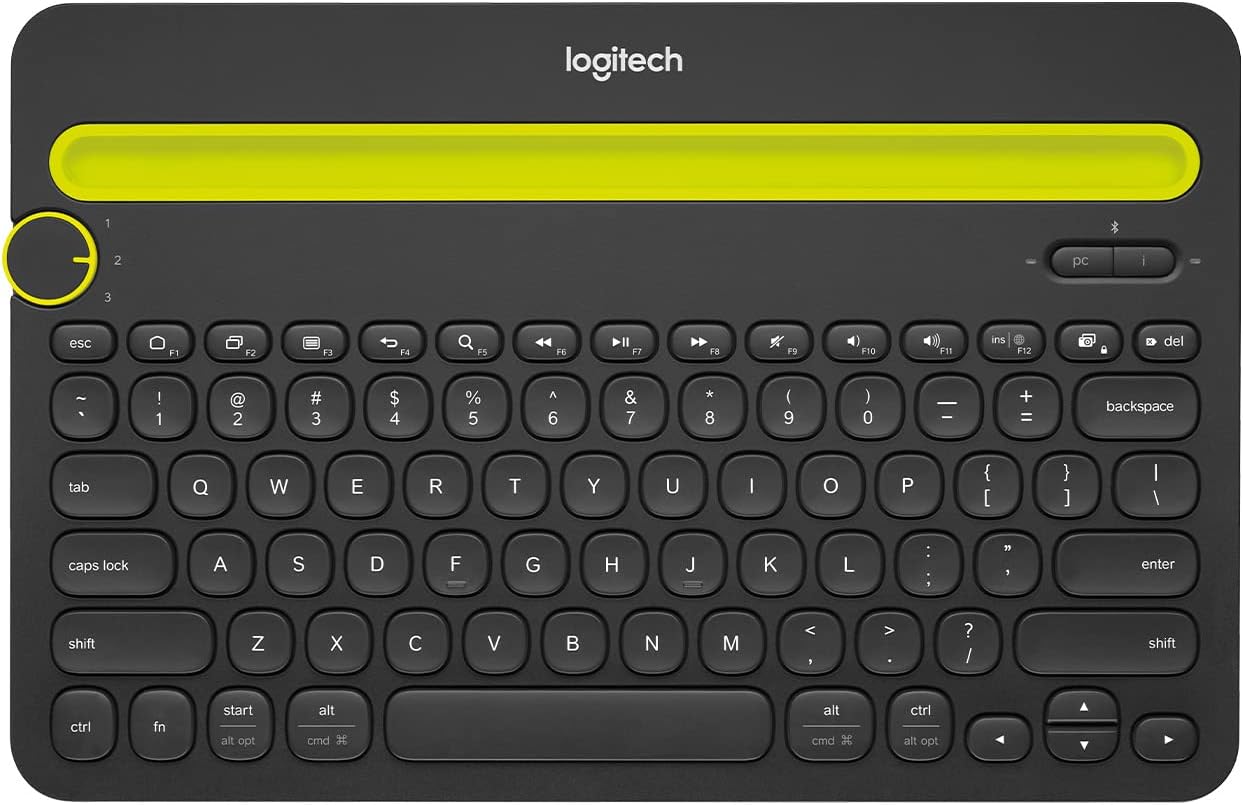
Foto 1: N'ihu view of the Logitech K480 Bluetooth Multi-Device Keyboard.
Melite
1. Ntinye batrị
The Logitech K480 keyboard comes with two pre-installed AAA batteries. To access the battery compartment, slide open the cover on the underside of the keyboard. Ensure the batteries are correctly oriented according to the polarity indicators. Close the cover securely.

Figure 2: Underside of the keyboard showing the battery compartment and on/off switch.
2. Ike Na
Locate the On/Off switch on the underside of the keyboard. Slide the switch to the 'On' position. A small LED indicator on the top right of the keyboard will illuminate briefly.
3. Njikọ Bluetooth
- Turn the Easy-Switch dial on the left side of the keyboard to select one of the three available channels (1, 2, or 3).
- Press and hold the 'i' (for iOS/Mac) or 'pc' (for Windows/Android/Chrome OS) button above the Easy-Switch dial for 3 seconds until the LED indicator for the selected channel starts blinking rapidly. This indicates the keyboard is in pairing mode.
- On your device (computer, tablet, or smartphone), go to Bluetooth settings and enable Bluetooth.
- Look for "Keyboard K480" in the list of available devices and select it.
- Follow the on-screen instructions to complete the pairing process, which may involve typing a code on the K480 keyboard and pressing Enter.
- Once successfully paired, the LED indicator will glow solid blue for a few seconds and then turn off.

Figure 3: Easy-Switch dial and pairing buttons for multi-device connectivity.
4. Integrated Cradle Usage
The integrated cradle at the top of the keyboard is designed to hold your smartphone or tablet. Simply place your device into the slot. The cradle supports most phones and tablets up to 10.5 mm (0.4 inches) thick and 258 mm (10 inches) wide, providing an ideal angle for typing and viewing.

Figure 4: The integrated cradle securely holds your devices for comfortable typing.
Ntuziaka ọrụ
Ịgbanwe n'etiti ngwaọrụ
To switch between your paired devices, simply turn the Easy-Switch dial to the corresponding channel number (1, 2, or 3) where your device is paired. The keyboard will automatically connect to the selected device, allowing you to seamlessly continue typing.
Video 1: Demonstrates switching between devices using the Easy-Switch dial.
Using Shortcut Keys
The K480 keyboard features a familiar layout with dedicated shortcut keys for various operating systems. These keys provide quick access to common functions such as media control, volume adjustment, and screen lock. Refer to your device's operating system documentation for specific shortcut key functionalities.
Nlekọta
Ngbanwe batrị
The keyboard uses 2 AAA batteries. When the battery indicator light (located near the On/Off switch) turns red, it's time to replace the batteries. Open the battery compartment on the underside of the keyboard, remove the old batteries, and insert new AAA batteries, ensuring correct polarity. Close the compartment securely.
Nhicha
Iji hichaa ahụigodo ahụ, jiri ákwà dị nro, nke na-enweghị ihe e ji ehicha ihe. Maka unyi siri ike, jiri obere dampen the cloth with water or a mild cleaning solution. Avoid using abrasive cleaners or harsh chemicals. The keyboard is spill-resistant, meaning it can withstand minor liquid spills (up to 60ml), but it should not be immersed in liquid.

Figure 5: The keyboard is designed to be spill-resistant for everyday use.
Nchọpụta nsogbu
- Ahụigodo anaghị ejikọta: Ensure the keyboard is powered on and the Easy-Switch dial is set to the correct channel. Check that Bluetooth is enabled on your device and the keyboard is within range (up to 10 meters). Try re-pairing the keyboard if the issue persists.
- Typing lag or missed characters: This could be due to interference. Try moving the keyboard closer to your device or away from other wireless devices. Ensure your device's operating system is up to date.
- Battery life issues: Ensure you are using fresh, high-quality AAA batteries. Turn off the keyboard when not in use to conserve battery life.
- Device not fitting in cradle: The cradle supports devices up to 10.5 mm (0.4 inches) thick and 258 mm (10 inches) wide. Remove bulky cases if your device does not fit.
Nkọwapụta
| Njirimara | Nkọwa |
|---|---|
| Ụdị | Logitech |
| Nọmba nlereanya | 920-006342 |
| Ngwaike Platform | Laptọọpụ, Mbadamba ụrọ, Smartphone |
| Ndakọrịta sistemụ arụmọrụ | Windows 10, 11 or later; Chrome OS; macOS 10.14 or later; iOS 11 or later; iPadOS 13.1 or later; Android 7 or later |
| Teknụzụ Njikọta | Bluetooth |
| Ibu Ibu | 1.81 pound (820 g) |
| Akụkụ ngwaahịa (LxWxH) | 12.2 x 1.61 x 7.91 sentimita asatọ |
| Isi Iyi Ike | Akwadoro batrị (batrị AAA 2 gụnyere) |
| Atụmatụ pụrụ iche | Portable, Spill Resistant, Hotkeys and Media Keys, Multi-Device Switching |
Akwụkwọ ikike na nkwado
Nkwusa iwu: All items are without warranty. All purchases are As-Is.
For further assistance or detailed information, please refer to the official User Guide PDF available Ebe a.


