1. Okwu mmalite
This manual provides essential information for the safe and efficient operation of your InFocus IN2126a WXGA Network Projector. Please read this manual thoroughly before using the projector and retain it for future reference. The InFocus IN2126a is designed for versatile use in various environments, offering high brightness and network capabilities.
2. Ozi nchekwa
Lee ihe ndị a iji gbochie mmebi na ihe ngosi ahụ ma hụ na onye ọrụ ahụ nwere nchekwa:
- Ekpuchila oghere ikuku. Hụ na ikuku zuru oke na-efegharị gburugburu ihe ngosi ahụ.
- Elela anya ozugbo na oghere projector mgbe lamp Ọ na-agba ọkụ. Ọkụ na-egbuke egbuke nwere ike imebi anya.
- Avoid placing the projector in direct sunlight, near heat sources, or in environments with high humidity or excessive dust.
- Jiri naanị eriri ọkụ ewepụtara na ihe nrụpụta.
- Nye ndị ọrụ ọrụ ruru eru ọrụ niile. Anwala imepe ma ọ bụ rụzie ihe ngosi ahụ n'onwe gị.
3. Ngwaahịa gafereview
Familiarize yourself with the components and features of your InFocus IN2126a projector.
3.1 Ihe Ndị Na-egosi Ihe Nlereanya
Ọgụgụ 1: Akụkụ ihu view of the InFocus IN2126a projector, showing the lens and ventilation.

Foto 2: Akụkụ view of the InFocus IN2126a projector, highlighting the ventilation grilles.
3.2 Njikọ azụ azụ
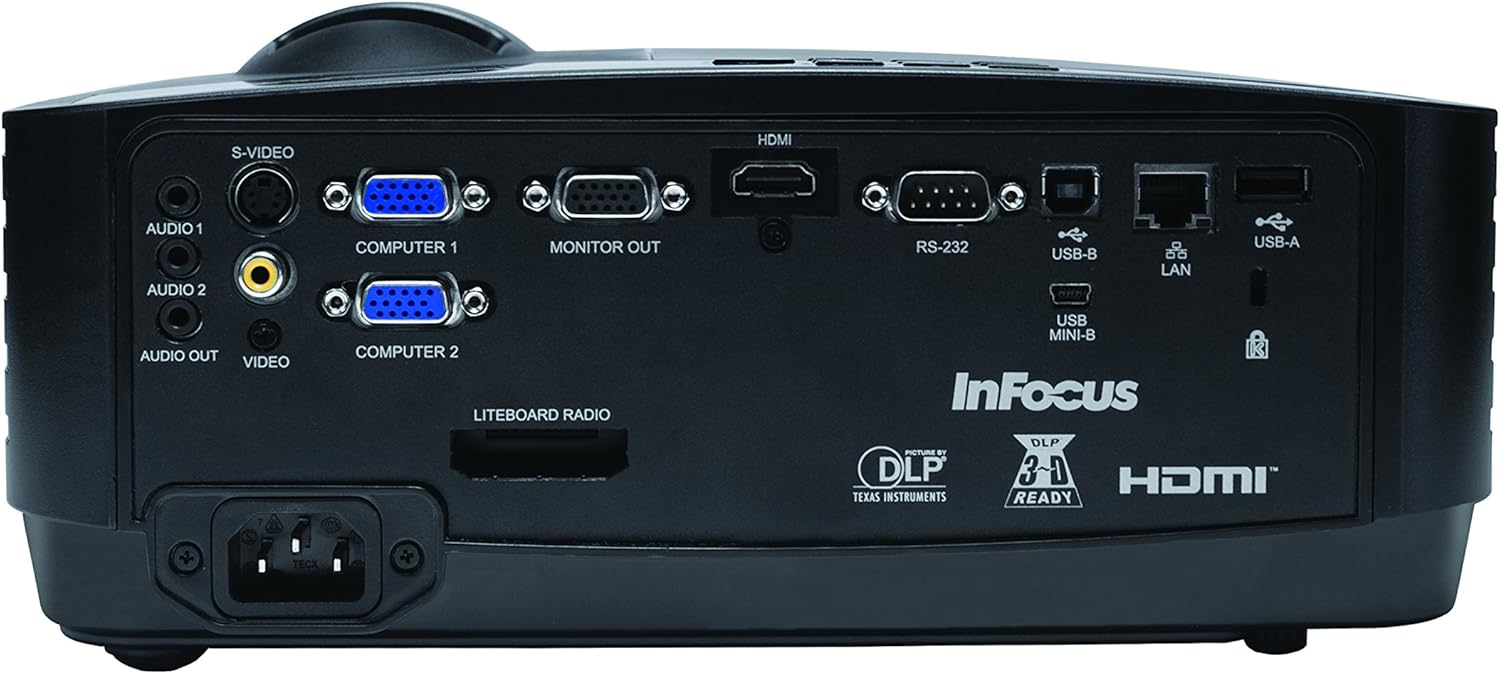
The rear panel provides various input and output ports for connecting external devices.
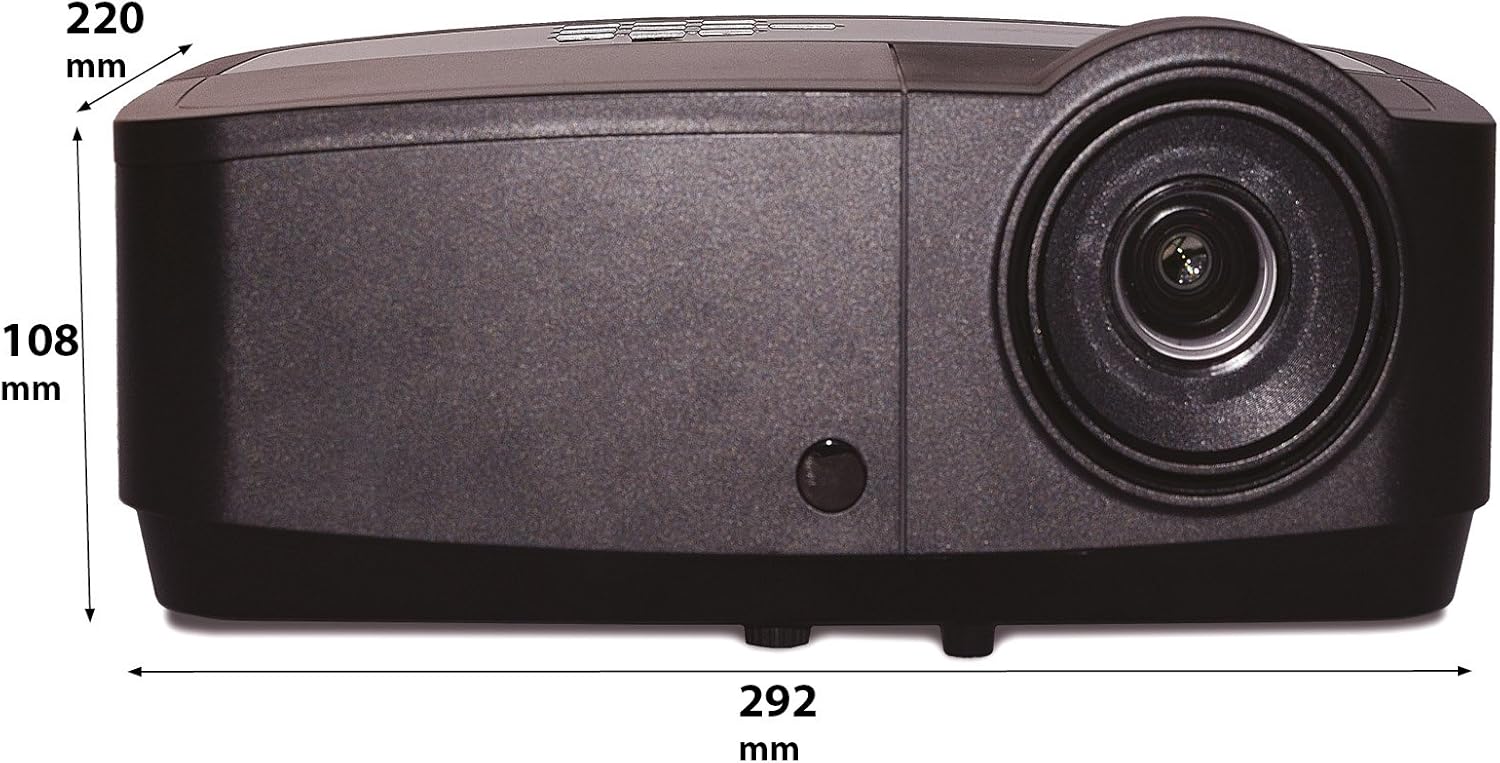
Figure 3: Rear panel of the InFocus IN2126a projector, displaying various connectivity ports including HDMI, VGA, USB, and LAN.
- HDMI: For digital video and audio input.
- COMPUTER 1 / COMPUTER 2 (VGA): Maka ntinye vidiyo analọg sitere na kọmpụta.
- MONITOR OUT (VGA): For connecting an external monitor.
- USB-B / USB Mini-B: For service or specific USB functions.
- USB-A: For connecting USB devices, such as a wireless adapter.
- LAN (RJ45): Maka njikọta netwọkụ.
- RS-232: Maka njikwa usoro.
- AUDIO 1 / AUDIO 2 (RCA): Maka ntinye ọdịyo.
- AKW OKWỌ AH:: Maka ijikọ sistemụ ọdịyo mpụga.
- VIDEO (RCA): Maka ntinye vidiyo mejupụtara.
- VIDIO: For S-Video input.
- Ntinye ike: Maka ijikọ eriri ọkụ.
3.3 Njikwa Panel kacha elu
The top panel features controls for basic projector functions and image adjustments.

Figure 4: Top panel of the InFocus IN2126a projector, showing the control buttons and focus/zoom rings.
- Bọtịnụ ike: Gbanyụọ ma ọ bụ gbanyụọ projector.
- Menu/Exit Button: Accesses or exits the on-screen display (OSD) menu.
- Bọtịnụ Nsoroụzọ (Elu, Ala, Aka ekpe, Aka nri): Na-agagharị na nhọrọ menu.
- Tinye bọtịnụ: Na-akwado nhọrọ dị na menu.
- Isi mmalite: Na-ahọpụta isi mmalite ntinye.
- Blank Button: Temporarily blanks the screen.
- Bọtịnụ akpaaka: Na-ahazi ntọala onyonyo na-akpaghị aka.
- Mgbado aka mgbanaka: Na-agbanwe ịdị nkọ nke onyonyo.
- Mgbanaka mbugharị: Na-agbanwe nha onyonyo.
3.4 Akụkụ
Understanding the physical dimensions is important for installation and placement.

Figure 5: Diagram illustrating the dimensions of the InFocus IN2126a projector (292mm length, 220mm width, 108mm height).
4. Nhazi
4.1 Ndobe ihe nrụpụta
Place the projector on a stable, flat surface or mount it securely. Ensure the projector is positioned at an appropriate distance from the screen to achieve the desired image size. Maintain sufficient space around the projector for proper ventilation.
4.2 Ngwa jikọọ
- Njikọ ike: Jikọọ eriri ọkụ eletrik ahụ na ntinye ike nke ihe ngosi ahụ wee jikọọ ya na oghere ọkụ eletrik nke ala.
- Isi mmalite vidiyo:
- For digital sources (e.g., Blu-ray player, laptop), use an HDMI cable to connect to the HDMI port.
- For analog computer sources, use a VGA cable to connect to the COMPUTER 1 or COMPUTER 2 port.
- For other video sources, use the appropriate S-VIDEO or VIDEO (RCA) connections.
- Isi mmalite ọdịyo: If your video source does not transmit audio via HDMI, connect audio cables to the AUDIO 1 or AUDIO 2 ports.
- Njikọ netwọk: For wired network access, connect an Ethernet cable to the LAN port.
- Ikuku Njikọ: If using a compatible wireless adapter (sold separately), insert it into the USB-A port.
4.3 Gbanyụọ/ gbanyụọ
- Iji gbanye: Press the Power button on the projector's top panel or the remote control. The power indicator light will illuminate.
- Iji gbanyụọ: Press the Power button again. The projector will enter a cooling cycle before shutting down completely. Do not unplug the projector during the cooling cycle.
5. Na-arụ ọrụ Projector
5.1 Nhọrọ Isi mmalite
After powering on, the projector may automatically detect an active input source. If not, or to switch sources:
- Pịa Isi mmalite bọtịnụ na projector ma ọ bụ remote control.
- Use the navigation buttons to highlight the desired input source (e.g., HDMI, Computer 1, Video).
- Pịa Banye ịhọrọ isi iyi.
5.2 Ndozi onyonyo
- Gbado anya: Tugharia ihe Lekwasị anya ring on the projector lens until the image appears sharp and clear.
- Bugharịa: Tugharia ihe Bugharịa ring on the projector lens to adjust the image size to fit your screen.
- Ndozi isi okwu: If the image appears trapezoidal, use the keystone correction feature in the OSD menu to square the image.
5.3 Ngosipụta Ngosipụta (OSD) NchNhr
The OSD menu allows you to configure various projector settings.
- Pịa NchNhr pịa bọtịnụ iji mepee menu OSD.
- Jiri ihe Elu/ala navigation buttons to select a menu category.
- Jiri ihe Aka ekpe/aka nri navigation buttons to adjust settings or enter sub-menus.
- Pịa Banye iji gosi mgbanwe.
- Pịa Ụzọ ọpụpụ to close the OSD menu.
5.4 Njikọ ikuku
The IN2126a is wireless-ready. To enable wireless display, a compatible InFocus wireless adapter (sold separately) must be connected to the USB-A port. Refer to the wireless adapter's specific instructions for setup and connection procedures.
Ọrụ 5.5 3D
The projector supports 3D content. To view 3D content, you will need a compatible 3D source, 3D glasses, and appropriate 3D content. Refer to the projector's OSD menu for 3D settings and ensure your source device is configured for 3D output.
6. Nlekọta
Regular maintenance ensures optimal performance and extends the life of your projector.
6.1 Lamp Ndochi
Onye na-eme ihe nkiri lamp has a limited lifespan (approximately 4000 hours). When the lamp ihe ngosi na-enwu ma ọ bụ na ìhè onyonyo ahụ na-ebelata nke ukwuu, lamp needs replacement. Always use an authorized InFocus replacement lamp. Lee akwụkwọ ntuziaka ọrụ zuru oke maka nkọwa zuru ezuamp ntuziaka nnọchi ma ọ bụ kpọtụrụ ndị ahịa.
6.2 Nchacha nzacha
Dust accumulation on the air filter can impede airflow and cause overheating. Regularly clean the air filter to maintain proper ventilation. Turn off and unplug the projector before cleaning. Use a soft brush or vacuum cleaner to remove dust from the filter cover.
6.3 Nhicha izugbe
- Ihe ngosiputa Casing: Jiri akwa dị nro na-enweghị akwa dampened with a mild, non-abrasive cleaner. Do not use harsh chemicals.
- oghere: Use a lens cleaning cloth and specialized lens cleaning solution. Avoid touching the lens surface with your fingers.
7. Nchọpụta nsogbu
Ọ bụrụ na ị na-enwe nsogbu na projector gị, rụtụ aka na nsogbu na azịza ndị a na-ahụkarị:
| Nsogbu | Ihe nwere ike ime | Ngwọta |
|---|---|---|
| Enweghị onyonyo na ihuenyo | Ahọpụtaghị isi mmalite ntinye na-ezighi ezi; Njikọ eriri dị nro; Ihe ngosi dị na ọnọdụ njikere. | Verify input source; Check all cable connections; Press power button to wake from standby. |
| Onyonyo na-agba agba | Agbanweghị ihe ndị a na-elekwasị anya; ihe ngosi dị nso/dị anya na ihuenyo. | Adjust the focus ring; Reposition the projector and adjust zoom. |
| Foto a bụ trapezoidal | Ihe ngosi onyonyo anaghị adabara na ihuenyo ahụ. | Jiri mmezi igodo dị na menu OSD. |
| Enweghị ọdịyo | Audio cables not connected; Volume too low; Muted. | Check audio cable connections; Adjust volume; Unmute projector. |
| Projector na-ekpo ọkụ ma mechie | Blocked ventilation; Dirty air filter. | Ensure clear airflow around projector; Clean the air filter. |
For more detailed troubleshooting, consult the complete user manual or contact InFocus customer support.
8. Nkọwapụta
Key technical specifications for the InFocus IN2126a WXGA Network Projector:
- Aha nlereanya: IN2126a
- Ụdị ngosi: DLP
- Mkpebi obodo: 1280 x 800 (WXGA)
- Icha ọkụ: 3500 Lumen
- Ọdịiche dị iche: 15000:1
- Mmeputakwa agba: 1.07 Billion Colors (30-bit)
- Ndụ na-arụ ọrụ isi iyi: Awa 4000
- Teknụzụ Njikọta: Wireless-ready, HDMI 1.4, VGA (x2), USB (Type-A, Mini-B, Type-B), LAN (RJ45), RS-232, Audio In (x2), Audio Out, Video (RCA), S-Video
- Atụmatụ pụrụ iche: 3D-Ready, Network Projector
- Ihe kpatara ụdị: Enwere ike ibugharị
- Ụdị nkwụnye: Ugwu okpokoro
- Ibu ihe: 7.1 pound
9. Akwụkwọ ikike na nkwado
For information regarding your product's warranty, please refer to the warranty card included with your purchase or visit the official InFocus website. For technical support, service, or to purchase accessories, please contact InFocus customer service through their official channels.


