Okwu mmalite
The ORICO 4-Port USB 3.0 Hub is designed to expand the connectivity of your computer or laptop by adding four additional USB 3.0 ports. This allows for the simultaneous connection of various USB devices such as external hard drives, USB flash drives, mice, keyboards, USB headphones, speakers, and memory card readers, eliminating the need for repeated plugging and unplugging.
Njirimara ngwaahịa
- Nyefee data Ọsọ Ọsọ: Supports data transfer speeds up to 5Gbps, which is 10 times faster than USB 2.0 (480 Mbps). This enables quick transfer of large files and HD movies. It is backward compatible with USB 2.0, 1.1, and 1.0 devices.
- Stable and Secure Operation: Compatible with Windows 10/8/8.1/7/Vista/XP, Mac OS X, Linux, and Chrome OS. Features built-in protection against over-voltage, over-current, short-circuit, and leakage to safeguard your connected devices and data.
- Nkwụnye ma kpọọ: No driver installation is required for operation. Simply connect the hub to your computer and it's ready to use.
- Nhazi kọmpat na nke enwere ike ibugharị: The ultra-slim design and integrated 11.81-inch (30cm) extension cable make it convenient for use with laptops and easy to carry.
- Ihe ngosi ọkụ LED: A blue LED light indicates the hub's operational status.

Image: The ORICO 4-Port USB 3.0 Hub highlighting its four USB 3.0 ports and illustrating the 5Gbps SuperSpeed data transfer capability compared to USB 2.0.
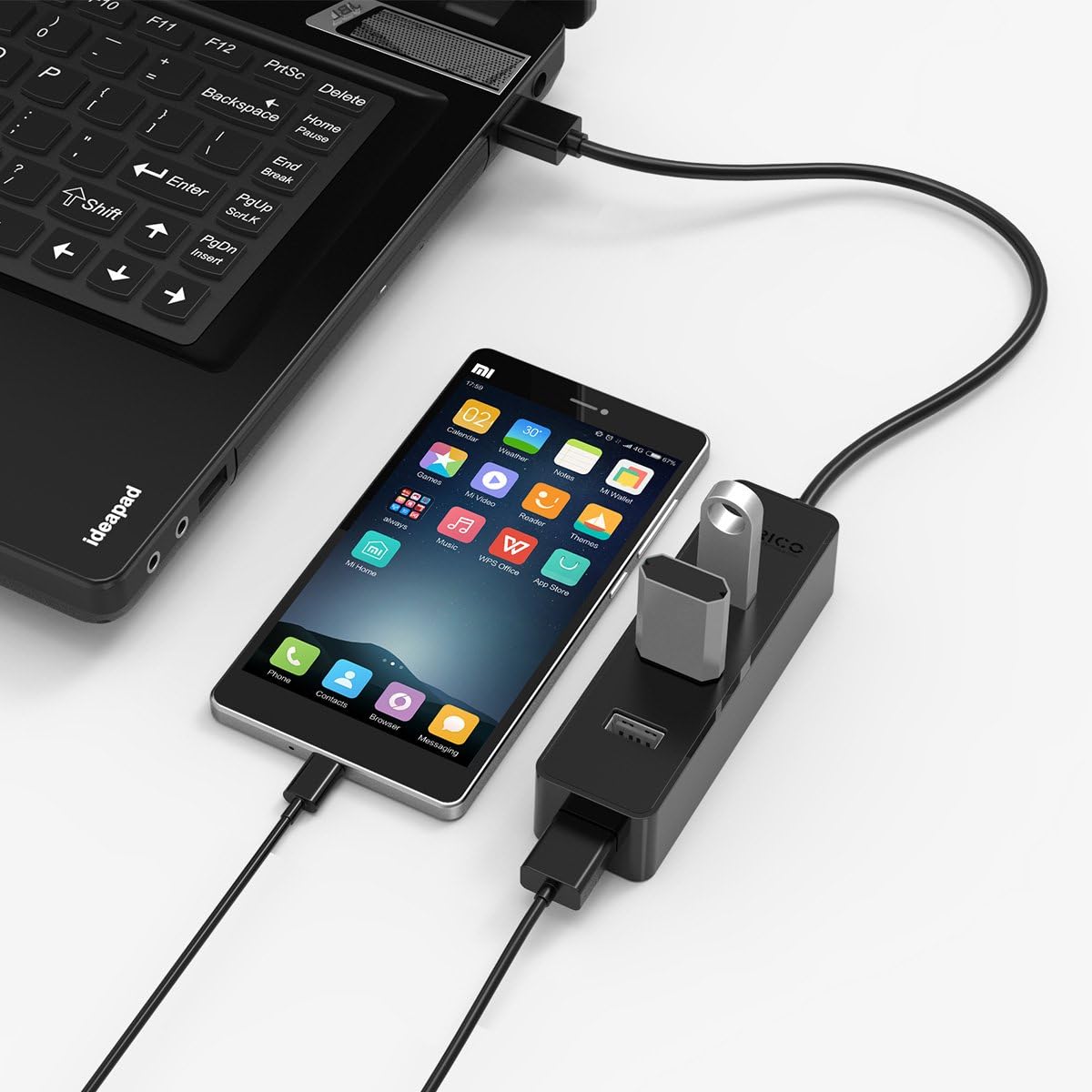
Image: The ORICO USB 3.0 Hub demonstrating its intelligent multi-protection features, including short-circuit, overcurrent, overvoltage, and leakage protection.
Ihe ngwugwu
Biko lelee ọdịnaya ngwungwu mgbe emepere ka ị hụ na ihe niile dị:
- ORICO 4-Port USB 3.0 Hub x 1
- Akwụkwọ ntuziaka x1
Melite
Follow these steps to set up your ORICO USB 3.0 Hub:
- Jikọọ na Kọmputa: Plug the integrated USB 3.0 cable of the ORICO hub into an available USB 3.0 port on your computer or laptop.
- Ihe ngosi ike: The blue LED indicator on the hub will illuminate, signifying that the hub is powered and ready for use.
- Jikọọ Ngwaọrụ: Insert your USB devices (e.g., flash drives, external hard drives, mouse, keyboard) into the available USB 3.0 ports on the hub.
- Driver-Free Operation: The hub is plug-and-play, meaning no additional drivers are required for most operating systems. Your computer should automatically recognize the hub and connected devices.

Foto: nkọwa zuru ezu view of the ORICO USB 3.0 Hub, illustrating the LED power indicator and the 30cm integrated USB 3.0 data cable for convenient desktop placement.

Image: The ORICO USB 3.0 Hub connected to a laptop, demonstrating its wide compatibility with devices like laptops, tablets, cellphones, keyboards, printers, hard drives, webcams, cameras, and USB disks, emphasizing its plug-and-play functionality.
Ntuziaka ọrụ
Once connected, the ORICO USB 3.0 Hub operates seamlessly:
- Nyefee data: Utilize the USB 3.0 ports for high-speed data transfer with compatible devices. The hub supports simultaneous data transfer across multiple ports.
- Njikọ ngwaọrụ: Connect up to four USB devices at once. The hub is designed to handle various peripherals, including power-intensive devices like external hard drives, though for optimal performance with multiple high-power devices, a powered hub (not this model) might be considered.
- Ndakọrịta azụ: The hub is fully backward compatible with USB 2.0 and USB 1.1 devices, allowing you to connect older peripherals, though they will operate at their respective maximum speeds (USB 2.0 or USB 1.1).
- Hot-Swapping: Devices can be connected or disconnected from the hub while your computer is running without needing to restart.
Nlekọta
To ensure the longevity and optimal performance of your ORICO USB 3.0 Hub, follow these simple maintenance guidelines:
- Nhicha: Use a soft, dry cloth to gently wipe the surface of the hub. Avoid using liquid cleaners, solvents, or abrasive materials, as these can damage the device.
- Nchekwa: Mgbe ejighị ya, chekwaa oghere ahụ n'ebe dị jụụ, kpọrọ nkụ na-anọghị na ìhè anyanwụ kpọmkwem na oke okpomọkụ.
- Ijikwa: Avoid dropping the hub or subjecting it to strong impacts. Do not bend or pull the integrated cable excessively.
- gburugburu: Keep the hub away from water, moisture, and high humidity to prevent internal damage.
Nchọpụta nsogbu
If you encounter issues with your ORICO USB 3.0 Hub, please refer to the following common solutions:
- Amataghị ngwaọrụ:
- Ensure the hub is securely plugged into a functioning USB port on your computer.
- Try connecting the device directly to your computer's USB port to verify if the device itself is working correctly.
- Disconnect and reconnect the hub and the problematic device.
- Malitegharịa ekwentị gị na kọmputa.
- Ọsọ mbufe data dị nwayọ:
- Ensure both the hub and the connected device are USB 3.0 compatible for optimal speeds. If a USB 2.0 device is connected, it will operate at USB 2.0 speeds.
- Connect the hub to a USB 3.0 port on your computer (usually identified by a blue port or SS symbol).
- Avoid connecting multiple high-bandwidth devices simultaneously if you experience significant slowdowns.
- Interference with Wireless Devices (e.g., Wireless Mouse):
- USB 3.0 can sometimes cause interference with 2.4GHz wireless devices. If your wireless mouse or keyboard receiver is connected to the hub and experiences erratic behavior, try moving the receiver further away from the hub using a short USB extension cable, or connect it to a different USB port directly on your computer.
- Devices Not Detected After Sleep/Hibernation (Windows):
- After your computer wakes from sleep or hibernation, some USB devices connected via the hub might not be immediately detected. Open Device Manager, right-click on your computer name, and select "Scan for hardware changes" to refresh the device list.
- Hub Not Functioning:
- Gbalịa ijikọ hub ahụ na ọdụ ụgbọ USB dị iche na kọmputa gị.
- Test the hub on another computer if possible to rule out computer-specific issues.
Nkọwapụta
| Njirimara | Nkọwa |
|---|---|
| Ụdị | ORICO |
| Nọmba nlereanya | W5PH4-U3-V1-BK-PRO |
| ọdụ ụgbọ mmiri | 4 x USB 3.0 ọdụ ụgbọ mmiri |
| Ọnụego mbufe data | Ruo 5Gbps (SuperSpeed USB 3.0) |
| Ndakọrịta azụ | USB 2.0, USB 1.1 |
| Ogologo eriri USB | 11.81 sentimita (30 cm) |
| Akụkụ (LxWxH) | 4.13 x 1.3 x 0.94 sentimita (10.5 x 3.3 x 2.4 cm) |
| Ibu | 2.24 ounce (63.5 grams) |
| Nkwado Sistemụ arụmọrụ | Windows 10/8/8.1/7/Vista/XP, Mac OS X, Linux, Chrome OS |
| Ihe onwunwe | ABS Engineering Material |
| Agba | Nwa |
Akwụkwọ ikike na nkwado
ORICO provides customer support for its products. If you encounter any issues, receive a damaged product, or are not completely satisfied with your purchase, please contact ORICO customer service. They aim to provide a resolution within 24 hours.
For further assistance, please visit the official ORICO website or contact their support channels directly.
Rịba ama: Usoro na ọnọdụ akwụkwọ ikike pụrụ iche nwere ike ịdị iche site na mpaghara na ụlọ ahịa. Biko lee akwụkwọ ịzụrụ ihe gị maka ozi zuru ezu gbasara akwụkwọ ikike.


