Okwu mmalite
Thank you for choosing the AULA Befire LED Backlit Gaming Keyboard. This manual provides essential information for setting up, operating, and maintaining your keyboard. Please read it thoroughly to ensure proper usage and to maximize your gaming and typing experience.
The AULA Befire keyboard is designed for comfort and performance, featuring a durable plastic construction, responsive keys, and vibrant LED backlighting.
Melite
- Mepee ahụigodo: Jiri nlezianya wepụ ahụigodo ahụ na nkwakọ ngwaahịa ya.
- Jikọọ na Kọmputa: Plug the USB connector of the keyboard into an available USB port on your computer. The keyboard is plug-and-play and should be recognized automatically by most operating systems.
- Ndokwa: Place the keyboard on a stable, flat surface. Adjust the support frame on the underside of the keyboard for your preferred typing angle.

Ntuziaka ọrụ
Njikwa ọkụ azụ LED
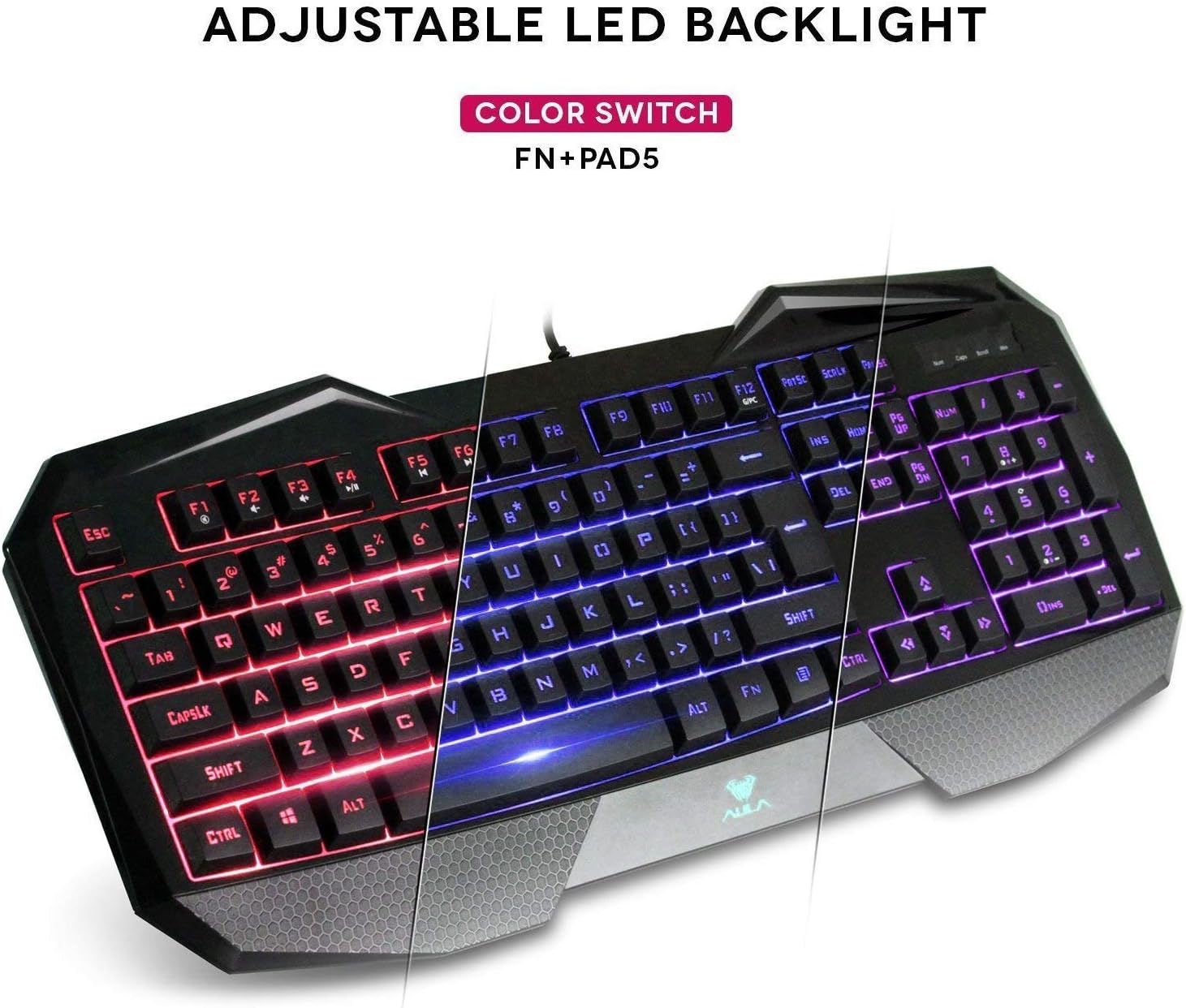
The AULA Befire keyboard features a special three-color LED backlight system (blue, red, and pink) with four adjustable brightness levels. This allows for comfortable usage in various lighting conditions and adds to the aesthetic appeal.

- Na-agbanwe agba: To switch between the blue, red, and pink backlight colors, press and hold the Fn igodo, wee pịa '5' key on the numeric keypad (Fn+Pad5).
- Na-edozi ihie: The backlight has four gear (levels) to adjust its intensity. Use the dedicated brightness control keys (refer to keyboard layout for exact keys, often Fn + Page Up/Page Down or similar) to cycle through the brightness levels or turn the backlight off.
Mkpọchi igodo Windows
For an uninterrupted gaming experience, the keyboard features a lock/unlock function for the Windows key. This prevents accidental presses that could minimize your game.
- Na-arụ ọrụ/Na-emenyụ: Press the dedicated Windows Lock key (often located near the right-top bezel or combined with an Fn function) to toggle the Windows key functionality.
- Ihe ngosi: A dedicated LED indicator on the right-top bezel will illuminate when the Windows key is locked.
Igodo mgbasa ozi na ụzọ mkpirisi
The keyboard incorporates a series of shortcut function keys that work in conjunction with the Fn key. These keys provide quick access to multimedia controls and other common functions.

Nlekọta
- Nhicha: Use a soft, dry cloth to clean the keyboard surface. For deeper cleaning, a can of compressed air can be used to remove dust and debris from between the keys. Avoid using harsh chemicals or abrasive materials.
- Mgbochi ikpo oke ọkụ: If the keyboard becomes less responsive due to prolonged use or high temperatures, disconnect it from the computer and allow it to cool down in a well-ventilated area before reconnecting.
- Mwepụ isi igodo: The keycaps are designed to be removable for cleaning or customization. Use a keycap puller (if provided) or gently pry them off from the edges. Be careful not to damage the key switches.
Nchọpụta nsogbu
- Ahụigodo Anaghị aza:
- Gbaa mbọ hụ na etinyere eriri USB na nchekwa na ma ahụigodo na kọmputa.
- Gbalịa itinye ahụigodo ahụ n'ọdụ ụgbọ mmiri USB dị iche.
- Malitegharịa ekwentị gị na kọmputa.
- Nwalee kiiboodu na kọmpụta ọzọ iji chọpụta ma ọ bụrụ na ọ dị na kiiboodu ma ọ bụ kọmputa.
- Ìhè azụ anaghị arụ ọrụ:
- Check if the backlight is simply turned off or set to the lowest brightness level. Use the brightness control keys (e.g., Fn + Page Up) to increase brightness.
- Ensure the keyboard is properly connected to the computer.
- Keys Not Registering or Sticking:
- Clean around and under the affected keys to remove any debris.
- If the issue persists, refer to the 'Overheating Prevention' section under Maintenance.
Nkọwapụta
| Ụdị | AULA |
| Nlereanya | Befire |
| Ngwaike Platform | PC |
| Ibu Ibu | 2 pound |
| Teknụzụ Njikọta | USB |
| Nkọwa ahụigodo | Ịgba egwu |
| Eji akwadoro | Ịgba egwu |
| Njirimara Pụrụ Iche | Na-adịghị amị amị |
| Backlighting Colors | Blue, Red, Pink (RGB support mentioned in specs, but product description specifies 3 colors) |
| Ụdị | LED Backlit Gaming Keyboard |
| Ihe onwunwe | Plastic |
| Akụkụ (L x W x H) | 458.5 mm x 190 mm x 30 mm |

Akwụkwọ ikike na nkwado
For warranty information and customer support, please refer to the documentation provided with your purchase or contact the retailer/manufacturer directly. Keep your proof of purchase for any warranty claims.


