1. Okwu mmalite
This manual provides detailed instructions for the installation, operation, and troubleshooting of the Broadcom DW1501 BCM94313HMG2L WLAN 802.11n Half Mini PCI-E Card. This wireless network card is designed to provide 802.11n Wi-Fi connectivity for compatible laptop systems.
2. Ozi nchekwa
- Always power off your computer and disconnect it from the power source before installing or removing any internal components.
- Discharge any static electricity from your body by touching a grounded metal object before handling the card.
- Jigide kaadị ahụ n'akụkụ ya iji zere imetụ ihe ndị dị nro aka.
- Keep the card away from moisture and extreme temperatures.
- This card is not compatible with certain laptop models, specifically IBM/Lenovo/Thinkpad and HP versions. Verify compatibility before installation.
3. Ihe ngwugwu
Ensure the following item is included in your package:
- Broadcom DW1501 BCM94313HMG2L WLAN 802.11n Half Mini PCI-E Card
If any items are missing or damaged, please contact your vendor.
4. Nwụnye
4.1 Ndepụta nlele mbụ
- Verify your laptop has a compatible Half Mini PCI-E slot.
- Ensure your laptop is not an IBM/Lenovo/Thinkpad or HP model, as this card is not compatible with these systems.
- Gather necessary tools, such as a small Phillips head screwdriver.
4.2 Nwụnye anụ ahụ
- Gbanyụọ: Shut down your laptop completely and disconnect the power adapter and battery.
- Ogwe nnweta: Locate and open the access panel on the bottom of your laptop that covers the Mini PCI-E slot. Refer to your laptop's service manual for specific instructions.
- Remove Old Card (if applicable): If an existing wireless card is present, carefully disconnect any antenna cables and remove the screw securing the card. Gently slide the card out of its slot.
- Insert New Card: Align the Broadcom DW1501 card with the Half Mini PCI-E slot. Gently push the card into the slot at an angle until it is fully seated.
- Kaadị echedoro: Press the card down and secure it with the screw removed earlier.
- Jikọọ antennas: Carefully connect the antenna cables to the corresponding connectors on the new card. Typically, the main antenna connects to 'MAIN' or '1' and the auxiliary antenna to 'AUX' or '2'.
- Mechie panel: Replace the access panel and secure it.
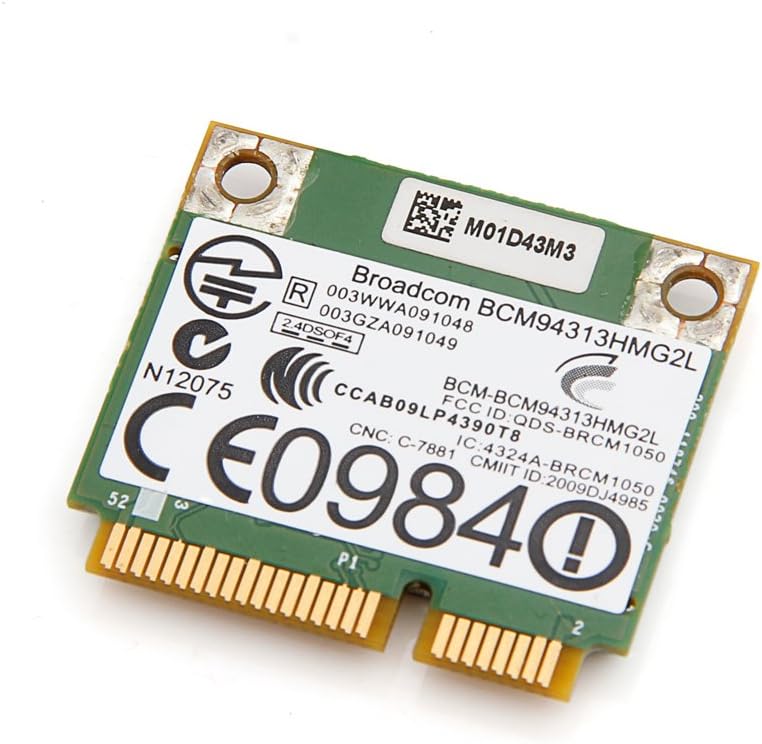
Foto 1: Elu view of the Broadcom DW1501 BCM94313HMG2L WLAN Half Mini PCI-E Card, showing the Broadcom branding and regulatory markings. This side typically faces upwards during installation.
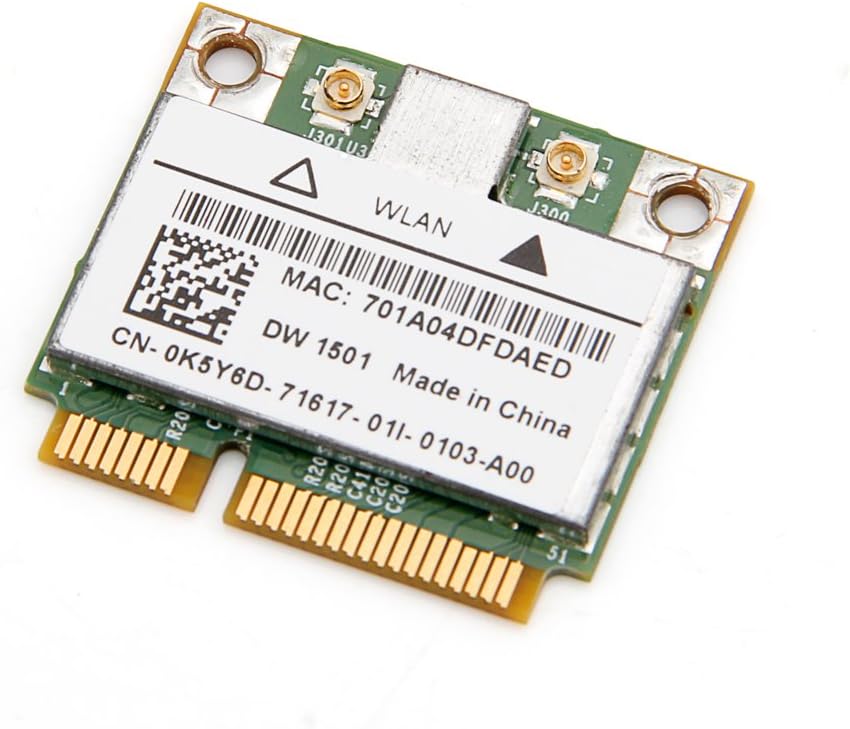
Foto 2: N'okpuru view of the Broadcom DW1501 BCM94313HMG2L WLAN Half Mini PCI-E Card, displaying the MAC address and model number. This side typically faces downwards during installation.
4.3 Nwụnye ọkwọ ụgbọala
- Ike Na: Reconnect the battery and power adapter, then power on your laptop.
- Operating System Detection: Your operating system may automatically detect the new hardware and attempt to install generic drivers.
- Install Specific Drivers: For optimal performance, download the latest drivers for the Broadcom DW1501 BCM94313HMG2L from your laptop manufacturer's support website or Broadcom's official websaịtị.
- Soro ntuziaka na ihuenyo: Run the downloaded driver installer and follow the prompts to complete the installation.
- Malitegharịa: Restart your computer after driver installation is complete.
5. Ntuziaka ọrụ
Once the card is installed and drivers are successfully loaded, your laptop should detect available wireless networks.
- Nweta Ntọala netwọkụ: Navigate to your operating system's network settings (e.g., Wi-Fi settings in Windows, Network Preferences in macOS).
- Kwado Wi-Fi: Ensure that Wi-Fi is enabled.
- Họrọ netwọk: A list of available wireless networks will appear. Select your desired network.
- Tinye okwuntughe: Ọ bụrụ na netwọk ahụ nwere nchekwa, tinye paswọọdụ Wi-Fi (igodo nchekwa) mgbe a gwara gị.
- Jikọọ: Click 'Connect' to establish a wireless connection.
6. Nlekọta
The Broadcom DW1501 BCM94313HMG2L card requires minimal maintenance.
- Keep your laptop's internal components clean by periodically removing dust with compressed air.
- Ensure your wireless drivers are up to date for optimal performance and security.
- Avoid exposing your laptop to environments with excessive heat or moisture.
7. Nchọpụta nsogbu
7.1 Card Not Detected
- Lelee nwụnye anụ ahụ: Power off the laptop and re-verify that the card is properly seated in the Mini PCI-E slot and secured with the screw.
- Njikọ antenna: Ensure antenna cables are securely attached to the card.
- Nwụnye ọkwọ ụgbọala: Confirm that the correct drivers for the Broadcom DW1501 BCM94313HMG2L are installed. Check Device Manager (Windows) or System Information (macOS) for any error indicators.
- ndakọrịta: Reconfirm that your laptop model is not an IBM/Lenovo/Thinkpad or HP version, as these are incompatible.
7.2 Enweghị ike ijikọ na Wi-Fi
- Agbanyere Wi-Fi: Ensure Wi-Fi is enabled in your operating system settings and any physical Wi-Fi switch on your laptop is in the 'on' position.
- Paswọọdụ Ziri Ezi: Lelee ugboro abụọ ma ị na-etinye paswọọdụ Wi-Fi ziri ezi.
- Okwu rawụta: Restart your wireless router and modem.
- Mmelite ọkwọ ụgbọala: Update or reinstall the wireless card drivers.
- Network Diagnostics: Use your operating system's built-in network diagnostic tools.
7.3 Slow Connection Speed
- Ike mgbaama: Gaa nso na rawụta ikuku gị iji melite ike mgbaama.
- Ntinye aka: Minimize interference from other electronic devices or crowded Wi-Fi channels.
- Mmelite ọkwọ ụgbọala: Gbaa mbọ hụ na etinyere ndị ọkwọ ụgbọala kacha ọhụrụ.
- Ntọala rawụta: Check your router's settings for optimal 802.11n performance.
8. Nkọwapụta
| Aha ngwaahịa | Broadcom DW1501 BCM94313HMG2L WLAN 802.11n Half WiFi Mini PCI-E Card |
| Nọmba nlereanya | 8541551410 |
| Ikuku Standard | 802.11n |
| Interface | Half Mini PCI-E |
| Ngwaọrụ Akụrụngwa | PCI |
| Ngwa dakọtara | Laptop (excluding IBM/Lenovo/Thinkpad and HP versions) |
| Protocol Njikọ Data | Bluetooth (Note: While listed, primary function is WLAN) |
| Akụkụ ngwaahịa | 3.3 x 2 x 0.1 sentimita asatọ |
| Ibu Ibu | 0.32 ounces (9.07 g) |
| Onye nrụpụta | Broadcom |
| UPC | 612148456344 |
9. Akwụkwọ ikike na nkwado
For warranty information and technical support, please refer to the documentation provided by your seller or contact Broadcom directly through their official website. Specific warranty terms may vary depending on your region and point of purchase.


