Okwu mmalite
The Microsoft Xbox 360 S 250GB System with Kinect Bundle offers an interactive gaming and entertainment experience. This console features a 250GB hard drive for storing games and media, built-in Wi-Fi for online connectivity, and includes the Kinect Sensor for controller-free gameplay. This manual provides essential information for setting up, operating, and maintaining your system.
Ihe ngwugwu
Chọpụta na ihe niile dị na ngwugwu gị:
- Xbox 360 S Console (250GB)
- Kinect Sensor
- Ihe njikwa ikuku Xbox 360
- Kinect Adventures Game
- Nkwanye ọkụ na eriri
- HDMI Cable (may vary by region/bundle)
- AA Batteries for Wireless Controller
Melite
1. Console Placement
Place the Xbox 360 S console on a stable, flat surface. Ensure adequate ventilation around the console to prevent overheating. Avoid placing it in enclosed spaces or on soft surfaces that may block vents.
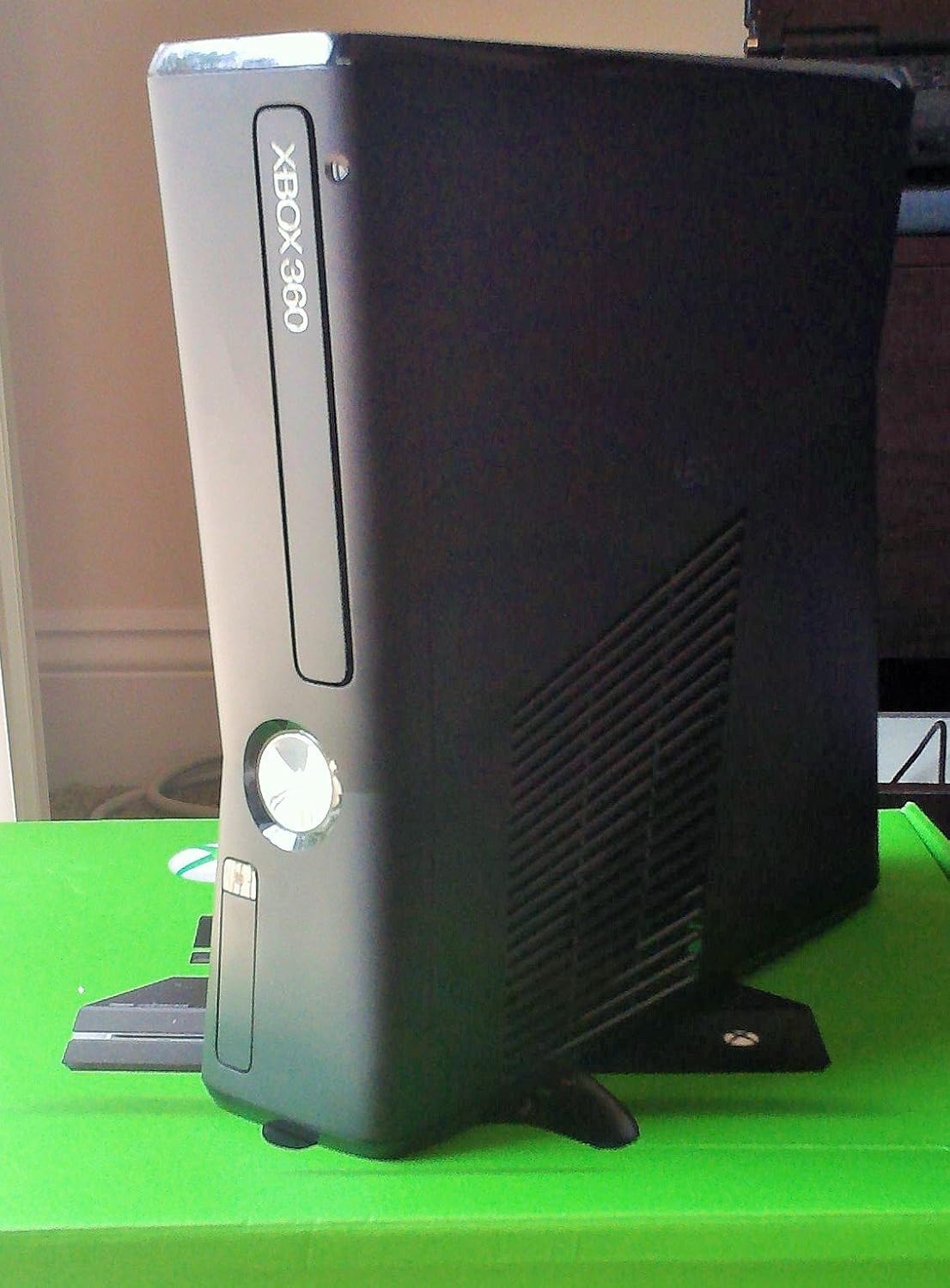
Image: Xbox 360 S console shown in a vertical orientation, highlighting its compact design and ventilation grilles.
2. Ijikọ njikwa ahụ
- Njikọ ike: Connect the power supply to the console's power port, then plug the power cable into an electrical outlet.
- Njikọ Vidiyo/Ọdịyo: Connect the HDMI cable from the console's HDMI port to an HDMI input on your television or monitor. Alternatively, use an AV cable if your display does not support HDMI.
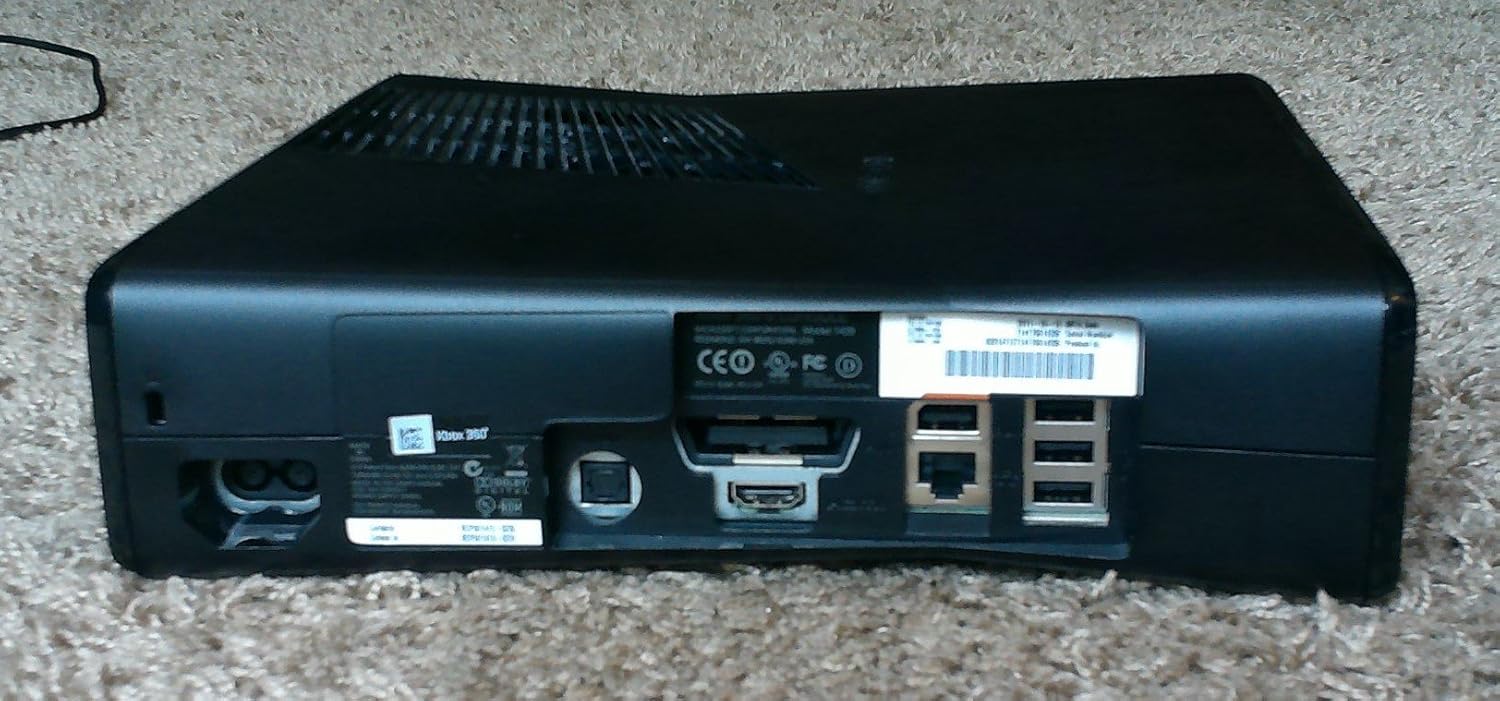
Foto: N'azụ view of the Xbox 360 S console, displaying various ports including HDMI, Ethernet, USB, and the power input.
3. Connecting the Kinect Sensor
- Plug the Kinect sensor cable into the dedicated AUX port on the back of the Xbox 360 S console.
- Position the Kinect sensor above or below your television, ensuring it has a clear view of the play area.
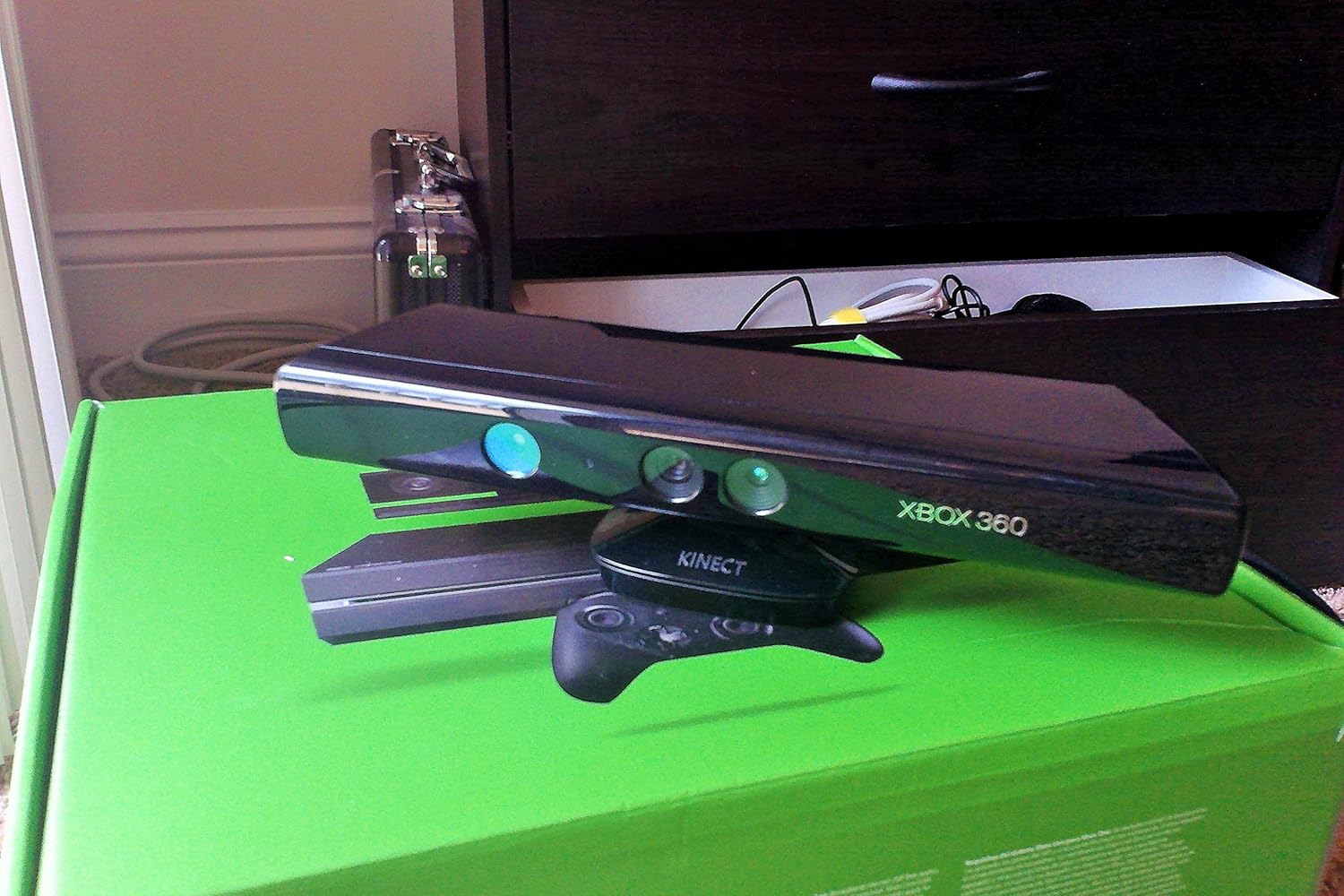
Image: The Xbox 360 Kinect sensor, a black bar with multiple cameras and sensors, designed for motion tracking.
4. Connecting the Wireless Controller
- Insert the included AA batteries into the Xbox 360 Wireless Controller.
- Press and hold the Guide button (Xbox logo) on the controller until it turns on.
- Press the connect button on the console (small button near the USB ports) and then press the connect button on the controller (small button on the front edge, between the bumpers). The lights around the Guide button on the controller will flash and then become solid when connected.

Image: An Xbox 360 wireless controller, black with colored face buttons and analog sticks.
Ntuziaka ọrụ
1. Ịgbanye / gbanyụọ
- Iji gbanye: Press the power button on the front of the console or the Guide button on a connected controller.
- Iji gbanyụọ: Press and hold the Guide button on the controller, then select 'Turn Off Console' from the menu. Alternatively, press the power button on the console.

Foto: N'ihu view of the Xbox 360 S console, showing the disc drive, power button, and Xbox 360 logo.
2. Ịnyagharịa na Dashboard
Use the analog sticks and D-pad on your controller to navigate the Xbox 360 Dashboard. The dashboard provides access to games, apps, settings, and Xbox Live services.
3. Ịgba Egwuregwu
- Disc Games: Insert a game disc into the disc drive. The game will appear on the dashboard, ready to play.
- Egwuregwu dijitalụ: Downloaded games are accessible from the 'My Games' section of the dashboard.
4. Using the Kinect Sensor
The Kinect sensor allows you to play games and navigate the dashboard using body movements and voice commands. Follow on-screen prompts during Kinect-enabled games for specific actions. Ensure your play space is clear of obstructions.
5. Connecting to Xbox Live (Wi-Fi)
The Xbox 360 S features built-in Wi-Fi. To connect to Xbox Live:
- Gaa na Settings > System Settings > Network Settings.
- Select your wireless network and enter the password if prompted.
- Once connected, you can access online multiplayer, download content, and stream media.
Nlekọta
- Nhicha: Use a soft, dry cloth to clean the console and Kinect sensor. Do not use liquid cleaners or abrasive materials.
- Igwe ikuku: Regularly check that the console's ventilation openings are not blocked by dust or other objects. Proper airflow is crucial for system longevity.
- Mmelite ngwanrọ: Connect your console to Xbox Live periodically to download and install system updates. These updates improve performance and add new features.
Nchọpụta nsogbu
- Enweghị ike: Ensure the power cable is securely connected to both the console and the electrical outlet. Check the power brick indicator light.
- Enweghị Vidiyo/Ọdịyo: Verify that the HDMI or AV cable is correctly connected to both the console and the TV. Ensure your TV is set to the correct input source.
- Njikwa Anaghị ejikọta: Re-sync the controller by pressing the connect buttons on both the console and the controller. Replace batteries if necessary.
- Kinect Not Responding: Ensure the Kinect sensor is properly connected to the AUX port. Check for any obstructions in the play area. Recalibrate the Kinect sensor through system settings if issues persist.
- Njehie Ọgụgụ Diski: Ensure the game disc is clean and free of scratches. Try another disc to determine if the issue is with the console or the disc.
For further assistance, refer to the official Microsoft Xbox support websaịtị.
Nkọwapụta
- Nọmba nlereanya: S7G-00024
- Nchekwa: 250GB Hard Drive
- Njikọta: Built-in Wi-Fi, Ethernet, USB ports
- Akụkụ: Ihe dịka 15 x 10 x 14.5 sentimita asatọ
- Arọ: Approximately 1 pound (console only)
- Onye nrụpụta: Microsoft
- Ngwa gụnyere: Xbox 360 S Console, Kinect Sensor, Xbox 360 Wireless Controller, Kinect Adventures Game
Nkwado
For technical support, warranty information, or service, please visit the official Microsoft Xbox support website or contact Microsoft customer service. Keep your proof of purchase for warranty claims.


