Ngwaahịa gafereview
The Targus Presenter AMP09AP is a multimedia presentation remote designed for ease of use during presentations. It features a laser pointer for highlighting content, backlit buttons for low-light environments, and an ergonomic design for comfortable handling. This remote also offers cursor control for remote program access and volume adjustment for media. Its wireless technology provides a range of up to 50 feet, and the USB receiver conveniently stores within the presenter.
Ntuziaka nhazi
1. Iwepu ngwongwo
Carefully remove the Targus Presenter AMP09AP and its components from the packaging. The box should contain:
- One Targus Presentation Remote
- One USB Receiver
2. Ntinye batrị
The Targus Presenter AMP09AP requires batteries (not included). Use alkaline batteries for optimal performance.
- Locate the battery compartment on the back of the presenter.
- Mepee mkpuchi nke batrị batrị.
- Insert the required batteries, ensuring correct polarity (+/-).
- Mechie mkpuchi nke batrị batrị nke ọma.
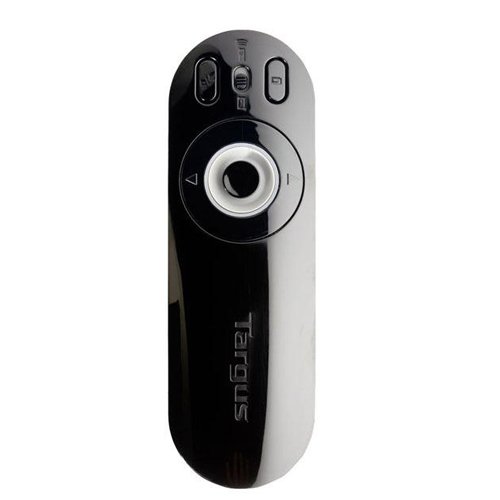
Image: The Targus Presenter AMP09AP, its USB receiver, and the open battery compartment revealing two AAA batteries.
3. Ijikọ eriri USB
- Remove the USB receiver from its storage slot within the presenter.
- Tinye eriri USB n'ọdụ ụgbọ mmiri dị na kọmputa gị.
- The computer should automatically detect and install the necessary drivers.
The remote is now ready for use.
Ntuziaka ọrụ
Ụkpụrụ ngosi
The presenter's simplistic layout allows for easy navigation during presentations.
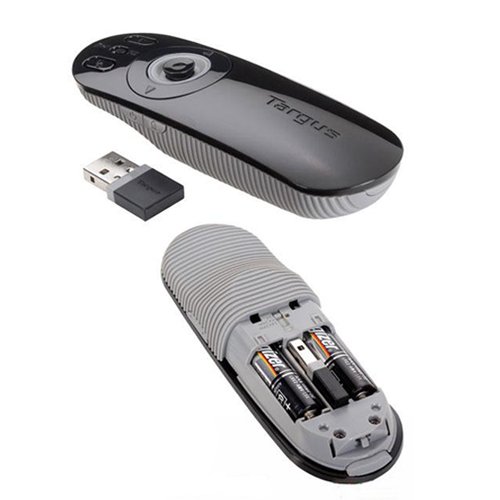
Foto: Top view of the Targus Presenter AMP09AP, highlighting the laser pointer button, slide navigation buttons, and the mode switch.
- Ihe nrịbama laser: Press and hold the dedicated laser button to activate the laser pointer for highlighting content.
- Next Slide: Press the forward arrow button to advance to the next slide.
- Previous Slide: Press the backward arrow button to return to the previous slide.
- bọtịnụ azụ azụ: Buttons are backlit for visibility in dimly lit rooms.
Cursor Control Mode
The presenter features cursor control for remote access to programs and media functions.
- Activating Cursor Control: Use the mode switch (located at the top right of the remote) to toggle between presentation and cursor control modes.
- Moving Cursor: Use the central circular button (joystick/directional pad) to move the mouse cursor on the screen.
- Ịpị: Press the center of the circular button to perform a left-click action.
- Njikwa olu: Adjust the volume for music and videos remotely using the designated volume controls (if available on your specific model).
Ikuku iche
The wireless technology allows operation up to 50 feet (approximately 15 meters) from the computer, providing flexibility during presentations.
Nlekọta
- Nhicha: Wipe the presenter with a soft, dry cloth. Avoid using harsh chemicals or abrasive cleaners.
- Ngbanwe batrị: Replace batteries when the indicator light (if present) signals low power, or when performance degrades. Ensure correct polarity during replacement.
- Nchekwa: When not in use, store the USB receiver inside the presenter's dedicated slot to prevent loss. Store the presenter in a cool, dry place.
Nchọpụta nsogbu
| Nsogbu | Ihe nwere ike ime | Ngwọta |
|---|---|---|
| Onye ngosi anaghị aza | Batrị dị ala ma ọ bụ nwụrụ anwụ | Dochie batrị na batrị alkaline ọhụrụ. |
| Onye ngosi anaghị aza | Ejikọghị ihe nnata USB nke ọma | Gbaa mbọ hụ na etinyere eriri USB nke ọma n'ọdụ ụgbọ mmiri USB na-arụ ọrụ na kọmputa gị. Gbalịa ọdụ ụgbọ USB dị iche. |
| Onye ngosi anaghị aza | Apụghị oke | Move closer to the computer (within 50 feet / 15 meters). |
| Laser pointer anaghị arụ ọrụ | Batrị dị ala | Dochie batrị. |
| Cursor control erratic or not working | Interference or mode not activated | Ensure no obstructions between presenter and receiver. Check if cursor control mode is active using the mode switch. |
Nkọwapụta
| Njirimara | Nkọwa |
|---|---|
| Ụdị | Targus |
| Nọmba nlereanya | AMP09AP-51 |
| Agba | Nwa na isi awọ |
| Akụkụ (LxWxH) | 12.1 x 3.8 x 2.5 cm |
| Ibu Ibu | 140 g |
| Teknụzụ Njikọta | Ikuku |
| Ikuku iche | Ruo ụkwụ 50 (ihe dị ka mita 15) |
| Ụdị batrị | Alkaline (anaghị etinye ya) |
| Ngwa gụnyere | Presentation Remote, USB Receiver |
| Atụmatụ pụrụ iche | Ergonomic design, Laser pointer, Cursor control, Backlit buttons |
Akwụkwọ ikike na nkwado
For warranty information and technical support, please refer to the documentation provided with your purchase or visit the official Targus websaịtị. Debe ihe akaebe nke ịzụrụ maka akwụkwọ ikike.