Okwu mmalite
This manual provides essential information for the setup, operation, and maintenance of your Logitech USB Keyboard for Business. Designed for efficiency and durability, this keyboard offers a comfortable and reliable typing experience for various computing environments.

Foto: N'elu-ala view of the Logitech USB Keyboard for Business, showcasing its full layout.
Melite
The Logitech USB Keyboard for Business is designed for simple plug-and-play functionality. No additional software or drivers are typically required for basic operation on compatible systems.
Jikọọ ahụigodo
- Chọta ọdụ ụgbọ mmiri USB dị na kọmputa gị.
- Insert the USB connector of the keyboard firmly into the USB port.
- Wait for your operating system to recognize the new hardware. This process is usually automatic and takes a few seconds.
- Ahụigodo adịla njikere maka ojiji.

Image: The Logitech K120 keyboard, highlighting its plug-and-play USB connectivity.
Ntuziaka ọrụ
This keyboard features a standard 104-key layout, including a full-size F-key row and a dedicated number pad, providing comprehensive functionality for business and general use.
Atụmatụ igodo
- Dị ala-Profile Igodo: Designed for a quiet and comfortable typing experience.
- Nhazi Nha zuru oke: Includes a complete set of keys, F-keys, and a numeric keypad for efficient data entry.
- Bold, Bright Characters: Key legends are designed to be easy to read and resistant to wear.
- Ụkwụ Ntụgharị A Na-agbanwe agbanwe: Allows for personalized ergonomic adjustment to suit your typing preference.

Image: A hand positioned on the keyboard, demonstrating the familiar and comfortable typing experience.

Image: A detailed diagram illustrating key features such as spill-proof design, deep-profile keys, full-size layout, adjustable height, Windows layout, and the integrated number pad.
Ogologo na imewe
The Logitech USB Keyboard for Business is built to withstand daily use and common office accidents, ensuring long-lasting performance.
Ntupu-eguzogide imewe
This keyboard features a spill-resistant design, meaning accidental liquid spills can drain out without damaging the internal components. This feature is tested under limited conditions (maximum of 60 ml liquid spillage). It is important not to immerse the keyboard in liquid.

Image: The keyboard surface with water droplets, demonstrating its spill-resistant capabilities.
Adjustable Typing Angle
The integrated adjustable tilt legs allow you to customize the keyboard's angle for a more comfortable and ergonomic typing position, reducing strain during extended use.
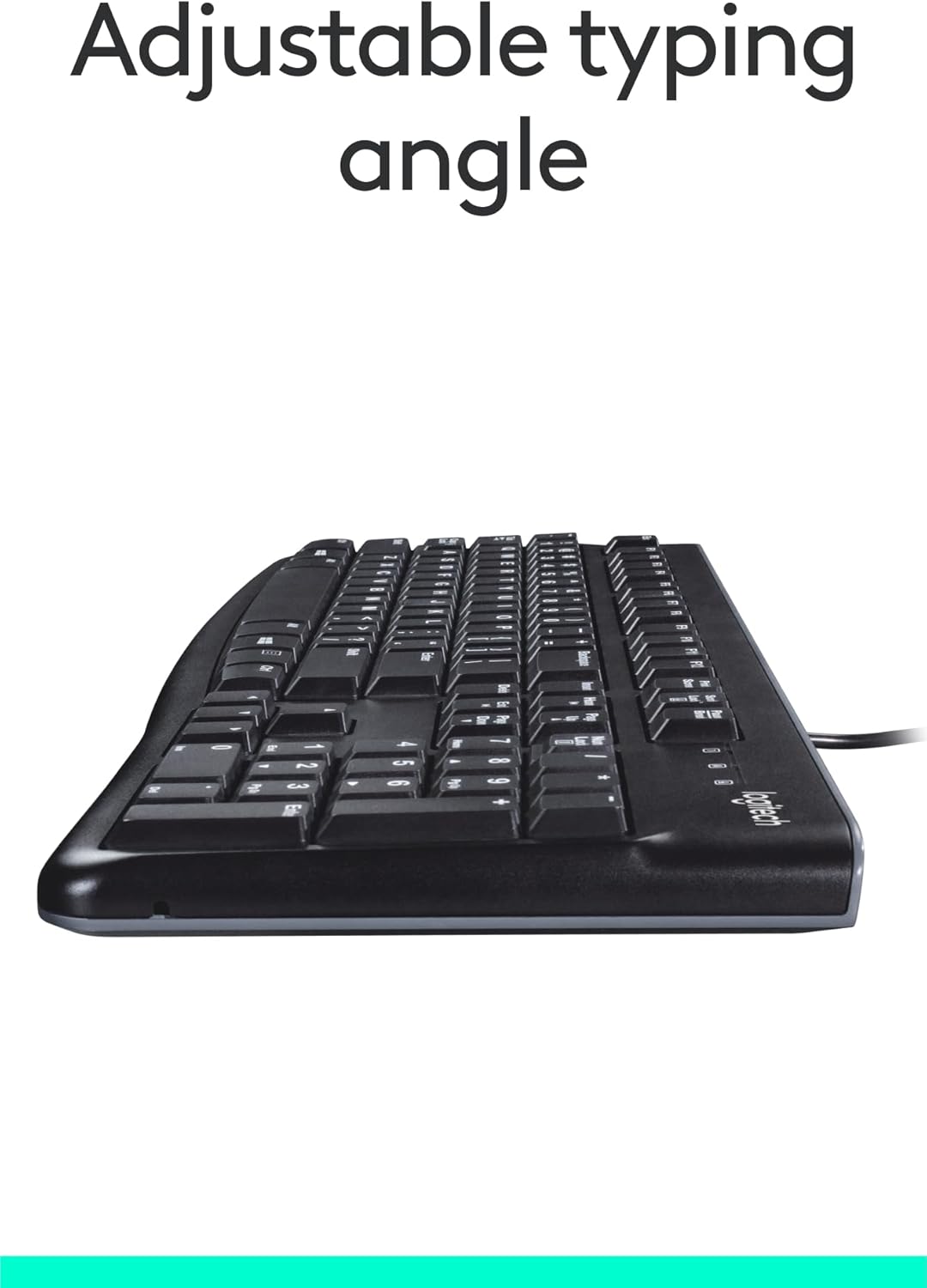
Foto: Akụkụ view of the keyboard with its adjustable tilt legs extended, showing the elevated typing angle.
Nlekọta
Proper care and cleaning will help maintain the performance and appearance of your keyboard.
Ntuziaka nhicha
- Kwụpụ kiiboodu na kọmputa gị tupu ihicha.
- Jiri akwa dị nro na-enweghị ntụpọ dampejiri mmiri tinye ma ọ bụ ihe ngwọta dị nro iji hichaa elu nke ahụigodo.
- Zere iji kemịkalụ siri ike, ihe nhicha ihe na-emebi emebi, ma ọ bụ ihe mgbaze, n'ihi na ihe ndị a nwere ike imebi njedebe nke keyboard na akụkọ ifo dị mkpa.
- Maka ihicha n'etiti igodo, jiri ikuku abịakọrọ wepụ uzuzu na irighiri ihe.
- Gbaa mbọ hụ na ahụigodo akpọnwụwo kpamkpam tupu ị jikọọ ya na kọmputa gị.
Nchọpụta nsogbu
If you encounter issues with your Logitech USB Keyboard for Business, try the following troubleshooting steps:
Ahụigodo Anaghị aza
- Lelee njikọ USB: Ensure the keyboard's USB cable is securely plugged into a working USB port on your computer. Try a different USB port.
- Malitegharịa kọmputa: A simple restart can often resolve connectivity issues.
- Nwalee na Kọmputa ọzọ: If possible, connect the keyboard to another computer to determine if the issue is with the keyboard or your original computer's setup.
- Lelee Njikwa Ngwaọrụ (Windows): Open Device Manager, locate 'Keyboards', and check for any error indicators. You may need to update or reinstall the keyboard driver (though typically not required for this plug-and-play model).
Igodo anaghị arụ ọrụ nke ọma
- Igodo dị ọcha: Ensure no debris is lodged under the non-functioning keys. Use compressed air to clear any obstructions.
- Spill Damage: If the keyboard has been exposed to a significant liquid spill, allow it to dry completely. If issues persist, internal damage may have occurred.
Nkọwapụta
| Njirimara | Nkọwa |
|---|---|
| Ụdị | Logitech |
| Nọmba nlereanya | FBA_920-002582 |
| Teknụzụ Njikọta | USB, USB-A |
| Nkọwa ahụigodo | Ergonomic |
| Ọnụọgụ igodo | 104 |
| Ihe onwunwe | Plastic |
| Ndakọrịta sistemụ arụmọrụ | Windows 10 (and compatible with other standard OS) |
| Ibu Ibu | 1.52 pound (ihe dị ka gram 689) |
| Akụkụ ngwaahịa (LxWxH) | 18.43 x 7.24 x 7.24 sentimita (ihe dịka 46.8 x 18.4 x 18.4 cm) |

Image: Visual representation of the keyboard with its key dimensions and weight detailed.
Ihe ngwugwu
The retail package for the Logitech USB Keyboard for Business typically includes the following:
- Logitech USB Keyboard for Business (Model: FBA_920-002582)

Image: The Logitech USB Keyboard for Business, indicating it is the primary item included in the product package.
Akwụkwọ ikike na nkwado
Logitech products are manufactured to high quality standards and are backed by a limited hardware warranty. For specific warranty terms and conditions, please refer to the warranty information provided with your product at the time of purchase or visit the official Logitech support websaịtị.
For technical support, frequently asked questions, and driver downloads (if applicable), please visit the official Logitech support page or the Ụlọ Ahịa Logitech dị na Amazon.


