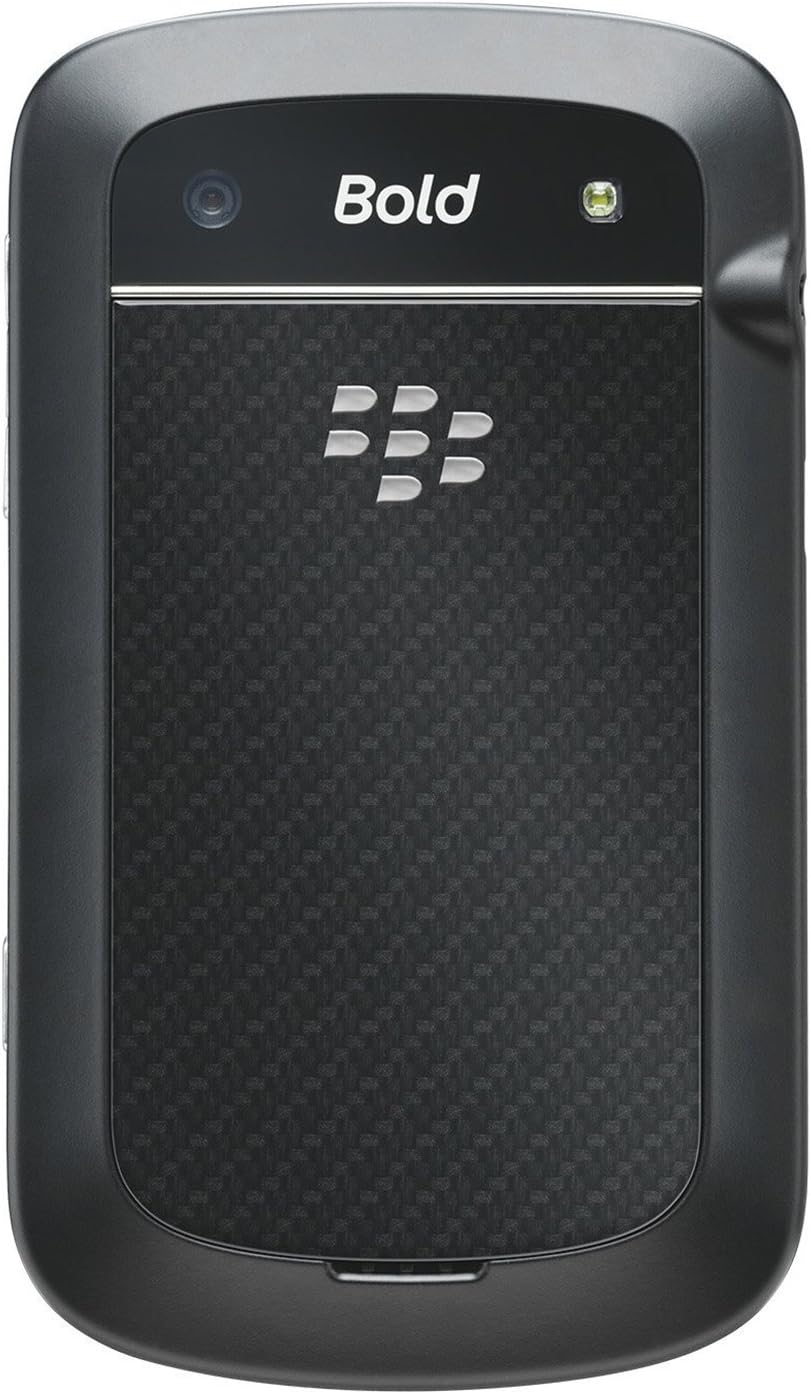
BlackBerry BB 9900

BlackBerry BB 9900 Bold Touch Smartphone User Manual

Model: BB 9900

1. Okwu mmalite

This manual provides essential instructions for setting up, operating, and maintaining your BlackBerry BB 9900 Bold Touch smartphone. Please read this guide thoroughly to ensure proper use and to maximize the device's capabilities. The BlackBerry BB 9900 Bold Touch combines a capacitive touchscreen with a full QWERTY keyboard, running on BlackBerry OS 7.

2. Ihe ngwugwu

Chọpụta na ngwungwu gị nwere ihe ndị a:

3. Ngwaọrụ gafereview

Familiarize yourself with the physical features of your BlackBerry BB 9900 Bold Touch.

3.1 N'ihu View

BlackBerry BB 9900 Bold Touch front view, showing the screen, QWERTY keyboard, and navigation buttons.

Foto: N'ihu view of the BlackBerry BB 9900 Bold Touch, highlighting the 2.8-inch touchscreen and the physical QWERTY keyboard below it. The device also features a trackpad and call/end buttons.

  • Ngosipụta ihuenyo mmetụ: 2.8-inch capacitive display for interactive navigation.
  • Ahụigodo QWERTY: Full physical keyboard for efficient typing.
  • Optical Trackpad: For precise navigation and selection.
  • Call/End Buttons: Standard telephony controls.

3.2 N'azụ View

BlackBerry BB 9900 Bold Touch rear view, showing the 5MP camera lens and LED flash.

Foto: N'azụ view of the BlackBerry BB 9900 Bold Touch, featuring the 5-megapixel camera lens, LED flash, and the BlackBerry logo.

  • Igwefoto 5MP: Primary camera with autofocus and LED flash.
  • Mkpuchi batrị: Removable cover for battery and SIM card access.

3.3 Akụkụ View

BlackBerry BB 9900 Bold Touch side view, showing volume buttons and convenience key.

Foto: Akụkụ view of the BlackBerry BB 9900 Bold Touch, illustrating the placement of the volume control buttons and a customizable convenience key.

  • Bọtịnụ olu: Hazie ọkwa ọdịyo.
  • Convenience Key: Customizable shortcut button.

4. Nhazi

4.1 Ịtinye kaadị SIM

  1. Remove the battery cover from the back of the device.
  2. Chọta oghere kaadị SIM.
  3. Insert the SIM card with the gold contacts facing down and the cut corner aligned with the slot.
  4. Ensure the SIM card is securely in place.

4.2 Ịtinye batrị

  1. After inserting the SIM card, align the battery's gold contacts with the contacts in the battery compartment.
  2. Gently press the battery into place until it clicks.
  3. Dochie mkpuchi batrị.

4.3 Ịchaji ngwaọrụ

  1. Connect the USB cable to the charging port on your device.
  2. Plug the other end of the USB cable into the wall charger, then into a power outlet.
  3. Allow the device to charge fully before first use. The battery indicator on the screen will show charging status.

4.4 Gbanyụọ/ gbanyụọ

  • Iji gbanye: Press and hold the Power/Lock button (usually located on the top edge) until the BlackBerry logo appears.
  • Iji gbanyụọ: Press and hold the Power/Lock button until the 'Power Off' option appears on the screen. Tap 'Power Off' to confirm.

5. Ntuziaka ọrụ

5.1 Nsoro Ihuenyo Mmetụ Aka

  • Kpatụ: Touch the screen briefly to open applications, select items, or activate buttons.
  • Mịpụta: Drag your finger across the screen to scroll through lists or switch between home screen panels.
  • Tụọ-gaa-mbugharị: Use two fingers to zoom in or out on photos, web peeji, ma ọ bụ maapụ.

5.2 Using the QWERTY Keyboard

The physical QWERTY keyboard allows for fast and accurate text entry. Each key corresponds to a letter, number, or symbol. Use the 'Alt' key for alternate characters and the 'Shift' key for capitalization.

5.3 Ịkpọ oku

  1. From the home screen, tap the Phone icon or press the green Call button.
  2. Enter the phone number using the keyboard.
  3. Press the green Call button to initiate the call.
  4. To end a call, press the red End Call button.

5.4 Na-eziga ozi

  1. Tap the Messages icon from the home screen.
  2. Select 'Compose New' or similar option.
  3. Tinye nọmba onye nnata ma ọ bụ họrọ na kọntaktị.
  4. Type your message using the QWERTY keyboard.
  5. Tap 'Send'.

5.5 Iji igwefoto

  1. Tap the Camera icon to open the camera application.
  2. Mechie ogbunigwe gị site na iji ihuenyo ka a viewonye nchọta.
  3. Tap the screen or press the convenience key (if configured) to take a photo.
  4. The 5MP camera features autofocus and an LED flash for improved image quality.

5.6 Jikọọ na Wi-Fi

  1. Go to 'Options' > 'Networks and Connections' > 'Wi-Fi'.
  2. Turn Wi-Fi on. The device will scan for available networks.
  3. Họrọ netwọk nke ịchọrọ ma tinye paswọọdụ ma ọ bụrụ na kpaliri gị.
  4. Once connected, the Wi-Fi indicator will appear in the status bar.

5.7 Using NFC (Near Field Communication)

The BlackBerry BB 9900 Bold Touch supports NFC for short-range wireless communication. This allows for quick pairing with compatible accessories or sharing data with other NFC-enabled devices by tapping them together.

  1. Gbaa mbọ hụ na agbanyere NFC na ntọala ngwaọrụ gị.
  2. Hold your device close to another NFC-enabled device or tag.
  3. Follow on-screen prompts to complete the desired action (e.g., pairing, data transfer).

6. Nlekọta

6.1 Na-ehicha ngwaọrụ gị

  • Use a soft, lint-free cloth to wipe the screen and body of the device.
  • Zere iji kemịkalụ siri ike, ihe nchacha abrasive, ma ọ bụ aerosol sprays.
  • Ewepụla ngwaọrụ ahụ ka ọ bụrụ oke mmiri.

6.2 Nlekọta batrị

  • Zere oke okpomọkụ, nke nwere ike imebi arụmọrụ batrị.
  • Use only the original or approved charger.
  • Do not puncture or damage the battery.

6.3 Mmelite ngwanrọ

Periodically check for software updates to ensure your device has the latest features and security enhancements. Updates can typically be found in the device's 'Options' or 'Settings' menu under 'Software Updates'.

7. Nchọpụta nsogbu

7.1 Ngwaọrụ anaghị agba ọkụ

  • Gbaa mbọ hụ na etinyere batrị nke ọma na chajị.
  • Connect the device to the charger and wait a few minutes before attempting to power on again.
  • If the issue persists, try removing and reinserting the battery.

7.2 Okwu Njikọta netwọkụ

  • Check if your SIM card is correctly inserted and activated with your carrier.
  • Verify that cellular data or Wi-Fi is enabled in your device settings.
  • Malitegharịa ngwaọrụ ahụ.
  • If using Wi-Fi, ensure your router is working and you have entered the correct password.

7.3 Touch Screen Unresponsive

  • Malitegharịa ngwaọrụ ahụ.
  • Gbaa mbọ hụ na ihuenyo ahụ dị ọcha na enweghị irighiri ihe ma ọ bụ mmiri.
  • If the issue is intermittent, check for any recent software installations that might be causing conflicts.

8. Nkọwapụta

Njirimara Nkọwa
Aha Nlereanya BB 9900
Sistemụ nrụọrụ BlackBerry OS 7
Ngosipụta 2.8-inch Capacitive Touchscreen, 640 x 480 Resolution
Nhazi Not specified (typically 1.2 GHz for this model)
RAM 768 MB
Nchekwa nke ime 8 GB
Igwefoto azụ 5 MP, Autofocus, LED Flash
Njikọta Wi-Fi 802.11 b/g/n, NFC, Bluetooth, GPS
Nkwado netwọkụ Quad-band GSM/GPRS/EDGE, Tri-band HSPA+
Akụkụ 4.53 x 2.6 x 0.41 sentimita (115 x 66 x 10.5 mm)
Ibu 4.6 ounce (130 grams)
Jack ọdịyo 3.5 mm

9. Nkwado na akwụkwọ ikike

9.1 Nkwado ndị ahịa

For technical assistance, troubleshooting beyond this manual, or service inquiries, please visit the official BlackBerry support website or contact your local service provider. Refer to the packaging or official websaịtị maka nkọwa kọntaktị akọwapụtara.

9.2 Ozi akwụkwọ ikike

Your BlackBerry BB 9900 Bold Touch is covered by a limited warranty. Please refer to the warranty card included in your product packaging or visit the official BlackBerry websaịtị maka usoro na ọnọdụ zuru ezu, gụnyere oge akwụkwọ ikike yana nkọwa mkpuchi. Debe ihe akaebe nke ịzụrụ ihe maka akwụkwọ ikike.

Akwụkwọ ndị emetụtara - BB 9900

Tupuview Ntuziaka Onye Ọrụ Ama BlackBerry Q10
Nduzi zuru oke maka ekwentị BlackBerry Q10, nke na-ekpuchi atụmatụ dịka BlackBerry Hub, ahụigodo, BBM Video, igwefoto, nkesa mgbasa ozi, na ntọala ngwaọrụ. Mụta otu esi arụpụta ihe nke ọma ma hazie ahụmịhe gị.
Tupuview Gburugburu mmepe nke BlackBerry Java: GPS na ntuziaka mmepe maapụ Blackberry
Ntuziaka a na-akọwa njikọ nke GPS na Blackberry Maps arụ ọrụ n'ime BlackBerry Java Development Environment, na-eje ozi dị ka ihe enyemaka maka ndị mmepe na-ewuli ngwa na-amata ọnọdụ.
Tupuview Ntuziaka Onye Ọrụ BlackBerry maka Android | Njikwa Ọrụ Nchekwa
Ntuziaka Ọrụ BlackBerry Tasks for Android (v3.17) nke gọọmentị na-enye ntuziaka zuru oke gbasara ntinye, ịgbalite, njikwa ọrụ, ntọala, na nsogbu nsogbu maka ngwa njikwa ọrụ azụmaahịa BlackBerry dị nchebe.
Tupuview BlackBerry Q5 Smartphone User Guide: Setup, Features, and Operations
This comprehensive user guide provides detailed information and instructions for operating the BlackBerry Q5 Smartphone. It covers the features and functionalities of the BlackBerry 10 OS, version 10.2.1, designed to enhance productivity and connectivity.
Tupuview Руководство пользователя BlackBerry Z10: Полное руководство
Полное руководство пользователя для смартфона BlackBerry Z10, охватывающее новые функции BlackBerry 10 OS, настройку устройства, приложения, соединения и многое другое.
Tupuview Ntuziaka onye ọrụ Smartphone BlackBerry Z30: Njirimara, Ntọlite ​​na Ọrụ
Chọpụta ntuziaka onye ọrụ maka BlackBerry Z30 Smartphone (ụdị 10.3.2). Ntuziaka a na-enye nkọwa zuru ezu na ntọlite ​​ngwaọrụ, atụmatụ ịnyagharị, ijikwa nkwukọrịta, iji ike mgbasa ozi, ịhazi ntọala, yana ịkwalite nchekwa maka ahụmịhe onye ọrụ kacha mma.