1. Okwu mmalite
This manual provides detailed instructions for the installation, operation, and maintenance of the Intermatic iOS-DOV-WH Commercial Grade in-Wall PIR Occupancy/Vacancy Sensor. This device is designed to automatically control lighting based on human presence, enhancing energy efficiency in various indoor environments.
The sensor utilizes Passive Infrared (PIR) technology to detect motion by sensing changes in infrared energy (body heat). When motion is detected, the connected lights can be automatically turned ON (Occupancy mode) or manually turned ON and automatically turned OFF (Vacancy mode).
2. Ozi nchekwa
WARNING: Risk of Electric Shock. May cause serious injury or death.
- Turn OFF power at the circuit breaker or fuse box before installation or servicing.
- Onye ọrụ ọkụ eletrik ruru eru ga-arụ ọrụ nrụnye ahụ dịka iwu eletriki mba na mpaghara si dị.
- Do not use this device with loads exceeding its specified ratings.
- Gbaa mbọ hụ na njikọ waya niile echekwara na mkpuchi nke ọma.
- This device requires a neutral wire for operation. Verify the presence of a neutral wire in the electrical box before proceeding with installation.
3. Akụrụngwa Ngwaahịa
- Passive Infrared (PIR) Sensing: Detects human presence by sensing motion and body heat, ensuring reliable light control.
- 180° mkpuchi: Provides wide-angle detection up to 1200 sq. ft. (non-obstructed views) for comprehensive area monitoring.
- User-Selectable Modes: Offers flexible operation with selectable Occupancy (automatic ON/OFF) or Vacancy (manual ON/automatic OFF) modes.
- Zero-Crossing Technology: Extends the life of the sensor and connected lighting by minimizing electrical stress during switching.
- Adjustable Ambient Light Sensor: Prevents lights from turning on when sufficient natural light is present, with adjustable sensitivity (30% - 100%).
- Oge igbu oge nwere ike idozi: Allows setting the time lights remain ON after the last detected motion, from 15 seconds to 30 minutes.
- Adjustable Sensitivity (Range): Fine-tunes the detection area to prevent unwanted triggers.
4. Ihe ngwugwu
- Intermatic iOS-DOV-WH Occupancy/Vacancy Sensor
- Ihe ndozi mgbidi
- Ịkwanye kposara
- Mkpụrụ Mkpụrụ
- Akwụkwọ ntuziaka
5. Nwụnye (Ntọala)
5.1 Ndepụta nbanye tupu etinyere
- Gbaa mbọ hụ na agbanyụrụ ọkụ na sekit.
- Confirm the electrical box contains a neutral wire (typically white). This sensor requires a neutral connection.
- Verify the existing wiring configuration (single-pole only; not for 3-way or 4-way applications).
5.2 Ntuziaka waya
The iOS-DOV-WH sensor is designed for single-pole applications. Follow these steps for wiring:
- Gbanyụọ ike na ihe nbibi sekit.
- Remove the existing wall switch and disconnect its wires.
- Identify the wires in the electrical box:
- AHỊA (Ọkụ): Typically black, supplying power from the circuit breaker.
- Ibu: Typically black, going to the light fixture.
- AKWỤKWỌ: Typically white, required for the sensor's operation.
- GALA: Waya ọla kọpa ma ọ bụ akwụkwọ ndụ akwụkwọ ndụ.
- Connect the sensor's wires to the corresponding house wires using wire nuts:
- Connect the sensor's Nwa wire to the house LINE (Hot) waya.
- Connect the sensor's Uhie wire to the house Ibu waya.
- Connect the sensor's Ọcha wire to the house AKWỤKWỌ waya.
- Connect the sensor's Akwụkwọ ndụ akwụkwọ ndụ wire to the house GALA waya.
- Carefully push all wires into the electrical box.

Foto nke 1: N'azụ view of the Intermatic iOS-DOV-WH sensor, illustrating the wiring terminals and the product specification label. The label indicates the model number, voltage, frequency, and load ratings for resistive, incandescent, fluorescent, and motor loads.
5.3 Na-arịgo
- Mount the sensor into the electrical box using the provided mounting screws. Ensure the "TOP" indicator on the sensor's metal strap is facing upwards.
- Attach the decorator wall plate over the sensor.
- Gbanwuo ike na ihe nbibi sekit.

Foto nke 2: Akụkụ profile of the Intermatic iOS-DOV-WH sensor, demonstrating its depth when mounted on a standard electrical bracket. This view helps assess the required space within the wall box.
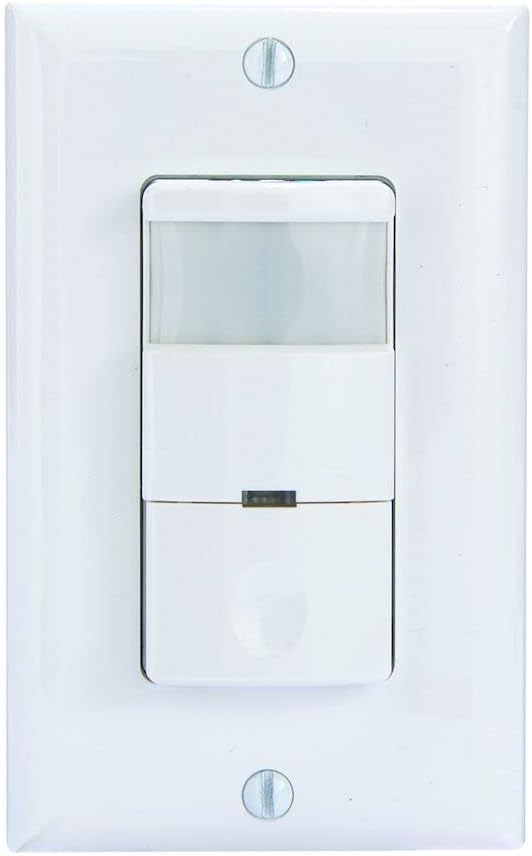
Foto nke 3: N'ihu view of the Intermatic iOS-DOV-WH sensor, fully installed with its white decorator wall plate. The PIR lens and manual override button are visible.
6. Ọrụ
The iOS-DOV-WH sensor offers three operational modes: OFF, Occupancy (OCC), and Vacancy (VAC).

Foto nke 4: A nso-elu view of the mode selection switch located at the bottom of the sensor. The switch allows selection between "OFF", "OCC" (Occupancy), and "VAC" (Vacancy) modes.
- Gbanyụọ ọnọdụ: In this mode, the sensor acts as a standard manual switch. Press the button to turn lights ON, and press again to turn them OFF. Motion detection is disabled.
- Occupancy (OCC) Mode: Lights turn ON automatically when motion is detected and turn OFF automatically after a set time delay when no motion is detected. This is ideal for high-traffic areas where automatic lighting is desired.
- Ọnọdụ ohere (VAC): Lights must be turned ON manually by pressing the button. They will turn OFF automatically after a set time delay when no motion is detected. This mode is suitable for areas where manual control over initial light activation is preferred, but automatic shut-off is desired for energy savings.
A small LED indicator on the sensor will illuminate briefly when motion is detected. This helps confirm sensor operation.

Foto nke 5: A zuru ezu view of the red LED indicator light on the front of the Intermatic iOS-DOV-WH sensor. This LED illuminates when motion is detected, providing visual feedback of the sensor's activity.
7. Ndozi
The sensor features three adjustable dials located behind the lower cover plate. Gently pry open the bottom section of the sensor to access these controls.

Foto nke 6: A close-up showing the three adjustment dials for "TIME", "RANGE", and "LIGHT" on the Intermatic iOS-DOV-WH sensor. These dials are used to fine-tune the sensor's performance.
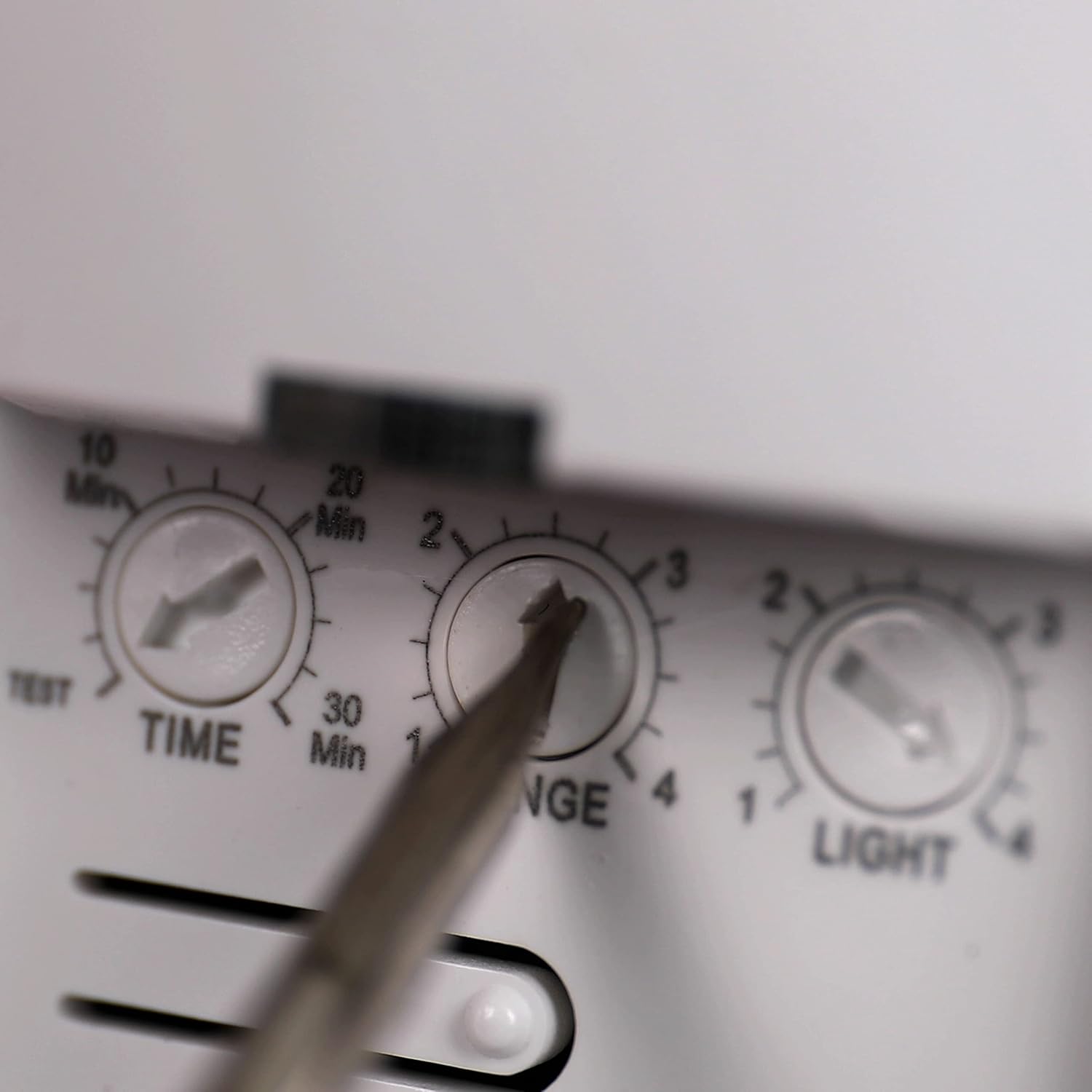
Foto nke 7: This image illustrates the use of a small screwdriver to adjust the "RANGE" dial on the Intermatic iOS-DOV-WH sensor, providing a visual guide for users making adjustments.
- TIME (Time Delay): Adjusts how long the lights remain ON after the last detected motion. Settings typically range from 15 seconds (TEST mode) to 30 minutes.
- Ụdị ule: For quick testing of coverage, the lights will turn off after approximately 15 seconds.
- RANGE (Sensitivity): Controls the detection sensitivity and coverage area of the PIR sensor. Adjust this to prevent false triggers or to ensure adequate coverage.
- LIGHT (Ambient Light Sensor): Determines the ambient light level at which the sensor will allow the lights to turn ON. If the natural light level is above the set threshold, the lights will not turn on, even with motion. This saves energy during daylight hours.
8. Nlekọta
- The sensor requires minimal maintenance.
- Periodically clean the sensor lens with a soft, damp cloth to ensure optimal performance. Do not use abrasive cleaners.
- There are no user-serviceable parts inside the sensor. Do not attempt to open or repair the unit.
9. Nchọpụta nsogbu
| Nsogbu | Ihe nwere ike ime | Ngwọta |
|---|---|---|
| Ọkụ anaghị agbanwu. |
|
|
| Lights do not turn OFF. |
|
|
| Lights turn ON/OFF too frequently (false triggers). |
|
|
10. Nkọwapụta
| Nọmba nlereanya | iOS-DOV-WH |
| Voltage | 120V AC, 60Hz |
| Ngosi ibu |
|
| Mkpuchi | 180°, up to 1200 sq. ft. |
| Oge igbu oge | 15 seconds (Test) to 30 minutes |
| Ihe mmetụta ọkụ Ambient | Adjustable (30% - 100%) |
| Okpomọkụ na-arụ ọrụ | 32°F ruo 131°F (0°C ruo 55°C) |
| Akụkụ | 3 x 2 x 4.8 sentimita (ihe dị ka) |
| Agba | Ọcha |
| Ihe onwunwe | Plastic |
11. Akwụkwọ ikike na nkwado
This Intermatic iOS-DOV-WH sensor comes with a Akwụkwọ ikike dị afọ 5 site na ụbọchị ịzụrụ. Akwụkwọ ikike a na-ekpuchi ntụpọ dị na ngwa na arụ ọrụ n'okpuru ojiji nkịtị.
For warranty claims, technical assistance, or further information, please contact Intermatic Customer Support. Refer to the official Intermatic webngwugwu saịtị ma ọ bụ ngwaahịa maka nkọwa kọntaktị kachasị ugbu a.
Do not return the product to the place of purchase without prior authorization from Intermatic.


