Okwu mmalite
This manual provides comprehensive instructions for the setup, operation, maintenance, and troubleshooting of your Logitech M510 Wireless Mouse. Designed for comfort and efficiency, the M510 offers precise control and convenient features for your computing needs.
The Logitech M510 is a comfortable wireless computer mouse featuring a USB Unifying Receiver, back/forward buttons, and side-to-side scrolling. It operates on 2 AA batteries and is compatible with Personal Computers and Macbooks running operating systems like Windows 10.
Ihe ngwugwu
- Logitech M510 ikuku ikuku
- Onye nnata njikọta Logitech
- 2 AA Batteries (pre-installed or included)
Melite
1. Ntinye batrị
The Logitech M510 mouse requires two AA batteries for operation. These are typically included with your purchase. If not already installed, follow these steps:
- Chọta mkpuchi nke ebe batrị ahụ n'okpuru òké ahụ.
- Mikpuo ma ọ bụ bulie mkpuchi ahụ iji mepee ebe ahụ.
- Insert two AA batteries, ensuring the positive (+) and negative (-) terminals align correctly with the indicators inside the compartment.
- Mechie mkpuchi nke batrị batrị nke ọma.
2. Ijikọ Onye Nnata Njikọta
The Logitech M510 uses a Logitech Unifying Receiver for wireless connectivity. This small USB receiver allows you to connect multiple compatible Logitech devices to your computer using a single USB port.
- Locate the Logitech Unifying Receiver. It is often stored inside the battery compartment of the mouse for safekeeping during transport.
- Plug the Unifying Receiver into an available USB port on your computer (desktop, laptop, or Macbook).
- Your computer should automatically detect the receiver and install the necessary drivers. This may take a few moments.
- Once the drivers are installed, the mouse should be ready for use. If not, ensure the mouse's power switch (if present) is in the 'ON' position.

Foto: N'elu-ala view of the Logitech M510 Wireless Mouse alongside its compact USB Unifying Receiver.
Na-arụ ọrụ òké
The Logitech M510 Wireless Mouse is designed for intuitive use with several programmable buttons and comfortable ergonomics.
Ọrụ ndị bụ isi
- Bọtịnụ Pịa Aka ekpe: Bọtịnụ isi maka ịhọrọ ihe, imeghe files, and interacting with software.
- Pịa bọtịnụ aka nri: Bọtịnụ nke abụọ maka ịnweta menus ọnọdụ na nhọrọ ndị ọzọ.
- Mpempe akwụkwọ mpịakọta: Pịgharịa gaa na elu ma ọ bụ ala site na akwụkwọ na web pages. The scroll wheel also functions as a middle-click button.
- Side-to-Side Scrolling: Tilt the scroll wheel left or right to scroll horizontally in applications that support this feature.
Advanced Features (Programmable Buttons)
The M510 features two thumb buttons (back/forward) on the left side, which can be customized using Logitech Options software (available for download from the Logitech website). By default, these buttons perform browser navigation functions.
- Bọtịnụ azụ: Na-agagharị azụ web ihe nchọgharị ma ọ bụ file ndị na-eme nchọpụta.
- Bọtịnụ mbugharị: Na-aga n'ihu web ihe nchọgharị ma ọ bụ file ndị na-eme nchọpụta.
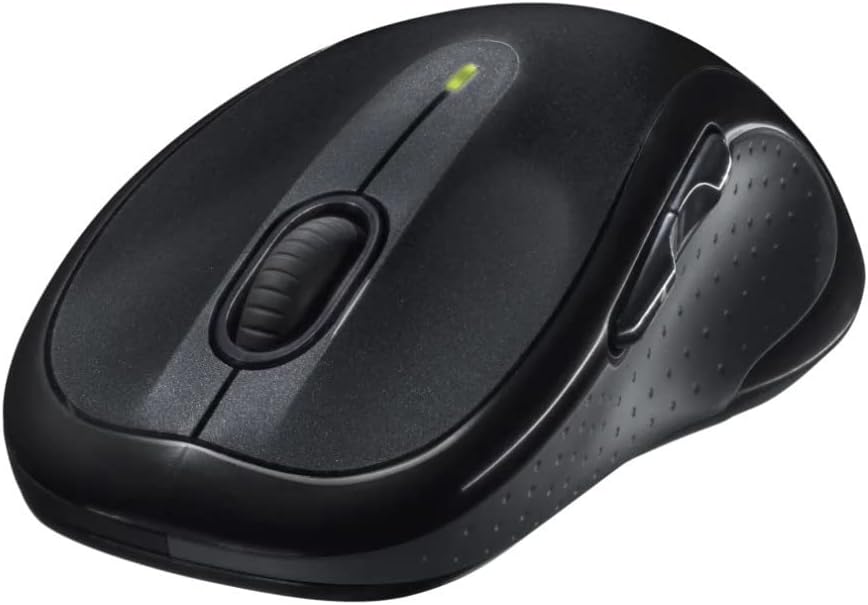
Foto: Angle view of the Logitech M510 Wireless Mouse, highlighting its ergonomic shape and side buttons.
Nlekọta
Na-ehicha òké gị
To ensure optimal performance and hygiene, regularly clean your Logitech M510 mouse:
- Disconnect the mouse from your computer by removing the Unifying Receiver.
- Jiri akwa dị nro na nke enweghị mmiri ọkụ dampened with water or a mild cleaning solution (e.g., isopropyl alcohol) to wipe down the surface of the mouse.
- For crevices and around buttons, use a cotton swab or a soft brush.
- Avoid getting liquid into the internal components or the optical sensor.
- Allow the mouse to dry completely before re-connecting.
Ngbanwe batrị
The Logitech M510 has an average battery life of 18 months. When the battery indicator light (if present) flashes or mouse performance degrades, it's time to replace the batteries.
- Turn off the mouse using the power switch on the underside.
- Mepee mkpuchi nke batrị batrị.
- Wepu batrị AA ochie.
- Insert two new AA batteries, observing the correct polarity (+/-).
- Mechie mkpuchi oghere batrị.
- Turn the mouse back on.
Nchọpụta nsogbu
| Nsogbu | Ihe nwere ike ime | Ngwọta |
|---|---|---|
| Òké anaghị aza | Low or dead batteries; Unifying Receiver not connected; Mouse power off; Driver issue. | Replace batteries; Ensure Unifying Receiver is securely plugged into a USB port; Turn mouse power switch to 'ON'; Reinstall Logitech Options software or check device manager for driver issues. |
| Lagging or erratic cursor movement | Interference; Dirty optical sensor; Mouse used on unsuitable surface; Low battery. | Move mouse closer to receiver; Clear obstructions; Clean optical sensor; Use a mouse pad or suitable surface; Replace batteries. |
| bọtịnụ akụkụ anaghị arụ ọrụ | Software not installed or configured; Application does not support custom buttons. | Download and install Logitech Options software from the official Logitech website to customize button functions. Ensure the application you are using supports these functions. |
| Unifying Receiver not recognized | Faulty USB port; Driver issue. | Try a different USB port; Restart your computer; Download and install the Logitech Unifying Software to re-pair the mouse with the receiver. |
Nkọwapụta
| Njirimara | Nkọwa |
|---|---|
| Ụdị | Logitech |
| Nọmba nlereanya | 910-001822 |
| Usoro | M510 |
| Teknụzụ Njikọta | Radio Frequency, USB (via Unifying Receiver) |
| Teknụzụ nchọpụta ngagharị | Laser |
| Agba | Ọchịchịrị Grey |
| Ibu Ibu | 4.6 ounces (ihe dị ka gram 130) |
| Akụkụ ngwaahịa (LxWxH) | 4.38 x 2.5 x 1.75 sentimita (ihe dịka 11.13 x 6.35 x 4.45 cm) |
| Isi Iyi Ike | Akwanyere batrị |
| Batrị achọrọ | 2 batrị AA (gụnyere) |
| Nkezi Ndụ batrị | Ọnwa 18 |
| Ngwaike Platform | Personal Computer, Macbook |
| Ndakọrịta sistemụ arụmọrụ | Windows 10 (and likely earlier versions, macOS) |
| Atụmatụ pụrụ iche | Battery Life Indicator, Power Saving Mode, Programmable Buttons, Wireless |
| Ụbọchị mbụ dị | Ọnwa Isii 7, 2010 |

Foto: N'elu-ala view of the Logitech M510 Wireless Mouse showing its approximate dimensions (4.4" length, 2.5" width).
Akwụkwọ ikike na nkwado
Ozi akwụkwọ ikike
Logitech products typically come with a limited hardware warranty. For specific warranty terms and conditions applicable to your Logitech M510 Wireless Mouse, please refer to the warranty card included with your product or visit the official Logitech websaịtị.
Nkwado ndị ahịa
For further assistance, technical support, or to download the latest software (such as Logitech Options or Unifying Software), please visit the official Logitech support websaịtị:
Ị nwekwara ike ịchọta akụrụngwa na-enyere aka, FAQs, na nnọkọ obodo na ha websaịtị.


