1. Ngwaahịa gafereview
The Logitech Wired Mouse M90 is a simple, reliable, and comfortable USB mouse designed for everyday use. It offers precise optical tracking and an ambidextrous design, making it suitable for both left and right-handed users. This manual provides essential information for setting up, operating, and maintaining your M90 mouse.
Akụkụ ndị bụ isi:
- Ntọlite dị mfe: Plug-and-play functionality with no software installation required.
- Precise Optical Tracking: Enjoy smooth and accurate cursor control (1000 dpi).
- Full-Size Comfort: Designed for comfortable use, even after extended periods.
- Ambidextrous imewe: Ọ dị mma maka ndị ọrụ aka ekpe na aka nri.
- Durable Wired Connection: Reliable USB connection for consistent performance.
2. Ntuziaka Nhazi
Setting up your Logitech M90 mouse is quick and straightforward. No special software or drivers are needed.
- Mepee òké ahụ: Carefully remove the Logitech M90 mouse from its packaging.
- Locate a USB Port: Identify an available USB-A port on your computer (desktop, laptop, or compatible device).
- Jikọọ òké: Insert the USB connector of the M90 mouse into the USB port. Ensure it is fully seated.
- Nkwekọrịta sistemụ: Your operating system (Windows, macOS, Linux, Chrome OS) should automatically detect and install the necessary drivers for the mouse. This process usually takes a few seconds.
- Malite Iji: Once recognized, the mouse is ready for immediate use. You can adjust cursor speed and other settings through your operating system's mouse settings if desired.

Ọgụgụ 2.1: N'elu-ala view of the Logitech M90 mouse, ready for connection.
3. Ntuziaka ọrụ
The Logitech M90 mouse provides intuitive control for your computer. It features a standard three-button design with a scroll wheel.
- Bọtịnụ Pịa Aka ekpe: Located on the left side of the mouse. Used for selecting items, opening files, na ịrụ ọrụ ọrụ.
- Pịa bọtịnụ aka nri: Located on the right side of the mouse. Used for accessing context menus and additional options.
- Mpempe akwụkwọ mpịakọta: Located between the left and right buttons.
- Scroll up or down to navigate through documents, web ibe, na ngwa.
- Press the scroll wheel down (middle-click) to activate specific functions in some applications, such as opening links in a new tab.
- Ntughari: Move the mouse across a flat surface to control the cursor on your screen. The optical sensor provides precise tracking on most surfaces, with or without a mouse pad.
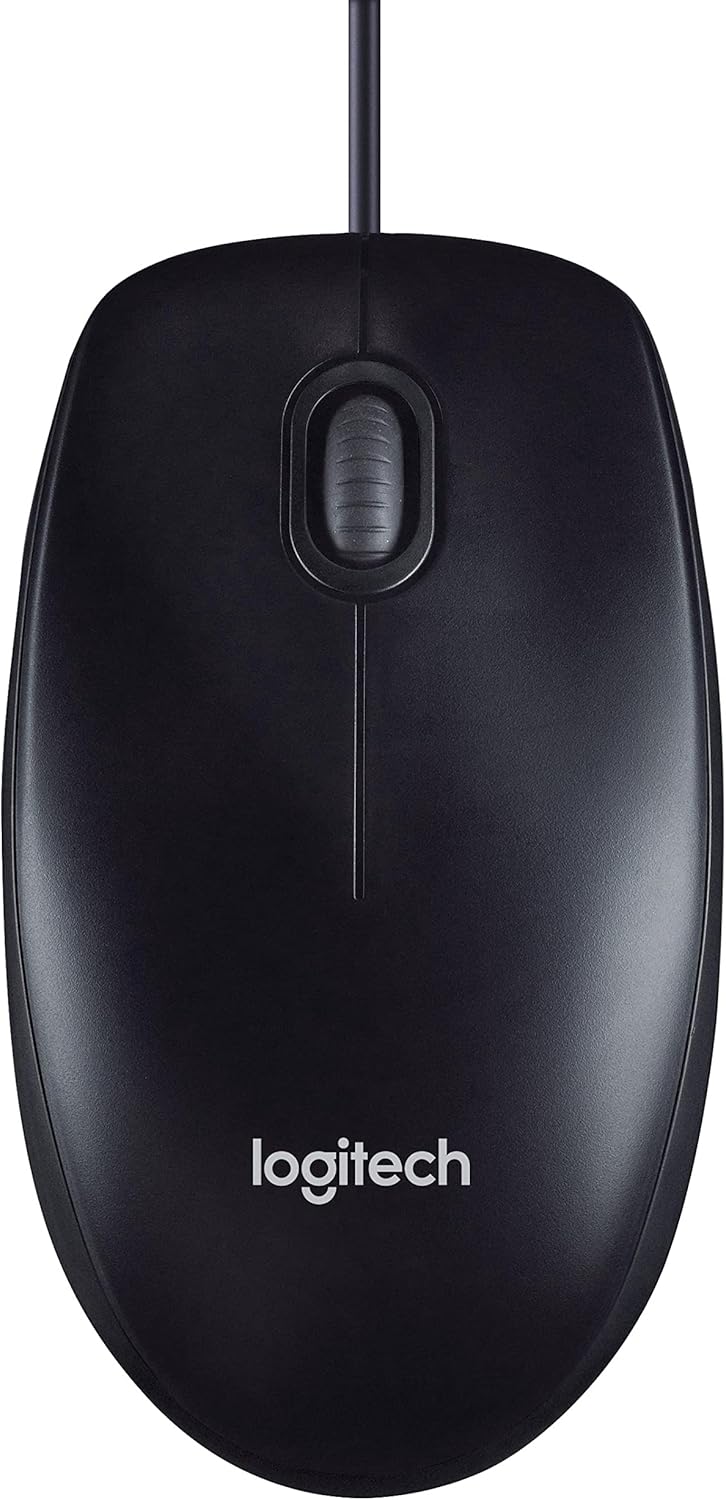
Figure 3.1: The Logitech M90 mouse in use, highlighting its simple design.
4. Nlekọta
To ensure the longevity and optimal performance of your Logitech M90 mouse, follow these simple maintenance guidelines:
- Nhicha:
- Regularly wipe the surface of the mouse with a soft, lint-free cloth.
- Maka unyi isi ike, ntakịrị dampJiri mmiri ma ọ bụ ihe nhicha dị nro, nke na-anaghị afụ ụfụ kpuchie ákwà ahụ. Zere kemịkalụ siri ike.
- Clean the optical sensor area on the bottom of the mouse periodically to prevent tracking issues. Use a dry cotton swab or compressed air.
- Nlekọta USB: Avoid sharp bends or kinks in the USB cable. Do not pull the mouse by its cable when disconnecting it from the computer; always grasp the USB connector.
- Nchekwa: Mgbe ejighị ya, chekwaa òké na ebe dị ọcha, kpọrọ nkụ pụọ na oke okpomọkụ.
- Elu: Use the mouse on a clean, flat, and non-reflective surface for best tracking performance.

Figure 4.1: The underside of the Logitech M90 mouse, showing the optical sensor that requires occasional cleaning.
5. Nchọpụta nsogbu
Ọ bụrụ na ị hụ nsogbu na òké Logitech M90 gị, gbalịa usoro ndị a:
| Nsogbu | Ngwọta enwere ike |
|---|---|
| Mouse not responding / Cursor not moving |
|
| Ntugharị cursor na-adịghị agwụ agwụ |
|
| Buttons or scroll wheel not working |
|
If these steps do not resolve the issue, please refer to the warranty and support information section.
6. Nkọwapụta
| Njirimara | Nkọwa |
|---|---|
| Ụdị | Logitech |
| Nọmba nlereanya | 910-001793 |
| Teknụzụ Njikọta | Eji eriri, USB |
| Teknụzụ nchọpụta ngagharị | Ngwa anya |
| DPI (ntụpọ kwa inch) | 1000 dpi |
| Agba | Nwa |
| Ibu Ibu | 2.89 ounces |
| Akụkụ ngwaahịa (LxWxH) | 5.91 x 4.72 x 0.04 sentimita asatọ |
| Ngwaike Platform | PC |
| Ndakọrịta sistemụ arụmọrụ | Linux, Mac OS X 10.4 Tiger, Windows XP, Windows Vista, Windows 7 |
| Isi Iyi Ike | Igwe ọkụ eletrik |
| Voltage | 1.5 volts |
| Ụbọchị mbụ dị | Septemba 19, 2011 |

Figure 6.1: Dimensions of the Logitech M90 mouse.
7. Ihe oyiyi ngwaahịa
Si elu gbadata view of the Logitech M90 mouse.
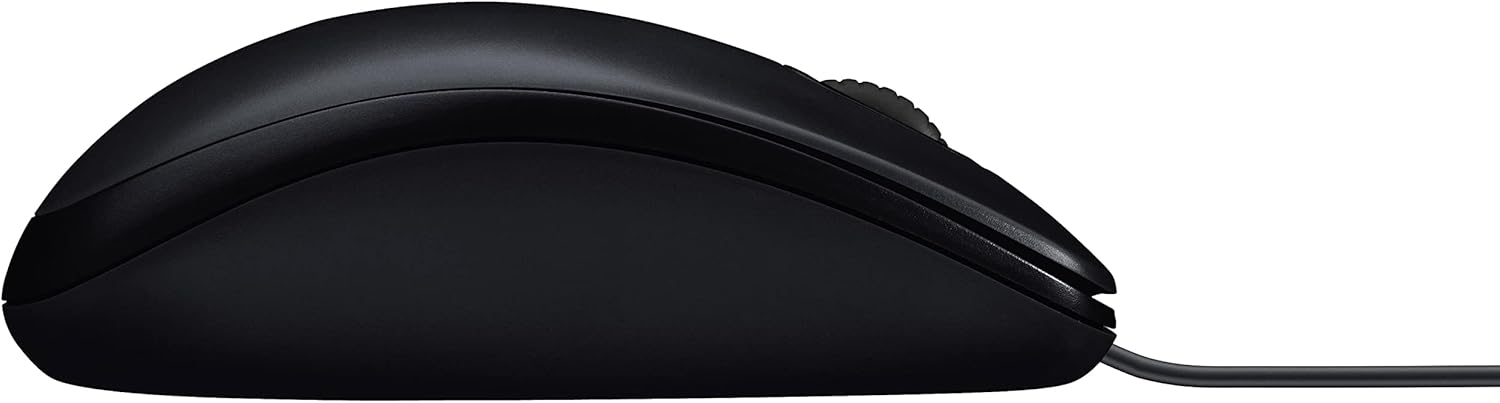
Akụkụ profile of the Logitech M90 mouse.
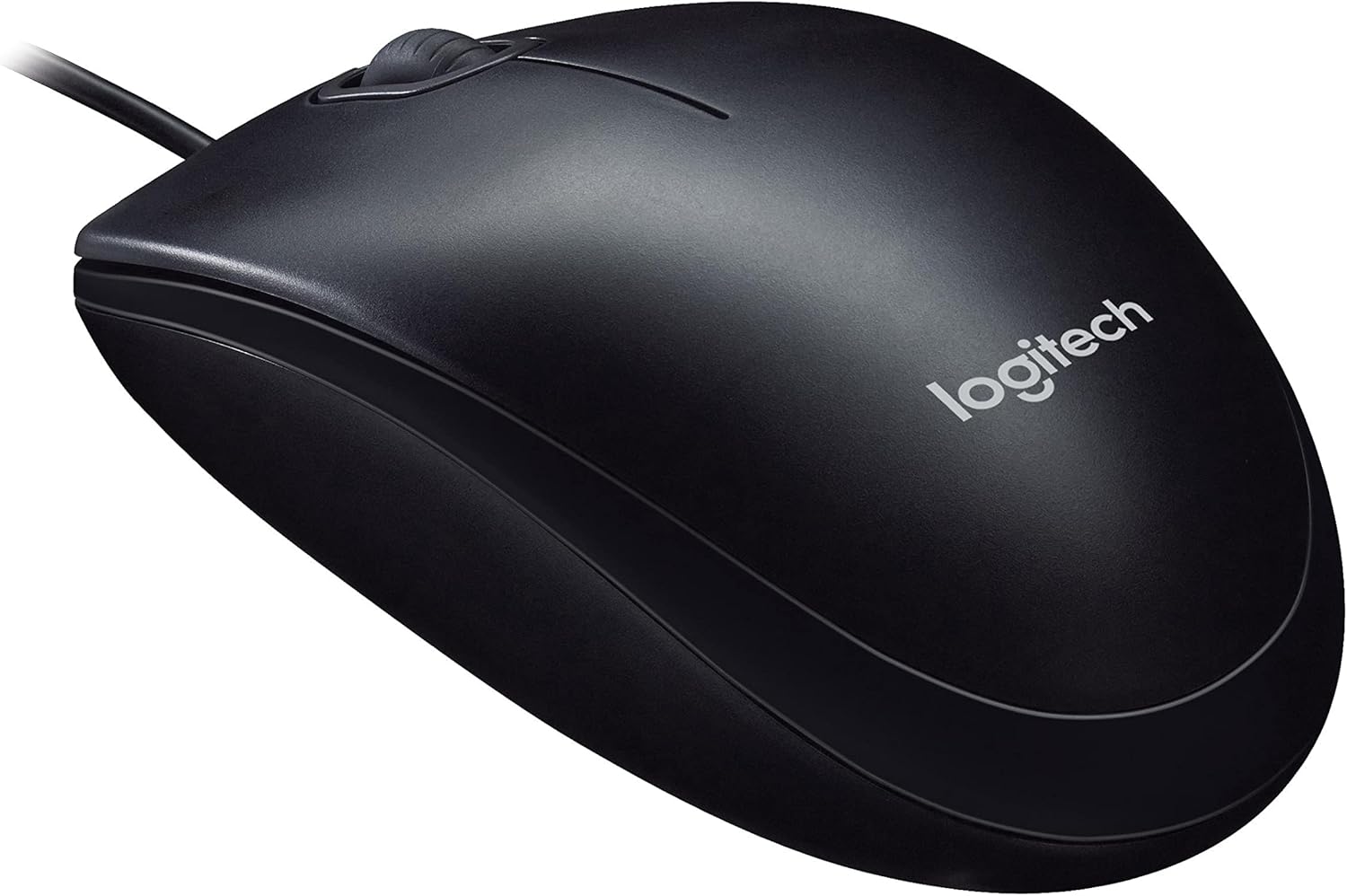
N'akuku view of the Logitech M90 mouse, highlighting the brand logo.
Si elu gbadata view of the Logitech M90 mouse, emphasizing the wired connection.
Logitech M90 mouse with key dimensions indicated.
8. Official Product Videos
Enweghị vidiyo ngwaahịa gọọmentị sitere n'aka onye na-ere ahịa dị maka ngwaahịa a ugbu a.
9. Akwụkwọ ikike na nkwado
For detailed warranty information and technical support, please refer to the documentation included in your product packaging or visit the official Logitech support websaịtị.
Nkwado Logitech Websaịtị: www.logitech.com/support
Please have your product model number (M90) and serial number (if applicable) ready when contacting support.


