1. Okwu mmalite
This manual provides instructions for the StarTech.com DisplayPort to DVI-D Adapter, model DP2DVI2. This adapter allows you to connect a DVI-D monitor to a DisplayPort-enabled computer or device. It is a passive video converter designed for ease of use and portability.

Image 1.1: The DisplayPort to DVI-D adapter connecting a computer to a monitor.
Akụkụ ndị bụ isi:
- DisplayPort 1.2 HBR2 to DVI-D (digital only) single-link adapter.
- Supports resolutions up to 1920x1200 or 1080p at 60Hz.
- HDCP 1.4 kwadoro.
- Features a 6-inch (15cm) attached cable for added flexibility.
- Passive video converter, requiring a DisplayPort++ (DP++) port on the source device.
- Includes a latching DisplayPort connector for secure connection and supports DVI screw-locking cables to prevent accidental disconnection.
- Plug-and-play functionality, requiring no software or driver installation.
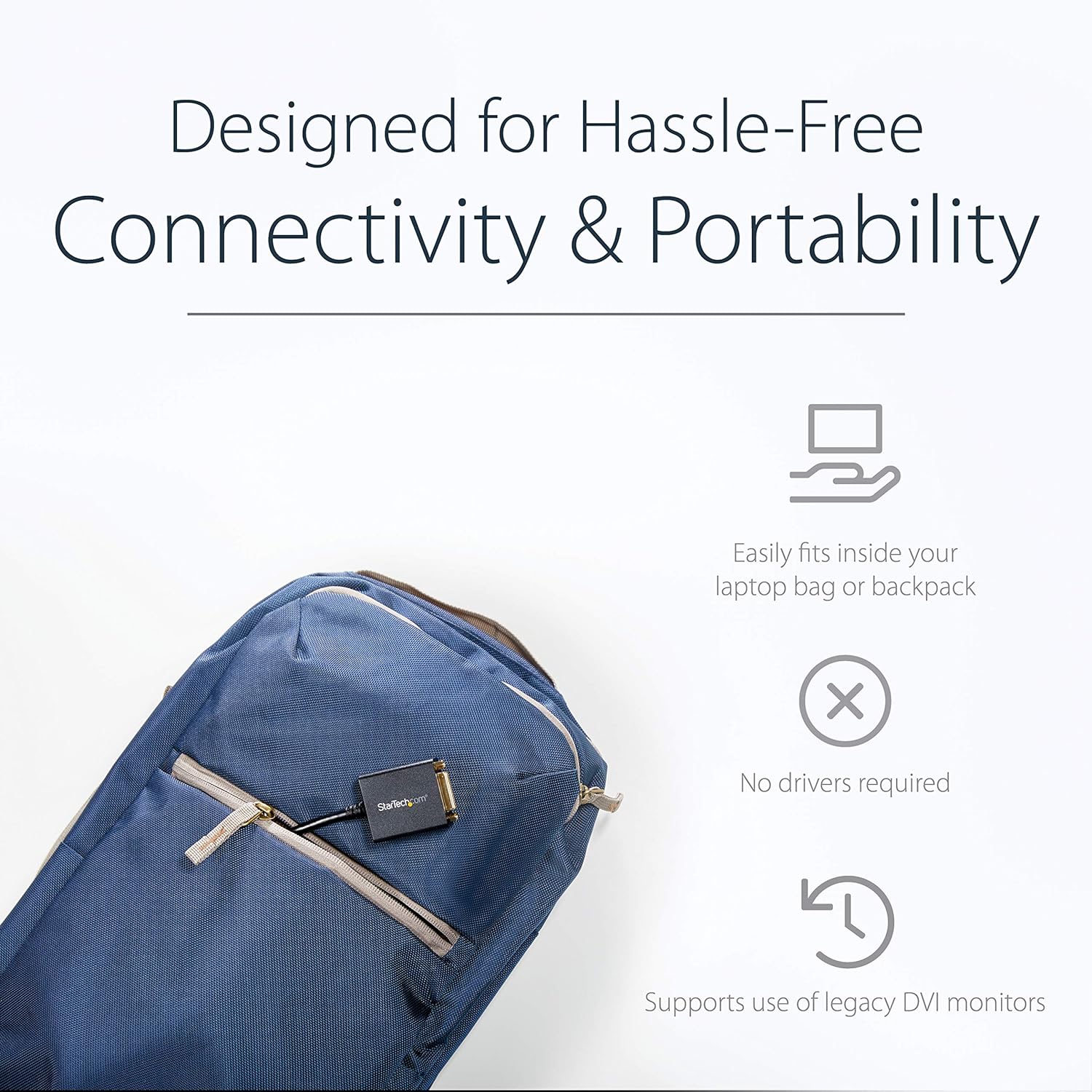
Image 1.2: The compact adapter fits easily into a laptop bag, highlighting its portability.
2. Ihe ngwugwu
Chọpụta na ngwungwu gị nwere ihe ndị a:
- 1 x StarTech.com DisplayPort to DVI-D Adapter (DP2DVI2)

Image 2.1: The adapter shown in its retail packaging, displaying product information and warranty details.
3. Ihe osise
The following diagram illustrates the connectors on the DisplayPort to DVI-D adapter.

Foto 3.1: nkọwa zuru ezu view of the adapter, highlighting the DisplayPort (male) and DVI (female) connectors.
4. Nhazi ntuziaka
Ijikọ ihe nkwụnye ahụ
Follow these steps to connect your DisplayPort-enabled device to a DVI monitor:
- Connect the DisplayPort male connector of the adapter to the DisplayPort output on your computer or video source. Ensure the latching connector is securely engaged.
- Connect a DVI-D cable (not included) from your DVI monitor to the DVI-D female port on the adapter. If your DVI cable has screw locks, secure them to the adapter for a stable connection.
- Power on your computer and monitor. The display should automatically detect the signal.

Image 4.1: An illustration of the adapter connecting a desktop computer's DisplayPort to a DVI monitor.
5. Ntuziaka ọrụ
Nhazi nhazi
Once connected, your operating system should automatically detect the DVI monitor. You can configure display settings such as resolution, extended desktop, or duplicate display through your computer's display settings.
- Windows: Right-click on the desktop and select "Display settings" or "Screen resolution."
- MacOS: Go to "System Preferences" > "Displays."
Mkpebi akwadoro
This adapter supports PC resolutions up to 1920x1200 and HDTV resolutions up to 1080p at 60Hz.

Image 5.1: A visual representation of the adapter providing a clear, high-definition picture on a large display.
6. Nchọpụta nsogbu
No Display Signal
- Nyochaa njikọ: Ensure all cables (DisplayPort, DVI, and power for both devices) are securely connected.
- Source Compatibility: Confirm your computer's DisplayPort supports DP++ (DisplayPort++), as this is a passive adapter. Active adapters are required for DisplayPort sources that do not support DP++.
- Nyochaa ntinye: Check that your monitor is set to the correct DVI input source.
- Mkpebi: Try a lower resolution on your computer if the monitor does not display an image. The monitor might not support the current output resolution.
- Ogologo eriri USB: Ensure the DVI cable length does not exceed 25 feet (7.6 meters), as longer cables can degrade signal quality.
Okwu Ogo onyonyo
- Ogo USB: Use a high-quality DVI-D cable to ensure optimal signal transmission.
- Mkpebi Enweghị Mmekọ: Adjust the display resolution on your computer to match your monitor's native resolution for the clearest picture.
7. Nkọwapụta
| Ụdị | StarTech.com |
| Aha Nlereanya | DisplayPort to DVI Video Adapter Converter (DP2DVI2) |
| Ụdị njikọ | DisplayPort Male to DVI-D Female |
| Ụdị USB | DVI, DisplayPort |
| Mkpebi akwadoro | Up to 1920x1200 / 1080p at 60Hz |
| Nkwado HDCP | Yes (HDCP 1.4) |
| Ogologo eriri USB | 6 inches (15 cm) attached cable |
| Agba | Nwa |
| Ibu Ibu | 1.51 ounces (0.04 Kilogram) |
| Akụkụ ngwaahịa | 10 x 1.7 x 0.7 sentimita (25.4 x 4.3 x 1.8 cm) |
| Passive Adapter | Requires DP++ port |
8. Akwụkwọ ikike na nkwado
This StarTech.com product is backed by a 3-year warranty. For technical support, troubleshooting, and additional resources, please visit the official StarTech.com websaịtị ma ọ bụ kpọtụrụ ndị ahịa ha ọrụ.
For more information, you can visit the product page: http://startech.com/q/DP2DVI2
Video 8.1: An official product video from StarTech.com demonstrating the features and use of the DisplayPort to DVI-D adapter.