1. Okwu mmalite
Ngwaahịa gafereview
The Visual Land VL-G4 is a compact and versatile portable media player designed for on-the-go entertainment. It features a 1.8-inch screen, 4GB of internal storage, and supports various media formats. This device allows you to enjoy your favorite music, videos, and images, along with additional functionalities such as an FM radio and a voice recorder.
Atụmatụ gụnyere:
- 4 GB storage capacity, sufficient for approximately 4,000 songs.
- Up to 6 hours of audio playback on a single charge.
- 1.8-inch color LCD display for media viewing.
- Supports MP3, WMA, and WAV audio formats; AMV video format; JPG image format.
- Ngwakọta ụda redio FM agbakwunyere.
- Ihe ndekọ olu arụnyere arụnyere.
- Functions as a USB flash memory drive for data storage.
- Built-in speaker for shared listening.
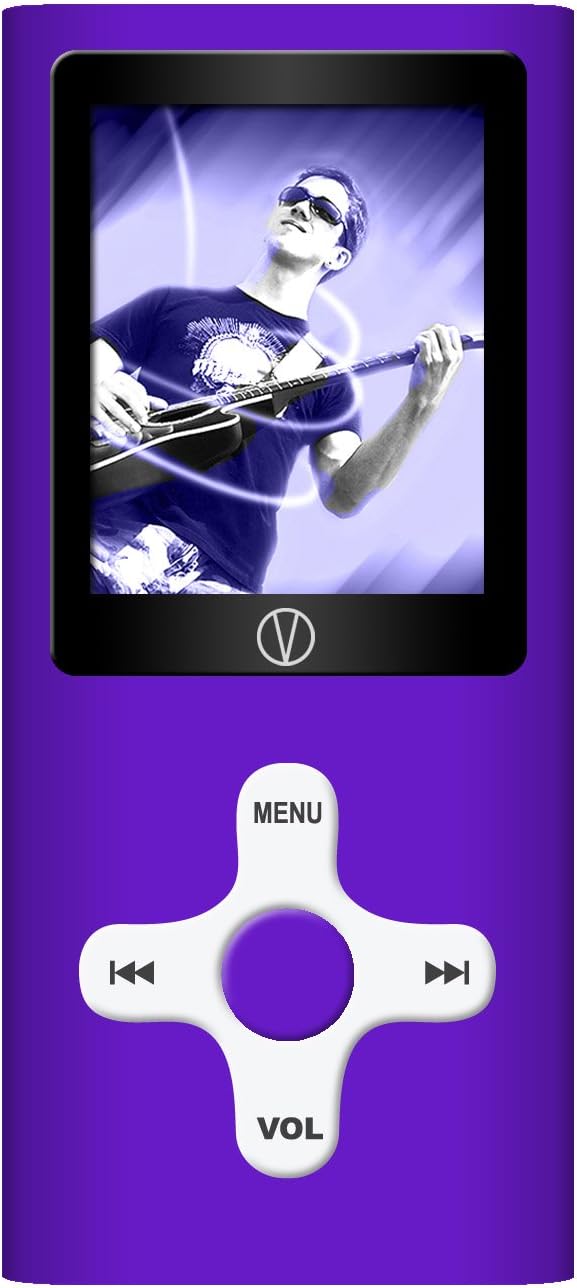
This manual provides detailed instructions for setting up, operating, and maintaining your VL-G4 device to ensure optimal performance and user experience.
2. Nhazi
Ihe ngwugwu 2.1
Tupu ịmalite, biko hụ na ihe niile dị na ngwugwu ahụ:
- Visual Land VL-G4 Media Player
- Igwe ntị
- Ihe nkwụnye AC
- eriri USB
- Akwụkwọ ntuziaka onye ọrụ (akwụkwọ a)
2.2 Ịchaji ngwaọrụ
The VL-G4 is equipped with an internal lithium-ion battery. Before initial use, fully charge the device.
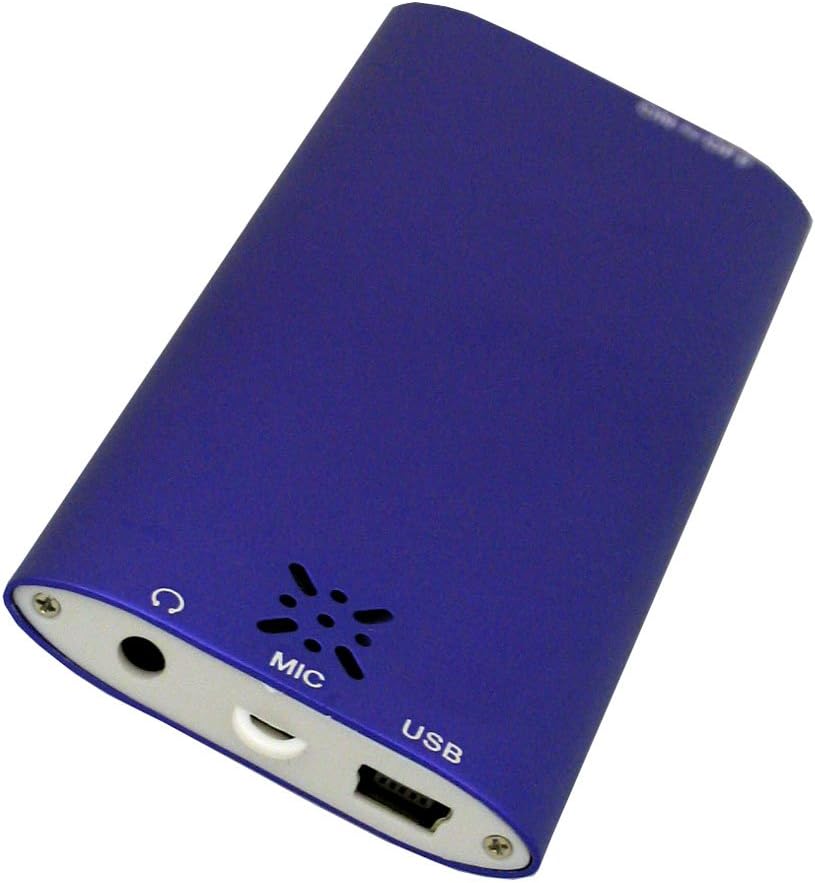
- Connect the small end of the USB cable to the USB port on the bottom of the VL-G4.
- Connect the large end of the USB cable to the AC adapter.
- Tinye ihe nkwụnye AC n'ime oghere mgbidi ọkọlọtọ.
- The device will indicate charging status on its screen. A full charge typically takes approximately 2-3 hours.
- Alternatively, you can connect the USB cable directly to a powered USB port on your computer for charging.
2.3 Na-ebu mgbasa ozi Files
To transfer music, videos, or images to your VL-G4:
- Gbaa mbọ hụ na agbanyere ngwaọrụ ahụ.
- Connect the VL-G4 to your computer using the provided USB cable.
- Your computer should recognize the VL-G4 as a removable disk drive.
- Open the VL-G4 drive on your computer. You can create folders (e.g., 'Music', 'Videos', 'Photos') to organize your files.
- Drag and drop your desired MP3, WMA, WAV, AMV, or JPG files into the appropriate folders on the VL-G4 drive.
- Otu ugboro file transfer is complete, safely eject the VL-G4 drive from your computer before disconnecting the USB cable.
Note: For video playback, AMV format is supported. You may need to convert other video formats using the included software (if applicable) or third-party conversion tools.
3. Ntuziaka ọrụ
3.1 Nhazi na Njikwa Ngwaọrụ
Familiarize yourself with the buttons and ports on your VL-G4:
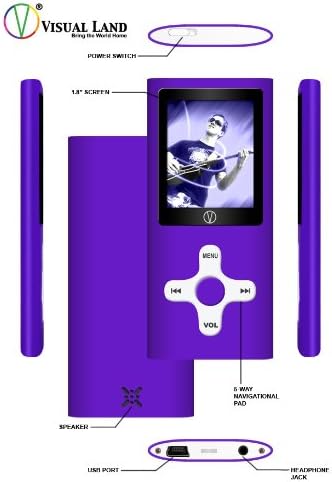
- Ike mgba ọkụ: Located on the top edge, slides to turn the device On or Off.
- Ihuenyo 1.8 inch: Displays menus, media content, and device status.
- 5-Way Navigational Pad: Central control for menu navigation and media playback.
- MENU button (Top): Accesses the main menu or returns to the previous screen.
- Bọtịnụ aka ekpe/aka nri: Navigate through menus, skip tracks, fast forward/rewind.
- Play/Pause/Confirm button (Center): Starts/pauses playback, confirms selections.
- VOL button (Bottom): Enters volume adjustment mode. Use Left/Right to change volume.
- Ọkà okwu: Built-in speaker for audio output without earphones.
- Ọdụ ụgbọ mmiri USB: For charging and connecting to a computer.
- Jack ekweisi: 3.5mm port for connecting earphones.
- MIC: Igwe okwu arụnyere n'ime ya maka ndekọ olu.
3.2 Gbanyụọ ma ọ bụ gbanyụọ
To power on the device, slide the Power Switch to the 'On' position. To power off, slide it to the 'Off' position.
3.3 Nsoro ụzọ
From the main menu, use the Left/Right buttons on the navigational pad to scroll through options. Press the central Play/Pause/Confirm button to select an option. Press the MENU button to go back to the previous screen or the main menu.
3.4 Audio Playback (MP3/WMA/WAV)
- From the main menu, select 'Music' or 'Audio'.
- Họrọ folda na folda gị wee pịa files using the Left/Right buttons.
- Press the central Play/Pause/Confirm button to start playback of a selected track.
- N'oge ịkpọghachi:
- Press Play/Pause/Confirm to pause/resume.
- Press Left/Right briefly to skip to the previous/next track.
- Press and hold Left/Right to fast forward/rewind within a track.
- Press the VOL button, then use Left/Right to adjust the volume. Press VOL again to exit volume mode.
- The device offers EQ presets (Natural, Rock, Pop, Classical, Soft, Jazz, DBB) which can typically be accessed through the music playback options menu.
3.5 Video Playback (AMV)
- From the main menu, select 'Video'.
- Navigate to your desired AMV video file.
- Press the central Play/Pause/Confirm button to begin playback.
- Playback controls are similar to audio playback.
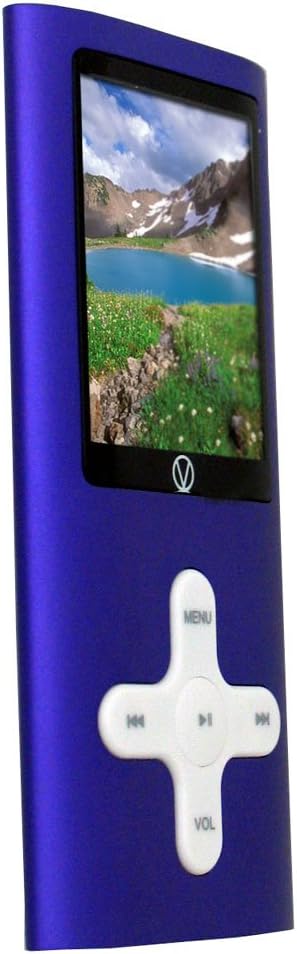
3.6 Foto Viewing (JPG)
- From the main menu, select 'Photos' or 'Images'.
- Navigate to your JPG image files.
- Press the central Play/Pause/Confirm button to view ihe oyiyi.
- Use Left/Right buttons to cycle through images.
- Some models may offer a slideshow function, typically accessible via the options menu during image viewing.
Igwe redio FM 3.7
- Connect earphones to the headphone jack; they act as the antenna for the FM radio.
- From the main menu, select 'FM Radio'.
- Use the Left/Right buttons to manually tune frequencies.
- Look for an 'Autoscan' or 'Search' option within the FM radio menu to automatically find and save available stations.
3.8 Onye na-edekọ olu
- From the main menu, select 'Recorder' or 'Voice'.
- Select 'Start Recording' or a similar option. The built-in microphone (MIC) will capture audio.
- Press Play/Pause/Confirm to stop recording.
- Recordings are typically saved in a dedicated folder and can be played back from the 'Audio' or 'Recorder' menu.
3.9 Using as a USB Drive
When connected to a computer, the VL-G4 functions as a standard USB mass storage device. You can drag and drop any file type onto it, making it useful for carrying documents or other data in addition to media files.
4. Nlekọta
4.1 Nhicha
To clean your VL-G4, use a soft, dry, lint-free cloth. Do not use liquid cleaners, aerosols, or solvents, as these can damage the device's finish or internal components.
4.2 Nlekọta batrị
- Zere ịchaji batrị ugboro ugboro.
- Chaji ngwaọrụ ahụ mgbe niile, ọbụlagodi na ọ naghị eji ya, iji hụ na batrị dị mma.
- Do not expose the device to extreme temperatures, as this can degrade battery performance and lifespan.
4.3 Nchekwa
When storing the device for extended periods, ensure it is partially charged (around 50%) and kept in a cool, dry place away from direct sunlight and extreme temperatures.
5. Nchọpụta nsogbu
If you encounter issues with your VL-G4, refer to the following common problems and solutions:
| Nsogbu | Ngwọta enwere ike |
|---|---|
| Ngwaọrụ anaghị agbanwu ọkụ. | Ensure the battery is charged. Connect to the AC adapter and try again. Check the power switch position. |
| No sound from earphones/speaker. | Check volume level. Ensure earphones are properly plugged in. Test with different earphones. Verify media file adịghị emerụ emerụ. |
| Kọmputa anaghị amata ngwaọrụ ahụ. | Ensure the device is powered on. Try a different USB port or cable. Restart your computer. |
| Files are not playing. | Nyochaa nke ahụ file format is supported (MP3/WMA/WAV for audio, AMV for video, JPG for images). Ensure files adịghị emerụ. |
| Ndụ batrị dị mkpụmkpụ. | Ensure the device is fully charged. Reduce screen brightness. Close unused applications. Battery performance may degrade over time with usage. |
6. Nkọwapụta
| Njirimara | Nkọwa |
|---|---|
| Nọmba nlereanya | VL-G4 |
| Ike Nchekwa ebe nchekwa | 4 GB |
| Nha ihuenyo | 1.8 Inches (Note: Product description states 1.8-inch, specifications list 2.4 inches. Using 1.8-inch as per detailed description.) |
| Ụdị ọdịyo akwadoro | MP3, WMA, WAV |
| Ụdị vidiyo akwadoro | AMV |
| Ụdị onyonyo akwadoro | JPG |
| Atụmatụ pụrụ iche | FM Radio, Video Playback, Voice Recorder, Built-in Speaker |
| Teknụzụ Njikọta | USB |
| Battery Life (Audio) | Ruo awa 6 |
| Akụkụ ngwaahịa | 1.6 x 0.34 x 3.6 sentimita asatọ |
| Ibu Ibu | 1.28 ounces |
7. Akwụkwọ ikike Ozi
The Visual Land VL-G4 Portable Media Player comes with a one-year limited warranty from the date of purchase. This warranty covers manufacturing defects under normal use. It does not cover damage caused by misuse, accidents, unauthorized modifications, or normal wear and tear. Please retain your proof of purchase for warranty claims.
8. Nkwado ndị ahịa
For further assistance, technical support, or warranty inquiries, please refer to the contact information provided on the Visual Land official website or the original product packaging. When contacting support, please have your product model number (VL-G4) and proof of purchase readily available.


