Okwu mmalite
This manual provides instructions for the setup, operation, and maintenance of your Microsoft Wireless Comfort Desktop 5000. This product combines a wireless keyboard and a wireless mouse designed for comfortable and efficient computer interaction.
The Microsoft Wireless Comfort Desktop 5000 features an ergonomically designed Comfort Curve keyboard and a mouse utilizing BlueTrack Technology for versatile surface tracking. It operates on a 2.4 GHz wireless connection, offering a reliable connection with a range of up to 30 feet.
Ntuziaka nhazi
Kedu ihe dị na Igbe ahụ
- Microsoft Wireless Comfort Desktop 5000 Keyboard
- Microsoft Wireless Comfort Desktop 5000 Mouse
- USB Mini-Transceiver
- 2 AA Alkaline Batteries (for keyboard)
- 1 AA Alkaline Battery (for mouse)
Achọrọ Sistemụ
- Sistemụ nrụọrụ: Windows 8, Windows 7, Windows Vista, Windows XP (excluding Windows XP 64-bit)
- Hard Drive: 100 MB free space
- Port: USB ọdụ ụgbọ mmiri
Ntinye batrị
The keyboard requires two AA alkaline batteries, and the mouse requires one AA alkaline battery. Batteries are included with the product.
- Chọta ebe batrị dị n'okpuru ahụigodo na òké.
- Mepee mkpuchi nke batrị batrị.
- Insert the AA batteries, ensuring correct polarity (+/-).
- Mechie mkpuchi nke batrị batrị nke ọma.
Connecting the Wireless Transceiver
The wireless desktop set connects to your computer via a USB mini-transceiver.
- Locate the USB mini-transceiver. It may be stored in the mouse's battery compartment for transport.
- Insert the USB mini-transceiver into an available USB port on your computer.
- Kọmputa gị kwesịrị ịchọpụta ma wụnye draịva dị mkpa na akpaghị aka. Usoro a nwere ike were obere oge.
- Ozugbo etinyere draịva, keyboard na òké kwesịrị ịdị njikere maka ojiji.

Figure 1: The compact USB mini-transceiver for wireless connection.

Figure 2: The underside of the mouse showing the storage slot for the USB mini-transceiver.
Ntuziaka ọrụ
Atụmatụ ahụigodo

Ọgụgụ 3: N'elu-ala view of the Comfort Curve keyboard layout.
- Comfort Curve Design: The keyboard features an ergonomist-approved Comfort Curve design that encourages a natural wrist posture, reducing strain during extended use.
- Quiet Touch Keys: Experience comfortable typing with low-profile, quiet-touch keys.
- ezumike nkwụ: A soft-touch palm rest is integrated to provide additional comfort and support for your wrists.
- Removable Feet: Adjustable feet on the underside allow you to set the keyboard at a preferred angle for a more comfortable wrist posture.
- Taskbar Favorites for Windows 7: Easily access programs pinned to the Windows Taskbar using dedicated shortcut keys. The keys automatically adapt if you rearrange icons in the Taskbar.
- Media Center Controls: Control media playback directly from your keyboard using dedicated media keys (e.g., play/pause, volume up/down, mute).

Ọgụgụ 4: N'akuku view highlighting the integrated palm rest and Comfort Curve design.
Òké Atụmatụ

Ọgụgụ 5: N'akuku view of the wireless mouse.
- Teknụzụ BlueTrack: The mouse utilizes Microsoft's BlueTrack Technology, combining the power of optical with the precision of laser for remarkable tracking on virtually any surface, including granite, carpet, and wood.
- Mpịakọta Ụzọ anọ: The tilt wheel allows for four-way scrolling (up, down, left, and right), enhancing efficiency and comfort when navigating documents or web ibe.
- Bọtịnụ enwere ike ịhazi ya: The mouse buttons can be customized for quick access to programs, files, media, and webpages you use most often. Refer to your operating system's mouse settings for customization options.
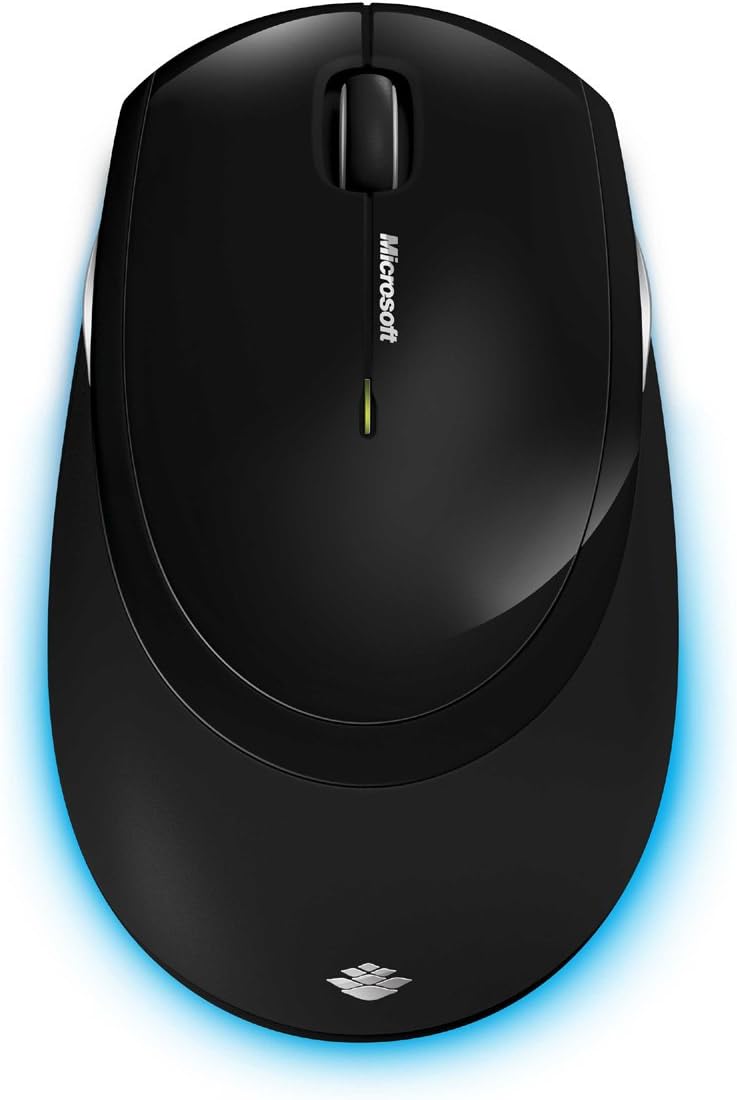
Ọgụgụ 6: N'elu-ala view of the wireless mouse.
Nlekọta
Nhicha
To maintain the performance and appearance of your Microsoft Wireless Comfort Desktop 5000, follow these cleaning guidelines:
- Disconnect the USB transceiver from your computer before cleaning.
- Jiri akwa dị nro na-enweghị ntụpọ damptinye mmiri ma ọ bụ ihe ngwọta dị nro.
- Avoid using harsh chemicals, abrasive cleaners, or solvents, as these can damage the surfaces.
- Maka ahụigodo, ịnwere ike iji ikuku abịakọrọ wepụ uzuzu na irighiri ihe n'etiti igodo.
- For the mouse, gently wipe the optical sensor area on the bottom to ensure optimal tracking performance.
Ngbanwe batrị
When the batteries are low, the indicator light on the keyboard or mouse may flash. Replace the batteries as described in the "Battery Installation" section under Setup Guide.
- Always use new, high-quality AA alkaline batteries.
- Tụfuo batrị eji eme ihe dịka iwu mpaghara siri dị.
Nchọpụta nsogbu
Okwu njikọ
- No response from keyboard/mouse:
- Ensure the USB mini-transceiver is securely plugged into a working USB port on your computer.
- Check if the batteries in the keyboard and mouse are correctly installed and have sufficient charge. Replace if necessary.
- Try plugging the transceiver into a different USB port.
- Malitegharịa ekwentị gị na kọmputa.
- Ntinye aka:
- The 2.4 GHz wireless technology can be affected by other wireless devices. Move the transceiver closer to the keyboard and mouse, or move other wireless devices away.
- Avoid placing the transceiver near large metal objects, which can block the wireless signal.
Nsogbu Nsochi Òké
- Erratic or no tracking:
- Ensure the BlueTrack sensor on the bottom of the mouse is clean and free of debris.
- Try using the mouse on a different surface. While BlueTrack is versatile, highly reflective or transparent surfaces (like clear glass) may still cause issues.
Nkọwapụta
| Njirimara | Nkọwa |
|---|---|
| Ụdị | Microsoft |
| Nọmba nlereanya | CSD-00001 |
| Teknụzụ Njikọta | Wireless (USB Transceiver) |
| Ụdị ikuku | Ugboro redio 2.4 GHz |
| Ngwa dakọtara | Kọmputa nkeonwe |
| Ndakọrịta sistemụ arụmọrụ | Windows 8, Windows 7, Windows Vista, Windows XP (excluding Windows XP 64-bit) |
| Agba | Nwa |
| Ibu Ibu | 2.9 pound |
| Akụkụ ngwaahịa (LxWxH) | 8.7 x 2.9 x 18.54 sentimita asatọ |
| Isi Iyi Ike | Akwanyere batrị |
| Batrị achọrọ | 3 AA batteries (2 for keyboard, 1 for mouse) |
| Ụbọchị mbụ dị | Julaị 29, 2009 |
Ozi akwụkwọ ikike
Specific warranty details for the Microsoft Wireless Comfort Desktop 5000 are not provided within this manual. For comprehensive warranty information, including terms, conditions, and duration, please refer to the official Microsoft website or the warranty card included with your product packaging.
Nkwado
For further assistance, technical support, or to download the latest drivers and software for your Microsoft Wireless Comfort Desktop 5000, please visit the official Microsoft support websaịtị:
You can also visit the Microsoft Store on Amazon for product information and related accessories:
Ozi dị mkpa
Nkwụghachi n'iwu
Please note that the "Legal Disclaimer" provided with the product pertains to sales terms and conditions, such as return policies and shipping details, and is separate from the operational instructions in this user manual. For specific product usage and safety guidelines, please refer to the relevant sections of this manual.


