1. Okwu mmalite
Thank you for choosing the NEC LCD4215 42-inch MultiSync LCD Monitor. This manual provides essential information for the safe and efficient use of your new display. Please read these instructions thoroughly before installation and operation, and retain them for future reference.
2. Ozi nchekwa
Lee ihe ndị a iji gbochie mmebi na ihe nlele ahụ ma hụ na onye ọrụ ahụ nwere nchekwa:
- Isi mmalite ike: Connect the monitor only to a grounded power outlet with the correct voltage dị ka egosiri na akara ngwaahịa.
- Igwe ikuku: Hụ na ikuku dị mma gburugburu ihe nlele ahụ. Ekpuchila oghere ikuku.
- Mkpughe mmiri mmiri: Avoid exposing the monitor to rain, moisture, or excessive humidity. Do not place liquid-filled objects on or near the monitor.
- Nhicha: Gbanyụọ eriri ọkụ eletrik tupu ị sachaa ya. Jiri ákwà dị nro ma kpọọ nkụ. Zere ihe nhicha mmiri ma ọ bụ ihe nhicha aerosol.
- Ije ozi: Anwala ịnye ngwaahịa a n'onwe gị. Tụtụ aka n'aka ndị ọrụ ruru eru.
- Nkwanye: Place the monitor on a stable, level surface to prevent it from falling.
3. Ihe ngwugwu
Verify that all items are present in the package. If any items are missing or damaged, contact your dealer immediately.
- NEC LCD4215 42-inch MultiSync LCD Monitor
- Ụdọ ọkụ
- USB VGA
- Eji batrị dị anya njikwa
- Akwụkwọ ntuziaka (akwụkwọ a)
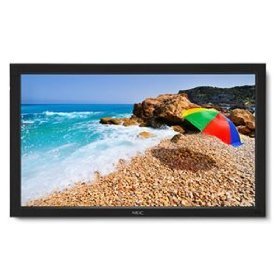
Image: The NEC LCD4215 42-inch MultiSync LCD Monitor, shown from the front with its stand. This image represents the primary display unit.
4. Nhazi
4.1 Nwepu
- Carefully open the packaging and remove the monitor and accessories.
- Place the monitor face down on a soft, clean surface to avoid scratching the screen.
4.2 Stand/Mounting Installation
The monitor can be used with its included desktop stand or mounted using a VESA-compatible wall mount (sold separately).
4.2.1 Desktop Stand Installation
- Jiri skru ndị enyere tinye ntọala ihe nkwụnye ahụ n'olu ihe nkwụnye ahụ.
- Secure the assembled stand to the back of the monitor using the designated mounting points and screws.
- Carefully lift the monitor and place it on a stable, level surface.
4.2.2 Mgbidi mgbidi (nhọrọ)
If using a VESA-compatible wall mount, follow the instructions provided with your wall mount kit. Ensure the mount supports the weight and VESA pattern of the NEC LCD4215 monitor.
4.3 Njikọ eriri
Before connecting any cables, ensure the monitor and all connected devices are powered off.
- Igwe vidiyo: Connect one end of the appropriate video cable (VGA, DVI, HDMI, etc.) to the video output port of your computer or media device and the other end to the corresponding input port on the monitor.
- Audio Cable (Optional): If using the monitor's internal speakers or audio output, connect an audio cable from your source device to the monitor's audio input.
- Ike Ike: Connect the power cord to the monitor's AC input and then plug the other end into a grounded electrical outlet.
5. Ntuziaka ọrụ
5.1 Gbanyụọ/ gbanyụọ
- Press the power button on the front panel of the monitor or on the remote control to turn the monitor on. The power indicator light will illuminate.
- Ka ịgbanyụọ nleba anya, pịa bọtịnụ ike ọzọ.
5.2 Nhọrọ ntinye
The monitor can display content from multiple sources. To switch between inputs:
- Press the 'Input' or 'Source' button on the remote control or the monitor's control panel.
- Use the navigation buttons to select the desired input source (e.g., VGA, DVI, HDMI).
- Press 'Enter' or 'OK' to confirm your selection.
5.3 Basic Display Settings
Access the On-Screen Display (OSD) menu to adjust various settings:
- Press the 'Menu' button on the remote control or the monitor's control panel.
- Use the navigation buttons (Up/Down/Left/Right) to browse through menu options such as 'Brightness', 'Contrast', 'Color Temperature', and 'Aspect Ratio'.
- Press 'Enter' or 'OK' to select an option and adjust its value.
- Press 'Menu' again to exit the OSD menu.
6. Nlekọta
6.1 Na-ehicha ihe ngosi
To maintain optimal display quality, clean the screen and casing regularly:
- Gbanyụọ ma gbanyụọ ihe nlele ahụ mgbe niile tupu ị sachaa ya.
- Jiri akwa dị nro na-enweghị ntụpọ dampened with water or a non-abrasive, ammonia-free, and alcohol-free screen cleaner.
- Jiri nwayọọ hichaa ihuenyo ahụ wee casing. Do not apply excessive pressure.
- Zere ịgbasa mmiri ozugbo na ihuenyo ahụ ma ọ bụ n'ime oghere ọ bụla.
6.2 Nchekwa
If storing the monitor for an extended period, ensure it is powered off, unplugged, and stored in a cool, dry place away from direct sunlight and extreme temperatures. Use the original packaging if available for protection.
7. Nchọpụta nsogbu
Before contacting customer support, refer to the following table for common issues and their solutions:
| Nsogbu | Ihe nwere ike ime | Ngwọta |
|---|---|---|
| Enweghị onyonyo na ihuenyo | Monitor not powered on; Video cable loose or disconnected; Incorrect input source selected. | Press the power button; Check video cable connections; Select the correct input source. |
| Onyonyo oke ọchịchịrị/egbuke egbuke | Ntọala nchapụta/ntụgharị adịghị mma. | Adjust 'Brightness' and 'Contrast' in the OSD menu. |
| Enweghị ọdịyo | Audio cable disconnected; Volume too low; Muted. | Check audio cable connection; Increase volume; Unmute audio. |
| Onyonyo na-egbuke egbuke | Video cable faulty; Resolution/Refresh rate mismatch. | Replace video cable; Adjust display settings on your computer. |
8. Nkọwapụta
Detailed technical specifications for the NEC LCD4215 MultiSync LCD Monitor:
| Njirimara | Nkọwapụta |
|---|---|
| Nọmba nlereanya | LCD4215 |
| Nha ihuenyo | 42 sentimita asatọ |
| Mkpebi ihuenyo kacha | 1366 x768 |
| Akụkụ akụkụ | 1.78:1 |
| Ibu Ibu | 47 pound |
| Akụkụ ngwaahịa (LxWxH) | 44 x 27.5 x 9.25 sentimita asatọ |
| Agba | Nwa |
| Onye nrụpụta | Nec Computers |
| Ụbọchị mbụ dị | Julaị 31, 2008 |
9. Akwụkwọ ikike na nkwado
9.1 Ozi akwụkwọ ikike
This NEC LCD4215 monitor comes with a standard manufacturer's warranty. Please refer to the separate warranty card included in your product packaging for specific terms, conditions, and duration of coverage. Keep your proof of purchase for warranty claims.
9.2 Nkwado ndị ahịa
For technical assistance, troubleshooting beyond this manual, or warranty service, please contact NEC customer support. Visit the official NEC website for the most up-to-date contact information, including phone numbers and online support resources.
Websaịtị: www.nec.com


