1. Okwu mmalite
This manual provides detailed instructions for the installation, operation, and maintenance of your ROLINE 4-Channel Network Video Recorder (NVR), Model 21197310. Please read this manual thoroughly before using the product to ensure proper setup and functionality. Keep this manual for future reference.
1.1. Ihe ngwugwu
Nyochaa na etinyere ihe niile edepụtara n'okpuru na ngwugwu gị. Ọ bụrụ na ihe ọ bụla na-efu ma ọ bụ mebie, biko kpọtụrụ onye na-ere ahịa gị.
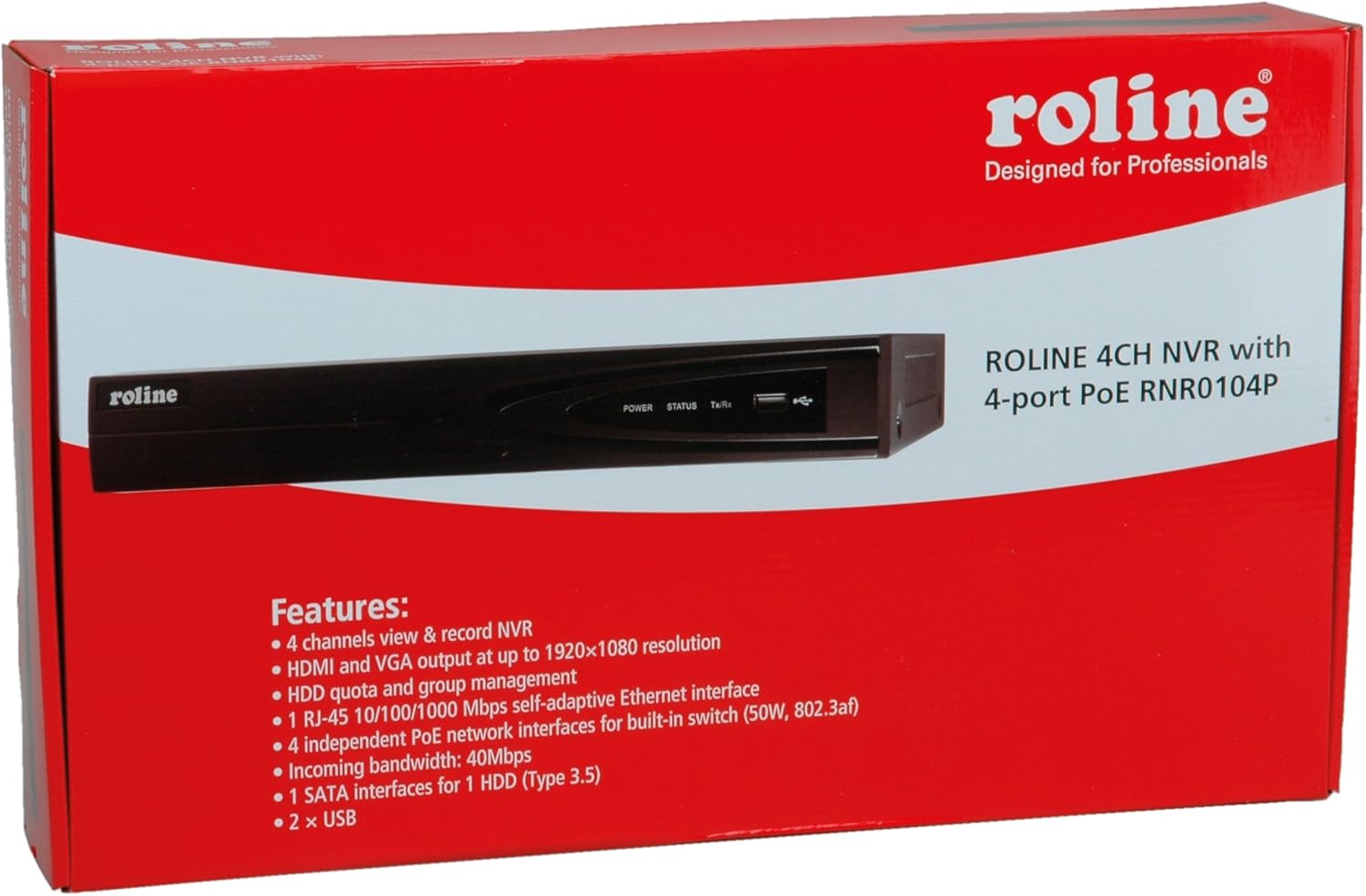
Figure 1: ROLINE NVR 21197310 and included accessories. This image shows the NVR unit, power adapter, power cable, USB mouse, Ethernet cable, SATA data and power cables, mounting screws, and a software CD.
- ROLINE 4-Channel NVR Unit (Model 21197310)
- Ihe nkwụnye ọkụ na eriri
- USB useké
- eriri Ethernet
- SATA Data and Power Cables (for HDD installation)
- Mounting Screws (for HDD installation)
- Software CD (may include utility tools and documentation)
2. Ngwaahịa gafereview
The ROLINE 21197310 NVR is a Linux-based network video recorder designed to manage up to 4 network cameras. It features an integrated 4-port Power over Ethernet (PoE) switch, allowing direct power supply to PoE-compatible cameras. With HDMI and VGA outputs, you can connect a local display for direct operation and configuration using a mouse, eliminating the need for an additional PC for video playback.
2.1. Atụmatụ igodo
- 4-channel network video recording capability
- HDMI and VGA video output with resolutions up to 1920 x 1080
- 1x RJ-45 10/100/1000 Mbps adaptive Ethernet interface
- 4 independent PoE network interfaces with integrated switch (50W total, 802.3af/at compliant)
- Support for locking and unlocking recorded data
- 1 SATA interface for 1 HDD (Type 3.5")
- Oghere USB nke 2x
2.2. Ogwe Ihu

Figure 2: Front Panel of ROLINE NVR 21197310. This image displays the Roline branding, LED indicators for power, status, and data transmission/reception, and a convenient front-facing USB port.
- ROLINE Logo: njirimara ika.
- Ike Ikanam: Na-egosi ọkwa ike.
- Ọnọdụ LED: Indicates system operational status.
- Tx/Rx LED: Na-egosi ọrụ netwọk.
- Ọdụ ụgbọ mmiri USB: For connecting a USB mouse or external storage devices.
2.3. Ogwe azụ

Figure 3: Rear Panel of ROLINE NVR 21197310. This image highlights the various connectivity options including four PoE ports for cameras, audio input and output jacks, VGA and HDMI video outputs, a main LAN port, a USB port, the DC power input, and the main power switch.
- Ọdụ ụgbọ mmiri PoE (1-4): RJ-45 ports for connecting IP cameras and providing power via PoE.
- ỌDỊỌ NA (RCA): For connecting an external audio input device.
- AUDIO OUT (RCA): For connecting to an external speaker or audio system.
- VGA ọdụ ụgbọ mmiri: For connecting a VGA monitor.
- Ọdụ ụgbọ mmiri HDMI: For connecting an HDMI monitor or TV.
- Ọdụ ụgbọ mmiri LAN: RJ-45 port for connecting the NVR to your local network/router.
- Ọdụ ụgbọ mmiri USB: For connecting a USB mouse or external storage devices.
- Ntinye ike 48V DC: Jikọọ ihe nkwụnye ọkụ enyere ebe a.
- Mgbanwe IKE: Main power on/off switch for the NVR.
- Nkwụsị ala: For optional grounding connection.
3. Nhazi
3.1. Nwụnye draịvụ ike
The NVR requires a 3.5-inch SATA hard drive (not included) for recording video. Follow these steps to install it:
- Wepụ ihe mkpuchi elu nke chassis NVR ahụ ma wepụ ya.
- Connect the SATA data cable and power cable (provided) to the hard drive.
- Align the hard drive with the mounting holes inside the NVR and secure it with the provided screws.
- Connect the other end of the SATA data cable to the SATA port on the NVR's motherboard.
- Connect the other end of the SATA power cable to the power connector on the NVR's motherboard.
- Carefully replace the top cover and secure it with screws.
Mara: Ensure the NVR is powered off and unplugged before performing any internal installations.
3.2. Njikọ Peripherals
- Ngosipụta: Connect a monitor to the NVR's HDMI or VGA port.
- Òké: Connect the USB mouse to any available USB port (front or rear).
- Netwọk: Connect an Ethernet cable from your router/network switch to the NVR's LAN port.
- Igwefoto: Connect your IP cameras to the NVR's PoE ports (1-4) using Ethernet cables. The NVR will provide power to PoE-compatible cameras.
3.3. Na-agbanye ike
- Connect the power adapter to the NVR's 48V DC Power Input.
- Tinye nkwụnye ọkụ n'ime oghere ọkụ kwesịrị ekwesị.
- Flip the POWER switch on the rear panel to the 'ON' position.
- The NVR will boot up, and you should see the ROLINE logo on the connected display.
4. Ntuziaka ọrụ
4.1. Ọkachamara Mbido Mbido
Upon first boot, the NVR may guide you through an initial setup wizard. Follow the on-screen prompts to configure basic settings such as language, date/time, network settings, and hard drive initialization. It is crucial to format the newly installed hard drive through this wizard or the system settings before recording can begin.
4.2. Nsoro Ụzọ Onye Ọrụ
The NVR's interface is primarily controlled using the connected USB mouse. Right-click anywhere on the live view screen to access the main menu. Use the mouse to navigate through menus, select options, and input text.
4.3. Njikwa igwefoto
To add and manage IP cameras:
- Site na isi menu, gaa na Njikwa igwefoto or Igwefoto IP ntọala.
- The NVR should automatically detect cameras connected to its PoE ports.
- If cameras are not detected, you may need to manually add them by entering their IP address, port, username, and password. Refer to your camera's manual for these details.
- Ensure cameras are enabled and configured for recording.
4.4. Recording Configuration
To set up recording schedules and modes:
- Nweta na Ntọala ndekọ or Nhazi oge menu from the main interface.
- Configure recording modes (e.g., continuous, motion detection, alarm-triggered) for each camera.
- Set recording schedules based on your requirements.
- Ensure the hard drive is formatted and has sufficient space.
4.5. Nghaghachi vidiyo
Maka review edekọ footage:
- Site na isi menu, họrọ Ngwughachi.
- Choose the camera(s) and date/time range you wish to review.
- Jiri njikwa ọkpụkpọ egwu (kpọọ, kwụsịtụ, gaa n'ihu ngwa ngwa, laghachi azụ) iji lelee azụ ahụ.tage.
- The NVR supports locking and unlocking recorded data to prevent accidental deletion of important events. This option is typically found within the playback or file njikwa interface.
5. Nlekọta
5.1. Hard Drive Management
Regularly check the status of your hard drive through the NVR's system settings. If the hard drive is full, the NVR will typically overwrite the oldest recordings (circular recording). You can also manually format the hard drive if needed, which will erase all recorded data.
5.2. Mmelite firmware
Periodically check the ROLINE official website for firmware updates. Firmware updates can improve performance, add new features, or fix bugs. Follow the instructions provided with the firmware update package carefully to avoid damaging the device.
5.3. Nhicha
Keep the NVR unit clean and free from dust. Use a soft, dry cloth to wipe the exterior. Ensure ventilation openings are not blocked to prevent overheating. Do not use liquid cleaners or aerosols directly on the unit.
6. Nchọpụta nsogbu
6.1. Enweghị ike
- Ensure the power adapter is securely connected to both the NVR and a working power outlet.
- Check if the power switch on the rear panel is in the 'ON' position.
- Jiri ngwaọrụ ọzọ nwalee oghere ọkụ ahụ iji gosi na ọ na-arụ ọrụ.
6.2. No Video Output on Display
- Verify that the HDMI or VGA cable is securely connected to both the NVR and the monitor.
- Ensure the monitor is powered on and set to the correct input source (HDMI/VGA).
- Gbalịa ijikọ na ngosipụta dị iche ma ọ bụ jiri eriri dị iche.
6.3. Cameras Not Displaying/Recording
- Check if the cameras are properly connected to the NVR's PoE ports.
- Ensure the Ethernet cables are functional.
- Verify that the cameras are powered on (if not using PoE, ensure external power is supplied).
- In the NVR's Camera Management settings, ensure the cameras are detected, enabled, and configured correctly.
- Confirm that the hard drive is installed, formatted, and has available space for recording.
6.4. Network Connection Issues
- Ensure the Ethernet cable is securely connected to the NVR's LAN port and your router/switch.
- Check the network settings in the NVR's interface to ensure correct IP address configuration (DHCP or static IP).
- Verify that your router/network is functioning correctly.
7. Nkọwapụta
| Njirimara | Nkọwa |
|---|---|
| Nọmba nlereanya | 21197310 |
| Onye nrụpụta | ROLINE |
| Ọnụọgụ nke ọwa | 4 |
| Mmepụta vidiyo | 1x HDMI, 1x VGA (up to 1920x1080 resolution) |
| Njikọ Ethernet | 1x RJ-45 10/100/1000 Mbps Adaptive Ethernet |
| Ọdụ ụgbọ mmiri PoE | 4 independent PoE interfaces with integrated switch (50W, 802.3af/at) |
| ọdụ ụgbọ mmiri USB | 2 x USB |
| Ntinye/mmepụta ọdịyo | 1x Audio In (RCA), 1x Audio Out (RCA) |
| HDD Interface | 1x SATA for 3.5" HDD |
| Ịnye ọkụ | AC/DC Adapter (48V DC input) |
| Akụkụ | 21.6 x 15.2 x 4.2 cm |
| Ibu | 60 g (NVR unit only, without HDD) |
| Sistemụ nrụọrụ | dabere na Linux |
8. Akwụkwọ ikike na nkwado
ROLINE products are designed for reliability and performance. This product comes with a standard manufacturer's warranty. For specific warranty terms and conditions, please refer to the warranty card included with your product or visit the official ROLINE websaịtị.
For technical support, troubleshooting assistance, or service inquiries, please contact your local ROLINE distributor or visit the ROLINE support portal online. Please have your product model number (21197310) and purchase information ready when seeking support.
ROLINE is a registered trademark. All rights reserved. Specifications are subject to change without notice.


