Okwu mmalite
This manual provides comprehensive instructions for the setup, operation, and maintenance of your Logitech Cordless Desktop LX 710 Laser. This product is designed to enhance your computing experience with its cordless keyboard and laser mouse, offering advanced features for media control and navigation.
Ihe ngwugwu
Hụ na ihe niile edepụtara n'okpuru dị na ngwugwu ngwaahịa gị:
- Logitech LX 710 Cordless Keyboard
- Logitech LX 7 Cordless Laser Mouse
- USB mini-receiver
- 4 AA alkaline batrị
- CD with software, comfort guidelines, and help center
- Ntuziaka mmalite ngwa ngwa
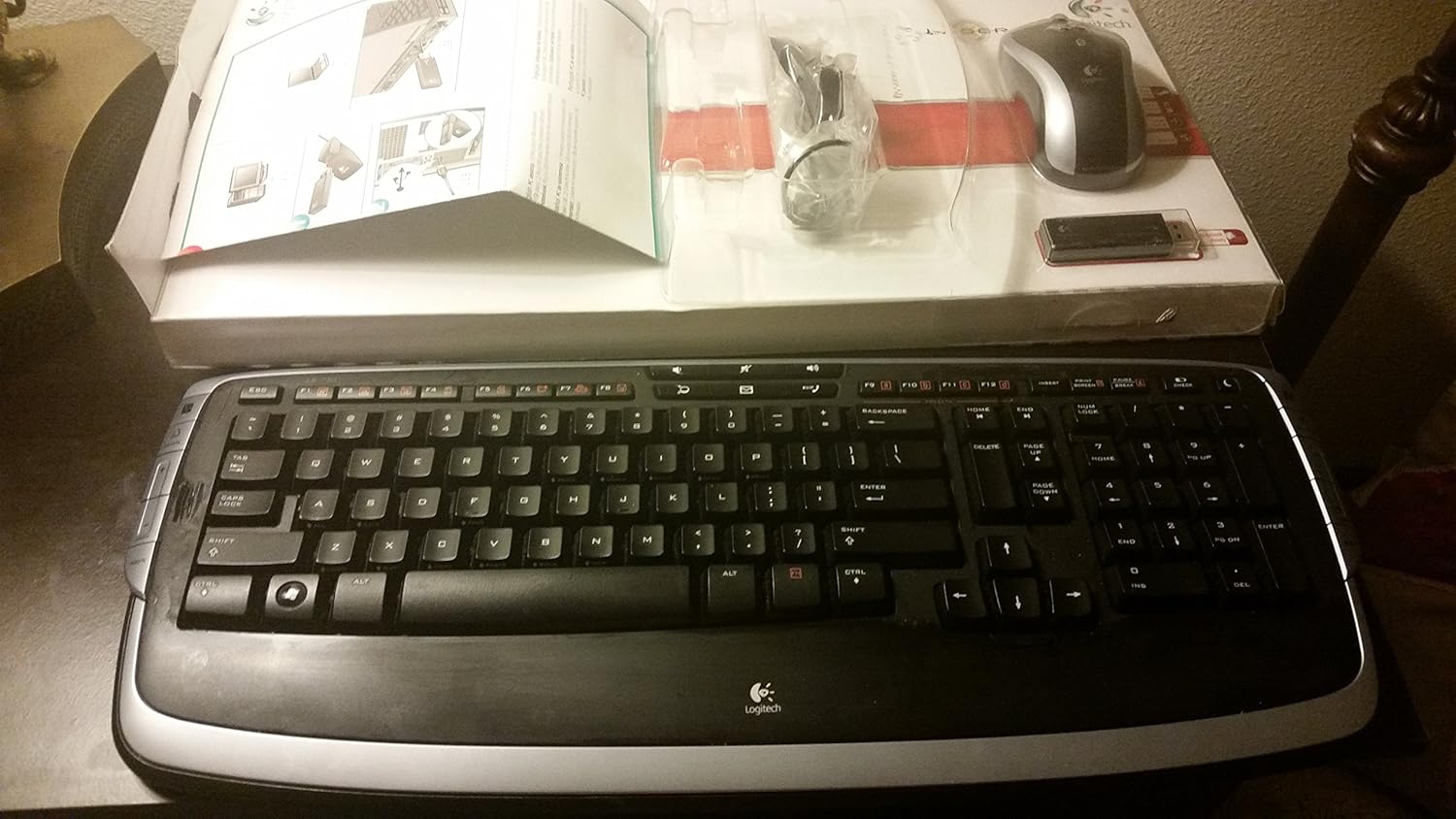
Foto 1: Contents of the Logitech Cordless Desktop LX 710 Laser package, including the keyboard, mouse, USB receiver, and documentation.
Melite
Achọrọ Sistemụ
- PC with Windows XP or Windows Vista
- 1 ọdụ ụgbọ USB dị
- CD-ROM ụgbọala
1. Wụnye batrị
Insert the provided AA alkaline batteries into the keyboard and mouse. Ensure correct polarity as indicated inside the battery compartments.
The keyboard typically requires 2 AA batteries, and the mouse typically requires 2 AA batteries.
2. Connect the USB Mini-Receiver
Plug the USB mini-receiver into an available USB port on your computer. The operating system should automatically detect the new hardware.
3. Wụnye Software
Insert the provided CD into your computer's CD-ROM drive. Follow the on-screen instructions to install the Logitech software. This software enables customization of hot-keys and other advanced features.
Mgbe echichi, Malitegharịa ekwentị gị na kọmputa ma ọ bụrụ na kpaliri.
Ntuziaka ọrụ
Atụmatụ ahụigodo

Foto 2: Agara nso view of the Logitech LX 710 Cordless Keyboard, highlighting its layout and media controls.
- Adjustable Keyboard Angles: Utilize the 3-way adjustable tilt legs located on the underside of the keyboard to set your preferred typing angle for maximum comfort.
- Programmable Hot-Keys: Convenient hot-keys are available to instantly open applications, games, folders, and web pages. To customize a hot-key, perform a long press on the desired key.
- Instant Access to Your Music: Powerful, side-mounted controls provide quick access to your favorite media applications, including Apple iTunes or Windows Media Player.
- One-Touch Communication: Manage your Internet communications with dedicated controls for launching email, messaging, or Internet call applications, and for adjusting volume.
- Windows Vista/XP Compatibility: Features a Start key and handy DocFlip controls for Windows Vista. These functions are also compatible with Windows XP.
- Premium Comfort: The integrated soft-touch palm rest provides comfort and support, designed to reduce fatigue during extended use.
Òké Atụmatụ
The cordless laser mouse offers precise navigation and additional functionalities:
- Pixel Precision: The laser tracking technology allows for accurate photo editing and general navigation.
- Mpịakọta: Supports both vertical and horizontal scrolling for enhanced document and web ntugharị ibe.
- One-Touch Zoom: A dedicated button provides quick zoom functionality.
- Ọnụọgụ bọtịnụ: The mouse features 2 primary buttons.
- Mpempe akwụkwọ mpịakọta: Equipped with a 2-way scroll wheel.

Foto 3: The Logitech Cordless Desktop LX 710 Laser, showcasing both the keyboard and mouse components.
Nlekọta
Nhicha
- Iji hichaa ahụigodo na òké, jiri nro dị nro, damp akwa .
- Avoid using harsh chemicals, abrasive cleaners, or solvents, as these may damage the product's finish.
- Ensure no liquid enters the internal components.
Ngbanwe batrị
When the keyboard or mouse performance degrades, it may be time to replace the batteries. Open the battery compartment on the underside of each device and replace the old batteries with new AA alkaline batteries, observing correct polarity.
Nchọpụta nsogbu
Ngwaọrụ anaghị aza
- Lelee batrị: Gbaa mbọ hụ na etinyere batrị nke ọma ma nwee ụgwọ zuru oke. Dochie ma ọ dị mkpa.
- Check USB Receiver: Verify that the USB mini-receiver is securely plugged into a working USB port on your computer. Try a different USB port.
- Meghachi njikọ: Some cordless devices have a "Connect" or "Sync" button on both the receiver and the device. Press these buttons as per the quick-start guide to re-establish the connection.
- Ntinye aka: Move the keyboard and mouse closer to the USB receiver. Avoid placing the receiver near other electronic devices that might cause interference (e.g., cordless phones, Wi-Fi routers).
Okwu ngwanrọ
- Reinstall Software: If custom functions or hot-keys are not working, try uninstalling and then reinstalling the Logitech software from the provided CD.
- Lelee maka mmelite: Visit the Logitech support website for the latest software drivers and updates for your model.
Nkọwapụta
| Njirimara | Nkọwa |
|---|---|
| Akụkụ ngwaahịa | 21 x 2 x 10 sentimita asatọ |
| Ibu Ibu | 3.3 pound |
| Nọmba nlereanya | 967670-0403 |
| Teknụzụ Njikọta | Ikuku |
| Njirimara Pụrụ Iche | Enweghị eriri |
| Ngwa dakọtara | Kọmputa nkeonwe |
| Nkọwa ahụigodo | Ime ụlọ |
| Mouse Button Count | 2 |
| Mouse Scroll Wheel | 2-ụzọ |
| Batrị achọrọ | 4 AA alkaline batteries (2 for keyboard, 2 for mouse) |
| Nkwado Sistemụ arụmọrụ | Windows XP, Windows Vista |
Akwụkwọ ikike na nkwado
Ozi akwụkwọ ikike
This Logitech Cordless Desktop LX 710 Laser comes with a Akwụkwọ ikike ngwaike nwere obere afọ 5. This warranty covers defects in materials and workmanship under normal use. For full terms and conditions, please refer to the warranty documentation included with your product or visit the official Logitech websaịtị.
Nkwado ndị ahịa
For technical assistance, product inquiries, or warranty claims, please visit the Logitech support website or contact their customer service. Details can be found in the quick-start guide or on the Logitech official websaịtị.
Nkwado n'ịntanetị: www.logitech.com/support


