1. Okwu mmalite
This manual provides essential information for the setup, operation, maintenance, and troubleshooting of your Microsoft Wheel Optical Mouse, Model D66-00069. Please read this manual thoroughly to ensure optimal performance and longevity of your device.
2. Nhazi
Follow these steps to connect your Microsoft Wheel Optical Mouse to your computer.
2.1 System chọrọ
- PC: Windows XP (Pentium 233-MHz or faster), Windows 2000 (Pentium 133 MHz or higher processor), Windows ME/98 (Pentium 133 MHz or higher processor), Windows NT 4.0 SP Pack 6 or later (Pentium 133 MHz or higher processor).
- 25 MB of available hard-disk space.
- CD-ROM drive (for software installation, if applicable).
- Microsoft Internet Explorer version 5.0 or later (to view Enyemaka files).
- An available PS/2 or Universal Serial Bus (USB) port.
- Mac: 15MB free Hard Drive space, Mac OS X version 10.1 to 10.1.3 (excluding 10.0), Mac OS 8.6 to 9.x, CD-ROM drive, An available Universal Serial Bus (USB) port.
2.2 Ijikọ òké
- Locate an available USB or PS/2 port on your computer.
- Insert the mouse connector into the appropriate port. The mouse is plug-and-play, meaning it should be recognized automatically by your operating system.
- If prompted, follow any on-screen instructions for driver installation. For advanced customization, install the provided software from the CD-ROM drive.
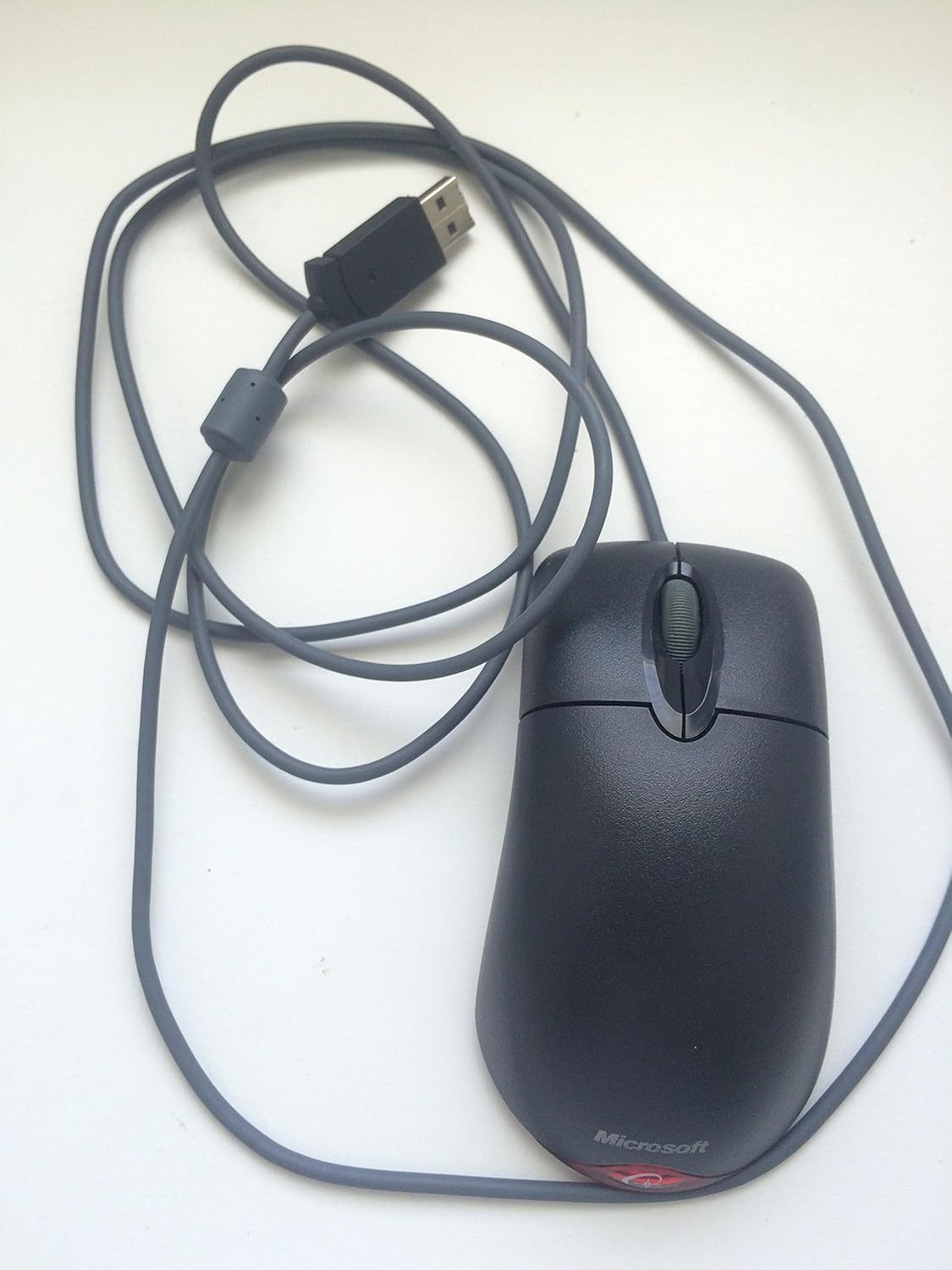
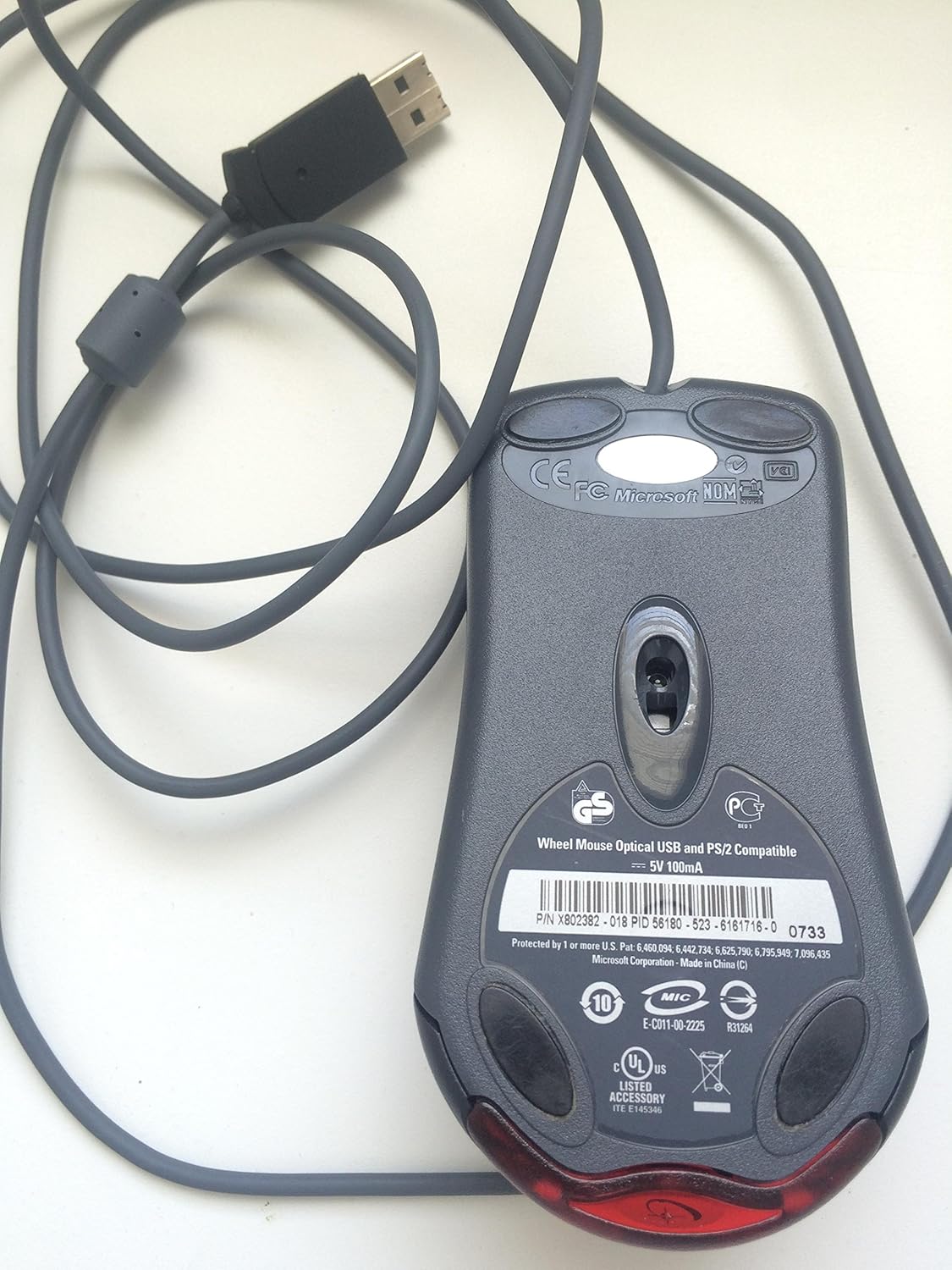
Vidiyo a na-enye nkọwa zuru okeview of the Microsoft Wheel Optical Mouse, demonstrating its physical features and basic functionality.
3. Ịrụ ọrụ òké ahụ
The Microsoft Wheel Optical Mouse is designed for intuitive and precise control.
3.1 Ọrụ ndị bụ isi
- Bọtịnụ Pịa Aka ekpe: Eji maka ịhọrọ ihe, imeghe files, na ịrụ ọrụ ọrụ.
- Pịa bọtịnụ aka nri: Used to open context menus for additional options.
- Mpempe akwụkwọ mpịakọta: Tụgharịa wiilụ ahụ elu ma ọ bụ ala iji pịgharịa gaa na akwụkwọ na web pages. Press the wheel down to activate the customizable middle-click function, often used for auto-scrolling or opening links in new tabs.
3.2 IntelliEye Optical Technology
The mouse utilizes IntelliEye optical technology, which tracks mouse movement 6000 times per second. This provides smooth, precise motion on almost any surface, eliminating the need for a mouse pad in most cases.
3.3 Customizable Buttons
The buttons and scroll wheel can be customized using the Microsoft mouse software. This allows you to assign new commands or repetitive tasks to suit your workflow, such as opening a file or web page with a single click.
4. Nlekọta
To ensure the longevity and optimal performance of your mouse, follow these simple maintenance guidelines:
- Nhicha: Jiri akwa dị nro na nke enweghị mmiri ọkụ dampejiri mmiri ma ọ bụ ihe nhicha dị nro hichaa elu òké ahụ. Zere kemịkalụ siri ike ma ọ bụ ihe ndị na-emebi ihe.
- Ihe mmetụta anya: Keep the optical sensor on the underside of the mouse clean and free from dust or debris. Do not attempt to open the mouse casing.
- Nlekọta USB: Avoid sharply bending or twisting the mouse cable to prevent internal damage.
5. Nchọpụta nsogbu
If you encounter issues with your Microsoft Wheel Optical Mouse, try the following solutions:
- Òké anaghị aza:
- Ensure the USB or PS/2 connector is securely plugged into the correct port on your computer.
- Try plugging the mouse into a different USB or PS/2 port.
- Malitegharịa ekwentị gị na kọmputa.
- Mmegharị ihe nrụaka na-adịghị mma:
- Hichaa ihe mmetụta anya na ala nke òké ahụ.
- Hụ na ị na-eji òké ahụ n'elu ebe kwesịrị ekwesị. Elu ndị na-egbukepụ egbukepụ ma ọ bụ ndị na-apụta ìhè nwere ike ibute nsogbu.
- Check for any software conflicts or outdated drivers. Reinstalling the mouse software may resolve the issue.
- Bọtịnụ ma ọ bụ wiil mpịakọta anaghị arụ ọrụ:
- Verify that the mouse software is correctly installed and configured.
- Nwalee òké ahụ na kọmputa ọzọ iji chọpụta ma nsogbu ahụ ọ bụ òké ahụ ma ọ bụ sistemụ gị.
6. Nkọwapụta
| Njirimara | Nkọwa |
|---|---|
| Ụdị | Microsoft |
| Usoro | Wheel Mouse Optical |
| Nọmba nlereanya | D66-00069 |
| Ngwaike Platform | PC, mbadamba |
| Ndakọrịta sistemụ arụmọrụ | Mac OS X v10.1x–10.4x, Windows Vista/XP/Pro/Home/Media Center Edition/Tablet PC Edition/Windows 2000 SP4 + |
| Ibu Ibu | 14.2 ounces |
| Akụkụ ngwaahịa (LxWxH) | 9.5 x 9 x 2.25 sentimita asatọ |
| Agba | Nwa |
| Isi Iyi Ike | Igwe ọkụ eletrik |
| Teknụzụ Njikọta | USB |
| Teknụzụ nchọpụta ngagharị | Ngwa anya |
7. Akwụkwọ ikike Ozi
Ngwaahịa a na-abịa na a 3-afọ emeputa akwụkwọ ikike. For specific terms and conditions, please refer to the warranty documentation included with your purchase or visit the official Microsoft support websaịtị.
Nkwusa iwu: This product is sold as is.
8. Nkwado
For further assistance, technical support, or to download the latest drivers and software, please visit the official Microsoft support website or contact their customer service. Ensure you have your product model number (D66-00069) available when seeking support.