1. Okwu mmalite
Daalụ maka ịzụrụasing the NANAO FlexScan L767-R 19-inch Color LCD Display. This manual provides essential information for setting up, operating, and maintaining your monitor. Please read this manual thoroughly before use to ensure proper and safe operation.
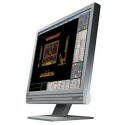
Figure 1: NANAO FlexScan L767-R LCD Monitor. This image shows the monitor from a slight angle, highlighting its slim bezel and adjustable stand.
2. Atụmatụ
The FlexScan L767-R is designed for optimal visual performance and user convenience. Key features include:
- Ngosipụta agba na-ama jijiji: Supports approximately 16.77 million full colors for impressive color vibrancy.
- FineContrast Function: Easily adjust brightness and gamma settings to match content (text, images) for optimal viewing.
- Dual Input Support: Equipped with both analog and digital input terminals for versatile connectivity.
- Audio agbakwunyere: Features built-in speakers for audio output.
- Ergonomic Stand: The stand allows for a 50mm vertical height adjustment, enhancing user comfort.
- Non-Glare Surface: The screen surface is non-glare, reducing reflections and eye strain.
3. Nhazi
Follow these steps to set up your FlexScan L767-R monitor:
- Mepee ihe nleba anya: Jiri nlezianya wepụ ihe nlele ahụ na ihe niile dị na ngwugwu ahụ.
- Tinye ihe nlekota ahụ: Place the monitor on a stable, flat surface. Ensure adequate ventilation around the monitor.
- Jikọọ eriri vidiyo:
- Maka Njikọ Analog: Connect the D-Sub (VGA) cable from your computer's video output to the analog input port on the monitor.
- Maka Njikọ dijitalụ: Connect the DVI cable from your computer's video output to the digital input port on the monitor.
- Connect Audio Cable (Optional): If you wish to use the built-in speakers, connect an audio cable from your computer's audio output to the audio input port on the monitor.
- Jikọọ eriri ọkụ: Plug the power cable into the monitor's power input, then plug the other end into a grounded electrical outlet.
- Ike Na: Press the power button on the monitor. Power on your computer. The monitor should display your computer's screen.
4. .rụ ọrụ
This section describes the basic operation of your FlexScan L767-R monitor.
4.1. FineContrast Function
The FineContrast function allows you to quickly switch between different display modes optimized for various content types. Use the dedicated buttons on the monitor's front panel to cycle through modes such as Text, Picture, Movie, and Custom. Each mode adjusts brightness, gamma, and color temperature for the best viewahụmahụ.
4.2. Stand Adjustment
The monitor stand offers vertical height adjustment. Gently push or pull the monitor panel up or down to adjust its height within the 50mm range. Ensure the monitor is stable after adjustment.
4.3. Ngosipụta ihuenyo (OSD) NchNhr
Access the OSD menu using the control buttons on the front panel to fine-tune settings such as brightness, contrast, color balance, input selection, and more. Refer to the detailed OSD menu guide in the full manual for comprehensive options.
5. Nlekọta
Nlekọta kwesịrị ekwesị na-eme ka ihe nlele gị dị ogologo ma rụọ ọrụ nke ọma.
- Na-ehicha ihuenyo: Jiri akwa dị nro na-enweghị ntụpọ dampened with water or a non-abrasive, monitor-specific cleaning solution. Do not spray liquid directly onto the screen.
- Na-ehicha Casing: Hichapụ ihe nleba anya casing na akwa dị nro, kpọrọ nkụ. Zere iji ncha siri ike ma ọ bụ ihe mgbaze.
- Igwe ikuku: Gbaa mbọ hụ na egbochighị oghere ikuku na ihe nleba anya ka ọ ghara ikpo oke ọkụ.
- Gbanyụọ: Gbanyụọ onye nleba anya mgbe niile wee wepụ ya na oghere ọkụ tupu ihicha ma ọ bụ ọ bụrụ na a gaghị eji ya mee ihe ruo ogologo oge.
6. Nchọpụta nsogbu
Ọ bụrụ na ịnwee nsogbu na ihe nleba anya gị, rụtụ aka na nsogbu na azịza ndị a na-ahụkarị:
- Enweghị onyonyo na ihuenyo:
- Lelee ma agbanyere ihe nleba anya.
- Verify that the video cable is securely connected to both the monitor and the computer.
- Ensure the correct input source is selected on the monitor (Analog/Digital).
- Foto a gbagọrọ agbagọ ma ọ bụ ghara ịhụ anya:
- For analog connections, perform an auto-adjustment via the OSD menu.
- Check the display resolution settings on your computer. Ensure it matches the monitor's native resolution (1280x1024).
- Enweghị ụda sitere na ndị na-ekwu okwu:
- Verify the audio cable is properly connected.
- Lelee ntọala olu na ma ihe nleba anya na kọmputa gị.
If the problem persists after trying these solutions, please contact EIZO customer support or refer to the comprehensive troubleshooting guide in the full product manual.
7. Nkọwapụta
| Njirimara | Nkọwapụta |
|---|---|
| Ụdị | EIZO |
| Nlereanya | L767-R |
| Nha ihuenyo | 19 sentimita asatọ |
| Mkpebi | 1280 x1024 |
| Nkọwa ihu ihu ihuenyo | Enweghị ọkụ |
| Icha ọkụ | 250 cd/m² |
| Ọnụego ume ọhụrụ | 60 Hz |
| Teknụzụ ọkụ azụ | CCFL |
| Ọdụ ụgbọ mmiri ntinye HDMI | 0 |
| Ọrụ USB | Ọ dịghị |
| Ọkà okwu arụnyere n'ime ya | Ee |
| Ọrụ TV | Mba |
| 3D Display Support | akwadoghị |
| Ogwe aka | akwadoghị |
| Ibu Ibu | 10 kilogram |
| Akụkụ ngwugwu | 56 x 53.5 x 22.5 cm |
8. Akwụkwọ ikike na nkwado
For detailed warranty information, please refer to the warranty card included with your product or visit the official EIZO websaịtị. Usoro na ọnọdụ ikike nwere ike ịdị iche site na mpaghara.
For technical support, product inquiries, or service requests, please contact EIZO customer support through their official channels. Keep your product model number (L767-R) and serial number ready when contacting support.
EIZO Official Websaịtị: www.eizo.com


