
1. Okwu mmalite
This manual provides essential information for the safe and efficient use of your Kyocera ECOSYS MZ3201ix A3 Laser Multifunction Printer. Please read this manual thoroughly before operating the device and keep it for future reference.
Ngwaahịa gafereview
The Kyocera ECOSYS MZ3201ix is a versatile A3 laser multifunction printer designed for both office and home office environments. It offers high-resolution printing, copying, scanning, and faxing capabilities, ensuring efficient document management.
Akụkụ ndị bụ isi:
- Print resolution up to 1200 dpi.
- Print speed up to 32/17 pages A4/A3 per minute in black and white.
- 100-sheet universal feeder and 500-sheet cassette.
- Duplex unit for double-sided printing (DIN A5 - DIN A3).
- Integrated high-level security features.
- Automatic Document Feeder (ADF).
- Network-ready with Ethernet and USB connectivity.
- Scan to email functionality.
- Intuitive touch screen interface.
2. Ozi nchekwa
Always observe the following safety precautions to prevent injury or damage to the device.
- Ịnye ọkụ: Connect the printer only to a grounded power outlet with the correct voltage. Do not overload power outlets.
- Nkwanye: Place the printer on a stable, level surface. Ensure adequate ventilation around the device. Avoid placing it near water or heat sources.
- Ijikwa: Do not attempt to disassemble or modify the printer. Refer all servicing to qualified personnel.
- Ihe eji eme ihe: Use only genuine Kyocera toner and parts. Keep toner cartridges out of reach of children.
- Nbugharị ngwaọrụ: The printer is heavy (49 kg). Use appropriate lifting techniques or assistance when moving it to prevent injury.
3. Kedu ihe dị na Igbe ahụ
Jiri nlezianya kpughee igbe ahụ ma hụ na ihe niile dị:
- Kyocera ECOSYS MZ3201ix Multifunction System
- Toner katrij
- Akpa toner mkpofu
- Igwe ọkụ
- Ntuziaka nchekwa
- Ntuziaka mmalite ngwa ngwa
If any items are missing or damaged, please contact your vendor or Kyocera support.
4. Nhazi
4.1 Mwepu na ntinye
- Wepụ ihe niile e ji ekpuchi ihe, teepu, na ihe mkpuchi ihe niile dị na ngwa nbipute ahụ.
- Place the printer on a sturdy, level surface capable of supporting its weight (approximately 49 kg). Ensure there is sufficient space around the printer for ventilation and access to trays and covers.
4.2 Ijikọ eriri ọkụ
- Connect the power cable to the power input on the rear of the printer.
- Tinye nsọtụ nke ọzọ nke eriri ọkụ n'ime oghere eletrik gbadoro ụkwụ.
4.3 Installing Toner and Waste Toner Container
- Mepee mkpuchi ihu nke ngwa nbipute.
- Insert the toner cartridge according to the instructions provided on the cartridge and inside the printer.
- Insert the waste toner container into its designated slot.
- Mechie mkpuchi ihu nke ọma.
4.4 Mpempe akwụkwọ
- Pull out the paper cassette (standard 500-sheet tray or 100-sheet universal feeder).
- Adjust the paper guides to the size of the paper you are loading (supports A5 to A3).
- Load the paper stack, ensuring it does not exceed the maximum fill line.
- Jiri nwayọọ tụgharịa kaseti akwụkwọ ahụ n'ime ngwa nbipute.
4.5 Network and USB Connection
- For Network Connection (Ethernet): Connect an Ethernet cable from your network router/switch to the LAN port on the printer.
- For Direct Connection (USB): Connect a USB 2.0 cable from your computer to the USB port on the printer.
4.6 Nwụnye ngwanrọ
- Jiri bọtịnụ ike gbanye ngwa nbipute.
- Follow the on-screen instructions on the printer's touch screen for initial setup, including language and network settings.
- On your computer, insert the driver CD (if provided) or download the latest drivers and utility software from the official Kyocera websaịtị.
- Run the installer and follow the prompts to install the printer drivers and software.
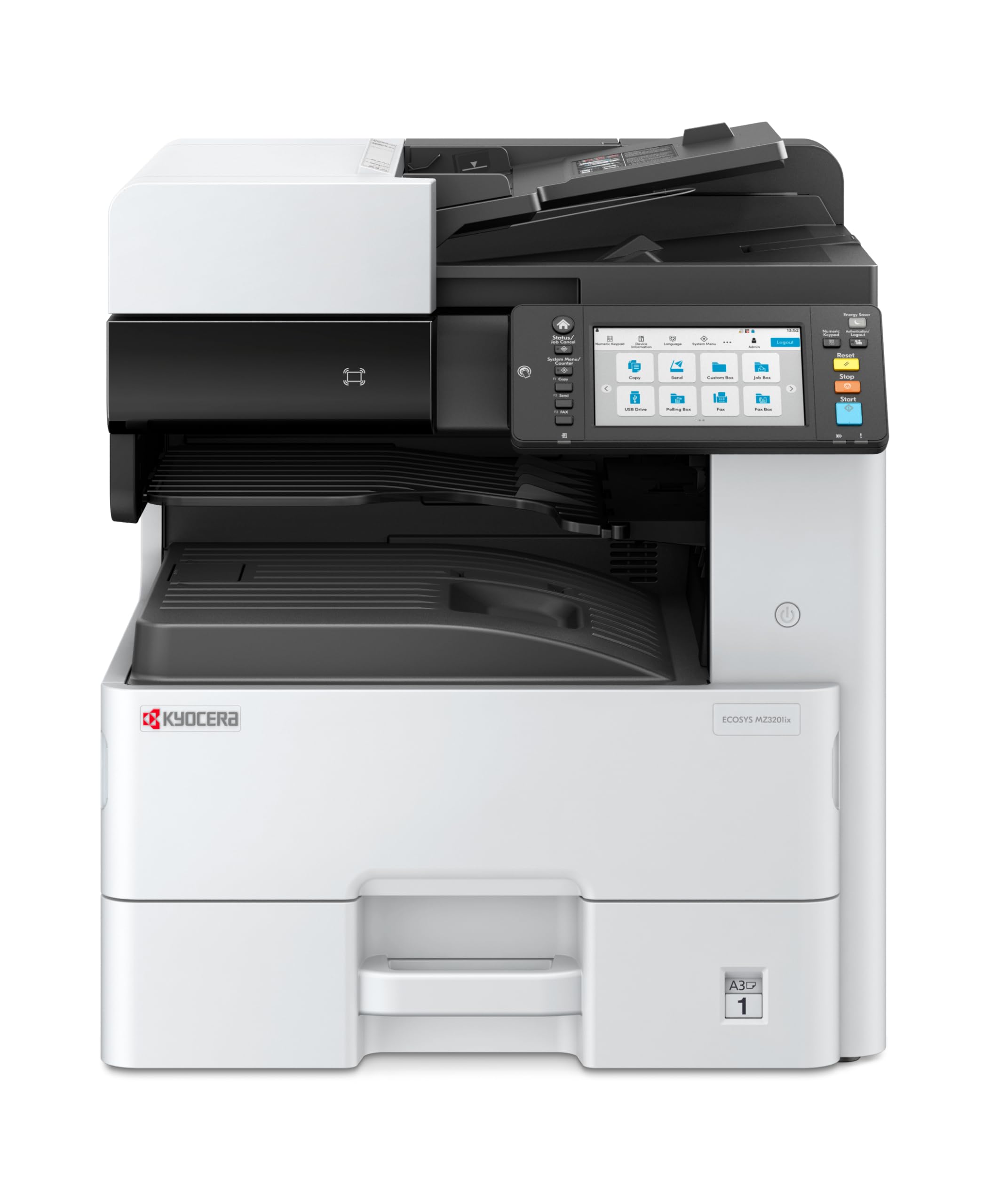
Image 1: Kyocera ECOSYS MZ3201ix A3 Laser Multifunction Printer. This image shows the front view of the printer, highlighting its compact design and the integrated touch screen panel.
5. Ntuziaka ọrụ
5.1 Mbipụta bụ isi
- Mepee akwụkwọ ịchọrọ ibipụta na kọmputa gị.
- Họrọ File > Bipụta.
- Choose the Kyocera ECOSYS MZ3201ix from the list of available printers.
- Hazie ntọala mbipụta (dịka ọmụmaatụ, ọnụọgụ nke mbipụta, nha akwụkwọ, mbipụta duplex) dịka ọ dị mkpa.
- Pịa Bipụta.
5.2 Iṅomi akwụkwọ
- Place the document face-down on the scanner glass or face-up in the Automatic Document Feeder (ADF).
- On the printer's touch screen, select the Detuo ọrụ.
- Adjust settings such as number of copies (up to 999), zoom, and paper type.
- Pịa Malite bọtịnụ ịmalite iṅomi.
5.3 Akwụkwọ nyocha
- Tinye akwụkwọ ahụ na iko nyocha ma ọ bụ na ADF.
- On the printer's touch screen, select the Nyochaa ọrụ.
- Choose your desired scan destination (e.g., Scan to PC, Scan to Email, Scan to USB).
- Configure scan settings such as resolution (up to 1200 x 1200 dpi), color mode, and file usoro.
- Pịa Malite bọtịnụ ịmalite nyocha.
5.4 Akwụkwọ fax
(Note: Fax functionality requires a telephone line connection, not detailed in this manual.)
- Tinye akwụkwọ ahụ na iko nyocha ma ọ bụ na ADF.
- On the printer's touch screen, select the Fax ọrụ.
- Jiri ahụ igodo tinye nọmba faksị nke onye nnata.
- Hazie ntọala fax ọ bụla dị mkpa.
- Pịa Malite bọtịnụ iji zipu fax.
6. Nlekọta
Ndozi mgbe niile na-eme ka arụ ọrụ kacha mma ma gbasaa ndụ nke ngwa nbipute gị.
6.1 Na-ehicha ngwa nbipute
- Mputa: Jiri nwayọ hichaa elu mpụta, damp, akwa na-enweghị lint. Ejila ihe nchacha abrasive ma ọ bụ ihe mgbaze.
- Igwe nyocha: Gently clean the scanner glass with a soft cloth and a non-abrasive glass cleaner.
- ADF Rollers: Jiri ákwà na-enweghị lint hichaa ihe ndị a na-akpọ ADF rollers mgbe niile.ampened with isopropyl alcohol to prevent paper jams.
6.2 Ịgbanwe Katrij Toner
- When the printer indicates low toner, order a new Kyocera toner cartridge.
- Mepee mkpuchi ihu nke ngwa nbipute.
- Remove the empty toner cartridge by pulling it out.
- Unpack the new toner cartridge and shake it gently to distribute the toner.
- Insert the new toner cartridge firmly into its slot until it clicks into place.
- Mechie mkpuchi ihu.
6.3 Replacing Waste Toner Container
- When the printer indicates the waste toner container is full, prepare a new one.
- Open the cover that provides access to the waste toner container.
- Carefully remove the full waste toner container. Seal it in a plastic bag for proper disposal.
- Insert the new waste toner container into its slot.
- Mechie mkpuchi.
7. Nchọpụta nsogbu
Akụkụ a na-ekwu maka nsogbu ndị na-ahụkarị ị nwere ike izute na ngwa nbipute gị.
7.1 Mpempe akwụkwọ
- Mgbaàmà: Printer stops, and an error message indicates a paper jam.
- Ngwọta: Turn off the printer. Open all covers and trays. Carefully remove any jammed paper, pulling in the direction of the paper path. Ensure no small pieces of paper remain. Close all covers and restart the printer.
7.2 Ogo Bipụta adịghị mma
- Mgbaàmà: Faded prints, streaks, or spots on pages.
- Ngwọta: Check toner level and replace if low. Perform a print head cleaning or calibration from the printer's maintenance menu. Ensure you are using appropriate paper for your print job.
7.3 ngwa nbipute anaghị azaghachi
- Mgbaàmà: Printer is online but does not print documents sent from the computer.
- Ngwọta: Check all cable connections (USB/Ethernet). Restart both the printer and your computer. Verify that the correct printer driver is installed and selected. Check the printer's network settings if connected via Ethernet.
7.4 Koodu mperi
If an error code appears on the touch screen, refer to the comprehensive user manual (available on the Kyocera website) for specific instructions related to that code. Many codes indicate specific issues like open covers, paper jams, or consumable replacement needs.
8. Nkọwapụta
| Njirimara | Nkọwapụta |
|---|---|
| Ụdị | Kyocera |
| Aha Nlereanya | ECOSYS MZ3201ix |
| Nọmba nlereanya | 110C2V3NL0 |
| Teknụzụ Njikọta | Ethernet, USB 2.0 |
| Teknụzụ obibi akwụkwọ | Laser |
| Atụmatụ pụrụ iche | Automatic Document Feeder, Auto-Duplex, Network Ready, Scan to Email, Touch Screen |
| Mmepụta ngwa nbipute | Monochrome |
| Max Print Speed Black & White | 32 Pages per minute (A4) |
| Ibu Ibu | 49 kilogram |
| Akụkụ ngwaahịa (DxWxH) | 58.5P x 59lx 68.8H cm |
| Max Print Resolution Black & White | 1200 x 1200 dpi |
| Mkpebi nyocha | 1200 x 1200 dpi |
| Duplex Printing | Akpaaka |
| Max Copy Count | 999 |
| Oge ọpụpụ ibe mbụ | 5.2 Sekọnd |
| Max Supported Paper Size | A3 |
| Oke ntinye akwụkwọ ikike | 1600 |
| Printing Media Type | Akwụkwọ dị larịị |
| Ọrụ | Copy, Fax, Scan, Print |
9. Akwụkwọ ikike na nkwado
Your Kyocera ECOSYS MZ3201ix printer comes with a standard manufacturer's warranty. For detailed information regarding warranty terms, duration, and coverage, please refer to the warranty card included with your product or visit the official Kyocera websaịtị.
Nkwado ndị ahịa:
If you encounter any issues that cannot be resolved using this manual or require technical assistance, please contact Kyocera customer support. You can find contact information on the Kyocera website or in the documentation provided with your printer.
When contacting support, please have your printer's model name (ECOSYS MZ3201ix) and serial number ready. The serial number is typically located on a label on the back or bottom of the printer.