
1. N'eluview
This manual provides essential information for setting up, operating, maintaining, and troubleshooting your INSIGNIA 85-inch Class QF Series QLED 4K UHD Smart Fire TV. This television offers a high-quality viewing experience with 4K UltraHD resolution, Quantum Dot Technology for enhanced color, and Direct LED Backlight for uniform brightness. It integrates the Fire TV Smart OS, providing access to various streaming services and features like the Voice Remote with Alexa. The design features a metal bezel-less display for a modern aesthetic.
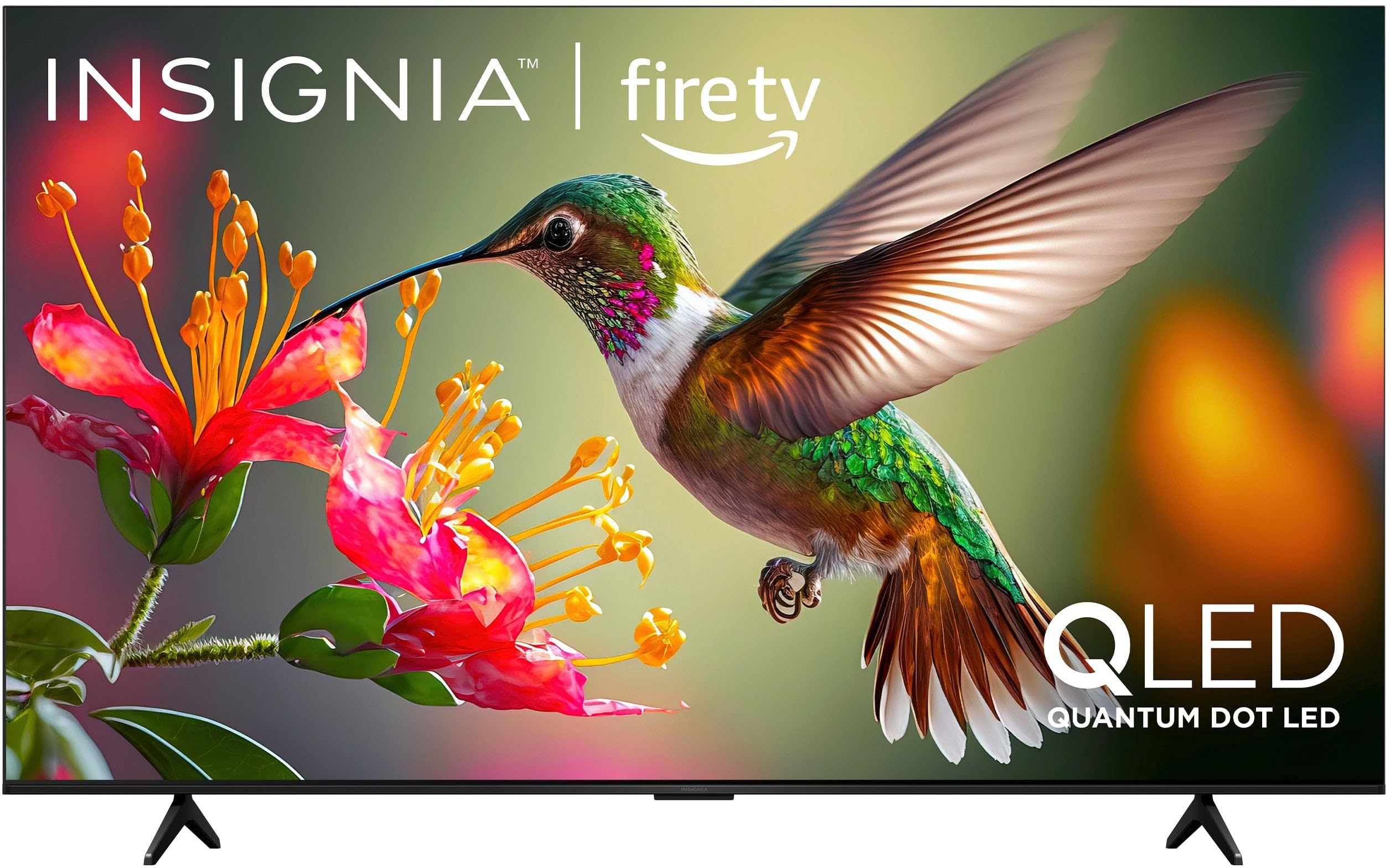
Foto 1.1: N'ihu view of the INSIGNIA 85-inch QF Series QLED 4K UHD Smart Fire TV.
2. Kedu ihe dị na Igbe ahụ
Nyochaa na akụrụngwa niile dị tupu ịmalite n'ịhazi:
- INSIGNIA 85-inch QF Series QLED 4K UHD Smart Fire TV
- Remote olu nwere Alexa
- Remote Control Batteries (2 AAA)
- Ntutu TV
- Kpọsara maka nkwụnye nkwụnye
- Ntuziaka nhazi ngwa ngwa (akwụkwọ a)
3. Nhazi
3.1. Installing the TV Stand
If you are not wall-mounting your TV, attach the included stand:
- Jiri nlezianya dobe TV ihu ala n'elu dị nro ma dị ọcha iji gbochie mmebi ihuenyo.
- Dozie ụkwụ kwụ ọtọ na oghere ndị ahụ nke dị na ala TV.
- Chekwaa ụkwụ kwụ ọtọ site na iji kposara enyere. Gbaa mbọ hụ na agbachiela ha nke ọma.
3.2. Ike mbụ na njikọ netwọkụ
- Jikọọ eriri ọkụ na TV wee banye na nkwụnye ọkụ.
- Pịa bọtịnụ ike na TV ma ọ bụ njikwa ime ka ịgbanwuo TV.
- Follow the on-screen instructions to select your language, connect to your Wi-Fi network, and sign in to your Amazon account.
3.3. Njikọta n'ime ime
Your Voice Remote with Alexa should pair automatically. If it does not, press and hold the Ụlọ button on the remote for 10 seconds until the LED indicator flashes blue, then release. The remote will attempt to pair.

Image 3.1: The Voice Remote with Alexa, used for controlling the TV and accessing smart features.
4. Ntuziaka ọrụ
4.1. Fire TV Smart OS Navigation
The Fire TV Smart OS provides a centralized hub for all your entertainment. Use the navigation buttons on your remote to browse:
- Ihuenyo ụlọ: Access recommended content, recently used apps, and various streaming services.
- Ngwa: Download and manage your favorite streaming applications.
- TV dị ndụ: Integrate live TV channels from supported services or an antenna.
- Ntọala: Adjust picture, sound, network, and device preferences.

Image 4.1: The Fire TV interface displaying a selection of streaming services and content.
4.2. Voice Remote with Alexa
Utilize the built-in Alexa voice assistant for hands-free control:
- Pịa ma jide microphone button na remote gị.
- Speak commands such as "Find action movies," "Launch Netflix," "Switch to HDMI 2," or "Show me the weather."
- Alexa can also control compatible smart home devices.
4.3. Ijikọ Mpụga Devices
Your TV is equipped with four HDMI inputs for connecting external devices:
- Connect gaming consoles, Blu-ray players, soundbars, or cable/satellite boxes to the HDMI ports.
- One HDMI port supports eARC for enhanced audio return channel functionality with compatible sound systems.
- Iji gbanwee ntinye, pịa bọtịnụ Ntinye button on your remote and select the desired source.

Image 4.2: Illustration of the TV's connectivity options, including HDMI ports.
4.4. Picture and Sound Enhancements
This TV features advanced technologies for an immersive experience:
- QLED (Quantum Dot LED): Delivers vibrant, lifelike colors and improved brightness.
- 4K UltraHD Resolution: Provides four times the detail of Full HD TVs.
- Ọhụụ Dolby & Dolby Atmos: Supports advanced HDR for enhanced contrast and accurate colors, along with immersive spatial audio.

Image 4.3: Visual representation of Dolby Vision and Dolby Atmos features, highlighting cinematic picture and immersive sound.
5. Nlekọta
5.1. Na-ehicha TV gị
Iji mee ka ọdịdị na arụmọrụ TV dị mma:
- Kwupuo TV mgbe niile tupu ihicha ya.
- Jiri ákwà dị nro, kpọrọ nkụ, nke na-enweghị lint hichaa ihuenyo na kabinet ahụ nke ọma.
- Maka akara ndị isi ike na ihuenyo, jiri obere dampen akwa na mmiri ma ọ bụ pụrụ iche ihuenyo Cleaner. Efesala mmiri mmiri ozugbo na ihuenyo.
- Zere iji ihe nchacha, waxes, ma ọ bụ ihe mgbaze.
5.2. Mmelite ngwanrọ
Your Fire TV automatically receives software updates to improve performance and add new features. Ensure your TV is connected to the internet to receive these updates. You can manually check for updates in the Settings menu.
6. Nchọpụta nsogbu
Ọ bụrụ na ị na-enwe nsogbu na TV gị, rụtụ aka na azịza ndị a na-ahụkarị:
| Nsogbu | Ngwọta |
|---|---|
| Enweghị ike | Gbaa mbọ hụ na etinyere eriri ọkụ na nke ọma na TV yana oghere eletrik na-arụ ọrụ. Gbalịa ụzọ ọpụpụ dị iche. |
| Enweghị foto, mana ụda dị | Lelee isi iyi ntinye. Pịa Ntinye button on the remote to cycle through inputs. Verify external devices are powered on and connected correctly. |
| Remote anaghị aza | Replace the AAA batteries in the remote. If the issue persists, re-pair the remote by holding the Ụlọ bọtịnụ maka 10 sekọnd. |
| Enweghị ike ijikọ na Wi-Fi | Ensure your Wi-Fi router is on and within range. Restart your router and TV. Check Wi-Fi settings in the TV's menu to ensure the correct network and password are entered. |
| Àgwà foto na-adịghị mma | Adjust picture settings (brightness, contrast, color) in the TV's menu. Ensure the content source is high-quality (e.g., 4K content for 4K resolution). |
| Enweghị ụda | Check the volume level and ensure the TV is not muted. Verify external audio devices (soundbar, receiver) are connected and configured correctly. |
7. Nkọwapụta
| Njirimara | Nkọwa |
|---|---|
| Aha Nlereanya | NS85-UQFL27 |
| Nha ihuenyo | 84.6 inches (85-inch class) |
| Ngosipụta teknụzụ | QLED (Quantum Dot LED) |
| Mkpebi | 4K Ultra HD (3840 x 2160) |
| Ọnụego ume ọhụrụ | 60 Hz |
| Sistemụ nrụọrụ | FireOS |
| Nkwado HDR | Dolby Vision |
| Teknụzụ ọdịyo | Dolby Atmos |
| Njikọta | Wi-Fi |
| Ntinye HDMI | 4 (including 1 eARC) |
| Atụmatụ pụrụ iche | Voice Remote with Alexa, Apple Airplay |
| Akụkụ ngwaahịa (D x W x H) | 2.5"D x 74.4"W x 42.8"H |
| Item Weight Without Stand | 64.6 pound |
| Ngwa gụnyere | Remote Control, Remote Control Battery, Screws, Stand |
| UPC | 600603325472 |
8. Akwụkwọ ikike & Nkwado
8.1. Akwụkwọ ikike Ozi
This INSIGNIA TV comes with a Akwụkwọ ikike nke afọ 1. For specific terms and conditions, please refer to the warranty card included with your product or visit the official INSIGNIA support websaịtị.
8.2. Nkwado ndị ahịa
If you require further assistance or encounter issues not covered in this manual, please contact INSIGNIA customer support. Contact information can typically be found on the manufacturer's websaịtị ma ọ bụ na nkwakọ ngwaahịa gị.