
Okwu mmalite
This manual provides essential information for the safe and efficient use of your Xiaomi 55-inch 4K UHD Smart Quantum MagiQ S Mini LED Google TV. Please read these instructions thoroughly before operating the device and retain them for future reference.
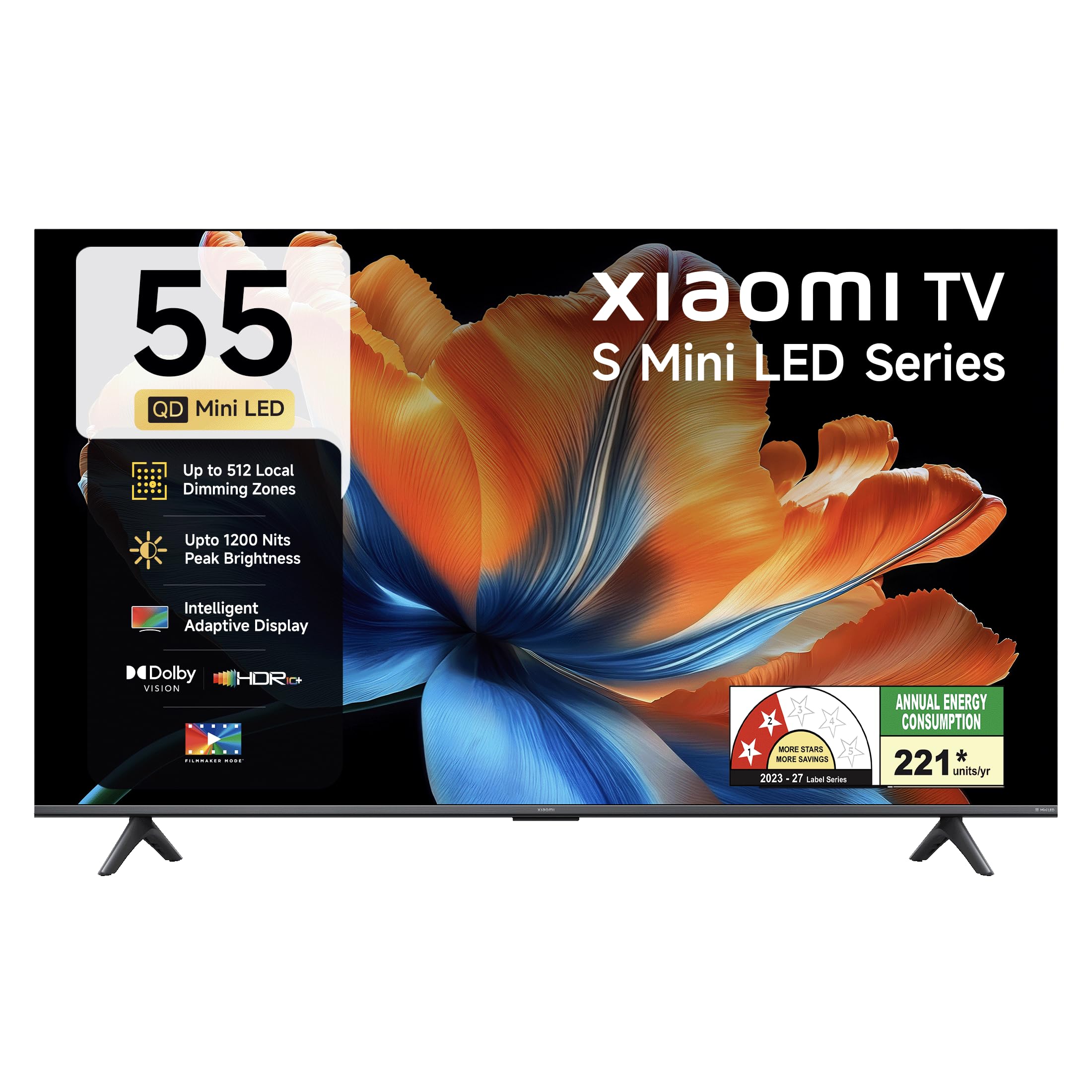
Foto: N'ihu view of the Xiaomi 55-inch 4K UHD Smart Quantum MagiQ S Mini LED Google TV, showcasing ya dị gịrịgịrị imewe bezel.
Ntuziaka nhazi
1. Unpacking and Included Components
Carefully remove all items from the packaging. Ensure all components listed below are present and undamaged.

Image: Contents of the product box, including the TV unit, remote control, user manual, two stand units, four screws, two AAA batteries, and a power cord.
- 1 LED TV nkeji
- 1 Ime Remote
- 1 Akwụkwọ ntuziaka onye ọrụ (akwụkwọ a)
- 2 Stand Units
- 4 Screws for stand installation
- 2 batrị AAA (maka njikwa anya)
- 1 eriri ike
2. Stand Installation or Wall Mounting
Your television supports both table-top stand installation and wall mounting. Choose the method suitable for your environment.
- For Stand Installation: Attach the two provided stand units to the bottom of the TV using the four screws. Ensure they are securely fastened.
- Maka ịgbanye mgbidi: Use a compatible VESA wall mount (sold separately). Follow the instructions provided with your wall mount kit. Ensure the wall can support the TV's weight.
3. Ijikọ Mpụga Devices
Connect your external devices such as set-top boxes, gaming consoles, or audio systems to the TV's ports.

Foto: N'azụ view of the TV highlighting connectivity ports: Optical, Earphone, AV In, 3 HDMI ports (one with eARC), 2 USB 2.0 ports, Antenna, and Ethernet.
- ọdụ ụgbọ mmiri HDMI (x3): Connect gaming consoles, Blu-ray players, or set-top boxes. One port supports eARC for enhanced audio return channel functionality.
- ọdụ ụgbọ mmiri USB (x2): Jikọọ ngwaọrụ nchekwa USB maka ịkpọghachi mgbasa ozi.
- Njikọ Ethernet: Maka njikọ ịntanetị ejikọrọ.
- Mmepụta anya: Maka ijikọ na sistemụ ọdịyo mpụga.
- AV n'ime: Maka ijikọ ngwaọrụ ochie site na iji vidiyo na ọdịyo stereo.
- Antenna: Maka ijikọ eriri ala ma ọ bụ eriri.
4. Ike mbido na ịtọlite
After connecting all necessary cables, plug the power cord into an electrical outlet. Press the power button on the remote control or the TV to turn it on. Follow the on-screen instructions for initial setup, which typically includes:
- Nhọrọ asụsụ
- Njikọ netwọkụ (Wi-Fi ma ọ bụ Ethernet)
- Nbanye akaụntụ Google
- Nyocha ọwa
Operating Your Xiaomi Smart TV
1. Ọrụ njikwa anya
The included remote control provides access to all TV functions. Insert the two AAA batteries into the remote control, ensuring correct polarity.

Image: Xiaomi remote control, featuring dedicated quick access buttons for popular streaming services and Google Assistant voice control.
- Bọtịnụ ike: Gbanyụọ ma ọ bụ gbanyụọ TV.
- bọtịnụ enyemaka Google: Na-eme ka njikwa olu rụọ ọrụ maka ịchọ ihe dị n'ime, ijikwa ngwaọrụ ụlọ smart, na ihe ndị ọzọ.
- Mpempe igodo ụzọ: A na-eji ya agagharị na menus ma họrọ ihe.
- Elu elu/ala: Na-edozi olu ọdịyo.
- Ọwa elu/ala: Na-agbanwe ọwa TV.
- Bọtịnụ nweta ngwa ngwa: Dedicated buttons for Netflix, Prime Video, YouTube, Disney+ Hotstar, SonyLIV, and Live TV.
- Oghere bọtịnụ: Na-eme ka ụda TV ghara ịdị jụụ.
2. Google TV Interface and Applications
Your TV runs on the Android 14 OS with Google TV, offering a personalized content experience. Access a wide range of applications from the Google Play Store.

Image: The PatchWall interface, providing customized content recommendations and curation from various streaming platforms.
- UI mbụ dị n'ime: Organizes content from all your streaming services in one place.
- Personal Profiles: Mepụta profiles for personalized recommendations.
- Ngwa akwadoro: Pre-installed and downloadable apps include Netflix, Prime Video, YouTube, Zee5, JioCinema, SonyLiv, and more.
- Onye enyemaka Google: Use voice commands for navigation, search, and smart home control.
3. Foto na Ntọala ụda
Bulite gị viewing and listening experience through various picture and sound modes.
Ntọala foto:
- Ụdị ihe nkiri: Disables post-processing effects to display content as intended by the director.
- Ọhụụ Dolby: Enhances HDR content with dynamic metadata for optimized image quality frame by frame.
- HDR10+: Uses dynamic data to enhance every frame, providing an immersive viewahụmahụ.
- Ụdị nkasi obi anya: Reduces blue light and flicker for a more comfortable viewahụmahụ.
- MEMC Engine: Motion Estimation, Motion Compensation technology for smoother motion in fast-paced scenes.
- AI Picture Optimization Engine: Advanced AI algorithms analyze content in real-time to enhance clarity, contrast, and color reproduction.

Image: Filmmaker Mode, designed to preserve original colors, contrast, and motion for an authentic cinematic experience.

Image: Dolby Vision technology, optimizing image quality with deeper blacks and brighter highlights.

Image: HDR10+ dynamic frame-by-frame tuning, ensuring consistent detail across dark and bright scenes.

Image: Eye Care Mode, providing flicker-free visuals with DC Dimming and reduced blue light for comfortable viewing.
Ntọala ọdịyo:
- 34 Watts mmepụta: Powerful built-in box speakers.
- Dolby Audio: Na-enye ụda bara ụba, doro anya ma dị ike.
- DTS-X na DTS Mebere:X: Na-enye ọdịyo imikpu, ọtụtụ akụkụ.
- Ụda Xiaomi: Preset audio configurations developed for optimal sound quality.

Image: Xiaomi Sound, offering tailored audio experiences through expert-developed configurations.
4. Connectivity and Streaming
Your TV offers versatile connectivity options for seamless streaming and device integration.
- Dual Band Wi-Fi: Connects to 2.4GHz and 5GHz wireless networks.
- Bluetooth: Connect wireless headphones, speakers, or other Bluetooth accessories.
- Google Cast Built-in: Stream content directly from compatible apps on your smartphone or tablet.
- Apple AirPlay 2: Mgbasa ọdịnaya sitere na ngwaọrụ Apple.
- Miracast: Mirror your Android device's screen wirelessly.

Image: Stream content from your phone using Google Cast or Apple AirPlay 2.
Nlekọta na nlekọta
Nlekọta kwesịrị ekwesị na-eme ka TV gị dị ogologo ndụ ma rụọ ọrụ nke ọma.
- Nchacha ihuenyo: Jiri nwayọ hichaa ihuenyo ahụ site na iji akwa dị nro na-enweghị lint. Maka akara isi ike, jiri ihe nchacha enyo enyo etinyere na akwa, ọ bụghị ozugbo na ihuenyo.
- Nhicha ahụ: Wipe the TV's frame and back panel with a soft, dry cloth. Avoid abrasive cleaners or solvents.
- Igwe ikuku: Gbaa mbọ hụ na ikuku ikuku zuru oke gburugburu TV. Akwụsịla oghere ikuku.
- Gbanyụọ: Always turn off the TV and unplug it from the power outlet before cleaning or if it will be unused for an extended period.
- Mmelite ngwanrọ: Periodically check for and install software updates to ensure optimal performance and security.
Ịchọpụta nsogbu ndị a na-ahụkarị
Refer to this section for solutions to common operational problems.
| Nsogbu | Ngwọta |
|---|---|
| TV anaghị agbanye | Ensure the power cord is securely plugged into both the TV and a working electrical outlet. Check if the power outlet is active. Try pressing the power button on the TV itself. |
| Enweghị foto, mana ụda dị | Check the input source. Ensure the connected device (e.g., set-top box) is turned on and functioning. Try a different HDMI cable or port. |
| Enweghị ụda, mana foto dị | Check the volume level and ensure the TV is not muted. Verify audio output settings (e.g., internal speakers, external sound system). Check audio cables for external devices. |
| Njikwa anya anaghị aza | Replace the AAA batteries in the remote control. Ensure there are no obstructions between the remote and the TV. Re-pair the Bluetooth remote if necessary (refer to TV settings). |
| Enweghị ike ijikọ na Wi-Fi | Ensure your Wi-Fi router is on and working. Re-enter the Wi-Fi password. Try restarting both the TV and the router. Check if other devices can connect to the Wi-Fi network. |
Nkọwa nka nka
Detailed specifications for the Xiaomi 55-inch 4K UHD Smart Quantum MagiQ S Mini LED Google TV (Model L55MC-IN).

Image: Physical dimensions and weight of the Xiaomi 55-inch TV, both with and without the stand.
| Njirimara | Nkọwapụta |
|---|---|
| Nọmba nlereanya | L55MC-IN |
| Nha ihuenyo | 55 sentimita (138 cm) |
| Ngosipụta teknụzụ | Obere LED |
| Mkpebi | 4K Ultra HD (3840 x 2160) |
| Ọnụego ume ọhụrụ | 60 Hz (DLG 120 Hz) |
| Ọnụ na-egbuke egbuke | Ruo 1200 Nits |
| Sistemụ nrụọrụ | Android 14 OS with Google TV |
| RAM | 2GB |
| ROM (Nchekwa dị n'ime) | 32 GB |
| Mpụta ụda | 34 Watt |
| Teknụzụ ọdịyo | Dolby Audio, DTS-X, DTS Virtual:X |
| Njikọta | Dual Band Wi-Fi, Bluetooth, 3 HDMI (1 eARC), 2 USB, Optical, Ethernet, AV In |
| Ngosipụta ihuenyo | Google Cast, Apple AirPlay 2, Miracast |
| Atụmatụ pụrụ iche | Filmmaker Mode, MEMC, Eye Comfort Mode, AI Picture Optimization Engine |
| Akụkụ ngwaahịa (D x W x H) | 31.2D x 31.2W x 76.9H Centimeters (with stand) |
| Item Weight Without Stand | 11.6 kilogram |
| Oriri ike | 230 Watt |
| Mba onye si | India |
Ozi akwụkwọ ikike
Your Xiaomi TV comes with a comprehensive warranty provided by the brand from the date of purchase.
- Akwụkwọ ikike ọkọlọtọ: 3-year comprehensive warranty for non-prebook customers (purchases between April 22nd - May 31st).
- Pre-book Customer Warranty: 4-year comprehensive warranty for pre-book customers (purchases between April 22nd - April 30th).
Warranty claims can be made using your Amazon invoice as proof of purchase. For detailed terms and conditions, please refer to the official Xiaomi warranty policy or contact customer support.
Nkwado ndị ahịa
For any assistance, service requests, or queries regarding your Xiaomi TV, please contact Xiaomi customer support.

Foto: Ofeview of Xiaomi's customer support commitments, including quick installation, prompt call-backs, and swift doorstep solutions.
- Ọrụ ntinye: New TV installations are typically completed within 3 hours of your appointment.
- Service Requests: Expect a call back from the support team within 60 minutes for any service request.
- On-site Support: Experts aim to arrive at your home within 24 hours of your service request.
Please visit the official Xiaomi India websaịtị ma ọ bụ gaa na ozi kọntaktị enyere na nkwakọ ngwaahịa gị maka nkọwa nkwado kachasị ọhụrụ.