
Okwu mmalite
Welcome to the VIBOX PC Gamer VTX-8 instruction manual. This guide provides essential information for setting up, operating, maintaining, and troubleshooting your new gaming computer. Please read this manual carefully to ensure optimal performance and longevity of your system.
The VIBOX VTX-8 is a high-performance gaming PC equipped with an AMD Ryzen 5 5500 processor, Nvidia RTX 5060 graphics card, 16GB of RAM, and a 1TB SSD, running on Windows 11 Home. It is designed to deliver an immersive gaming experience and handle demanding tasks with ease.

Image: The VIBOX PC Gamer VTX-8 desktop computer, showcasing its sleek white chassis and internal components.
Melite
1. Unboxing na mbụ ntinye
Carefully remove your VIBOX PC Gamer from its packaging. Ensure all accessories, including the power cable, USB Wi-Fi 6 AX900 and Bluetooth 5.4 adapter, and any included RGB lighting components, are present. Place the PC on a stable, flat surface with adequate ventilation around the chassis.
2. Njikọ Peripherals
Connect your monitor(s) to the graphics card's HDMI or DisplayPort outputs. Connect your keyboard and mouse to the available USB ports. Plug in any other peripherals such as a headset or external storage devices.
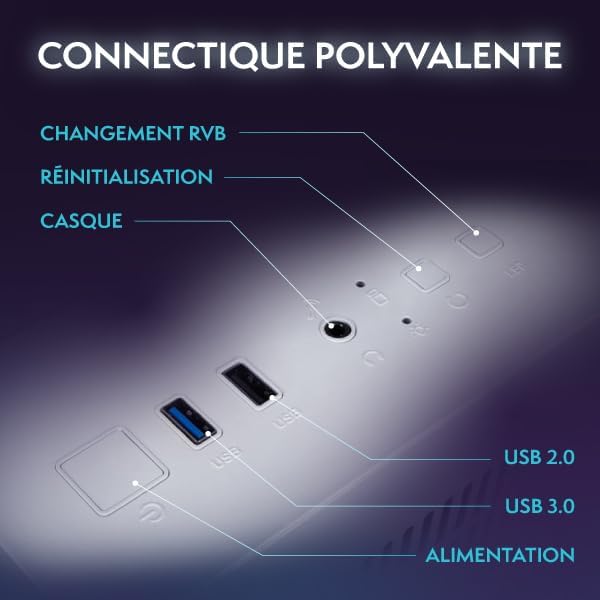
Foto: A nso nso view of the versatile connectivity ports on the VIBOX PC Gamer, including USB 2.0, USB 3.0, headset jack, reset button, and RGB change button.
3. Njikọ ike
Connect the power cable to the PC's power supply unit (PSU) and then to a wall outlet. Ensure the power switch on the PSU (if present) is in the 'ON' position.
4. Mbido Mbụ na Ntọala Windows 11
Press the power button on the front of the PC. The system will boot up, and you will be guided through the initial setup process for Windows 11 Home. Follow the on-screen instructions to configure your language, region, network, and user account.
Ịrụ ọrụ PC gị
1. Gbanyụọ / gbanyụọ ma malitegharịa
- Ike Na: Pịa bọtịnụ ike otu ugboro.
- Mechie: Pịa bọtịnụ Malite, wee pịa Power > Mechie.
- Malitegharịa: Pịa bọtịnụ Malite, wee pịa Ike > Malitegharịa ekwentị.
2. Windows 11 Home Features
Your VIBOX PC Gamer comes pre-installed with Windows 11 Home, optimized for gaming. Key features include:
- DirectStorage: Enables faster game load times.
- AutoHDR: Automatically enhances game graphics for compatible displays.
- Xbox Game Pass Integration: Seamless access to a library of games.
- Optimized CPU Performance: Enhanced performance for gaming and multitasking.

Image: An illustration highlighting the gaming-centric features of Windows 11 Home, including faster load times, AutoHDR, Xbox Game Pass integration, and optimized CPU performance.
3. Njikọ netwọkụ
Your PC includes a USB Wi-Fi 6 AX900 and Bluetooth 5.4 adapter for wireless connectivity. To connect to Wi-Fi, click the network icon in the taskbar, select your network, and enter the password. For Bluetooth devices, go to Settings > Bluetooth & devices to pair.
4. Ịgba egwu na Multimedia
The VIBOX VTX-8 is designed for gaming, photo editing, and video editing. Utilize the powerful Nvidia RTX 5060 graphics card and AMD Ryzen 5 5500 processor for demanding applications.
Nlekọta
1. Nhicha
Regularly clean the exterior of your PC with a soft, dry cloth. For internal components, use compressed air to remove dust from fans and heatsinks. Ensure the PC is powered off and unplugged before cleaning. Pay attention to the air intake and exhaust vents to maintain optimal airflow.
2. Mmelite ngwanrọ
Keep your Windows operating system and graphics drivers updated. Windows updates can be managed via Settings > Windows Update. Graphics drivers can be downloaded from the official NVIDIA websaịtị.
3. Ikuku na Oyi
The VTX-8 features an inverted airflow design and Hex RGB Infinity 120mm fans for efficient cooling. Ensure that the PC's vents are not obstructed to allow proper air circulation. Good airflow is crucial for maintaining system stability and performance, especially during intensive gaming sessions.
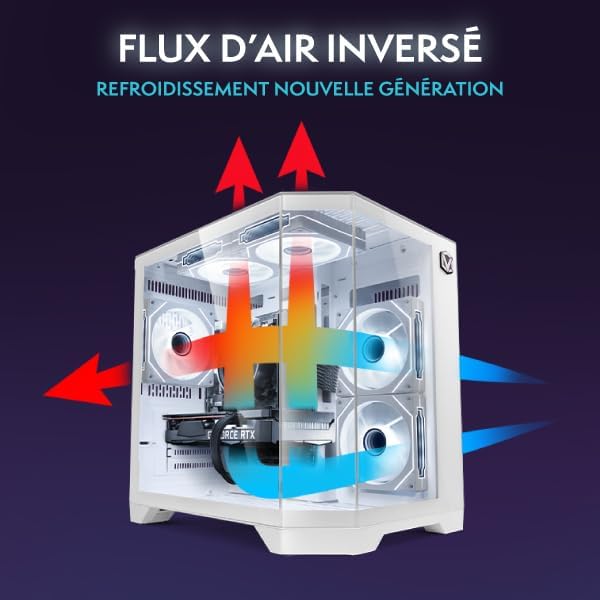
Image: A diagram illustrating the inverted airflow design of the VIBOX PC Gamer, showing how air is drawn in and expelled for next-generation cooling efficiency.

Image: A display of the Hex RGB Infinity 120mm fans, highlighting their customizable multiple colors and RGB modes for personalizing your setup.
Nchọpụta nsogbu
This section addresses common issues you might encounter with your VIBOX PC Gamer.
Enweghị ike
- Check if the power cable is securely connected to both the PC and the wall outlet.
- Ensure the power switch on the PSU is in the 'ON' position.
- Gbalịa nweta ike dị iche.
Enweghị Ngosipụta na Nyocha
- Verify that the monitor is powered on and correctly connected to the graphics card (not the motherboard's integrated graphics ports, if any).
- Check the input source on your monitor.
- Nwaa eriri ngosi ma ọ bụ ihe nlele dị iche ma ọ bụrụ na o kwere mee.
Performance Issues / Lag
- Ensure all drivers (especially graphics drivers) are up to date.
- Lelee maka ngwa ndabere na-eri akụrụngwa sistemụ.
- Monitor CPU and GPU temperatures to prevent thermal throttling. Ensure proper airflow and clean any dust buildup.
Windows Installation Issues (e.g., Bugs, Language Mix)
Some users have reported initial Windows installations being buggy or having mixed languages. If you experience this:
- Immediately run all available Windows Updates. Go to Settings > Windows Update and check for updates repeatedly until no more are found.
- Ensure your display language is correctly set in Settings > Time & Language > Language & Region.
- If issues persist, consider performing a clean reinstallation of Windows 11 Home using official Microsoft media creation tools. This can resolve deep-seated software conflicts.
Igwe mkpọtụ fan
A slight fan noise can be normal, especially under load. However, if you notice an unusual or loud noise from a specific fan:
- Check for any obstructions (cables, dust) that might be hitting the fan blades.
- Gbaa mbọ hụ na agbakwasara ndị fan na nchekwa.
- If the noise is persistent and disruptive, contact VIBOX support.
Nkọwapụta
| Akụkụ | Nkọwa |
|---|---|
| Aha Nlereanya | VTX-8 (V-506) |
| Nhazi | AMD Ryzen 5 5500 (6 Cores, 3.6 GHz base, up to 4.2 GHz max) |
| Kaadị eserese | Nvidia GeForce RTX 5060 (8GB GDDR7, HDMI 2.1, DisplayPort) |
| RAM | 16GB DDR4 (2666 MHz) |
| Nchekwa | 1TB SATA SSD |
| Sistemụ nrụọrụ | Windows 11 Ụlọ |
| Njikọ ikuku | USB Wi-Fi 6 AX900 & Bluetooth 5.4 (Dual-band support) |
| Njikọ ikuku | Ethernet, HDMI, DisplayPort, USB |
| Usoro jụrụ oyi | Air Cooling (Hex RGB Infinity 120mm Fans) |
| Designdị ikpe | 3-Panel Tempered Glass |
| Akụkụ (L x W x H) | 35 x 28 x 38 cm |
| Max Display Resolution | 3840x2160 |
| Ụdị nkwụnye ọkụ | Type C/EF (European/Hybrid FR-DE plug) |

Image: The VIBOX PC Gamer VTX-8 case with dimensions indicated: 29.5cm (depth), 22cm (width), 37.5cm (height), and 8cm (base height).
Ozi akwụkwọ ikike
Your VIBOX PC Gamer VTX-8 comes with a comprehensive warranty:
- Akụkụ: Afọ 2
- Ọrụ: Oge ndụ
Please retain your proof of purchase for warranty claims. The warranty covers manufacturing defects and hardware failures under normal use conditions. It does not cover damage caused by misuse, accidents, unauthorized modifications, or improper maintenance.
Nkwado
For technical assistance, warranty claims, or any questions regarding your VIBOX PC Gamer, please contact VIBOX Gaming customer support. You can typically find contact information on the VIBOX official websaịtị ma ọ bụ site na onye na-ere ahịa gị.
Maka akụrụngwa ndị ọzọ na ozi ngwaahịa, gaa na VIBOX Gaming Store on Amazon.